

Further Reading
The tvg-id values in the M3U must match the EPG source channel IDs. An M3U editor can fix mismatched IDs. See our EPG guide for detailed matching instructions.
Further Reading
EPG Not Matching Channels
The tvg-id values in the M3U must match the EPG source channel IDs. An M3U editor can fix mismatched IDs. See our EPG guide for detailed matching instructions.
Further Reading
The provider may have updated the playlist. Clear your app cache and reload the playlist. If category mapping is wrong, use an M3U editor to fix group-title values.
EPG Not Matching Channels
The tvg-id values in the M3U must match the EPG source channel IDs. An M3U editor can fix mismatched IDs. See our EPG guide for detailed matching instructions.
Further Reading
Channels Missing or Wrong Categories
The provider may have updated the playlist. Clear your app cache and reload the playlist. If category mapping is wrong, use an M3U editor to fix group-title values.
EPG Not Matching Channels
The tvg-id values in the M3U must match the EPG source channel IDs. An M3U editor can fix mismatched IDs. See our EPG guide for detailed matching instructions.
Further Reading
Check that the URL is correct and your internet connection works. Try opening the URL in a browser — if it downloads a file, the URL is valid. Some providers require you to use your IP address as authentication.
Channels Missing or Wrong Categories
The provider may have updated the playlist. Clear your app cache and reload the playlist. If category mapping is wrong, use an M3U editor to fix group-title values.
EPG Not Matching Channels
The tvg-id values in the M3U must match the EPG source channel IDs. An M3U editor can fix mismatched IDs. See our EPG guide for detailed matching instructions.
Further Reading
Playlist Not Loading
Check that the URL is correct and your internet connection works. Try opening the URL in a browser — if it downloads a file, the URL is valid. Some providers require you to use your IP address as authentication.
Channels Missing or Wrong Categories
The provider may have updated the playlist. Clear your app cache and reload the playlist. If category mapping is wrong, use an M3U editor to fix group-title values.
EPG Not Matching Channels
The tvg-id values in the M3U must match the EPG source channel IDs. An M3U editor can fix mismatched IDs. See our EPG guide for detailed matching instructions.
Further Reading
Common M3U Issues and Fixes
Playlist Not Loading
Check that the URL is correct and your internet connection works. Try opening the URL in a browser — if it downloads a file, the URL is valid. Some providers require you to use your IP address as authentication.
Channels Missing or Wrong Categories
The provider may have updated the playlist. Clear your app cache and reload the playlist. If category mapping is wrong, use an M3U editor to fix group-title values.
EPG Not Matching Channels
The tvg-id values in the M3U must match the EPG source channel IDs. An M3U editor can fix mismatched IDs. See our EPG guide for detailed matching instructions.
Further Reading
- M3U: Simple URL-based playlist, works in all IPTV apps, easy to share, no authentication built-in
- Xtream Codes: API-based system with username/password authentication, supports VOD and series categories, requires an app that supports the API
Common M3U Issues and Fixes
Playlist Not Loading
Check that the URL is correct and your internet connection works. Try opening the URL in a browser — if it downloads a file, the URL is valid. Some providers require you to use your IP address as authentication.
Channels Missing or Wrong Categories
The provider may have updated the playlist. Clear your app cache and reload the playlist. If category mapping is wrong, use an M3U editor to fix group-title values.
EPG Not Matching Channels
The tvg-id values in the M3U must match the EPG source channel IDs. An M3U editor can fix mismatched IDs. See our EPG guide for detailed matching instructions.
Further Reading
- M3U: Simple URL-based playlist, works in all IPTV apps, easy to share, no authentication built-in
- Xtream Codes: API-based system with username/password authentication, supports VOD and series categories, requires an app that supports the API
Common M3U Issues and Fixes
Playlist Not Loading
Check that the URL is correct and your internet connection works. Try opening the URL in a browser — if it downloads a file, the URL is valid. Some providers require you to use your IP address as authentication.
Channels Missing or Wrong Categories
The provider may have updated the playlist. Clear your app cache and reload the playlist. If category mapping is wrong, use an M3U editor to fix group-title values.
EPG Not Matching Channels
The tvg-id values in the M3U must match the EPG source channel IDs. An M3U editor can fix mismatched IDs. See our EPG guide for detailed matching instructions.
Further Reading
M3U vs Xtream Codes
- M3U: Simple URL-based playlist, works in all IPTV apps, easy to share, no authentication built-in
- Xtream Codes: API-based system with username/password authentication, supports VOD and series categories, requires an app that supports the API
Common M3U Issues and Fixes
Playlist Not Loading
Check that the URL is correct and your internet connection works. Try opening the URL in a browser — if it downloads a file, the URL is valid. Some providers require you to use your IP address as authentication.
Channels Missing or Wrong Categories
The provider may have updated the playlist. Clear your app cache and reload the playlist. If category mapping is wrong, use an M3U editor to fix group-title values.
EPG Not Matching Channels
The tvg-id values in the M3U must match the EPG source channel IDs. An M3U editor can fix mismatched IDs. See our EPG guide for detailed matching instructions.
Further Reading
- M3U4U: Free online M3U playlist creator and editor
- IPTV-Editor: Paid service with EPG integration, channel logo fixing, and category management
- Notepad++: Free text editor with syntax highlighting for M3U files
M3U vs Xtream Codes
- M3U: Simple URL-based playlist, works in all IPTV apps, easy to share, no authentication built-in
- Xtream Codes: API-based system with username/password authentication, supports VOD and series categories, requires an app that supports the API
Common M3U Issues and Fixes
Playlist Not Loading
Check that the URL is correct and your internet connection works. Try opening the URL in a browser — if it downloads a file, the URL is valid. Some providers require you to use your IP address as authentication.
Channels Missing or Wrong Categories
The provider may have updated the playlist. Clear your app cache and reload the playlist. If category mapping is wrong, use an M3U editor to fix group-title values.
EPG Not Matching Channels
The tvg-id values in the M3U must match the EPG source channel IDs. An M3U editor can fix mismatched IDs. See our EPG guide for detailed matching instructions.
Further Reading
M3U Playlist Generators and Editors
- M3U4U: Free online M3U playlist creator and editor
- IPTV-Editor: Paid service with EPG integration, channel logo fixing, and category management
- Notepad++: Free text editor with syntax highlighting for M3U files
M3U vs Xtream Codes
- M3U: Simple URL-based playlist, works in all IPTV apps, easy to share, no authentication built-in
- Xtream Codes: API-based system with username/password authentication, supports VOD and series categories, requires an app that supports the API
Common M3U Issues and Fixes
Playlist Not Loading
Check that the URL is correct and your internet connection works. Try opening the URL in a browser — if it downloads a file, the URL is valid. Some providers require you to use your IP address as authentication.
Channels Missing or Wrong Categories
The provider may have updated the playlist. Clear your app cache and reload the playlist. If category mapping is wrong, use an M3U editor to fix group-title values.
EPG Not Matching Channels
The tvg-id values in the M3U must match the EPG source channel IDs. An M3U editor can fix mismatched IDs. See our EPG guide for detailed matching instructions.
Further Reading
After editing, upload the file to a web server or use it locally in your IPTV player.
M3U Playlist Generators and Editors
- M3U4U: Free online M3U playlist creator and editor
- IPTV-Editor: Paid service with EPG integration, channel logo fixing, and category management
- Notepad++: Free text editor with syntax highlighting for M3U files
M3U vs Xtream Codes
- M3U: Simple URL-based playlist, works in all IPTV apps, easy to share, no authentication built-in
- Xtream Codes: API-based system with username/password authentication, supports VOD and series categories, requires an app that supports the API
Common M3U Issues and Fixes
Playlist Not Loading
Check that the URL is correct and your internet connection works. Try opening the URL in a browser — if it downloads a file, the URL is valid. Some providers require you to use your IP address as authentication.
Channels Missing or Wrong Categories
The provider may have updated the playlist. Clear your app cache and reload the playlist. If category mapping is wrong, use an M3U editor to fix group-title values.
EPG Not Matching Channels
The tvg-id values in the M3U must match the EPG source channel IDs. An M3U editor can fix mismatched IDs. See our EPG guide for detailed matching instructions.
Further Reading
You can edit M3U files with any text editor (Notepad, VS Code). Common edits include:
- Removing unwanted channels
- Renaming channels for clarity
- Reorganizing channel order
- Adding or changing group titles
- Fixing incorrect tvg-id values for EPG matching
After editing, upload the file to a web server or use it locally in your IPTV player.
M3U Playlist Generators and Editors
- M3U4U: Free online M3U playlist creator and editor
- IPTV-Editor: Paid service with EPG integration, channel logo fixing, and category management
- Notepad++: Free text editor with syntax highlighting for M3U files
M3U vs Xtream Codes
- M3U: Simple URL-based playlist, works in all IPTV apps, easy to share, no authentication built-in
- Xtream Codes: API-based system with username/password authentication, supports VOD and series categories, requires an app that supports the API
Common M3U Issues and Fixes
Playlist Not Loading
Check that the URL is correct and your internet connection works. Try opening the URL in a browser — if it downloads a file, the URL is valid. Some providers require you to use your IP address as authentication.
Channels Missing or Wrong Categories
The provider may have updated the playlist. Clear your app cache and reload the playlist. If category mapping is wrong, use an M3U editor to fix group-title values.
EPG Not Matching Channels
The tvg-id values in the M3U must match the EPG source channel IDs. An M3U editor can fix mismatched IDs. See our EPG guide for detailed matching instructions.
Further Reading
Editing an M3U Playlist
You can edit M3U files with any text editor (Notepad, VS Code). Common edits include:
- Removing unwanted channels
- Renaming channels for clarity
- Reorganizing channel order
- Adding or changing group titles
- Fixing incorrect tvg-id values for EPG matching
After editing, upload the file to a web server or use it locally in your IPTV player.
M3U Playlist Generators and Editors
- M3U4U: Free online M3U playlist creator and editor
- IPTV-Editor: Paid service with EPG integration, channel logo fixing, and category management
- Notepad++: Free text editor with syntax highlighting for M3U files
M3U vs Xtream Codes
- M3U: Simple URL-based playlist, works in all IPTV apps, easy to share, no authentication built-in
- Xtream Codes: API-based system with username/password authentication, supports VOD and series categories, requires an app that supports the API
Common M3U Issues and Fixes
Playlist Not Loading
Check that the URL is correct and your internet connection works. Try opening the URL in a browser — if it downloads a file, the URL is valid. Some providers require you to use your IP address as authentication.
Channels Missing or Wrong Categories
The provider may have updated the playlist. Clear your app cache and reload the playlist. If category mapping is wrong, use an M3U editor to fix group-title values.
EPG Not Matching Channels
The tvg-id values in the M3U must match the EPG source channel IDs. An M3U editor can fix mismatched IDs. See our EPG guide for detailed matching instructions.
Further Reading
- Get your M3U URL from your IPTV provider (usually in a welcome email or customer portal)
- Open your IPTV player app (TiviMate, IPTV Smarters, VLC, Kodi)
- Find the option to add a playlist or M3U URL
- Paste the URL into the field
- The app downloads and loads the channel list
- Configure the EPG if needed (see our EPG guide)
Editing an M3U Playlist
You can edit M3U files with any text editor (Notepad, VS Code). Common edits include:
- Removing unwanted channels
- Renaming channels for clarity
- Reorganizing channel order
- Adding or changing group titles
- Fixing incorrect tvg-id values for EPG matching
After editing, upload the file to a web server or use it locally in your IPTV player.
M3U Playlist Generators and Editors
- M3U4U: Free online M3U playlist creator and editor
- IPTV-Editor: Paid service with EPG integration, channel logo fixing, and category management
- Notepad++: Free text editor with syntax highlighting for M3U files
M3U vs Xtream Codes
- M3U: Simple URL-based playlist, works in all IPTV apps, easy to share, no authentication built-in
- Xtream Codes: API-based system with username/password authentication, supports VOD and series categories, requires an app that supports the API
Common M3U Issues and Fixes
Playlist Not Loading
Check that the URL is correct and your internet connection works. Try opening the URL in a browser — if it downloads a file, the URL is valid. Some providers require you to use your IP address as authentication.
Channels Missing or Wrong Categories
The provider may have updated the playlist. Clear your app cache and reload the playlist. If category mapping is wrong, use an M3U editor to fix group-title values.
EPG Not Matching Channels
The tvg-id values in the M3U must match the EPG source channel IDs. An M3U editor can fix mismatched IDs. See our EPG guide for detailed matching instructions.
Further Reading
How to Use an M3U Playlist
- Get your M3U URL from your IPTV provider (usually in a welcome email or customer portal)
- Open your IPTV player app (TiviMate, IPTV Smarters, VLC, Kodi)
- Find the option to add a playlist or M3U URL
- Paste the URL into the field
- The app downloads and loads the channel list
- Configure the EPG if needed (see our EPG guide)
Editing an M3U Playlist
You can edit M3U files with any text editor (Notepad, VS Code). Common edits include:
- Removing unwanted channels
- Renaming channels for clarity
- Reorganizing channel order
- Adding or changing group titles
- Fixing incorrect tvg-id values for EPG matching
After editing, upload the file to a web server or use it locally in your IPTV player.
M3U Playlist Generators and Editors
- M3U4U: Free online M3U playlist creator and editor
- IPTV-Editor: Paid service with EPG integration, channel logo fixing, and category management
- Notepad++: Free text editor with syntax highlighting for M3U files
M3U vs Xtream Codes
- M3U: Simple URL-based playlist, works in all IPTV apps, easy to share, no authentication built-in
- Xtream Codes: API-based system with username/password authentication, supports VOD and series categories, requires an app that supports the API
Common M3U Issues and Fixes
Playlist Not Loading
Check that the URL is correct and your internet connection works. Try opening the URL in a browser — if it downloads a file, the URL is valid. Some providers require you to use your IP address as authentication.
Channels Missing or Wrong Categories
The provider may have updated the playlist. Clear your app cache and reload the playlist. If category mapping is wrong, use an M3U editor to fix group-title values.
EPG Not Matching Channels
The tvg-id values in the M3U must match the EPG source channel IDs. An M3U editor can fix mismatched IDs. See our EPG guide for detailed matching instructions.
Further Reading
- M3U URL: Your IPTV provider gives you a web address (URL) that points to the playlist. The app fetches it automatically. This is the most common method.
- M3U File: A downloadable file you can edit locally. Useful for customizing channel lists before loading into a player.
How to Use an M3U Playlist
- Get your M3U URL from your IPTV provider (usually in a welcome email or customer portal)
- Open your IPTV player app (TiviMate, IPTV Smarters, VLC, Kodi)
- Find the option to add a playlist or M3U URL
- Paste the URL into the field
- The app downloads and loads the channel list
- Configure the EPG if needed (see our EPG guide)
Editing an M3U Playlist
You can edit M3U files with any text editor (Notepad, VS Code). Common edits include:
- Removing unwanted channels
- Renaming channels for clarity
- Reorganizing channel order
- Adding or changing group titles
- Fixing incorrect tvg-id values for EPG matching
After editing, upload the file to a web server or use it locally in your IPTV player.
M3U Playlist Generators and Editors
- M3U4U: Free online M3U playlist creator and editor
- IPTV-Editor: Paid service with EPG integration, channel logo fixing, and category management
- Notepad++: Free text editor with syntax highlighting for M3U files
M3U vs Xtream Codes
- M3U: Simple URL-based playlist, works in all IPTV apps, easy to share, no authentication built-in
- Xtream Codes: API-based system with username/password authentication, supports VOD and series categories, requires an app that supports the API
Common M3U Issues and Fixes
Playlist Not Loading
Check that the URL is correct and your internet connection works. Try opening the URL in a browser — if it downloads a file, the URL is valid. Some providers require you to use your IP address as authentication.
Channels Missing or Wrong Categories
The provider may have updated the playlist. Clear your app cache and reload the playlist. If category mapping is wrong, use an M3U editor to fix group-title values.
EPG Not Matching Channels
The tvg-id values in the M3U must match the EPG source channel IDs. An M3U editor can fix mismatched IDs. See our EPG guide for detailed matching instructions.
Further Reading
M3U URL vs M3U File
- M3U URL: Your IPTV provider gives you a web address (URL) that points to the playlist. The app fetches it automatically. This is the most common method.
- M3U File: A downloadable file you can edit locally. Useful for customizing channel lists before loading into a player.
How to Use an M3U Playlist
- Get your M3U URL from your IPTV provider (usually in a welcome email or customer portal)
- Open your IPTV player app (TiviMate, IPTV Smarters, VLC, Kodi)
- Find the option to add a playlist or M3U URL
- Paste the URL into the field
- The app downloads and loads the channel list
- Configure the EPG if needed (see our EPG guide)
Editing an M3U Playlist
You can edit M3U files with any text editor (Notepad, VS Code). Common edits include:
- Removing unwanted channels
- Renaming channels for clarity
- Reorganizing channel order
- Adding or changing group titles
- Fixing incorrect tvg-id values for EPG matching
After editing, upload the file to a web server or use it locally in your IPTV player.
M3U Playlist Generators and Editors
- M3U4U: Free online M3U playlist creator and editor
- IPTV-Editor: Paid service with EPG integration, channel logo fixing, and category management
- Notepad++: Free text editor with syntax highlighting for M3U files
M3U vs Xtream Codes
- M3U: Simple URL-based playlist, works in all IPTV apps, easy to share, no authentication built-in
- Xtream Codes: API-based system with username/password authentication, supports VOD and series categories, requires an app that supports the API
Common M3U Issues and Fixes
Playlist Not Loading
Check that the URL is correct and your internet connection works. Try opening the URL in a browser — if it downloads a file, the URL is valid. Some providers require you to use your IP address as authentication.
Channels Missing or Wrong Categories
The provider may have updated the playlist. Clear your app cache and reload the playlist. If category mapping is wrong, use an M3U editor to fix group-title values.
EPG Not Matching Channels
The tvg-id values in the M3U must match the EPG source channel IDs. An M3U editor can fix mismatched IDs. See our EPG guide for detailed matching instructions.
Further Reading
- #EXTM3U: File header indicating this is an M3U playlist
- #EXTINF: Channel information line — includes duration (-1 = live), channel ID, name, logo URL, and group/category
- tvg-id: Unique channel identifier used for EPG matching
- tvg-name: Channel name displayed in the player
- tvg-logo: URL to the channel logo image
- group-title: Category name for organizing channels
- Stream URL: The actual HTTP streaming URL (usually .m3u8 for HLS or .ts for MPEG-TS)
M3U URL vs M3U File
- M3U URL: Your IPTV provider gives you a web address (URL) that points to the playlist. The app fetches it automatically. This is the most common method.
- M3U File: A downloadable file you can edit locally. Useful for customizing channel lists before loading into a player.
How to Use an M3U Playlist
- Get your M3U URL from your IPTV provider (usually in a welcome email or customer portal)
- Open your IPTV player app (TiviMate, IPTV Smarters, VLC, Kodi)
- Find the option to add a playlist or M3U URL
- Paste the URL into the field
- The app downloads and loads the channel list
- Configure the EPG if needed (see our EPG guide)
Editing an M3U Playlist
You can edit M3U files with any text editor (Notepad, VS Code). Common edits include:
- Removing unwanted channels
- Renaming channels for clarity
- Reorganizing channel order
- Adding or changing group titles
- Fixing incorrect tvg-id values for EPG matching
After editing, upload the file to a web server or use it locally in your IPTV player.
M3U Playlist Generators and Editors
- M3U4U: Free online M3U playlist creator and editor
- IPTV-Editor: Paid service with EPG integration, channel logo fixing, and category management
- Notepad++: Free text editor with syntax highlighting for M3U files
M3U vs Xtream Codes
- M3U: Simple URL-based playlist, works in all IPTV apps, easy to share, no authentication built-in
- Xtream Codes: API-based system with username/password authentication, supports VOD and series categories, requires an app that supports the API
Common M3U Issues and Fixes
Playlist Not Loading
Check that the URL is correct and your internet connection works. Try opening the URL in a browser — if it downloads a file, the URL is valid. Some providers require you to use your IP address as authentication.
Channels Missing or Wrong Categories
The provider may have updated the playlist. Clear your app cache and reload the playlist. If category mapping is wrong, use an M3U editor to fix group-title values.
EPG Not Matching Channels
The tvg-id values in the M3U must match the EPG source channel IDs. An M3U editor can fix mismatched IDs. See our EPG guide for detailed matching instructions.
Further Reading
Understanding the M3U Tags
- #EXTM3U: File header indicating this is an M3U playlist
- #EXTINF: Channel information line — includes duration (-1 = live), channel ID, name, logo URL, and group/category
- tvg-id: Unique channel identifier used for EPG matching
- tvg-name: Channel name displayed in the player
- tvg-logo: URL to the channel logo image
- group-title: Category name for organizing channels
- Stream URL: The actual HTTP streaming URL (usually .m3u8 for HLS or .ts for MPEG-TS)
M3U URL vs M3U File
- M3U URL: Your IPTV provider gives you a web address (URL) that points to the playlist. The app fetches it automatically. This is the most common method.
- M3U File: A downloadable file you can edit locally. Useful for customizing channel lists before loading into a player.
How to Use an M3U Playlist
- Get your M3U URL from your IPTV provider (usually in a welcome email or customer portal)
- Open your IPTV player app (TiviMate, IPTV Smarters, VLC, Kodi)
- Find the option to add a playlist or M3U URL
- Paste the URL into the field
- The app downloads and loads the channel list
- Configure the EPG if needed (see our EPG guide)
Editing an M3U Playlist
You can edit M3U files with any text editor (Notepad, VS Code). Common edits include:
- Removing unwanted channels
- Renaming channels for clarity
- Reorganizing channel order
- Adding or changing group titles
- Fixing incorrect tvg-id values for EPG matching
After editing, upload the file to a web server or use it locally in your IPTV player.
M3U Playlist Generators and Editors
- M3U4U: Free online M3U playlist creator and editor
- IPTV-Editor: Paid service with EPG integration, channel logo fixing, and category management
- Notepad++: Free text editor with syntax highlighting for M3U files
M3U vs Xtream Codes
- M3U: Simple URL-based playlist, works in all IPTV apps, easy to share, no authentication built-in
- Xtream Codes: API-based system with username/password authentication, supports VOD and series categories, requires an app that supports the API
Common M3U Issues and Fixes
Playlist Not Loading
Check that the URL is correct and your internet connection works. Try opening the URL in a browser — if it downloads a file, the URL is valid. Some providers require you to use your IP address as authentication.
Channels Missing or Wrong Categories
The provider may have updated the playlist. Clear your app cache and reload the playlist. If category mapping is wrong, use an M3U editor to fix group-title values.
EPG Not Matching Channels
The tvg-id values in the M3U must match the EPG source channel IDs. An M3U editor can fix mismatched IDs. See our EPG guide for detailed matching instructions.
Further Reading
#EXTM3U
#EXTINF:-1 tvg-id="bbc1" tvg-name="BBC One" tvg-logo="http://example.com/logo.png" group-title="UK",BBC One
http://stream-provider.com/bbc1/playlist.m3u8
#EXTINF:-1 tvg-id="cnn" tvg-name="CNN" tvg-logo="http://example.com/cnn.png" group-title="News",CNN
http://stream-provider.com/cnn/playlist.m3u8
!–
Understanding the M3U Tags
- #EXTM3U: File header indicating this is an M3U playlist
- #EXTINF: Channel information line — includes duration (-1 = live), channel ID, name, logo URL, and group/category
- tvg-id: Unique channel identifier used for EPG matching
- tvg-name: Channel name displayed in the player
- tvg-logo: URL to the channel logo image
- group-title: Category name for organizing channels
- Stream URL: The actual HTTP streaming URL (usually .m3u8 for HLS or .ts for MPEG-TS)
M3U URL vs M3U File
- M3U URL: Your IPTV provider gives you a web address (URL) that points to the playlist. The app fetches it automatically. This is the most common method.
- M3U File: A downloadable file you can edit locally. Useful for customizing channel lists before loading into a player.
How to Use an M3U Playlist
- Get your M3U URL from your IPTV provider (usually in a welcome email or customer portal)
- Open your IPTV player app (TiviMate, IPTV Smarters, VLC, Kodi)
- Find the option to add a playlist or M3U URL
- Paste the URL into the field
- The app downloads and loads the channel list
- Configure the EPG if needed (see our EPG guide)
Editing an M3U Playlist
You can edit M3U files with any text editor (Notepad, VS Code). Common edits include:
- Removing unwanted channels
- Renaming channels for clarity
- Reorganizing channel order
- Adding or changing group titles
- Fixing incorrect tvg-id values for EPG matching
After editing, upload the file to a web server or use it locally in your IPTV player.
M3U Playlist Generators and Editors
- M3U4U: Free online M3U playlist creator and editor
- IPTV-Editor: Paid service with EPG integration, channel logo fixing, and category management
- Notepad++: Free text editor with syntax highlighting for M3U files
M3U vs Xtream Codes
- M3U: Simple URL-based playlist, works in all IPTV apps, easy to share, no authentication built-in
- Xtream Codes: API-based system with username/password authentication, supports VOD and series categories, requires an app that supports the API
Common M3U Issues and Fixes
Playlist Not Loading
Check that the URL is correct and your internet connection works. Try opening the URL in a browser — if it downloads a file, the URL is valid. Some providers require you to use your IP address as authentication.
Channels Missing or Wrong Categories
The provider may have updated the playlist. Clear your app cache and reload the playlist. If category mapping is wrong, use an M3U editor to fix group-title values.
EPG Not Matching Channels
The tvg-id values in the M3U must match the EPG source channel IDs. An M3U editor can fix mismatched IDs. See our EPG guide for detailed matching instructions.
Further Reading
A typical IPTV M3U file looks like this:
#EXTM3U
#EXTINF:-1 tvg-id="bbc1" tvg-name="BBC One" tvg-logo="http://example.com/logo.png" group-title="UK",BBC One
http://stream-provider.com/bbc1/playlist.m3u8
#EXTINF:-1 tvg-id="cnn" tvg-name="CNN" tvg-logo="http://example.com/cnn.png" group-title="News",CNN
http://stream-provider.com/cnn/playlist.m3u8
!–
Understanding the M3U Tags
- #EXTM3U: File header indicating this is an M3U playlist
- #EXTINF: Channel information line — includes duration (-1 = live), channel ID, name, logo URL, and group/category
- tvg-id: Unique channel identifier used for EPG matching
- tvg-name: Channel name displayed in the player
- tvg-logo: URL to the channel logo image
- group-title: Category name for organizing channels
- Stream URL: The actual HTTP streaming URL (usually .m3u8 for HLS or .ts for MPEG-TS)
M3U URL vs M3U File
- M3U URL: Your IPTV provider gives you a web address (URL) that points to the playlist. The app fetches it automatically. This is the most common method.
- M3U File: A downloadable file you can edit locally. Useful for customizing channel lists before loading into a player.
How to Use an M3U Playlist
- Get your M3U URL from your IPTV provider (usually in a welcome email or customer portal)
- Open your IPTV player app (TiviMate, IPTV Smarters, VLC, Kodi)
- Find the option to add a playlist or M3U URL
- Paste the URL into the field
- The app downloads and loads the channel list
- Configure the EPG if needed (see our EPG guide)
Editing an M3U Playlist
You can edit M3U files with any text editor (Notepad, VS Code). Common edits include:
- Removing unwanted channels
- Renaming channels for clarity
- Reorganizing channel order
- Adding or changing group titles
- Fixing incorrect tvg-id values for EPG matching
After editing, upload the file to a web server or use it locally in your IPTV player.
M3U Playlist Generators and Editors
- M3U4U: Free online M3U playlist creator and editor
- IPTV-Editor: Paid service with EPG integration, channel logo fixing, and category management
- Notepad++: Free text editor with syntax highlighting for M3U files
M3U vs Xtream Codes
- M3U: Simple URL-based playlist, works in all IPTV apps, easy to share, no authentication built-in
- Xtream Codes: API-based system with username/password authentication, supports VOD and series categories, requires an app that supports the API
Common M3U Issues and Fixes
Playlist Not Loading
Check that the URL is correct and your internet connection works. Try opening the URL in a browser — if it downloads a file, the URL is valid. Some providers require you to use your IP address as authentication.
Channels Missing or Wrong Categories
The provider may have updated the playlist. Clear your app cache and reload the playlist. If category mapping is wrong, use an M3U editor to fix group-title values.
EPG Not Matching Channels
The tvg-id values in the M3U must match the EPG source channel IDs. An M3U editor can fix mismatched IDs. See our EPG guide for detailed matching instructions.
Further Reading
M3U File Structure
A typical IPTV M3U file looks like this:
#EXTM3U
#EXTINF:-1 tvg-id="bbc1" tvg-name="BBC One" tvg-logo="http://example.com/logo.png" group-title="UK",BBC One
http://stream-provider.com/bbc1/playlist.m3u8
#EXTINF:-1 tvg-id="cnn" tvg-name="CNN" tvg-logo="http://example.com/cnn.png" group-title="News",CNN
http://stream-provider.com/cnn/playlist.m3u8
!–
Understanding the M3U Tags
- #EXTM3U: File header indicating this is an M3U playlist
- #EXTINF: Channel information line — includes duration (-1 = live), channel ID, name, logo URL, and group/category
- tvg-id: Unique channel identifier used for EPG matching
- tvg-name: Channel name displayed in the player
- tvg-logo: URL to the channel logo image
- group-title: Category name for organizing channels
- Stream URL: The actual HTTP streaming URL (usually .m3u8 for HLS or .ts for MPEG-TS)
M3U URL vs M3U File
- M3U URL: Your IPTV provider gives you a web address (URL) that points to the playlist. The app fetches it automatically. This is the most common method.
- M3U File: A downloadable file you can edit locally. Useful for customizing channel lists before loading into a player.
How to Use an M3U Playlist
- Get your M3U URL from your IPTV provider (usually in a welcome email or customer portal)
- Open your IPTV player app (TiviMate, IPTV Smarters, VLC, Kodi)
- Find the option to add a playlist or M3U URL
- Paste the URL into the field
- The app downloads and loads the channel list
- Configure the EPG if needed (see our EPG guide)
Editing an M3U Playlist
You can edit M3U files with any text editor (Notepad, VS Code). Common edits include:
- Removing unwanted channels
- Renaming channels for clarity
- Reorganizing channel order
- Adding or changing group titles
- Fixing incorrect tvg-id values for EPG matching
After editing, upload the file to a web server or use it locally in your IPTV player.
M3U Playlist Generators and Editors
- M3U4U: Free online M3U playlist creator and editor
- IPTV-Editor: Paid service with EPG integration, channel logo fixing, and category management
- Notepad++: Free text editor with syntax highlighting for M3U files
M3U vs Xtream Codes
- M3U: Simple URL-based playlist, works in all IPTV apps, easy to share, no authentication built-in
- Xtream Codes: API-based system with username/password authentication, supports VOD and series categories, requires an app that supports the API
Common M3U Issues and Fixes
Playlist Not Loading
Check that the URL is correct and your internet connection works. Try opening the URL in a browser — if it downloads a file, the URL is valid. Some providers require you to use your IP address as authentication.
Channels Missing or Wrong Categories
The provider may have updated the playlist. Clear your app cache and reload the playlist. If category mapping is wrong, use an M3U editor to fix group-title values.
EPG Not Matching Channels
The tvg-id values in the M3U must match the EPG source channel IDs. An M3U editor can fix mismatched IDs. See our EPG guide for detailed matching instructions.
Further Reading
M3U is a file format originally developed for audio playlists. In IPTV, an M3U file contains a list of channel names and their streaming URLs. When you load an M3U playlist into an IPTV player app, the app reads the file and populates the channel list with the names and stream addresses.
M3U File Structure
A typical IPTV M3U file looks like this:
#EXTM3U
#EXTINF:-1 tvg-id="bbc1" tvg-name="BBC One" tvg-logo="http://example.com/logo.png" group-title="UK",BBC One
http://stream-provider.com/bbc1/playlist.m3u8
#EXTINF:-1 tvg-id="cnn" tvg-name="CNN" tvg-logo="http://example.com/cnn.png" group-title="News",CNN
http://stream-provider.com/cnn/playlist.m3u8
!–
Understanding the M3U Tags
- #EXTM3U: File header indicating this is an M3U playlist
- #EXTINF: Channel information line — includes duration (-1 = live), channel ID, name, logo URL, and group/category
- tvg-id: Unique channel identifier used for EPG matching
- tvg-name: Channel name displayed in the player
- tvg-logo: URL to the channel logo image
- group-title: Category name for organizing channels
- Stream URL: The actual HTTP streaming URL (usually .m3u8 for HLS or .ts for MPEG-TS)
M3U URL vs M3U File
- M3U URL: Your IPTV provider gives you a web address (URL) that points to the playlist. The app fetches it automatically. This is the most common method.
- M3U File: A downloadable file you can edit locally. Useful for customizing channel lists before loading into a player.
How to Use an M3U Playlist
- Get your M3U URL from your IPTV provider (usually in a welcome email or customer portal)
- Open your IPTV player app (TiviMate, IPTV Smarters, VLC, Kodi)
- Find the option to add a playlist or M3U URL
- Paste the URL into the field
- The app downloads and loads the channel list
- Configure the EPG if needed (see our EPG guide)
Editing an M3U Playlist
You can edit M3U files with any text editor (Notepad, VS Code). Common edits include:
- Removing unwanted channels
- Renaming channels for clarity
- Reorganizing channel order
- Adding or changing group titles
- Fixing incorrect tvg-id values for EPG matching
After editing, upload the file to a web server or use it locally in your IPTV player.
M3U Playlist Generators and Editors
- M3U4U: Free online M3U playlist creator and editor
- IPTV-Editor: Paid service with EPG integration, channel logo fixing, and category management
- Notepad++: Free text editor with syntax highlighting for M3U files
M3U vs Xtream Codes
- M3U: Simple URL-based playlist, works in all IPTV apps, easy to share, no authentication built-in
- Xtream Codes: API-based system with username/password authentication, supports VOD and series categories, requires an app that supports the API
Common M3U Issues and Fixes
Playlist Not Loading
Check that the URL is correct and your internet connection works. Try opening the URL in a browser — if it downloads a file, the URL is valid. Some providers require you to use your IP address as authentication.
Channels Missing or Wrong Categories
The provider may have updated the playlist. Clear your app cache and reload the playlist. If category mapping is wrong, use an M3U editor to fix group-title values.
EPG Not Matching Channels
The tvg-id values in the M3U must match the EPG source channel IDs. An M3U editor can fix mismatched IDs. See our EPG guide for detailed matching instructions.
Further Reading
What Is an M3U Playlist?
M3U is a file format originally developed for audio playlists. In IPTV, an M3U file contains a list of channel names and their streaming URLs. When you load an M3U playlist into an IPTV player app, the app reads the file and populates the channel list with the names and stream addresses.
M3U File Structure
A typical IPTV M3U file looks like this:
#EXTM3U
#EXTINF:-1 tvg-id="bbc1" tvg-name="BBC One" tvg-logo="http://example.com/logo.png" group-title="UK",BBC One
http://stream-provider.com/bbc1/playlist.m3u8
#EXTINF:-1 tvg-id="cnn" tvg-name="CNN" tvg-logo="http://example.com/cnn.png" group-title="News",CNN
http://stream-provider.com/cnn/playlist.m3u8
!–
Understanding the M3U Tags
- #EXTM3U: File header indicating this is an M3U playlist
- #EXTINF: Channel information line — includes duration (-1 = live), channel ID, name, logo URL, and group/category
- tvg-id: Unique channel identifier used for EPG matching
- tvg-name: Channel name displayed in the player
- tvg-logo: URL to the channel logo image
- group-title: Category name for organizing channels
- Stream URL: The actual HTTP streaming URL (usually .m3u8 for HLS or .ts for MPEG-TS)
M3U URL vs M3U File
- M3U URL: Your IPTV provider gives you a web address (URL) that points to the playlist. The app fetches it automatically. This is the most common method.
- M3U File: A downloadable file you can edit locally. Useful for customizing channel lists before loading into a player.
How to Use an M3U Playlist
- Get your M3U URL from your IPTV provider (usually in a welcome email or customer portal)
- Open your IPTV player app (TiviMate, IPTV Smarters, VLC, Kodi)
- Find the option to add a playlist or M3U URL
- Paste the URL into the field
- The app downloads and loads the channel list
- Configure the EPG if needed (see our EPG guide)
Editing an M3U Playlist
You can edit M3U files with any text editor (Notepad, VS Code). Common edits include:
- Removing unwanted channels
- Renaming channels for clarity
- Reorganizing channel order
- Adding or changing group titles
- Fixing incorrect tvg-id values for EPG matching
After editing, upload the file to a web server or use it locally in your IPTV player.
M3U Playlist Generators and Editors
- M3U4U: Free online M3U playlist creator and editor
- IPTV-Editor: Paid service with EPG integration, channel logo fixing, and category management
- Notepad++: Free text editor with syntax highlighting for M3U files
M3U vs Xtream Codes
- M3U: Simple URL-based playlist, works in all IPTV apps, easy to share, no authentication built-in
- Xtream Codes: API-based system with username/password authentication, supports VOD and series categories, requires an app that supports the API
Common M3U Issues and Fixes
Playlist Not Loading
Check that the URL is correct and your internet connection works. Try opening the URL in a browser — if it downloads a file, the URL is valid. Some providers require you to use your IP address as authentication.
Channels Missing or Wrong Categories
The provider may have updated the playlist. Clear your app cache and reload the playlist. If category mapping is wrong, use an M3U editor to fix group-title values.
EPG Not Matching Channels
The tvg-id values in the M3U must match the EPG source channel IDs. An M3U editor can fix mismatched IDs. See our EPG guide for detailed matching instructions.
Further Reading
An IPTV M3U playlist is the standard file format used to deliver IPTV channel lists to player apps. Understanding M3U files is essential for anyone who wants to set up IPTV, customize their channel list, or troubleshoot playback issues. This guide explains everything about M3U playlists.
What Is an M3U Playlist?
M3U is a file format originally developed for audio playlists. In IPTV, an M3U file contains a list of channel names and their streaming URLs. When you load an M3U playlist into an IPTV player app, the app reads the file and populates the channel list with the names and stream addresses.
M3U File Structure
A typical IPTV M3U file looks like this:
#EXTM3U
#EXTINF:-1 tvg-id="bbc1" tvg-name="BBC One" tvg-logo="http://example.com/logo.png" group-title="UK",BBC One
http://stream-provider.com/bbc1/playlist.m3u8
#EXTINF:-1 tvg-id="cnn" tvg-name="CNN" tvg-logo="http://example.com/cnn.png" group-title="News",CNN
http://stream-provider.com/cnn/playlist.m3u8
!–
Understanding the M3U Tags
- #EXTM3U: File header indicating this is an M3U playlist
- #EXTINF: Channel information line — includes duration (-1 = live), channel ID, name, logo URL, and group/category
- tvg-id: Unique channel identifier used for EPG matching
- tvg-name: Channel name displayed in the player
- tvg-logo: URL to the channel logo image
- group-title: Category name for organizing channels
- Stream URL: The actual HTTP streaming URL (usually .m3u8 for HLS or .ts for MPEG-TS)
M3U URL vs M3U File
- M3U URL: Your IPTV provider gives you a web address (URL) that points to the playlist. The app fetches it automatically. This is the most common method.
- M3U File: A downloadable file you can edit locally. Useful for customizing channel lists before loading into a player.
How to Use an M3U Playlist
- Get your M3U URL from your IPTV provider (usually in a welcome email or customer portal)
- Open your IPTV player app (TiviMate, IPTV Smarters, VLC, Kodi)
- Find the option to add a playlist or M3U URL
- Paste the URL into the field
- The app downloads and loads the channel list
- Configure the EPG if needed (see our EPG guide)
Editing an M3U Playlist
You can edit M3U files with any text editor (Notepad, VS Code). Common edits include:
- Removing unwanted channels
- Renaming channels for clarity
- Reorganizing channel order
- Adding or changing group titles
- Fixing incorrect tvg-id values for EPG matching
After editing, upload the file to a web server or use it locally in your IPTV player.
M3U Playlist Generators and Editors
- M3U4U: Free online M3U playlist creator and editor
- IPTV-Editor: Paid service with EPG integration, channel logo fixing, and category management
- Notepad++: Free text editor with syntax highlighting for M3U files
M3U vs Xtream Codes
- M3U: Simple URL-based playlist, works in all IPTV apps, easy to share, no authentication built-in
- Xtream Codes: API-based system with username/password authentication, supports VOD and series categories, requires an app that supports the API
Common M3U Issues and Fixes
Playlist Not Loading
Check that the URL is correct and your internet connection works. Try opening the URL in a browser — if it downloads a file, the URL is valid. Some providers require you to use your IP address as authentication.
Channels Missing or Wrong Categories
The provider may have updated the playlist. Clear your app cache and reload the playlist. If category mapping is wrong, use an M3U editor to fix group-title values.
EPG Not Matching Channels
The tvg-id values in the M3U must match the EPG source channel IDs. An M3U editor can fix mismatched IDs. See our EPG guide for detailed matching instructions.
Further Reading
An IPTV M3U playlist is the standard file format used to deliver IPTV channel lists to player apps. Understanding M3U files is essential for anyone who wants to set up IPTV, customize their channel list, or troubleshoot playback issues. This guide explains everything about M3U playlists.
What Is an M3U Playlist?
M3U is a file format originally developed for audio playlists. In IPTV, an M3U file contains a list of channel names and their streaming URLs. When you load an M3U playlist into an IPTV player app, the app reads the file and populates the channel list with the names and stream addresses.
M3U File Structure
A typical IPTV M3U file looks like this:
#EXTM3U
#EXTINF:-1 tvg-id="bbc1" tvg-name="BBC One" tvg-logo="http://example.com/logo.png" group-title="UK",BBC One
http://stream-provider.com/bbc1/playlist.m3u8
#EXTINF:-1 tvg-id="cnn" tvg-name="CNN" tvg-logo="http://example.com/cnn.png" group-title="News",CNN
http://stream-provider.com/cnn/playlist.m3u8
!–
Understanding the M3U Tags
- #EXTM3U: File header indicating this is an M3U playlist
- #EXTINF: Channel information line — includes duration (-1 = live), channel ID, name, logo URL, and group/category
- tvg-id: Unique channel identifier used for EPG matching
- tvg-name: Channel name displayed in the player
- tvg-logo: URL to the channel logo image
- group-title: Category name for organizing channels
- Stream URL: The actual HTTP streaming URL (usually .m3u8 for HLS or .ts for MPEG-TS)
M3U URL vs M3U File
- M3U URL: Your IPTV provider gives you a web address (URL) that points to the playlist. The app fetches it automatically. This is the most common method.
- M3U File: A downloadable file you can edit locally. Useful for customizing channel lists before loading into a player.
How to Use an M3U Playlist
- Get your M3U URL from your IPTV provider (usually in a welcome email or customer portal)
- Open your IPTV player app (TiviMate, IPTV Smarters, VLC, Kodi)
- Find the option to add a playlist or M3U URL
- Paste the URL into the field
- The app downloads and loads the channel list
- Configure the EPG if needed (see our EPG guide)
Editing an M3U Playlist
You can edit M3U files with any text editor (Notepad, VS Code). Common edits include:
- Removing unwanted channels
- Renaming channels for clarity
- Reorganizing channel order
- Adding or changing group titles
- Fixing incorrect tvg-id values for EPG matching
After editing, upload the file to a web server or use it locally in your IPTV player.
M3U Playlist Generators and Editors
- M3U4U: Free online M3U playlist creator and editor
- IPTV-Editor: Paid service with EPG integration, channel logo fixing, and category management
- Notepad++: Free text editor with syntax highlighting for M3U files
M3U vs Xtream Codes
- M3U: Simple URL-based playlist, works in all IPTV apps, easy to share, no authentication built-in
- Xtream Codes: API-based system with username/password authentication, supports VOD and series categories, requires an app that supports the API
Common M3U Issues and Fixes
Playlist Not Loading
Check that the URL is correct and your internet connection works. Try opening the URL in a browser — if it downloads a file, the URL is valid. Some providers require you to use your IP address as authentication.
Channels Missing or Wrong Categories
The provider may have updated the playlist. Clear your app cache and reload the playlist. If category mapping is wrong, use an M3U editor to fix group-title values.
EPG Not Matching Channels
The tvg-id values in the M3U must match the EPG source channel IDs. An M3U editor can fix mismatched IDs. See our EPG guide for detailed matching instructions.
Further Reading

Related Articles
IPTV Basics IPTV Security Best Practices: Privacy Tips for Safe Streaming (2026)
Further Reading CISA: Cybersecurity Advisories → NCSC: Home Network Security → VPN enabled while streaming M3U URL kept private IPTV apps updated…
IPTV Basics What Is an EPG? Electronic Program Guide for IPTV Explained
Understanding what is an EPG for IPTV is essential for getting a full TV guide experience. This guide covers setup, formats, and…
IPTV Basics IPTV for Sports: Watching Live Sports with IPTV in 2026
IPTV for sports — live NFL, NBA, MLB, NHL, Premier League, UFC, and more. How to find sports channels, reduce delay, and get the best experience.
- M3U: Simple URL-based playlist, works in all IPTV apps, easy to share, no authentication built-in
- Xtream Codes: API-based system with username/password authentication, supports VOD and series categories, requires an app that supports the API
Common M3U Issues and Fixes
Playlist Not Loading
Check that the URL is correct and your internet connection works. Try opening the URL in a browser — if it downloads a file, the URL is valid. Some providers require you to use your IP address as authentication.
Channels Missing or Wrong Categories
The provider may have updated the playlist. Clear your app cache and reload the playlist. If category mapping is wrong, use an M3U editor to fix group-title values.
EPG Not Matching Channels
The tvg-id values in the M3U must match the EPG source channel IDs. An M3U editor can fix mismatched IDs. See our EPG guide for detailed matching instructions.
Further Reading
After editing, upload the file to a web server or use it locally in your IPTV player.
M3U Playlist Generators and Editors
- M3U4U: Free online M3U playlist creator and editor
- IPTV-Editor: Paid service with EPG integration, channel logo fixing, and category management
- Notepad++: Free text editor with syntax highlighting for M3U files
M3U vs Xtream Codes
- M3U: Simple URL-based playlist, works in all IPTV apps, easy to share, no authentication built-in
- Xtream Codes: API-based system with username/password authentication, supports VOD and series categories, requires an app that supports the API
Common M3U Issues and Fixes
Playlist Not Loading
Check that the URL is correct and your internet connection works. Try opening the URL in a browser — if it downloads a file, the URL is valid. Some providers require you to use your IP address as authentication.
Channels Missing or Wrong Categories
The provider may have updated the playlist. Clear your app cache and reload the playlist. If category mapping is wrong, use an M3U editor to fix group-title values.
EPG Not Matching Channels
The tvg-id values in the M3U must match the EPG source channel IDs. An M3U editor can fix mismatched IDs. See our EPG guide for detailed matching instructions.
Further Reading
You can edit M3U files with any text editor (Notepad, VS Code). Common edits include:
- Removing unwanted channels
- Renaming channels for clarity
- Reorganizing channel order
- Adding or changing group titles
- Fixing incorrect tvg-id values for EPG matching
After editing, upload the file to a web server or use it locally in your IPTV player.
M3U Playlist Generators and Editors
- M3U4U: Free online M3U playlist creator and editor
- IPTV-Editor: Paid service with EPG integration, channel logo fixing, and category management
- Notepad++: Free text editor with syntax highlighting for M3U files
M3U vs Xtream Codes
- M3U: Simple URL-based playlist, works in all IPTV apps, easy to share, no authentication built-in
- Xtream Codes: API-based system with username/password authentication, supports VOD and series categories, requires an app that supports the API
Common M3U Issues and Fixes
Playlist Not Loading
Check that the URL is correct and your internet connection works. Try opening the URL in a browser — if it downloads a file, the URL is valid. Some providers require you to use your IP address as authentication.
Channels Missing or Wrong Categories
The provider may have updated the playlist. Clear your app cache and reload the playlist. If category mapping is wrong, use an M3U editor to fix group-title values.
EPG Not Matching Channels
The tvg-id values in the M3U must match the EPG source channel IDs. An M3U editor can fix mismatched IDs. See our EPG guide for detailed matching instructions.
Further Reading
Editing an M3U Playlist
You can edit M3U files with any text editor (Notepad, VS Code). Common edits include:
- Removing unwanted channels
- Renaming channels for clarity
- Reorganizing channel order
- Adding or changing group titles
- Fixing incorrect tvg-id values for EPG matching
After editing, upload the file to a web server or use it locally in your IPTV player.
M3U Playlist Generators and Editors
- M3U4U: Free online M3U playlist creator and editor
- IPTV-Editor: Paid service with EPG integration, channel logo fixing, and category management
- Notepad++: Free text editor with syntax highlighting for M3U files
M3U vs Xtream Codes
- M3U: Simple URL-based playlist, works in all IPTV apps, easy to share, no authentication built-in
- Xtream Codes: API-based system with username/password authentication, supports VOD and series categories, requires an app that supports the API
Common M3U Issues and Fixes
Playlist Not Loading
Check that the URL is correct and your internet connection works. Try opening the URL in a browser — if it downloads a file, the URL is valid. Some providers require you to use your IP address as authentication.
Channels Missing or Wrong Categories
The provider may have updated the playlist. Clear your app cache and reload the playlist. If category mapping is wrong, use an M3U editor to fix group-title values.
EPG Not Matching Channels
The tvg-id values in the M3U must match the EPG source channel IDs. An M3U editor can fix mismatched IDs. See our EPG guide for detailed matching instructions.
Further Reading
- Get your M3U URL from your IPTV provider (usually in a welcome email or customer portal)
- Open your IPTV player app (TiviMate, IPTV Smarters, VLC, Kodi)
- Find the option to add a playlist or M3U URL
- Paste the URL into the field
- The app downloads and loads the channel list
- Configure the EPG if needed (see our EPG guide)
Editing an M3U Playlist
You can edit M3U files with any text editor (Notepad, VS Code). Common edits include:
- Removing unwanted channels
- Renaming channels for clarity
- Reorganizing channel order
- Adding or changing group titles
- Fixing incorrect tvg-id values for EPG matching
After editing, upload the file to a web server or use it locally in your IPTV player.
M3U Playlist Generators and Editors
- M3U4U: Free online M3U playlist creator and editor
- IPTV-Editor: Paid service with EPG integration, channel logo fixing, and category management
- Notepad++: Free text editor with syntax highlighting for M3U files
M3U vs Xtream Codes
- M3U: Simple URL-based playlist, works in all IPTV apps, easy to share, no authentication built-in
- Xtream Codes: API-based system with username/password authentication, supports VOD and series categories, requires an app that supports the API
Common M3U Issues and Fixes
Playlist Not Loading
Check that the URL is correct and your internet connection works. Try opening the URL in a browser — if it downloads a file, the URL is valid. Some providers require you to use your IP address as authentication.
Channels Missing or Wrong Categories
The provider may have updated the playlist. Clear your app cache and reload the playlist. If category mapping is wrong, use an M3U editor to fix group-title values.
EPG Not Matching Channels
The tvg-id values in the M3U must match the EPG source channel IDs. An M3U editor can fix mismatched IDs. See our EPG guide for detailed matching instructions.
Further Reading
How to Use an M3U Playlist
- Get your M3U URL from your IPTV provider (usually in a welcome email or customer portal)
- Open your IPTV player app (TiviMate, IPTV Smarters, VLC, Kodi)
- Find the option to add a playlist or M3U URL
- Paste the URL into the field
- The app downloads and loads the channel list
- Configure the EPG if needed (see our EPG guide)
Editing an M3U Playlist
You can edit M3U files with any text editor (Notepad, VS Code). Common edits include:
- Removing unwanted channels
- Renaming channels for clarity
- Reorganizing channel order
- Adding or changing group titles
- Fixing incorrect tvg-id values for EPG matching
After editing, upload the file to a web server or use it locally in your IPTV player.
M3U Playlist Generators and Editors
- M3U4U: Free online M3U playlist creator and editor
- IPTV-Editor: Paid service with EPG integration, channel logo fixing, and category management
- Notepad++: Free text editor with syntax highlighting for M3U files
M3U vs Xtream Codes
- M3U: Simple URL-based playlist, works in all IPTV apps, easy to share, no authentication built-in
- Xtream Codes: API-based system with username/password authentication, supports VOD and series categories, requires an app that supports the API
Common M3U Issues and Fixes
Playlist Not Loading
Check that the URL is correct and your internet connection works. Try opening the URL in a browser — if it downloads a file, the URL is valid. Some providers require you to use your IP address as authentication.
Channels Missing or Wrong Categories
The provider may have updated the playlist. Clear your app cache and reload the playlist. If category mapping is wrong, use an M3U editor to fix group-title values.
EPG Not Matching Channels
The tvg-id values in the M3U must match the EPG source channel IDs. An M3U editor can fix mismatched IDs. See our EPG guide for detailed matching instructions.
Further Reading
- M3U URL: Your IPTV provider gives you a web address (URL) that points to the playlist. The app fetches it automatically. This is the most common method.
- M3U File: A downloadable file you can edit locally. Useful for customizing channel lists before loading into a player.
How to Use an M3U Playlist
- Get your M3U URL from your IPTV provider (usually in a welcome email or customer portal)
- Open your IPTV player app (TiviMate, IPTV Smarters, VLC, Kodi)
- Find the option to add a playlist or M3U URL
- Paste the URL into the field
- The app downloads and loads the channel list
- Configure the EPG if needed (see our EPG guide)
Editing an M3U Playlist
You can edit M3U files with any text editor (Notepad, VS Code). Common edits include:
- Removing unwanted channels
- Renaming channels for clarity
- Reorganizing channel order
- Adding or changing group titles
- Fixing incorrect tvg-id values for EPG matching
After editing, upload the file to a web server or use it locally in your IPTV player.
M3U Playlist Generators and Editors
- M3U4U: Free online M3U playlist creator and editor
- IPTV-Editor: Paid service with EPG integration, channel logo fixing, and category management
- Notepad++: Free text editor with syntax highlighting for M3U files
M3U vs Xtream Codes
- M3U: Simple URL-based playlist, works in all IPTV apps, easy to share, no authentication built-in
- Xtream Codes: API-based system with username/password authentication, supports VOD and series categories, requires an app that supports the API
Common M3U Issues and Fixes
Playlist Not Loading
Check that the URL is correct and your internet connection works. Try opening the URL in a browser — if it downloads a file, the URL is valid. Some providers require you to use your IP address as authentication.
Channels Missing or Wrong Categories
The provider may have updated the playlist. Clear your app cache and reload the playlist. If category mapping is wrong, use an M3U editor to fix group-title values.
EPG Not Matching Channels
The tvg-id values in the M3U must match the EPG source channel IDs. An M3U editor can fix mismatched IDs. See our EPG guide for detailed matching instructions.
Further Reading
M3U URL vs M3U File
- M3U URL: Your IPTV provider gives you a web address (URL) that points to the playlist. The app fetches it automatically. This is the most common method.
- M3U File: A downloadable file you can edit locally. Useful for customizing channel lists before loading into a player.
How to Use an M3U Playlist
- Get your M3U URL from your IPTV provider (usually in a welcome email or customer portal)
- Open your IPTV player app (TiviMate, IPTV Smarters, VLC, Kodi)
- Find the option to add a playlist or M3U URL
- Paste the URL into the field
- The app downloads and loads the channel list
- Configure the EPG if needed (see our EPG guide)
Editing an M3U Playlist
You can edit M3U files with any text editor (Notepad, VS Code). Common edits include:
- Removing unwanted channels
- Renaming channels for clarity
- Reorganizing channel order
- Adding or changing group titles
- Fixing incorrect tvg-id values for EPG matching
After editing, upload the file to a web server or use it locally in your IPTV player.
M3U Playlist Generators and Editors
- M3U4U: Free online M3U playlist creator and editor
- IPTV-Editor: Paid service with EPG integration, channel logo fixing, and category management
- Notepad++: Free text editor with syntax highlighting for M3U files
M3U vs Xtream Codes
- M3U: Simple URL-based playlist, works in all IPTV apps, easy to share, no authentication built-in
- Xtream Codes: API-based system with username/password authentication, supports VOD and series categories, requires an app that supports the API
Common M3U Issues and Fixes
Playlist Not Loading
Check that the URL is correct and your internet connection works. Try opening the URL in a browser — if it downloads a file, the URL is valid. Some providers require you to use your IP address as authentication.
Channels Missing or Wrong Categories
The provider may have updated the playlist. Clear your app cache and reload the playlist. If category mapping is wrong, use an M3U editor to fix group-title values.
EPG Not Matching Channels
The tvg-id values in the M3U must match the EPG source channel IDs. An M3U editor can fix mismatched IDs. See our EPG guide for detailed matching instructions.
Further Reading
- #EXTM3U: File header indicating this is an M3U playlist
- #EXTINF: Channel information line — includes duration (-1 = live), channel ID, name, logo URL, and group/category
- tvg-id: Unique channel identifier used for EPG matching
- tvg-name: Channel name displayed in the player
- tvg-logo: URL to the channel logo image
- group-title: Category name for organizing channels
- Stream URL: The actual HTTP streaming URL (usually .m3u8 for HLS or .ts for MPEG-TS)
M3U URL vs M3U File
- M3U URL: Your IPTV provider gives you a web address (URL) that points to the playlist. The app fetches it automatically. This is the most common method.
- M3U File: A downloadable file you can edit locally. Useful for customizing channel lists before loading into a player.
How to Use an M3U Playlist
- Get your M3U URL from your IPTV provider (usually in a welcome email or customer portal)
- Open your IPTV player app (TiviMate, IPTV Smarters, VLC, Kodi)
- Find the option to add a playlist or M3U URL
- Paste the URL into the field
- The app downloads and loads the channel list
- Configure the EPG if needed (see our EPG guide)
Editing an M3U Playlist
You can edit M3U files with any text editor (Notepad, VS Code). Common edits include:
- Removing unwanted channels
- Renaming channels for clarity
- Reorganizing channel order
- Adding or changing group titles
- Fixing incorrect tvg-id values for EPG matching
After editing, upload the file to a web server or use it locally in your IPTV player.
M3U Playlist Generators and Editors
- M3U4U: Free online M3U playlist creator and editor
- IPTV-Editor: Paid service with EPG integration, channel logo fixing, and category management
- Notepad++: Free text editor with syntax highlighting for M3U files
M3U vs Xtream Codes
- M3U: Simple URL-based playlist, works in all IPTV apps, easy to share, no authentication built-in
- Xtream Codes: API-based system with username/password authentication, supports VOD and series categories, requires an app that supports the API
Common M3U Issues and Fixes
Playlist Not Loading
Check that the URL is correct and your internet connection works. Try opening the URL in a browser — if it downloads a file, the URL is valid. Some providers require you to use your IP address as authentication.
Channels Missing or Wrong Categories
The provider may have updated the playlist. Clear your app cache and reload the playlist. If category mapping is wrong, use an M3U editor to fix group-title values.
EPG Not Matching Channels
The tvg-id values in the M3U must match the EPG source channel IDs. An M3U editor can fix mismatched IDs. See our EPG guide for detailed matching instructions.
Further Reading
Understanding the M3U Tags
- #EXTM3U: File header indicating this is an M3U playlist
- #EXTINF: Channel information line — includes duration (-1 = live), channel ID, name, logo URL, and group/category
- tvg-id: Unique channel identifier used for EPG matching
- tvg-name: Channel name displayed in the player
- tvg-logo: URL to the channel logo image
- group-title: Category name for organizing channels
- Stream URL: The actual HTTP streaming URL (usually .m3u8 for HLS or .ts for MPEG-TS)
M3U URL vs M3U File
- M3U URL: Your IPTV provider gives you a web address (URL) that points to the playlist. The app fetches it automatically. This is the most common method.
- M3U File: A downloadable file you can edit locally. Useful for customizing channel lists before loading into a player.
How to Use an M3U Playlist
- Get your M3U URL from your IPTV provider (usually in a welcome email or customer portal)
- Open your IPTV player app (TiviMate, IPTV Smarters, VLC, Kodi)
- Find the option to add a playlist or M3U URL
- Paste the URL into the field
- The app downloads and loads the channel list
- Configure the EPG if needed (see our EPG guide)
Editing an M3U Playlist
You can edit M3U files with any text editor (Notepad, VS Code). Common edits include:
- Removing unwanted channels
- Renaming channels for clarity
- Reorganizing channel order
- Adding or changing group titles
- Fixing incorrect tvg-id values for EPG matching
After editing, upload the file to a web server or use it locally in your IPTV player.
M3U Playlist Generators and Editors
- M3U4U: Free online M3U playlist creator and editor
- IPTV-Editor: Paid service with EPG integration, channel logo fixing, and category management
- Notepad++: Free text editor with syntax highlighting for M3U files
M3U vs Xtream Codes
- M3U: Simple URL-based playlist, works in all IPTV apps, easy to share, no authentication built-in
- Xtream Codes: API-based system with username/password authentication, supports VOD and series categories, requires an app that supports the API
Common M3U Issues and Fixes
Playlist Not Loading
Check that the URL is correct and your internet connection works. Try opening the URL in a browser — if it downloads a file, the URL is valid. Some providers require you to use your IP address as authentication.
Channels Missing or Wrong Categories
The provider may have updated the playlist. Clear your app cache and reload the playlist. If category mapping is wrong, use an M3U editor to fix group-title values.
EPG Not Matching Channels
The tvg-id values in the M3U must match the EPG source channel IDs. An M3U editor can fix mismatched IDs. See our EPG guide for detailed matching instructions.
Further Reading
#EXTM3U
#EXTINF:-1 tvg-id="bbc1" tvg-name="BBC One" tvg-logo="http://example.com/logo.png" group-title="UK",BBC One
http://stream-provider.com/bbc1/playlist.m3u8
#EXTINF:-1 tvg-id="cnn" tvg-name="CNN" tvg-logo="http://example.com/cnn.png" group-title="News",CNN
http://stream-provider.com/cnn/playlist.m3u8
!–
Understanding the M3U Tags
- #EXTM3U: File header indicating this is an M3U playlist
- #EXTINF: Channel information line — includes duration (-1 = live), channel ID, name, logo URL, and group/category
- tvg-id: Unique channel identifier used for EPG matching
- tvg-name: Channel name displayed in the player
- tvg-logo: URL to the channel logo image
- group-title: Category name for organizing channels
- Stream URL: The actual HTTP streaming URL (usually .m3u8 for HLS or .ts for MPEG-TS)
M3U URL vs M3U File
- M3U URL: Your IPTV provider gives you a web address (URL) that points to the playlist. The app fetches it automatically. This is the most common method.
- M3U File: A downloadable file you can edit locally. Useful for customizing channel lists before loading into a player.
How to Use an M3U Playlist
- Get your M3U URL from your IPTV provider (usually in a welcome email or customer portal)
- Open your IPTV player app (TiviMate, IPTV Smarters, VLC, Kodi)
- Find the option to add a playlist or M3U URL
- Paste the URL into the field
- The app downloads and loads the channel list
- Configure the EPG if needed (see our EPG guide)
Editing an M3U Playlist
You can edit M3U files with any text editor (Notepad, VS Code). Common edits include:
- Removing unwanted channels
- Renaming channels for clarity
- Reorganizing channel order
- Adding or changing group titles
- Fixing incorrect tvg-id values for EPG matching
After editing, upload the file to a web server or use it locally in your IPTV player.
M3U Playlist Generators and Editors
- M3U4U: Free online M3U playlist creator and editor
- IPTV-Editor: Paid service with EPG integration, channel logo fixing, and category management
- Notepad++: Free text editor with syntax highlighting for M3U files
M3U vs Xtream Codes
- M3U: Simple URL-based playlist, works in all IPTV apps, easy to share, no authentication built-in
- Xtream Codes: API-based system with username/password authentication, supports VOD and series categories, requires an app that supports the API
Common M3U Issues and Fixes
Playlist Not Loading
Check that the URL is correct and your internet connection works. Try opening the URL in a browser — if it downloads a file, the URL is valid. Some providers require you to use your IP address as authentication.
Channels Missing or Wrong Categories
The provider may have updated the playlist. Clear your app cache and reload the playlist. If category mapping is wrong, use an M3U editor to fix group-title values.
EPG Not Matching Channels
The tvg-id values in the M3U must match the EPG source channel IDs. An M3U editor can fix mismatched IDs. See our EPG guide for detailed matching instructions.
Further Reading
A typical IPTV M3U file looks like this:
#EXTM3U
#EXTINF:-1 tvg-id="bbc1" tvg-name="BBC One" tvg-logo="http://example.com/logo.png" group-title="UK",BBC One
http://stream-provider.com/bbc1/playlist.m3u8
#EXTINF:-1 tvg-id="cnn" tvg-name="CNN" tvg-logo="http://example.com/cnn.png" group-title="News",CNN
http://stream-provider.com/cnn/playlist.m3u8
!–
Understanding the M3U Tags
- #EXTM3U: File header indicating this is an M3U playlist
- #EXTINF: Channel information line — includes duration (-1 = live), channel ID, name, logo URL, and group/category
- tvg-id: Unique channel identifier used for EPG matching
- tvg-name: Channel name displayed in the player
- tvg-logo: URL to the channel logo image
- group-title: Category name for organizing channels
- Stream URL: The actual HTTP streaming URL (usually .m3u8 for HLS or .ts for MPEG-TS)
M3U URL vs M3U File
- M3U URL: Your IPTV provider gives you a web address (URL) that points to the playlist. The app fetches it automatically. This is the most common method.
- M3U File: A downloadable file you can edit locally. Useful for customizing channel lists before loading into a player.
How to Use an M3U Playlist
- Get your M3U URL from your IPTV provider (usually in a welcome email or customer portal)
- Open your IPTV player app (TiviMate, IPTV Smarters, VLC, Kodi)
- Find the option to add a playlist or M3U URL
- Paste the URL into the field
- The app downloads and loads the channel list
- Configure the EPG if needed (see our EPG guide)
Editing an M3U Playlist
You can edit M3U files with any text editor (Notepad, VS Code). Common edits include:
- Removing unwanted channels
- Renaming channels for clarity
- Reorganizing channel order
- Adding or changing group titles
- Fixing incorrect tvg-id values for EPG matching
After editing, upload the file to a web server or use it locally in your IPTV player.
M3U Playlist Generators and Editors
- M3U4U: Free online M3U playlist creator and editor
- IPTV-Editor: Paid service with EPG integration, channel logo fixing, and category management
- Notepad++: Free text editor with syntax highlighting for M3U files
M3U vs Xtream Codes
- M3U: Simple URL-based playlist, works in all IPTV apps, easy to share, no authentication built-in
- Xtream Codes: API-based system with username/password authentication, supports VOD and series categories, requires an app that supports the API
Common M3U Issues and Fixes
Playlist Not Loading
Check that the URL is correct and your internet connection works. Try opening the URL in a browser — if it downloads a file, the URL is valid. Some providers require you to use your IP address as authentication.
Channels Missing or Wrong Categories
The provider may have updated the playlist. Clear your app cache and reload the playlist. If category mapping is wrong, use an M3U editor to fix group-title values.
EPG Not Matching Channels
The tvg-id values in the M3U must match the EPG source channel IDs. An M3U editor can fix mismatched IDs. See our EPG guide for detailed matching instructions.
Further Reading
M3U File Structure
A typical IPTV M3U file looks like this:
#EXTM3U
#EXTINF:-1 tvg-id="bbc1" tvg-name="BBC One" tvg-logo="http://example.com/logo.png" group-title="UK",BBC One
http://stream-provider.com/bbc1/playlist.m3u8
#EXTINF:-1 tvg-id="cnn" tvg-name="CNN" tvg-logo="http://example.com/cnn.png" group-title="News",CNN
http://stream-provider.com/cnn/playlist.m3u8
!–
Understanding the M3U Tags
- #EXTM3U: File header indicating this is an M3U playlist
- #EXTINF: Channel information line — includes duration (-1 = live), channel ID, name, logo URL, and group/category
- tvg-id: Unique channel identifier used for EPG matching
- tvg-name: Channel name displayed in the player
- tvg-logo: URL to the channel logo image
- group-title: Category name for organizing channels
- Stream URL: The actual HTTP streaming URL (usually .m3u8 for HLS or .ts for MPEG-TS)
M3U URL vs M3U File
- M3U URL: Your IPTV provider gives you a web address (URL) that points to the playlist. The app fetches it automatically. This is the most common method.
- M3U File: A downloadable file you can edit locally. Useful for customizing channel lists before loading into a player.
How to Use an M3U Playlist
- Get your M3U URL from your IPTV provider (usually in a welcome email or customer portal)
- Open your IPTV player app (TiviMate, IPTV Smarters, VLC, Kodi)
- Find the option to add a playlist or M3U URL
- Paste the URL into the field
- The app downloads and loads the channel list
- Configure the EPG if needed (see our EPG guide)
Editing an M3U Playlist
You can edit M3U files with any text editor (Notepad, VS Code). Common edits include:
- Removing unwanted channels
- Renaming channels for clarity
- Reorganizing channel order
- Adding or changing group titles
- Fixing incorrect tvg-id values for EPG matching
After editing, upload the file to a web server or use it locally in your IPTV player.
M3U Playlist Generators and Editors
- M3U4U: Free online M3U playlist creator and editor
- IPTV-Editor: Paid service with EPG integration, channel logo fixing, and category management
- Notepad++: Free text editor with syntax highlighting for M3U files
M3U vs Xtream Codes
- M3U: Simple URL-based playlist, works in all IPTV apps, easy to share, no authentication built-in
- Xtream Codes: API-based system with username/password authentication, supports VOD and series categories, requires an app that supports the API
Common M3U Issues and Fixes
Playlist Not Loading
Check that the URL is correct and your internet connection works. Try opening the URL in a browser — if it downloads a file, the URL is valid. Some providers require you to use your IP address as authentication.
Channels Missing or Wrong Categories
The provider may have updated the playlist. Clear your app cache and reload the playlist. If category mapping is wrong, use an M3U editor to fix group-title values.
EPG Not Matching Channels
The tvg-id values in the M3U must match the EPG source channel IDs. An M3U editor can fix mismatched IDs. See our EPG guide for detailed matching instructions.
Further Reading
M3U is a file format originally developed for audio playlists. In IPTV, an M3U file contains a list of channel names and their streaming URLs. When you load an M3U playlist into an IPTV player app, the app reads the file and populates the channel list with the names and stream addresses.
M3U File Structure
A typical IPTV M3U file looks like this:
#EXTM3U
#EXTINF:-1 tvg-id="bbc1" tvg-name="BBC One" tvg-logo="http://example.com/logo.png" group-title="UK",BBC One
http://stream-provider.com/bbc1/playlist.m3u8
#EXTINF:-1 tvg-id="cnn" tvg-name="CNN" tvg-logo="http://example.com/cnn.png" group-title="News",CNN
http://stream-provider.com/cnn/playlist.m3u8
!–
Understanding the M3U Tags
- #EXTM3U: File header indicating this is an M3U playlist
- #EXTINF: Channel information line — includes duration (-1 = live), channel ID, name, logo URL, and group/category
- tvg-id: Unique channel identifier used for EPG matching
- tvg-name: Channel name displayed in the player
- tvg-logo: URL to the channel logo image
- group-title: Category name for organizing channels
- Stream URL: The actual HTTP streaming URL (usually .m3u8 for HLS or .ts for MPEG-TS)
M3U URL vs M3U File
- M3U URL: Your IPTV provider gives you a web address (URL) that points to the playlist. The app fetches it automatically. This is the most common method.
- M3U File: A downloadable file you can edit locally. Useful for customizing channel lists before loading into a player.
How to Use an M3U Playlist
- Get your M3U URL from your IPTV provider (usually in a welcome email or customer portal)
- Open your IPTV player app (TiviMate, IPTV Smarters, VLC, Kodi)
- Find the option to add a playlist or M3U URL
- Paste the URL into the field
- The app downloads and loads the channel list
- Configure the EPG if needed (see our EPG guide)
Editing an M3U Playlist
You can edit M3U files with any text editor (Notepad, VS Code). Common edits include:
- Removing unwanted channels
- Renaming channels for clarity
- Reorganizing channel order
- Adding or changing group titles
- Fixing incorrect tvg-id values for EPG matching
After editing, upload the file to a web server or use it locally in your IPTV player.
M3U Playlist Generators and Editors
- M3U4U: Free online M3U playlist creator and editor
- IPTV-Editor: Paid service with EPG integration, channel logo fixing, and category management
- Notepad++: Free text editor with syntax highlighting for M3U files
M3U vs Xtream Codes
- M3U: Simple URL-based playlist, works in all IPTV apps, easy to share, no authentication built-in
- Xtream Codes: API-based system with username/password authentication, supports VOD and series categories, requires an app that supports the API
Common M3U Issues and Fixes
Playlist Not Loading
Check that the URL is correct and your internet connection works. Try opening the URL in a browser — if it downloads a file, the URL is valid. Some providers require you to use your IP address as authentication.
Channels Missing or Wrong Categories
The provider may have updated the playlist. Clear your app cache and reload the playlist. If category mapping is wrong, use an M3U editor to fix group-title values.
EPG Not Matching Channels
The tvg-id values in the M3U must match the EPG source channel IDs. An M3U editor can fix mismatched IDs. See our EPG guide for detailed matching instructions.
Further Reading
What Is an M3U Playlist?
M3U is a file format originally developed for audio playlists. In IPTV, an M3U file contains a list of channel names and their streaming URLs. When you load an M3U playlist into an IPTV player app, the app reads the file and populates the channel list with the names and stream addresses.
M3U File Structure
A typical IPTV M3U file looks like this:
#EXTM3U
#EXTINF:-1 tvg-id="bbc1" tvg-name="BBC One" tvg-logo="http://example.com/logo.png" group-title="UK",BBC One
http://stream-provider.com/bbc1/playlist.m3u8
#EXTINF:-1 tvg-id="cnn" tvg-name="CNN" tvg-logo="http://example.com/cnn.png" group-title="News",CNN
http://stream-provider.com/cnn/playlist.m3u8
!–
Understanding the M3U Tags
- #EXTM3U: File header indicating this is an M3U playlist
- #EXTINF: Channel information line — includes duration (-1 = live), channel ID, name, logo URL, and group/category
- tvg-id: Unique channel identifier used for EPG matching
- tvg-name: Channel name displayed in the player
- tvg-logo: URL to the channel logo image
- group-title: Category name for organizing channels
- Stream URL: The actual HTTP streaming URL (usually .m3u8 for HLS or .ts for MPEG-TS)
M3U URL vs M3U File
- M3U URL: Your IPTV provider gives you a web address (URL) that points to the playlist. The app fetches it automatically. This is the most common method.
- M3U File: A downloadable file you can edit locally. Useful for customizing channel lists before loading into a player.
How to Use an M3U Playlist
- Get your M3U URL from your IPTV provider (usually in a welcome email or customer portal)
- Open your IPTV player app (TiviMate, IPTV Smarters, VLC, Kodi)
- Find the option to add a playlist or M3U URL
- Paste the URL into the field
- The app downloads and loads the channel list
- Configure the EPG if needed (see our EPG guide)
Editing an M3U Playlist
You can edit M3U files with any text editor (Notepad, VS Code). Common edits include:
- Removing unwanted channels
- Renaming channels for clarity
- Reorganizing channel order
- Adding or changing group titles
- Fixing incorrect tvg-id values for EPG matching
After editing, upload the file to a web server or use it locally in your IPTV player.
M3U Playlist Generators and Editors
- M3U4U: Free online M3U playlist creator and editor
- IPTV-Editor: Paid service with EPG integration, channel logo fixing, and category management
- Notepad++: Free text editor with syntax highlighting for M3U files
M3U vs Xtream Codes
- M3U: Simple URL-based playlist, works in all IPTV apps, easy to share, no authentication built-in
- Xtream Codes: API-based system with username/password authentication, supports VOD and series categories, requires an app that supports the API
Common M3U Issues and Fixes
Playlist Not Loading
Check that the URL is correct and your internet connection works. Try opening the URL in a browser — if it downloads a file, the URL is valid. Some providers require you to use your IP address as authentication.
Channels Missing or Wrong Categories
The provider may have updated the playlist. Clear your app cache and reload the playlist. If category mapping is wrong, use an M3U editor to fix group-title values.
EPG Not Matching Channels
The tvg-id values in the M3U must match the EPG source channel IDs. An M3U editor can fix mismatched IDs. See our EPG guide for detailed matching instructions.
Further Reading
An IPTV M3U playlist is the standard file format used to deliver IPTV channel lists to player apps. Understanding M3U files is essential for anyone who wants to set up IPTV, customize their channel list, or troubleshoot playback issues. This guide explains everything about M3U playlists.
What Is an M3U Playlist?
M3U is a file format originally developed for audio playlists. In IPTV, an M3U file contains a list of channel names and their streaming URLs. When you load an M3U playlist into an IPTV player app, the app reads the file and populates the channel list with the names and stream addresses.
M3U File Structure
A typical IPTV M3U file looks like this:
#EXTM3U
#EXTINF:-1 tvg-id="bbc1" tvg-name="BBC One" tvg-logo="http://example.com/logo.png" group-title="UK",BBC One
http://stream-provider.com/bbc1/playlist.m3u8
#EXTINF:-1 tvg-id="cnn" tvg-name="CNN" tvg-logo="http://example.com/cnn.png" group-title="News",CNN
http://stream-provider.com/cnn/playlist.m3u8
!–
Understanding the M3U Tags
- #EXTM3U: File header indicating this is an M3U playlist
- #EXTINF: Channel information line — includes duration (-1 = live), channel ID, name, logo URL, and group/category
- tvg-id: Unique channel identifier used for EPG matching
- tvg-name: Channel name displayed in the player
- tvg-logo: URL to the channel logo image
- group-title: Category name for organizing channels
- Stream URL: The actual HTTP streaming URL (usually .m3u8 for HLS or .ts for MPEG-TS)
M3U URL vs M3U File
- M3U URL: Your IPTV provider gives you a web address (URL) that points to the playlist. The app fetches it automatically. This is the most common method.
- M3U File: A downloadable file you can edit locally. Useful for customizing channel lists before loading into a player.
How to Use an M3U Playlist
- Get your M3U URL from your IPTV provider (usually in a welcome email or customer portal)
- Open your IPTV player app (TiviMate, IPTV Smarters, VLC, Kodi)
- Find the option to add a playlist or M3U URL
- Paste the URL into the field
- The app downloads and loads the channel list
- Configure the EPG if needed (see our EPG guide)
Editing an M3U Playlist
You can edit M3U files with any text editor (Notepad, VS Code). Common edits include:
- Removing unwanted channels
- Renaming channels for clarity
- Reorganizing channel order
- Adding or changing group titles
- Fixing incorrect tvg-id values for EPG matching
After editing, upload the file to a web server or use it locally in your IPTV player.
M3U Playlist Generators and Editors
- M3U4U: Free online M3U playlist creator and editor
- IPTV-Editor: Paid service with EPG integration, channel logo fixing, and category management
- Notepad++: Free text editor with syntax highlighting for M3U files
M3U vs Xtream Codes
- M3U: Simple URL-based playlist, works in all IPTV apps, easy to share, no authentication built-in
- Xtream Codes: API-based system with username/password authentication, supports VOD and series categories, requires an app that supports the API
Common M3U Issues and Fixes
Playlist Not Loading
Check that the URL is correct and your internet connection works. Try opening the URL in a browser — if it downloads a file, the URL is valid. Some providers require you to use your IP address as authentication.
Channels Missing or Wrong Categories
The provider may have updated the playlist. Clear your app cache and reload the playlist. If category mapping is wrong, use an M3U editor to fix group-title values.
EPG Not Matching Channels
The tvg-id values in the M3U must match the EPG source channel IDs. An M3U editor can fix mismatched IDs. See our EPG guide for detailed matching instructions.
Further Reading
An IPTV M3U playlist is the standard file format used to deliver IPTV channel lists to player apps. Understanding M3U files is essential for anyone who wants to set up IPTV, customize their channel list, or troubleshoot playback issues. This guide explains everything about M3U playlists.
What Is an M3U Playlist?
M3U is a file format originally developed for audio playlists. In IPTV, an M3U file contains a list of channel names and their streaming URLs. When you load an M3U playlist into an IPTV player app, the app reads the file and populates the channel list with the names and stream addresses.
M3U File Structure
A typical IPTV M3U file looks like this:
#EXTM3U
#EXTINF:-1 tvg-id="bbc1" tvg-name="BBC One" tvg-logo="http://example.com/logo.png" group-title="UK",BBC One
http://stream-provider.com/bbc1/playlist.m3u8
#EXTINF:-1 tvg-id="cnn" tvg-name="CNN" tvg-logo="http://example.com/cnn.png" group-title="News",CNN
http://stream-provider.com/cnn/playlist.m3u8
!–
Understanding the M3U Tags
- #EXTM3U: File header indicating this is an M3U playlist
- #EXTINF: Channel information line — includes duration (-1 = live), channel ID, name, logo URL, and group/category
- tvg-id: Unique channel identifier used for EPG matching
- tvg-name: Channel name displayed in the player
- tvg-logo: URL to the channel logo image
- group-title: Category name for organizing channels
- Stream URL: The actual HTTP streaming URL (usually .m3u8 for HLS or .ts for MPEG-TS)
M3U URL vs M3U File
- M3U URL: Your IPTV provider gives you a web address (URL) that points to the playlist. The app fetches it automatically. This is the most common method.
- M3U File: A downloadable file you can edit locally. Useful for customizing channel lists before loading into a player.
How to Use an M3U Playlist
- Get your M3U URL from your IPTV provider (usually in a welcome email or customer portal)
- Open your IPTV player app (TiviMate, IPTV Smarters, VLC, Kodi)
- Find the option to add a playlist or M3U URL
- Paste the URL into the field
- The app downloads and loads the channel list
- Configure the EPG if needed (see our EPG guide)
Editing an M3U Playlist
You can edit M3U files with any text editor (Notepad, VS Code). Common edits include:
- Removing unwanted channels
- Renaming channels for clarity
- Reorganizing channel order
- Adding or changing group titles
- Fixing incorrect tvg-id values for EPG matching
After editing, upload the file to a web server or use it locally in your IPTV player.
M3U Playlist Generators and Editors
- M3U4U: Free online M3U playlist creator and editor
- IPTV-Editor: Paid service with EPG integration, channel logo fixing, and category management
- Notepad++: Free text editor with syntax highlighting for M3U files
M3U vs Xtream Codes
- M3U: Simple URL-based playlist, works in all IPTV apps, easy to share, no authentication built-in
- Xtream Codes: API-based system with username/password authentication, supports VOD and series categories, requires an app that supports the API
Common M3U Issues and Fixes
Playlist Not Loading
Check that the URL is correct and your internet connection works. Try opening the URL in a browser — if it downloads a file, the URL is valid. Some providers require you to use your IP address as authentication.
Channels Missing or Wrong Categories
The provider may have updated the playlist. Clear your app cache and reload the playlist. If category mapping is wrong, use an M3U editor to fix group-title values.
EPG Not Matching Channels
The tvg-id values in the M3U must match the EPG source channel IDs. An M3U editor can fix mismatched IDs. See our EPG guide for detailed matching instructions.
Further Reading
Related Articles
IPTV Basics IPTV Security Best Practices: Privacy Tips for Safe Streaming (2026)
Further Reading CISA: Cybersecurity Advisories → NCSC: Home Network Security → VPN enabled while streaming M3U URL kept private IPTV apps updated…
IPTV Basics What Is an EPG? Electronic Program Guide for IPTV Explained
Understanding what is an EPG for IPTV is essential for getting a full TV guide experience. This guide covers setup, formats, and…
IPTV Basics IPTV for Sports: Watching Live Sports with IPTV in 2026
IPTV for sports — live NFL, NBA, MLB, NHL, Premier League, UFC, and more. How to find sports channels, reduce delay, and get the best experience.
- M3U: Simple URL-based playlist, works in all IPTV apps, easy to share, no authentication built-in
- Xtream Codes: API-based system with username/password authentication, supports VOD and series categories, requires an app that supports the API
Common M3U Issues and Fixes
Playlist Not Loading
Check that the URL is correct and your internet connection works. Try opening the URL in a browser — if it downloads a file, the URL is valid. Some providers require you to use your IP address as authentication.
Channels Missing or Wrong Categories
The provider may have updated the playlist. Clear your app cache and reload the playlist. If category mapping is wrong, use an M3U editor to fix group-title values.
EPG Not Matching Channels
The tvg-id values in the M3U must match the EPG source channel IDs. An M3U editor can fix mismatched IDs. See our EPG guide for detailed matching instructions.
Further Reading
You can edit M3U files with any text editor (Notepad, VS Code). Common edits include:
- Removing unwanted channels
- Renaming channels for clarity
- Reorganizing channel order
- Adding or changing group titles
- Fixing incorrect tvg-id values for EPG matching
After editing, upload the file to a web server or use it locally in your IPTV player.
M3U Playlist Generators and Editors
- M3U4U: Free online M3U playlist creator and editor
- IPTV-Editor: Paid service with EPG integration, channel logo fixing, and category management
- Notepad++: Free text editor with syntax highlighting for M3U files
M3U vs Xtream Codes
- M3U: Simple URL-based playlist, works in all IPTV apps, easy to share, no authentication built-in
- Xtream Codes: API-based system with username/password authentication, supports VOD and series categories, requires an app that supports the API
Common M3U Issues and Fixes
Playlist Not Loading
Check that the URL is correct and your internet connection works. Try opening the URL in a browser — if it downloads a file, the URL is valid. Some providers require you to use your IP address as authentication.
Channels Missing or Wrong Categories
The provider may have updated the playlist. Clear your app cache and reload the playlist. If category mapping is wrong, use an M3U editor to fix group-title values.
EPG Not Matching Channels
The tvg-id values in the M3U must match the EPG source channel IDs. An M3U editor can fix mismatched IDs. See our EPG guide for detailed matching instructions.
Further Reading
Editing an M3U Playlist
You can edit M3U files with any text editor (Notepad, VS Code). Common edits include:
- Removing unwanted channels
- Renaming channels for clarity
- Reorganizing channel order
- Adding or changing group titles
- Fixing incorrect tvg-id values for EPG matching
After editing, upload the file to a web server or use it locally in your IPTV player.
M3U Playlist Generators and Editors
- M3U4U: Free online M3U playlist creator and editor
- IPTV-Editor: Paid service with EPG integration, channel logo fixing, and category management
- Notepad++: Free text editor with syntax highlighting for M3U files
M3U vs Xtream Codes
- M3U: Simple URL-based playlist, works in all IPTV apps, easy to share, no authentication built-in
- Xtream Codes: API-based system with username/password authentication, supports VOD and series categories, requires an app that supports the API
Common M3U Issues and Fixes
Playlist Not Loading
Check that the URL is correct and your internet connection works. Try opening the URL in a browser — if it downloads a file, the URL is valid. Some providers require you to use your IP address as authentication.
Channels Missing or Wrong Categories
The provider may have updated the playlist. Clear your app cache and reload the playlist. If category mapping is wrong, use an M3U editor to fix group-title values.
EPG Not Matching Channels
The tvg-id values in the M3U must match the EPG source channel IDs. An M3U editor can fix mismatched IDs. See our EPG guide for detailed matching instructions.
Further Reading
- Get your M3U URL from your IPTV provider (usually in a welcome email or customer portal)
- Open your IPTV player app (TiviMate, IPTV Smarters, VLC, Kodi)
- Find the option to add a playlist or M3U URL
- Paste the URL into the field
- The app downloads and loads the channel list
- Configure the EPG if needed (see our EPG guide)
Editing an M3U Playlist
You can edit M3U files with any text editor (Notepad, VS Code). Common edits include:
- Removing unwanted channels
- Renaming channels for clarity
- Reorganizing channel order
- Adding or changing group titles
- Fixing incorrect tvg-id values for EPG matching
After editing, upload the file to a web server or use it locally in your IPTV player.
M3U Playlist Generators and Editors
- M3U4U: Free online M3U playlist creator and editor
- IPTV-Editor: Paid service with EPG integration, channel logo fixing, and category management
- Notepad++: Free text editor with syntax highlighting for M3U files
M3U vs Xtream Codes
- M3U: Simple URL-based playlist, works in all IPTV apps, easy to share, no authentication built-in
- Xtream Codes: API-based system with username/password authentication, supports VOD and series categories, requires an app that supports the API
Common M3U Issues and Fixes
Playlist Not Loading
Check that the URL is correct and your internet connection works. Try opening the URL in a browser — if it downloads a file, the URL is valid. Some providers require you to use your IP address as authentication.
Channels Missing or Wrong Categories
The provider may have updated the playlist. Clear your app cache and reload the playlist. If category mapping is wrong, use an M3U editor to fix group-title values.
EPG Not Matching Channels
The tvg-id values in the M3U must match the EPG source channel IDs. An M3U editor can fix mismatched IDs. See our EPG guide for detailed matching instructions.
Further Reading
How to Use an M3U Playlist
- Get your M3U URL from your IPTV provider (usually in a welcome email or customer portal)
- Open your IPTV player app (TiviMate, IPTV Smarters, VLC, Kodi)
- Find the option to add a playlist or M3U URL
- Paste the URL into the field
- The app downloads and loads the channel list
- Configure the EPG if needed (see our EPG guide)
Editing an M3U Playlist
You can edit M3U files with any text editor (Notepad, VS Code). Common edits include:
- Removing unwanted channels
- Renaming channels for clarity
- Reorganizing channel order
- Adding or changing group titles
- Fixing incorrect tvg-id values for EPG matching
After editing, upload the file to a web server or use it locally in your IPTV player.
M3U Playlist Generators and Editors
- M3U4U: Free online M3U playlist creator and editor
- IPTV-Editor: Paid service with EPG integration, channel logo fixing, and category management
- Notepad++: Free text editor with syntax highlighting for M3U files
M3U vs Xtream Codes
- M3U: Simple URL-based playlist, works in all IPTV apps, easy to share, no authentication built-in
- Xtream Codes: API-based system with username/password authentication, supports VOD and series categories, requires an app that supports the API
Common M3U Issues and Fixes
Playlist Not Loading
Check that the URL is correct and your internet connection works. Try opening the URL in a browser — if it downloads a file, the URL is valid. Some providers require you to use your IP address as authentication.
Channels Missing or Wrong Categories
The provider may have updated the playlist. Clear your app cache and reload the playlist. If category mapping is wrong, use an M3U editor to fix group-title values.
EPG Not Matching Channels
The tvg-id values in the M3U must match the EPG source channel IDs. An M3U editor can fix mismatched IDs. See our EPG guide for detailed matching instructions.
Further Reading
- M3U URL: Your IPTV provider gives you a web address (URL) that points to the playlist. The app fetches it automatically. This is the most common method.
- M3U File: A downloadable file you can edit locally. Useful for customizing channel lists before loading into a player.
How to Use an M3U Playlist
- Get your M3U URL from your IPTV provider (usually in a welcome email or customer portal)
- Open your IPTV player app (TiviMate, IPTV Smarters, VLC, Kodi)
- Find the option to add a playlist or M3U URL
- Paste the URL into the field
- The app downloads and loads the channel list
- Configure the EPG if needed (see our EPG guide)
Editing an M3U Playlist
You can edit M3U files with any text editor (Notepad, VS Code). Common edits include:
- Removing unwanted channels
- Renaming channels for clarity
- Reorganizing channel order
- Adding or changing group titles
- Fixing incorrect tvg-id values for EPG matching
After editing, upload the file to a web server or use it locally in your IPTV player.
M3U Playlist Generators and Editors
- M3U4U: Free online M3U playlist creator and editor
- IPTV-Editor: Paid service with EPG integration, channel logo fixing, and category management
- Notepad++: Free text editor with syntax highlighting for M3U files
M3U vs Xtream Codes
- M3U: Simple URL-based playlist, works in all IPTV apps, easy to share, no authentication built-in
- Xtream Codes: API-based system with username/password authentication, supports VOD and series categories, requires an app that supports the API
Common M3U Issues and Fixes
Playlist Not Loading
Check that the URL is correct and your internet connection works. Try opening the URL in a browser — if it downloads a file, the URL is valid. Some providers require you to use your IP address as authentication.
Channels Missing or Wrong Categories
The provider may have updated the playlist. Clear your app cache and reload the playlist. If category mapping is wrong, use an M3U editor to fix group-title values.
EPG Not Matching Channels
The tvg-id values in the M3U must match the EPG source channel IDs. An M3U editor can fix mismatched IDs. See our EPG guide for detailed matching instructions.
Further Reading
M3U URL vs M3U File
- M3U URL: Your IPTV provider gives you a web address (URL) that points to the playlist. The app fetches it automatically. This is the most common method.
- M3U File: A downloadable file you can edit locally. Useful for customizing channel lists before loading into a player.
How to Use an M3U Playlist
- Get your M3U URL from your IPTV provider (usually in a welcome email or customer portal)
- Open your IPTV player app (TiviMate, IPTV Smarters, VLC, Kodi)
- Find the option to add a playlist or M3U URL
- Paste the URL into the field
- The app downloads and loads the channel list
- Configure the EPG if needed (see our EPG guide)
Editing an M3U Playlist
You can edit M3U files with any text editor (Notepad, VS Code). Common edits include:
- Removing unwanted channels
- Renaming channels for clarity
- Reorganizing channel order
- Adding or changing group titles
- Fixing incorrect tvg-id values for EPG matching
After editing, upload the file to a web server or use it locally in your IPTV player.
M3U Playlist Generators and Editors
- M3U4U: Free online M3U playlist creator and editor
- IPTV-Editor: Paid service with EPG integration, channel logo fixing, and category management
- Notepad++: Free text editor with syntax highlighting for M3U files
M3U vs Xtream Codes
- M3U: Simple URL-based playlist, works in all IPTV apps, easy to share, no authentication built-in
- Xtream Codes: API-based system with username/password authentication, supports VOD and series categories, requires an app that supports the API
Common M3U Issues and Fixes
Playlist Not Loading
Check that the URL is correct and your internet connection works. Try opening the URL in a browser — if it downloads a file, the URL is valid. Some providers require you to use your IP address as authentication.
Channels Missing or Wrong Categories
The provider may have updated the playlist. Clear your app cache and reload the playlist. If category mapping is wrong, use an M3U editor to fix group-title values.
EPG Not Matching Channels
The tvg-id values in the M3U must match the EPG source channel IDs. An M3U editor can fix mismatched IDs. See our EPG guide for detailed matching instructions.
Further Reading
- #EXTM3U: File header indicating this is an M3U playlist
- #EXTINF: Channel information line — includes duration (-1 = live), channel ID, name, logo URL, and group/category
- tvg-id: Unique channel identifier used for EPG matching
- tvg-name: Channel name displayed in the player
- tvg-logo: URL to the channel logo image
- group-title: Category name for organizing channels
- Stream URL: The actual HTTP streaming URL (usually .m3u8 for HLS or .ts for MPEG-TS)
M3U URL vs M3U File
- M3U URL: Your IPTV provider gives you a web address (URL) that points to the playlist. The app fetches it automatically. This is the most common method.
- M3U File: A downloadable file you can edit locally. Useful for customizing channel lists before loading into a player.
How to Use an M3U Playlist
- Get your M3U URL from your IPTV provider (usually in a welcome email or customer portal)
- Open your IPTV player app (TiviMate, IPTV Smarters, VLC, Kodi)
- Find the option to add a playlist or M3U URL
- Paste the URL into the field
- The app downloads and loads the channel list
- Configure the EPG if needed (see our EPG guide)
Editing an M3U Playlist
You can edit M3U files with any text editor (Notepad, VS Code). Common edits include:
- Removing unwanted channels
- Renaming channels for clarity
- Reorganizing channel order
- Adding or changing group titles
- Fixing incorrect tvg-id values for EPG matching
After editing, upload the file to a web server or use it locally in your IPTV player.
M3U Playlist Generators and Editors
- M3U4U: Free online M3U playlist creator and editor
- IPTV-Editor: Paid service with EPG integration, channel logo fixing, and category management
- Notepad++: Free text editor with syntax highlighting for M3U files
M3U vs Xtream Codes
- M3U: Simple URL-based playlist, works in all IPTV apps, easy to share, no authentication built-in
- Xtream Codes: API-based system with username/password authentication, supports VOD and series categories, requires an app that supports the API
Common M3U Issues and Fixes
Playlist Not Loading
Check that the URL is correct and your internet connection works. Try opening the URL in a browser — if it downloads a file, the URL is valid. Some providers require you to use your IP address as authentication.
Channels Missing or Wrong Categories
The provider may have updated the playlist. Clear your app cache and reload the playlist. If category mapping is wrong, use an M3U editor to fix group-title values.
EPG Not Matching Channels
The tvg-id values in the M3U must match the EPG source channel IDs. An M3U editor can fix mismatched IDs. See our EPG guide for detailed matching instructions.
Further Reading
Understanding the M3U Tags
- #EXTM3U: File header indicating this is an M3U playlist
- #EXTINF: Channel information line — includes duration (-1 = live), channel ID, name, logo URL, and group/category
- tvg-id: Unique channel identifier used for EPG matching
- tvg-name: Channel name displayed in the player
- tvg-logo: URL to the channel logo image
- group-title: Category name for organizing channels
- Stream URL: The actual HTTP streaming URL (usually .m3u8 for HLS or .ts for MPEG-TS)
M3U URL vs M3U File
- M3U URL: Your IPTV provider gives you a web address (URL) that points to the playlist. The app fetches it automatically. This is the most common method.
- M3U File: A downloadable file you can edit locally. Useful for customizing channel lists before loading into a player.
How to Use an M3U Playlist
- Get your M3U URL from your IPTV provider (usually in a welcome email or customer portal)
- Open your IPTV player app (TiviMate, IPTV Smarters, VLC, Kodi)
- Find the option to add a playlist or M3U URL
- Paste the URL into the field
- The app downloads and loads the channel list
- Configure the EPG if needed (see our EPG guide)
Editing an M3U Playlist
You can edit M3U files with any text editor (Notepad, VS Code). Common edits include:
- Removing unwanted channels
- Renaming channels for clarity
- Reorganizing channel order
- Adding or changing group titles
- Fixing incorrect tvg-id values for EPG matching
After editing, upload the file to a web server or use it locally in your IPTV player.
M3U Playlist Generators and Editors
- M3U4U: Free online M3U playlist creator and editor
- IPTV-Editor: Paid service with EPG integration, channel logo fixing, and category management
- Notepad++: Free text editor with syntax highlighting for M3U files
M3U vs Xtream Codes
- M3U: Simple URL-based playlist, works in all IPTV apps, easy to share, no authentication built-in
- Xtream Codes: API-based system with username/password authentication, supports VOD and series categories, requires an app that supports the API
Common M3U Issues and Fixes
Playlist Not Loading
Check that the URL is correct and your internet connection works. Try opening the URL in a browser — if it downloads a file, the URL is valid. Some providers require you to use your IP address as authentication.
Channels Missing or Wrong Categories
The provider may have updated the playlist. Clear your app cache and reload the playlist. If category mapping is wrong, use an M3U editor to fix group-title values.
EPG Not Matching Channels
The tvg-id values in the M3U must match the EPG source channel IDs. An M3U editor can fix mismatched IDs. See our EPG guide for detailed matching instructions.
Further Reading
#EXTM3U
#EXTINF:-1 tvg-id="bbc1" tvg-name="BBC One" tvg-logo="http://example.com/logo.png" group-title="UK",BBC One
http://stream-provider.com/bbc1/playlist.m3u8
#EXTINF:-1 tvg-id="cnn" tvg-name="CNN" tvg-logo="http://example.com/cnn.png" group-title="News",CNN
http://stream-provider.com/cnn/playlist.m3u8
!–
Understanding the M3U Tags
- #EXTM3U: File header indicating this is an M3U playlist
- #EXTINF: Channel information line — includes duration (-1 = live), channel ID, name, logo URL, and group/category
- tvg-id: Unique channel identifier used for EPG matching
- tvg-name: Channel name displayed in the player
- tvg-logo: URL to the channel logo image
- group-title: Category name for organizing channels
- Stream URL: The actual HTTP streaming URL (usually .m3u8 for HLS or .ts for MPEG-TS)
M3U URL vs M3U File
- M3U URL: Your IPTV provider gives you a web address (URL) that points to the playlist. The app fetches it automatically. This is the most common method.
- M3U File: A downloadable file you can edit locally. Useful for customizing channel lists before loading into a player.
How to Use an M3U Playlist
- Get your M3U URL from your IPTV provider (usually in a welcome email or customer portal)
- Open your IPTV player app (TiviMate, IPTV Smarters, VLC, Kodi)
- Find the option to add a playlist or M3U URL
- Paste the URL into the field
- The app downloads and loads the channel list
- Configure the EPG if needed (see our EPG guide)
Editing an M3U Playlist
You can edit M3U files with any text editor (Notepad, VS Code). Common edits include:
- Removing unwanted channels
- Renaming channels for clarity
- Reorganizing channel order
- Adding or changing group titles
- Fixing incorrect tvg-id values for EPG matching
After editing, upload the file to a web server or use it locally in your IPTV player.
M3U Playlist Generators and Editors
- M3U4U: Free online M3U playlist creator and editor
- IPTV-Editor: Paid service with EPG integration, channel logo fixing, and category management
- Notepad++: Free text editor with syntax highlighting for M3U files
M3U vs Xtream Codes
- M3U: Simple URL-based playlist, works in all IPTV apps, easy to share, no authentication built-in
- Xtream Codes: API-based system with username/password authentication, supports VOD and series categories, requires an app that supports the API
Common M3U Issues and Fixes
Playlist Not Loading
Check that the URL is correct and your internet connection works. Try opening the URL in a browser — if it downloads a file, the URL is valid. Some providers require you to use your IP address as authentication.
Channels Missing or Wrong Categories
The provider may have updated the playlist. Clear your app cache and reload the playlist. If category mapping is wrong, use an M3U editor to fix group-title values.
EPG Not Matching Channels
The tvg-id values in the M3U must match the EPG source channel IDs. An M3U editor can fix mismatched IDs. See our EPG guide for detailed matching instructions.
Further Reading
A typical IPTV M3U file looks like this:
#EXTM3U
#EXTINF:-1 tvg-id="bbc1" tvg-name="BBC One" tvg-logo="http://example.com/logo.png" group-title="UK",BBC One
http://stream-provider.com/bbc1/playlist.m3u8
#EXTINF:-1 tvg-id="cnn" tvg-name="CNN" tvg-logo="http://example.com/cnn.png" group-title="News",CNN
http://stream-provider.com/cnn/playlist.m3u8
!–
Understanding the M3U Tags
- #EXTM3U: File header indicating this is an M3U playlist
- #EXTINF: Channel information line — includes duration (-1 = live), channel ID, name, logo URL, and group/category
- tvg-id: Unique channel identifier used for EPG matching
- tvg-name: Channel name displayed in the player
- tvg-logo: URL to the channel logo image
- group-title: Category name for organizing channels
- Stream URL: The actual HTTP streaming URL (usually .m3u8 for HLS or .ts for MPEG-TS)
M3U URL vs M3U File
- M3U URL: Your IPTV provider gives you a web address (URL) that points to the playlist. The app fetches it automatically. This is the most common method.
- M3U File: A downloadable file you can edit locally. Useful for customizing channel lists before loading into a player.
How to Use an M3U Playlist
- Get your M3U URL from your IPTV provider (usually in a welcome email or customer portal)
- Open your IPTV player app (TiviMate, IPTV Smarters, VLC, Kodi)
- Find the option to add a playlist or M3U URL
- Paste the URL into the field
- The app downloads and loads the channel list
- Configure the EPG if needed (see our EPG guide)
Editing an M3U Playlist
You can edit M3U files with any text editor (Notepad, VS Code). Common edits include:
- Removing unwanted channels
- Renaming channels for clarity
- Reorganizing channel order
- Adding or changing group titles
- Fixing incorrect tvg-id values for EPG matching
After editing, upload the file to a web server or use it locally in your IPTV player.
M3U Playlist Generators and Editors
- M3U4U: Free online M3U playlist creator and editor
- IPTV-Editor: Paid service with EPG integration, channel logo fixing, and category management
- Notepad++: Free text editor with syntax highlighting for M3U files
M3U vs Xtream Codes
- M3U: Simple URL-based playlist, works in all IPTV apps, easy to share, no authentication built-in
- Xtream Codes: API-based system with username/password authentication, supports VOD and series categories, requires an app that supports the API
Common M3U Issues and Fixes
Playlist Not Loading
Check that the URL is correct and your internet connection works. Try opening the URL in a browser — if it downloads a file, the URL is valid. Some providers require you to use your IP address as authentication.
Channels Missing or Wrong Categories
The provider may have updated the playlist. Clear your app cache and reload the playlist. If category mapping is wrong, use an M3U editor to fix group-title values.
EPG Not Matching Channels
The tvg-id values in the M3U must match the EPG source channel IDs. An M3U editor can fix mismatched IDs. See our EPG guide for detailed matching instructions.
Further Reading
M3U File Structure
A typical IPTV M3U file looks like this:
#EXTM3U
#EXTINF:-1 tvg-id="bbc1" tvg-name="BBC One" tvg-logo="http://example.com/logo.png" group-title="UK",BBC One
http://stream-provider.com/bbc1/playlist.m3u8
#EXTINF:-1 tvg-id="cnn" tvg-name="CNN" tvg-logo="http://example.com/cnn.png" group-title="News",CNN
http://stream-provider.com/cnn/playlist.m3u8
!–
Understanding the M3U Tags
- #EXTM3U: File header indicating this is an M3U playlist
- #EXTINF: Channel information line — includes duration (-1 = live), channel ID, name, logo URL, and group/category
- tvg-id: Unique channel identifier used for EPG matching
- tvg-name: Channel name displayed in the player
- tvg-logo: URL to the channel logo image
- group-title: Category name for organizing channels
- Stream URL: The actual HTTP streaming URL (usually .m3u8 for HLS or .ts for MPEG-TS)
M3U URL vs M3U File
- M3U URL: Your IPTV provider gives you a web address (URL) that points to the playlist. The app fetches it automatically. This is the most common method.
- M3U File: A downloadable file you can edit locally. Useful for customizing channel lists before loading into a player.
How to Use an M3U Playlist
- Get your M3U URL from your IPTV provider (usually in a welcome email or customer portal)
- Open your IPTV player app (TiviMate, IPTV Smarters, VLC, Kodi)
- Find the option to add a playlist or M3U URL
- Paste the URL into the field
- The app downloads and loads the channel list
- Configure the EPG if needed (see our EPG guide)
Editing an M3U Playlist
You can edit M3U files with any text editor (Notepad, VS Code). Common edits include:
- Removing unwanted channels
- Renaming channels for clarity
- Reorganizing channel order
- Adding or changing group titles
- Fixing incorrect tvg-id values for EPG matching
After editing, upload the file to a web server or use it locally in your IPTV player.
M3U Playlist Generators and Editors
- M3U4U: Free online M3U playlist creator and editor
- IPTV-Editor: Paid service with EPG integration, channel logo fixing, and category management
- Notepad++: Free text editor with syntax highlighting for M3U files
M3U vs Xtream Codes
- M3U: Simple URL-based playlist, works in all IPTV apps, easy to share, no authentication built-in
- Xtream Codes: API-based system with username/password authentication, supports VOD and series categories, requires an app that supports the API
Common M3U Issues and Fixes
Playlist Not Loading
Check that the URL is correct and your internet connection works. Try opening the URL in a browser — if it downloads a file, the URL is valid. Some providers require you to use your IP address as authentication.
Channels Missing or Wrong Categories
The provider may have updated the playlist. Clear your app cache and reload the playlist. If category mapping is wrong, use an M3U editor to fix group-title values.
EPG Not Matching Channels
The tvg-id values in the M3U must match the EPG source channel IDs. An M3U editor can fix mismatched IDs. See our EPG guide for detailed matching instructions.
Further Reading
M3U is a file format originally developed for audio playlists. In IPTV, an M3U file contains a list of channel names and their streaming URLs. When you load an M3U playlist into an IPTV player app, the app reads the file and populates the channel list with the names and stream addresses.
M3U File Structure
A typical IPTV M3U file looks like this:
#EXTM3U
#EXTINF:-1 tvg-id="bbc1" tvg-name="BBC One" tvg-logo="http://example.com/logo.png" group-title="UK",BBC One
http://stream-provider.com/bbc1/playlist.m3u8
#EXTINF:-1 tvg-id="cnn" tvg-name="CNN" tvg-logo="http://example.com/cnn.png" group-title="News",CNN
http://stream-provider.com/cnn/playlist.m3u8
!–
Understanding the M3U Tags
- #EXTM3U: File header indicating this is an M3U playlist
- #EXTINF: Channel information line — includes duration (-1 = live), channel ID, name, logo URL, and group/category
- tvg-id: Unique channel identifier used for EPG matching
- tvg-name: Channel name displayed in the player
- tvg-logo: URL to the channel logo image
- group-title: Category name for organizing channels
- Stream URL: The actual HTTP streaming URL (usually .m3u8 for HLS or .ts for MPEG-TS)
M3U URL vs M3U File
- M3U URL: Your IPTV provider gives you a web address (URL) that points to the playlist. The app fetches it automatically. This is the most common method.
- M3U File: A downloadable file you can edit locally. Useful for customizing channel lists before loading into a player.
How to Use an M3U Playlist
- Get your M3U URL from your IPTV provider (usually in a welcome email or customer portal)
- Open your IPTV player app (TiviMate, IPTV Smarters, VLC, Kodi)
- Find the option to add a playlist or M3U URL
- Paste the URL into the field
- The app downloads and loads the channel list
- Configure the EPG if needed (see our EPG guide)
Editing an M3U Playlist
You can edit M3U files with any text editor (Notepad, VS Code). Common edits include:
- Removing unwanted channels
- Renaming channels for clarity
- Reorganizing channel order
- Adding or changing group titles
- Fixing incorrect tvg-id values for EPG matching
After editing, upload the file to a web server or use it locally in your IPTV player.
M3U Playlist Generators and Editors
- M3U4U: Free online M3U playlist creator and editor
- IPTV-Editor: Paid service with EPG integration, channel logo fixing, and category management
- Notepad++: Free text editor with syntax highlighting for M3U files
M3U vs Xtream Codes
- M3U: Simple URL-based playlist, works in all IPTV apps, easy to share, no authentication built-in
- Xtream Codes: API-based system with username/password authentication, supports VOD and series categories, requires an app that supports the API
Common M3U Issues and Fixes
Playlist Not Loading
Check that the URL is correct and your internet connection works. Try opening the URL in a browser — if it downloads a file, the URL is valid. Some providers require you to use your IP address as authentication.
Channels Missing or Wrong Categories
The provider may have updated the playlist. Clear your app cache and reload the playlist. If category mapping is wrong, use an M3U editor to fix group-title values.
EPG Not Matching Channels
The tvg-id values in the M3U must match the EPG source channel IDs. An M3U editor can fix mismatched IDs. See our EPG guide for detailed matching instructions.
Further Reading
What Is an M3U Playlist?
M3U is a file format originally developed for audio playlists. In IPTV, an M3U file contains a list of channel names and their streaming URLs. When you load an M3U playlist into an IPTV player app, the app reads the file and populates the channel list with the names and stream addresses.
M3U File Structure
A typical IPTV M3U file looks like this:
#EXTM3U
#EXTINF:-1 tvg-id="bbc1" tvg-name="BBC One" tvg-logo="http://example.com/logo.png" group-title="UK",BBC One
http://stream-provider.com/bbc1/playlist.m3u8
#EXTINF:-1 tvg-id="cnn" tvg-name="CNN" tvg-logo="http://example.com/cnn.png" group-title="News",CNN
http://stream-provider.com/cnn/playlist.m3u8
!–
Understanding the M3U Tags
- #EXTM3U: File header indicating this is an M3U playlist
- #EXTINF: Channel information line — includes duration (-1 = live), channel ID, name, logo URL, and group/category
- tvg-id: Unique channel identifier used for EPG matching
- tvg-name: Channel name displayed in the player
- tvg-logo: URL to the channel logo image
- group-title: Category name for organizing channels
- Stream URL: The actual HTTP streaming URL (usually .m3u8 for HLS or .ts for MPEG-TS)
M3U URL vs M3U File
- M3U URL: Your IPTV provider gives you a web address (URL) that points to the playlist. The app fetches it automatically. This is the most common method.
- M3U File: A downloadable file you can edit locally. Useful for customizing channel lists before loading into a player.
How to Use an M3U Playlist
- Get your M3U URL from your IPTV provider (usually in a welcome email or customer portal)
- Open your IPTV player app (TiviMate, IPTV Smarters, VLC, Kodi)
- Find the option to add a playlist or M3U URL
- Paste the URL into the field
- The app downloads and loads the channel list
- Configure the EPG if needed (see our EPG guide)
Editing an M3U Playlist
You can edit M3U files with any text editor (Notepad, VS Code). Common edits include:
- Removing unwanted channels
- Renaming channels for clarity
- Reorganizing channel order
- Adding or changing group titles
- Fixing incorrect tvg-id values for EPG matching
After editing, upload the file to a web server or use it locally in your IPTV player.
M3U Playlist Generators and Editors
- M3U4U: Free online M3U playlist creator and editor
- IPTV-Editor: Paid service with EPG integration, channel logo fixing, and category management
- Notepad++: Free text editor with syntax highlighting for M3U files
M3U vs Xtream Codes
- M3U: Simple URL-based playlist, works in all IPTV apps, easy to share, no authentication built-in
- Xtream Codes: API-based system with username/password authentication, supports VOD and series categories, requires an app that supports the API
Common M3U Issues and Fixes
Playlist Not Loading
Check that the URL is correct and your internet connection works. Try opening the URL in a browser — if it downloads a file, the URL is valid. Some providers require you to use your IP address as authentication.
Channels Missing or Wrong Categories
The provider may have updated the playlist. Clear your app cache and reload the playlist. If category mapping is wrong, use an M3U editor to fix group-title values.
EPG Not Matching Channels
The tvg-id values in the M3U must match the EPG source channel IDs. An M3U editor can fix mismatched IDs. See our EPG guide for detailed matching instructions.
Further Reading
An IPTV M3U playlist is the standard file format used to deliver IPTV channel lists to player apps. Understanding M3U files is essential for anyone who wants to set up IPTV, customize their channel list, or troubleshoot playback issues. This guide explains everything about M3U playlists.
What Is an M3U Playlist?
M3U is a file format originally developed for audio playlists. In IPTV, an M3U file contains a list of channel names and their streaming URLs. When you load an M3U playlist into an IPTV player app, the app reads the file and populates the channel list with the names and stream addresses.
M3U File Structure
A typical IPTV M3U file looks like this:
#EXTM3U
#EXTINF:-1 tvg-id="bbc1" tvg-name="BBC One" tvg-logo="http://example.com/logo.png" group-title="UK",BBC One
http://stream-provider.com/bbc1/playlist.m3u8
#EXTINF:-1 tvg-id="cnn" tvg-name="CNN" tvg-logo="http://example.com/cnn.png" group-title="News",CNN
http://stream-provider.com/cnn/playlist.m3u8
!–
Understanding the M3U Tags
- #EXTM3U: File header indicating this is an M3U playlist
- #EXTINF: Channel information line — includes duration (-1 = live), channel ID, name, logo URL, and group/category
- tvg-id: Unique channel identifier used for EPG matching
- tvg-name: Channel name displayed in the player
- tvg-logo: URL to the channel logo image
- group-title: Category name for organizing channels
- Stream URL: The actual HTTP streaming URL (usually .m3u8 for HLS or .ts for MPEG-TS)
M3U URL vs M3U File
- M3U URL: Your IPTV provider gives you a web address (URL) that points to the playlist. The app fetches it automatically. This is the most common method.
- M3U File: A downloadable file you can edit locally. Useful for customizing channel lists before loading into a player.
How to Use an M3U Playlist
- Get your M3U URL from your IPTV provider (usually in a welcome email or customer portal)
- Open your IPTV player app (TiviMate, IPTV Smarters, VLC, Kodi)
- Find the option to add a playlist or M3U URL
- Paste the URL into the field
- The app downloads and loads the channel list
- Configure the EPG if needed (see our EPG guide)
Editing an M3U Playlist
You can edit M3U files with any text editor (Notepad, VS Code). Common edits include:
- Removing unwanted channels
- Renaming channels for clarity
- Reorganizing channel order
- Adding or changing group titles
- Fixing incorrect tvg-id values for EPG matching
After editing, upload the file to a web server or use it locally in your IPTV player.
M3U Playlist Generators and Editors
- M3U4U: Free online M3U playlist creator and editor
- IPTV-Editor: Paid service with EPG integration, channel logo fixing, and category management
- Notepad++: Free text editor with syntax highlighting for M3U files
M3U vs Xtream Codes
- M3U: Simple URL-based playlist, works in all IPTV apps, easy to share, no authentication built-in
- Xtream Codes: API-based system with username/password authentication, supports VOD and series categories, requires an app that supports the API
Common M3U Issues and Fixes
Playlist Not Loading
Check that the URL is correct and your internet connection works. Try opening the URL in a browser — if it downloads a file, the URL is valid. Some providers require you to use your IP address as authentication.
Channels Missing or Wrong Categories
The provider may have updated the playlist. Clear your app cache and reload the playlist. If category mapping is wrong, use an M3U editor to fix group-title values.
EPG Not Matching Channels
The tvg-id values in the M3U must match the EPG source channel IDs. An M3U editor can fix mismatched IDs. See our EPG guide for detailed matching instructions.
Further Reading
An IPTV M3U playlist is the standard file format used to deliver IPTV channel lists to player apps. Understanding M3U files is essential for anyone who wants to set up IPTV, customize their channel list, or troubleshoot playback issues. This guide explains everything about M3U playlists.
What Is an M3U Playlist?
M3U is a file format originally developed for audio playlists. In IPTV, an M3U file contains a list of channel names and their streaming URLs. When you load an M3U playlist into an IPTV player app, the app reads the file and populates the channel list with the names and stream addresses.
M3U File Structure
A typical IPTV M3U file looks like this:
#EXTM3U
#EXTINF:-1 tvg-id="bbc1" tvg-name="BBC One" tvg-logo="http://example.com/logo.png" group-title="UK",BBC One
http://stream-provider.com/bbc1/playlist.m3u8
#EXTINF:-1 tvg-id="cnn" tvg-name="CNN" tvg-logo="http://example.com/cnn.png" group-title="News",CNN
http://stream-provider.com/cnn/playlist.m3u8
!–
Understanding the M3U Tags
- #EXTM3U: File header indicating this is an M3U playlist
- #EXTINF: Channel information line — includes duration (-1 = live), channel ID, name, logo URL, and group/category
- tvg-id: Unique channel identifier used for EPG matching
- tvg-name: Channel name displayed in the player
- tvg-logo: URL to the channel logo image
- group-title: Category name for organizing channels
- Stream URL: The actual HTTP streaming URL (usually .m3u8 for HLS or .ts for MPEG-TS)
M3U URL vs M3U File
- M3U URL: Your IPTV provider gives you a web address (URL) that points to the playlist. The app fetches it automatically. This is the most common method.
- M3U File: A downloadable file you can edit locally. Useful for customizing channel lists before loading into a player.
How to Use an M3U Playlist
- Get your M3U URL from your IPTV provider (usually in a welcome email or customer portal)
- Open your IPTV player app (TiviMate, IPTV Smarters, VLC, Kodi)
- Find the option to add a playlist or M3U URL
- Paste the URL into the field
- The app downloads and loads the channel list
- Configure the EPG if needed (see our EPG guide)
Editing an M3U Playlist
You can edit M3U files with any text editor (Notepad, VS Code). Common edits include:
- Removing unwanted channels
- Renaming channels for clarity
- Reorganizing channel order
- Adding or changing group titles
- Fixing incorrect tvg-id values for EPG matching
After editing, upload the file to a web server or use it locally in your IPTV player.
M3U Playlist Generators and Editors
- M3U4U: Free online M3U playlist creator and editor
- IPTV-Editor: Paid service with EPG integration, channel logo fixing, and category management
- Notepad++: Free text editor with syntax highlighting for M3U files
M3U vs Xtream Codes
- M3U: Simple URL-based playlist, works in all IPTV apps, easy to share, no authentication built-in
- Xtream Codes: API-based system with username/password authentication, supports VOD and series categories, requires an app that supports the API
Common M3U Issues and Fixes
Playlist Not Loading
Check that the URL is correct and your internet connection works. Try opening the URL in a browser — if it downloads a file, the URL is valid. Some providers require you to use your IP address as authentication.
Channels Missing or Wrong Categories
The provider may have updated the playlist. Clear your app cache and reload the playlist. If category mapping is wrong, use an M3U editor to fix group-title values.
EPG Not Matching Channels
The tvg-id values in the M3U must match the EPG source channel IDs. An M3U editor can fix mismatched IDs. See our EPG guide for detailed matching instructions.
Further Reading
Related Articles
IPTV Basics IPTV Security Best Practices: Privacy Tips for Safe Streaming (2026)
Further Reading CISA: Cybersecurity Advisories → NCSC: Home Network Security → VPN enabled while streaming M3U URL kept private IPTV apps updated…
IPTV Basics What Is an EPG? Electronic Program Guide for IPTV Explained
Understanding what is an EPG for IPTV is essential for getting a full TV guide experience. This guide covers setup, formats, and…
IPTV Basics IPTV for Sports: Watching Live Sports with IPTV in 2026
IPTV for sports — live NFL, NBA, MLB, NHL, Premier League, UFC, and more. How to find sports channels, reduce delay, and get the best experience.
- M3U: Simple URL-based playlist, works in all IPTV apps, easy to share, no authentication built-in
- Xtream Codes: API-based system with username/password authentication, supports VOD and series categories, requires an app that supports the API
Common M3U Issues and Fixes
Playlist Not Loading
Check that the URL is correct and your internet connection works. Try opening the URL in a browser — if it downloads a file, the URL is valid. Some providers require you to use your IP address as authentication.
Channels Missing or Wrong Categories
The provider may have updated the playlist. Clear your app cache and reload the playlist. If category mapping is wrong, use an M3U editor to fix group-title values.
EPG Not Matching Channels
The tvg-id values in the M3U must match the EPG source channel IDs. An M3U editor can fix mismatched IDs. See our EPG guide for detailed matching instructions.
Further Reading
Editing an M3U Playlist
You can edit M3U files with any text editor (Notepad, VS Code). Common edits include:
- Removing unwanted channels
- Renaming channels for clarity
- Reorganizing channel order
- Adding or changing group titles
- Fixing incorrect tvg-id values for EPG matching
After editing, upload the file to a web server or use it locally in your IPTV player.
M3U Playlist Generators and Editors
- M3U4U: Free online M3U playlist creator and editor
- IPTV-Editor: Paid service with EPG integration, channel logo fixing, and category management
- Notepad++: Free text editor with syntax highlighting for M3U files
M3U vs Xtream Codes
- M3U: Simple URL-based playlist, works in all IPTV apps, easy to share, no authentication built-in
- Xtream Codes: API-based system with username/password authentication, supports VOD and series categories, requires an app that supports the API
Common M3U Issues and Fixes
Playlist Not Loading
Check that the URL is correct and your internet connection works. Try opening the URL in a browser — if it downloads a file, the URL is valid. Some providers require you to use your IP address as authentication.
Channels Missing or Wrong Categories
The provider may have updated the playlist. Clear your app cache and reload the playlist. If category mapping is wrong, use an M3U editor to fix group-title values.
EPG Not Matching Channels
The tvg-id values in the M3U must match the EPG source channel IDs. An M3U editor can fix mismatched IDs. See our EPG guide for detailed matching instructions.
Further Reading
- Get your M3U URL from your IPTV provider (usually in a welcome email or customer portal)
- Open your IPTV player app (TiviMate, IPTV Smarters, VLC, Kodi)
- Find the option to add a playlist or M3U URL
- Paste the URL into the field
- The app downloads and loads the channel list
- Configure the EPG if needed (see our EPG guide)
Editing an M3U Playlist
You can edit M3U files with any text editor (Notepad, VS Code). Common edits include:
- Removing unwanted channels
- Renaming channels for clarity
- Reorganizing channel order
- Adding or changing group titles
- Fixing incorrect tvg-id values for EPG matching
After editing, upload the file to a web server or use it locally in your IPTV player.
M3U Playlist Generators and Editors
- M3U4U: Free online M3U playlist creator and editor
- IPTV-Editor: Paid service with EPG integration, channel logo fixing, and category management
- Notepad++: Free text editor with syntax highlighting for M3U files
M3U vs Xtream Codes
- M3U: Simple URL-based playlist, works in all IPTV apps, easy to share, no authentication built-in
- Xtream Codes: API-based system with username/password authentication, supports VOD and series categories, requires an app that supports the API
Common M3U Issues and Fixes
Playlist Not Loading
Check that the URL is correct and your internet connection works. Try opening the URL in a browser — if it downloads a file, the URL is valid. Some providers require you to use your IP address as authentication.
Channels Missing or Wrong Categories
The provider may have updated the playlist. Clear your app cache and reload the playlist. If category mapping is wrong, use an M3U editor to fix group-title values.
EPG Not Matching Channels
The tvg-id values in the M3U must match the EPG source channel IDs. An M3U editor can fix mismatched IDs. See our EPG guide for detailed matching instructions.
Further Reading
How to Use an M3U Playlist
- Get your M3U URL from your IPTV provider (usually in a welcome email or customer portal)
- Open your IPTV player app (TiviMate, IPTV Smarters, VLC, Kodi)
- Find the option to add a playlist or M3U URL
- Paste the URL into the field
- The app downloads and loads the channel list
- Configure the EPG if needed (see our EPG guide)
Editing an M3U Playlist
You can edit M3U files with any text editor (Notepad, VS Code). Common edits include:
- Removing unwanted channels
- Renaming channels for clarity
- Reorganizing channel order
- Adding or changing group titles
- Fixing incorrect tvg-id values for EPG matching
After editing, upload the file to a web server or use it locally in your IPTV player.
M3U Playlist Generators and Editors
- M3U4U: Free online M3U playlist creator and editor
- IPTV-Editor: Paid service with EPG integration, channel logo fixing, and category management
- Notepad++: Free text editor with syntax highlighting for M3U files
M3U vs Xtream Codes
- M3U: Simple URL-based playlist, works in all IPTV apps, easy to share, no authentication built-in
- Xtream Codes: API-based system with username/password authentication, supports VOD and series categories, requires an app that supports the API
Common M3U Issues and Fixes
Playlist Not Loading
Check that the URL is correct and your internet connection works. Try opening the URL in a browser — if it downloads a file, the URL is valid. Some providers require you to use your IP address as authentication.
Channels Missing or Wrong Categories
The provider may have updated the playlist. Clear your app cache and reload the playlist. If category mapping is wrong, use an M3U editor to fix group-title values.
EPG Not Matching Channels
The tvg-id values in the M3U must match the EPG source channel IDs. An M3U editor can fix mismatched IDs. See our EPG guide for detailed matching instructions.
Further Reading
- M3U URL: Your IPTV provider gives you a web address (URL) that points to the playlist. The app fetches it automatically. This is the most common method.
- M3U File: A downloadable file you can edit locally. Useful for customizing channel lists before loading into a player.
How to Use an M3U Playlist
- Get your M3U URL from your IPTV provider (usually in a welcome email or customer portal)
- Open your IPTV player app (TiviMate, IPTV Smarters, VLC, Kodi)
- Find the option to add a playlist or M3U URL
- Paste the URL into the field
- The app downloads and loads the channel list
- Configure the EPG if needed (see our EPG guide)
Editing an M3U Playlist
You can edit M3U files with any text editor (Notepad, VS Code). Common edits include:
- Removing unwanted channels
- Renaming channels for clarity
- Reorganizing channel order
- Adding or changing group titles
- Fixing incorrect tvg-id values for EPG matching
After editing, upload the file to a web server or use it locally in your IPTV player.
M3U Playlist Generators and Editors
- M3U4U: Free online M3U playlist creator and editor
- IPTV-Editor: Paid service with EPG integration, channel logo fixing, and category management
- Notepad++: Free text editor with syntax highlighting for M3U files
M3U vs Xtream Codes
- M3U: Simple URL-based playlist, works in all IPTV apps, easy to share, no authentication built-in
- Xtream Codes: API-based system with username/password authentication, supports VOD and series categories, requires an app that supports the API
Common M3U Issues and Fixes
Playlist Not Loading
Check that the URL is correct and your internet connection works. Try opening the URL in a browser — if it downloads a file, the URL is valid. Some providers require you to use your IP address as authentication.
Channels Missing or Wrong Categories
The provider may have updated the playlist. Clear your app cache and reload the playlist. If category mapping is wrong, use an M3U editor to fix group-title values.
EPG Not Matching Channels
The tvg-id values in the M3U must match the EPG source channel IDs. An M3U editor can fix mismatched IDs. See our EPG guide for detailed matching instructions.
Further Reading
M3U URL vs M3U File
- M3U URL: Your IPTV provider gives you a web address (URL) that points to the playlist. The app fetches it automatically. This is the most common method.
- M3U File: A downloadable file you can edit locally. Useful for customizing channel lists before loading into a player.
How to Use an M3U Playlist
- Get your M3U URL from your IPTV provider (usually in a welcome email or customer portal)
- Open your IPTV player app (TiviMate, IPTV Smarters, VLC, Kodi)
- Find the option to add a playlist or M3U URL
- Paste the URL into the field
- The app downloads and loads the channel list
- Configure the EPG if needed (see our EPG guide)
Editing an M3U Playlist
You can edit M3U files with any text editor (Notepad, VS Code). Common edits include:
- Removing unwanted channels
- Renaming channels for clarity
- Reorganizing channel order
- Adding or changing group titles
- Fixing incorrect tvg-id values for EPG matching
After editing, upload the file to a web server or use it locally in your IPTV player.
M3U Playlist Generators and Editors
- M3U4U: Free online M3U playlist creator and editor
- IPTV-Editor: Paid service with EPG integration, channel logo fixing, and category management
- Notepad++: Free text editor with syntax highlighting for M3U files
M3U vs Xtream Codes
- M3U: Simple URL-based playlist, works in all IPTV apps, easy to share, no authentication built-in
- Xtream Codes: API-based system with username/password authentication, supports VOD and series categories, requires an app that supports the API
Common M3U Issues and Fixes
Playlist Not Loading
Check that the URL is correct and your internet connection works. Try opening the URL in a browser — if it downloads a file, the URL is valid. Some providers require you to use your IP address as authentication.
Channels Missing or Wrong Categories
The provider may have updated the playlist. Clear your app cache and reload the playlist. If category mapping is wrong, use an M3U editor to fix group-title values.
EPG Not Matching Channels
The tvg-id values in the M3U must match the EPG source channel IDs. An M3U editor can fix mismatched IDs. See our EPG guide for detailed matching instructions.
Further Reading
- #EXTM3U: File header indicating this is an M3U playlist
- #EXTINF: Channel information line — includes duration (-1 = live), channel ID, name, logo URL, and group/category
- tvg-id: Unique channel identifier used for EPG matching
- tvg-name: Channel name displayed in the player
- tvg-logo: URL to the channel logo image
- group-title: Category name for organizing channels
- Stream URL: The actual HTTP streaming URL (usually .m3u8 for HLS or .ts for MPEG-TS)
M3U URL vs M3U File
- M3U URL: Your IPTV provider gives you a web address (URL) that points to the playlist. The app fetches it automatically. This is the most common method.
- M3U File: A downloadable file you can edit locally. Useful for customizing channel lists before loading into a player.
How to Use an M3U Playlist
- Get your M3U URL from your IPTV provider (usually in a welcome email or customer portal)
- Open your IPTV player app (TiviMate, IPTV Smarters, VLC, Kodi)
- Find the option to add a playlist or M3U URL
- Paste the URL into the field
- The app downloads and loads the channel list
- Configure the EPG if needed (see our EPG guide)
Editing an M3U Playlist
You can edit M3U files with any text editor (Notepad, VS Code). Common edits include:
- Removing unwanted channels
- Renaming channels for clarity
- Reorganizing channel order
- Adding or changing group titles
- Fixing incorrect tvg-id values for EPG matching
After editing, upload the file to a web server or use it locally in your IPTV player.
M3U Playlist Generators and Editors
- M3U4U: Free online M3U playlist creator and editor
- IPTV-Editor: Paid service with EPG integration, channel logo fixing, and category management
- Notepad++: Free text editor with syntax highlighting for M3U files
M3U vs Xtream Codes
- M3U: Simple URL-based playlist, works in all IPTV apps, easy to share, no authentication built-in
- Xtream Codes: API-based system with username/password authentication, supports VOD and series categories, requires an app that supports the API
Common M3U Issues and Fixes
Playlist Not Loading
Check that the URL is correct and your internet connection works. Try opening the URL in a browser — if it downloads a file, the URL is valid. Some providers require you to use your IP address as authentication.
Channels Missing or Wrong Categories
The provider may have updated the playlist. Clear your app cache and reload the playlist. If category mapping is wrong, use an M3U editor to fix group-title values.
EPG Not Matching Channels
The tvg-id values in the M3U must match the EPG source channel IDs. An M3U editor can fix mismatched IDs. See our EPG guide for detailed matching instructions.
Further Reading
Understanding the M3U Tags
- #EXTM3U: File header indicating this is an M3U playlist
- #EXTINF: Channel information line — includes duration (-1 = live), channel ID, name, logo URL, and group/category
- tvg-id: Unique channel identifier used for EPG matching
- tvg-name: Channel name displayed in the player
- tvg-logo: URL to the channel logo image
- group-title: Category name for organizing channels
- Stream URL: The actual HTTP streaming URL (usually .m3u8 for HLS or .ts for MPEG-TS)
M3U URL vs M3U File
- M3U URL: Your IPTV provider gives you a web address (URL) that points to the playlist. The app fetches it automatically. This is the most common method.
- M3U File: A downloadable file you can edit locally. Useful for customizing channel lists before loading into a player.
How to Use an M3U Playlist
- Get your M3U URL from your IPTV provider (usually in a welcome email or customer portal)
- Open your IPTV player app (TiviMate, IPTV Smarters, VLC, Kodi)
- Find the option to add a playlist or M3U URL
- Paste the URL into the field
- The app downloads and loads the channel list
- Configure the EPG if needed (see our EPG guide)
Editing an M3U Playlist
You can edit M3U files with any text editor (Notepad, VS Code). Common edits include:
- Removing unwanted channels
- Renaming channels for clarity
- Reorganizing channel order
- Adding or changing group titles
- Fixing incorrect tvg-id values for EPG matching
After editing, upload the file to a web server or use it locally in your IPTV player.
M3U Playlist Generators and Editors
- M3U4U: Free online M3U playlist creator and editor
- IPTV-Editor: Paid service with EPG integration, channel logo fixing, and category management
- Notepad++: Free text editor with syntax highlighting for M3U files
M3U vs Xtream Codes
- M3U: Simple URL-based playlist, works in all IPTV apps, easy to share, no authentication built-in
- Xtream Codes: API-based system with username/password authentication, supports VOD and series categories, requires an app that supports the API
Common M3U Issues and Fixes
Playlist Not Loading
Check that the URL is correct and your internet connection works. Try opening the URL in a browser — if it downloads a file, the URL is valid. Some providers require you to use your IP address as authentication.
Channels Missing or Wrong Categories
The provider may have updated the playlist. Clear your app cache and reload the playlist. If category mapping is wrong, use an M3U editor to fix group-title values.
EPG Not Matching Channels
The tvg-id values in the M3U must match the EPG source channel IDs. An M3U editor can fix mismatched IDs. See our EPG guide for detailed matching instructions.
Further Reading
#EXTM3U
#EXTINF:-1 tvg-id="bbc1" tvg-name="BBC One" tvg-logo="http://example.com/logo.png" group-title="UK",BBC One
http://stream-provider.com/bbc1/playlist.m3u8
#EXTINF:-1 tvg-id="cnn" tvg-name="CNN" tvg-logo="http://example.com/cnn.png" group-title="News",CNN
http://stream-provider.com/cnn/playlist.m3u8
!–
Understanding the M3U Tags
- #EXTM3U: File header indicating this is an M3U playlist
- #EXTINF: Channel information line — includes duration (-1 = live), channel ID, name, logo URL, and group/category
- tvg-id: Unique channel identifier used for EPG matching
- tvg-name: Channel name displayed in the player
- tvg-logo: URL to the channel logo image
- group-title: Category name for organizing channels
- Stream URL: The actual HTTP streaming URL (usually .m3u8 for HLS or .ts for MPEG-TS)
M3U URL vs M3U File
- M3U URL: Your IPTV provider gives you a web address (URL) that points to the playlist. The app fetches it automatically. This is the most common method.
- M3U File: A downloadable file you can edit locally. Useful for customizing channel lists before loading into a player.
How to Use an M3U Playlist
- Get your M3U URL from your IPTV provider (usually in a welcome email or customer portal)
- Open your IPTV player app (TiviMate, IPTV Smarters, VLC, Kodi)
- Find the option to add a playlist or M3U URL
- Paste the URL into the field
- The app downloads and loads the channel list
- Configure the EPG if needed (see our EPG guide)
Editing an M3U Playlist
You can edit M3U files with any text editor (Notepad, VS Code). Common edits include:
- Removing unwanted channels
- Renaming channels for clarity
- Reorganizing channel order
- Adding or changing group titles
- Fixing incorrect tvg-id values for EPG matching
After editing, upload the file to a web server or use it locally in your IPTV player.
M3U Playlist Generators and Editors
- M3U4U: Free online M3U playlist creator and editor
- IPTV-Editor: Paid service with EPG integration, channel logo fixing, and category management
- Notepad++: Free text editor with syntax highlighting for M3U files
M3U vs Xtream Codes
- M3U: Simple URL-based playlist, works in all IPTV apps, easy to share, no authentication built-in
- Xtream Codes: API-based system with username/password authentication, supports VOD and series categories, requires an app that supports the API
Common M3U Issues and Fixes
Playlist Not Loading
Check that the URL is correct and your internet connection works. Try opening the URL in a browser — if it downloads a file, the URL is valid. Some providers require you to use your IP address as authentication.
Channels Missing or Wrong Categories
The provider may have updated the playlist. Clear your app cache and reload the playlist. If category mapping is wrong, use an M3U editor to fix group-title values.
EPG Not Matching Channels
The tvg-id values in the M3U must match the EPG source channel IDs. An M3U editor can fix mismatched IDs. See our EPG guide for detailed matching instructions.
Further Reading
A typical IPTV M3U file looks like this:
#EXTM3U
#EXTINF:-1 tvg-id="bbc1" tvg-name="BBC One" tvg-logo="http://example.com/logo.png" group-title="UK",BBC One
http://stream-provider.com/bbc1/playlist.m3u8
#EXTINF:-1 tvg-id="cnn" tvg-name="CNN" tvg-logo="http://example.com/cnn.png" group-title="News",CNN
http://stream-provider.com/cnn/playlist.m3u8
!–
Understanding the M3U Tags
- #EXTM3U: File header indicating this is an M3U playlist
- #EXTINF: Channel information line — includes duration (-1 = live), channel ID, name, logo URL, and group/category
- tvg-id: Unique channel identifier used for EPG matching
- tvg-name: Channel name displayed in the player
- tvg-logo: URL to the channel logo image
- group-title: Category name for organizing channels
- Stream URL: The actual HTTP streaming URL (usually .m3u8 for HLS or .ts for MPEG-TS)
M3U URL vs M3U File
- M3U URL: Your IPTV provider gives you a web address (URL) that points to the playlist. The app fetches it automatically. This is the most common method.
- M3U File: A downloadable file you can edit locally. Useful for customizing channel lists before loading into a player.
How to Use an M3U Playlist
- Get your M3U URL from your IPTV provider (usually in a welcome email or customer portal)
- Open your IPTV player app (TiviMate, IPTV Smarters, VLC, Kodi)
- Find the option to add a playlist or M3U URL
- Paste the URL into the field
- The app downloads and loads the channel list
- Configure the EPG if needed (see our EPG guide)
Editing an M3U Playlist
You can edit M3U files with any text editor (Notepad, VS Code). Common edits include:
- Removing unwanted channels
- Renaming channels for clarity
- Reorganizing channel order
- Adding or changing group titles
- Fixing incorrect tvg-id values for EPG matching
After editing, upload the file to a web server or use it locally in your IPTV player.
M3U Playlist Generators and Editors
- M3U4U: Free online M3U playlist creator and editor
- IPTV-Editor: Paid service with EPG integration, channel logo fixing, and category management
- Notepad++: Free text editor with syntax highlighting for M3U files
M3U vs Xtream Codes
- M3U: Simple URL-based playlist, works in all IPTV apps, easy to share, no authentication built-in
- Xtream Codes: API-based system with username/password authentication, supports VOD and series categories, requires an app that supports the API
Common M3U Issues and Fixes
Playlist Not Loading
Check that the URL is correct and your internet connection works. Try opening the URL in a browser — if it downloads a file, the URL is valid. Some providers require you to use your IP address as authentication.
Channels Missing or Wrong Categories
The provider may have updated the playlist. Clear your app cache and reload the playlist. If category mapping is wrong, use an M3U editor to fix group-title values.
EPG Not Matching Channels
The tvg-id values in the M3U must match the EPG source channel IDs. An M3U editor can fix mismatched IDs. See our EPG guide for detailed matching instructions.
Further Reading
M3U File Structure
A typical IPTV M3U file looks like this:
#EXTM3U
#EXTINF:-1 tvg-id="bbc1" tvg-name="BBC One" tvg-logo="http://example.com/logo.png" group-title="UK",BBC One
http://stream-provider.com/bbc1/playlist.m3u8
#EXTINF:-1 tvg-id="cnn" tvg-name="CNN" tvg-logo="http://example.com/cnn.png" group-title="News",CNN
http://stream-provider.com/cnn/playlist.m3u8
!–
Understanding the M3U Tags
- #EXTM3U: File header indicating this is an M3U playlist
- #EXTINF: Channel information line — includes duration (-1 = live), channel ID, name, logo URL, and group/category
- tvg-id: Unique channel identifier used for EPG matching
- tvg-name: Channel name displayed in the player
- tvg-logo: URL to the channel logo image
- group-title: Category name for organizing channels
- Stream URL: The actual HTTP streaming URL (usually .m3u8 for HLS or .ts for MPEG-TS)
M3U URL vs M3U File
- M3U URL: Your IPTV provider gives you a web address (URL) that points to the playlist. The app fetches it automatically. This is the most common method.
- M3U File: A downloadable file you can edit locally. Useful for customizing channel lists before loading into a player.
How to Use an M3U Playlist
- Get your M3U URL from your IPTV provider (usually in a welcome email or customer portal)
- Open your IPTV player app (TiviMate, IPTV Smarters, VLC, Kodi)
- Find the option to add a playlist or M3U URL
- Paste the URL into the field
- The app downloads and loads the channel list
- Configure the EPG if needed (see our EPG guide)
Editing an M3U Playlist
You can edit M3U files with any text editor (Notepad, VS Code). Common edits include:
- Removing unwanted channels
- Renaming channels for clarity
- Reorganizing channel order
- Adding or changing group titles
- Fixing incorrect tvg-id values for EPG matching
After editing, upload the file to a web server or use it locally in your IPTV player.
M3U Playlist Generators and Editors
- M3U4U: Free online M3U playlist creator and editor
- IPTV-Editor: Paid service with EPG integration, channel logo fixing, and category management
- Notepad++: Free text editor with syntax highlighting for M3U files
M3U vs Xtream Codes
- M3U: Simple URL-based playlist, works in all IPTV apps, easy to share, no authentication built-in
- Xtream Codes: API-based system with username/password authentication, supports VOD and series categories, requires an app that supports the API
Common M3U Issues and Fixes
Playlist Not Loading
Check that the URL is correct and your internet connection works. Try opening the URL in a browser — if it downloads a file, the URL is valid. Some providers require you to use your IP address as authentication.
Channels Missing or Wrong Categories
The provider may have updated the playlist. Clear your app cache and reload the playlist. If category mapping is wrong, use an M3U editor to fix group-title values.
EPG Not Matching Channels
The tvg-id values in the M3U must match the EPG source channel IDs. An M3U editor can fix mismatched IDs. See our EPG guide for detailed matching instructions.
Further Reading
M3U is a file format originally developed for audio playlists. In IPTV, an M3U file contains a list of channel names and their streaming URLs. When you load an M3U playlist into an IPTV player app, the app reads the file and populates the channel list with the names and stream addresses.
M3U File Structure
A typical IPTV M3U file looks like this:
#EXTM3U
#EXTINF:-1 tvg-id="bbc1" tvg-name="BBC One" tvg-logo="http://example.com/logo.png" group-title="UK",BBC One
http://stream-provider.com/bbc1/playlist.m3u8
#EXTINF:-1 tvg-id="cnn" tvg-name="CNN" tvg-logo="http://example.com/cnn.png" group-title="News",CNN
http://stream-provider.com/cnn/playlist.m3u8
!–
Understanding the M3U Tags
- #EXTM3U: File header indicating this is an M3U playlist
- #EXTINF: Channel information line — includes duration (-1 = live), channel ID, name, logo URL, and group/category
- tvg-id: Unique channel identifier used for EPG matching
- tvg-name: Channel name displayed in the player
- tvg-logo: URL to the channel logo image
- group-title: Category name for organizing channels
- Stream URL: The actual HTTP streaming URL (usually .m3u8 for HLS or .ts for MPEG-TS)
M3U URL vs M3U File
- M3U URL: Your IPTV provider gives you a web address (URL) that points to the playlist. The app fetches it automatically. This is the most common method.
- M3U File: A downloadable file you can edit locally. Useful for customizing channel lists before loading into a player.
How to Use an M3U Playlist
- Get your M3U URL from your IPTV provider (usually in a welcome email or customer portal)
- Open your IPTV player app (TiviMate, IPTV Smarters, VLC, Kodi)
- Find the option to add a playlist or M3U URL
- Paste the URL into the field
- The app downloads and loads the channel list
- Configure the EPG if needed (see our EPG guide)
Editing an M3U Playlist
You can edit M3U files with any text editor (Notepad, VS Code). Common edits include:
- Removing unwanted channels
- Renaming channels for clarity
- Reorganizing channel order
- Adding or changing group titles
- Fixing incorrect tvg-id values for EPG matching
After editing, upload the file to a web server or use it locally in your IPTV player.
M3U Playlist Generators and Editors
- M3U4U: Free online M3U playlist creator and editor
- IPTV-Editor: Paid service with EPG integration, channel logo fixing, and category management
- Notepad++: Free text editor with syntax highlighting for M3U files
M3U vs Xtream Codes
- M3U: Simple URL-based playlist, works in all IPTV apps, easy to share, no authentication built-in
- Xtream Codes: API-based system with username/password authentication, supports VOD and series categories, requires an app that supports the API
Common M3U Issues and Fixes
Playlist Not Loading
Check that the URL is correct and your internet connection works. Try opening the URL in a browser — if it downloads a file, the URL is valid. Some providers require you to use your IP address as authentication.
Channels Missing or Wrong Categories
The provider may have updated the playlist. Clear your app cache and reload the playlist. If category mapping is wrong, use an M3U editor to fix group-title values.
EPG Not Matching Channels
The tvg-id values in the M3U must match the EPG source channel IDs. An M3U editor can fix mismatched IDs. See our EPG guide for detailed matching instructions.
Further Reading
What Is an M3U Playlist?
M3U is a file format originally developed for audio playlists. In IPTV, an M3U file contains a list of channel names and their streaming URLs. When you load an M3U playlist into an IPTV player app, the app reads the file and populates the channel list with the names and stream addresses.
M3U File Structure
A typical IPTV M3U file looks like this:
#EXTM3U
#EXTINF:-1 tvg-id="bbc1" tvg-name="BBC One" tvg-logo="http://example.com/logo.png" group-title="UK",BBC One
http://stream-provider.com/bbc1/playlist.m3u8
#EXTINF:-1 tvg-id="cnn" tvg-name="CNN" tvg-logo="http://example.com/cnn.png" group-title="News",CNN
http://stream-provider.com/cnn/playlist.m3u8
!–
Understanding the M3U Tags
- #EXTM3U: File header indicating this is an M3U playlist
- #EXTINF: Channel information line — includes duration (-1 = live), channel ID, name, logo URL, and group/category
- tvg-id: Unique channel identifier used for EPG matching
- tvg-name: Channel name displayed in the player
- tvg-logo: URL to the channel logo image
- group-title: Category name for organizing channels
- Stream URL: The actual HTTP streaming URL (usually .m3u8 for HLS or .ts for MPEG-TS)
M3U URL vs M3U File
- M3U URL: Your IPTV provider gives you a web address (URL) that points to the playlist. The app fetches it automatically. This is the most common method.
- M3U File: A downloadable file you can edit locally. Useful for customizing channel lists before loading into a player.
How to Use an M3U Playlist
- Get your M3U URL from your IPTV provider (usually in a welcome email or customer portal)
- Open your IPTV player app (TiviMate, IPTV Smarters, VLC, Kodi)
- Find the option to add a playlist or M3U URL
- Paste the URL into the field
- The app downloads and loads the channel list
- Configure the EPG if needed (see our EPG guide)
Editing an M3U Playlist
You can edit M3U files with any text editor (Notepad, VS Code). Common edits include:
- Removing unwanted channels
- Renaming channels for clarity
- Reorganizing channel order
- Adding or changing group titles
- Fixing incorrect tvg-id values for EPG matching
After editing, upload the file to a web server or use it locally in your IPTV player.
M3U Playlist Generators and Editors
- M3U4U: Free online M3U playlist creator and editor
- IPTV-Editor: Paid service with EPG integration, channel logo fixing, and category management
- Notepad++: Free text editor with syntax highlighting for M3U files
M3U vs Xtream Codes
- M3U: Simple URL-based playlist, works in all IPTV apps, easy to share, no authentication built-in
- Xtream Codes: API-based system with username/password authentication, supports VOD and series categories, requires an app that supports the API
Common M3U Issues and Fixes
Playlist Not Loading
Check that the URL is correct and your internet connection works. Try opening the URL in a browser — if it downloads a file, the URL is valid. Some providers require you to use your IP address as authentication.
Channels Missing or Wrong Categories
The provider may have updated the playlist. Clear your app cache and reload the playlist. If category mapping is wrong, use an M3U editor to fix group-title values.
EPG Not Matching Channels
The tvg-id values in the M3U must match the EPG source channel IDs. An M3U editor can fix mismatched IDs. See our EPG guide for detailed matching instructions.
Further Reading
An IPTV M3U playlist is the standard file format used to deliver IPTV channel lists to player apps. Understanding M3U files is essential for anyone who wants to set up IPTV, customize their channel list, or troubleshoot playback issues. This guide explains everything about M3U playlists.
What Is an M3U Playlist?
M3U is a file format originally developed for audio playlists. In IPTV, an M3U file contains a list of channel names and their streaming URLs. When you load an M3U playlist into an IPTV player app, the app reads the file and populates the channel list with the names and stream addresses.
M3U File Structure
A typical IPTV M3U file looks like this:
#EXTM3U
#EXTINF:-1 tvg-id="bbc1" tvg-name="BBC One" tvg-logo="http://example.com/logo.png" group-title="UK",BBC One
http://stream-provider.com/bbc1/playlist.m3u8
#EXTINF:-1 tvg-id="cnn" tvg-name="CNN" tvg-logo="http://example.com/cnn.png" group-title="News",CNN
http://stream-provider.com/cnn/playlist.m3u8
!–
Understanding the M3U Tags
- #EXTM3U: File header indicating this is an M3U playlist
- #EXTINF: Channel information line — includes duration (-1 = live), channel ID, name, logo URL, and group/category
- tvg-id: Unique channel identifier used for EPG matching
- tvg-name: Channel name displayed in the player
- tvg-logo: URL to the channel logo image
- group-title: Category name for organizing channels
- Stream URL: The actual HTTP streaming URL (usually .m3u8 for HLS or .ts for MPEG-TS)
M3U URL vs M3U File
- M3U URL: Your IPTV provider gives you a web address (URL) that points to the playlist. The app fetches it automatically. This is the most common method.
- M3U File: A downloadable file you can edit locally. Useful for customizing channel lists before loading into a player.
How to Use an M3U Playlist
- Get your M3U URL from your IPTV provider (usually in a welcome email or customer portal)
- Open your IPTV player app (TiviMate, IPTV Smarters, VLC, Kodi)
- Find the option to add a playlist or M3U URL
- Paste the URL into the field
- The app downloads and loads the channel list
- Configure the EPG if needed (see our EPG guide)
Editing an M3U Playlist
You can edit M3U files with any text editor (Notepad, VS Code). Common edits include:
- Removing unwanted channels
- Renaming channels for clarity
- Reorganizing channel order
- Adding or changing group titles
- Fixing incorrect tvg-id values for EPG matching
After editing, upload the file to a web server or use it locally in your IPTV player.
M3U Playlist Generators and Editors
- M3U4U: Free online M3U playlist creator and editor
- IPTV-Editor: Paid service with EPG integration, channel logo fixing, and category management
- Notepad++: Free text editor with syntax highlighting for M3U files
M3U vs Xtream Codes
- M3U: Simple URL-based playlist, works in all IPTV apps, easy to share, no authentication built-in
- Xtream Codes: API-based system with username/password authentication, supports VOD and series categories, requires an app that supports the API
Common M3U Issues and Fixes
Playlist Not Loading
Check that the URL is correct and your internet connection works. Try opening the URL in a browser — if it downloads a file, the URL is valid. Some providers require you to use your IP address as authentication.
Channels Missing or Wrong Categories
The provider may have updated the playlist. Clear your app cache and reload the playlist. If category mapping is wrong, use an M3U editor to fix group-title values.
EPG Not Matching Channels
The tvg-id values in the M3U must match the EPG source channel IDs. An M3U editor can fix mismatched IDs. See our EPG guide for detailed matching instructions.
Further Reading
An IPTV M3U playlist is the standard file format used to deliver IPTV channel lists to player apps. Understanding M3U files is essential for anyone who wants to set up IPTV, customize their channel list, or troubleshoot playback issues. This guide explains everything about M3U playlists.
What Is an M3U Playlist?
M3U is a file format originally developed for audio playlists. In IPTV, an M3U file contains a list of channel names and their streaming URLs. When you load an M3U playlist into an IPTV player app, the app reads the file and populates the channel list with the names and stream addresses.
M3U File Structure
A typical IPTV M3U file looks like this:
#EXTM3U
#EXTINF:-1 tvg-id="bbc1" tvg-name="BBC One" tvg-logo="http://example.com/logo.png" group-title="UK",BBC One
http://stream-provider.com/bbc1/playlist.m3u8
#EXTINF:-1 tvg-id="cnn" tvg-name="CNN" tvg-logo="http://example.com/cnn.png" group-title="News",CNN
http://stream-provider.com/cnn/playlist.m3u8
!–
Understanding the M3U Tags
- #EXTM3U: File header indicating this is an M3U playlist
- #EXTINF: Channel information line — includes duration (-1 = live), channel ID, name, logo URL, and group/category
- tvg-id: Unique channel identifier used for EPG matching
- tvg-name: Channel name displayed in the player
- tvg-logo: URL to the channel logo image
- group-title: Category name for organizing channels
- Stream URL: The actual HTTP streaming URL (usually .m3u8 for HLS or .ts for MPEG-TS)
M3U URL vs M3U File
- M3U URL: Your IPTV provider gives you a web address (URL) that points to the playlist. The app fetches it automatically. This is the most common method.
- M3U File: A downloadable file you can edit locally. Useful for customizing channel lists before loading into a player.
How to Use an M3U Playlist
- Get your M3U URL from your IPTV provider (usually in a welcome email or customer portal)
- Open your IPTV player app (TiviMate, IPTV Smarters, VLC, Kodi)
- Find the option to add a playlist or M3U URL
- Paste the URL into the field
- The app downloads and loads the channel list
- Configure the EPG if needed (see our EPG guide)
Editing an M3U Playlist
You can edit M3U files with any text editor (Notepad, VS Code). Common edits include:
- Removing unwanted channels
- Renaming channels for clarity
- Reorganizing channel order
- Adding or changing group titles
- Fixing incorrect tvg-id values for EPG matching
After editing, upload the file to a web server or use it locally in your IPTV player.
M3U Playlist Generators and Editors
- M3U4U: Free online M3U playlist creator and editor
- IPTV-Editor: Paid service with EPG integration, channel logo fixing, and category management
- Notepad++: Free text editor with syntax highlighting for M3U files
M3U vs Xtream Codes
- M3U: Simple URL-based playlist, works in all IPTV apps, easy to share, no authentication built-in
- Xtream Codes: API-based system with username/password authentication, supports VOD and series categories, requires an app that supports the API
Common M3U Issues and Fixes
Playlist Not Loading
Check that the URL is correct and your internet connection works. Try opening the URL in a browser — if it downloads a file, the URL is valid. Some providers require you to use your IP address as authentication.
Channels Missing or Wrong Categories
The provider may have updated the playlist. Clear your app cache and reload the playlist. If category mapping is wrong, use an M3U editor to fix group-title values.
EPG Not Matching Channels
The tvg-id values in the M3U must match the EPG source channel IDs. An M3U editor can fix mismatched IDs. See our EPG guide for detailed matching instructions.
Further Reading
Related Articles
IPTV Basics IPTV Security Best Practices: Privacy Tips for Safe Streaming (2026)
Further Reading CISA: Cybersecurity Advisories → NCSC: Home Network Security → VPN enabled while streaming M3U URL kept private IPTV apps updated…
IPTV Basics What Is an EPG? Electronic Program Guide for IPTV Explained
Understanding what is an EPG for IPTV is essential for getting a full TV guide experience. This guide covers setup, formats, and…
IPTV Basics IPTV for Sports: Watching Live Sports with IPTV in 2026
IPTV for sports — live NFL, NBA, MLB, NHL, Premier League, UFC, and more. How to find sports channels, reduce delay, and get the best experience.
- M3U: Simple URL-based playlist, works in all IPTV apps, easy to share, no authentication built-in
- Xtream Codes: API-based system with username/password authentication, supports VOD and series categories, requires an app that supports the API
Common M3U Issues and Fixes
Playlist Not Loading
Check that the URL is correct and your internet connection works. Try opening the URL in a browser — if it downloads a file, the URL is valid. Some providers require you to use your IP address as authentication.
Channels Missing or Wrong Categories
The provider may have updated the playlist. Clear your app cache and reload the playlist. If category mapping is wrong, use an M3U editor to fix group-title values.
EPG Not Matching Channels
The tvg-id values in the M3U must match the EPG source channel IDs. An M3U editor can fix mismatched IDs. See our EPG guide for detailed matching instructions.
Further Reading
- Get your M3U URL from your IPTV provider (usually in a welcome email or customer portal)
- Open your IPTV player app (TiviMate, IPTV Smarters, VLC, Kodi)
- Find the option to add a playlist or M3U URL
- Paste the URL into the field
- The app downloads and loads the channel list
- Configure the EPG if needed (see our EPG guide)
Editing an M3U Playlist
You can edit M3U files with any text editor (Notepad, VS Code). Common edits include:
- Removing unwanted channels
- Renaming channels for clarity
- Reorganizing channel order
- Adding or changing group titles
- Fixing incorrect tvg-id values for EPG matching
After editing, upload the file to a web server or use it locally in your IPTV player.
M3U Playlist Generators and Editors
- M3U4U: Free online M3U playlist creator and editor
- IPTV-Editor: Paid service with EPG integration, channel logo fixing, and category management
- Notepad++: Free text editor with syntax highlighting for M3U files
M3U vs Xtream Codes
- M3U: Simple URL-based playlist, works in all IPTV apps, easy to share, no authentication built-in
- Xtream Codes: API-based system with username/password authentication, supports VOD and series categories, requires an app that supports the API
Common M3U Issues and Fixes
Playlist Not Loading
Check that the URL is correct and your internet connection works. Try opening the URL in a browser — if it downloads a file, the URL is valid. Some providers require you to use your IP address as authentication.
Channels Missing or Wrong Categories
The provider may have updated the playlist. Clear your app cache and reload the playlist. If category mapping is wrong, use an M3U editor to fix group-title values.
EPG Not Matching Channels
The tvg-id values in the M3U must match the EPG source channel IDs. An M3U editor can fix mismatched IDs. See our EPG guide for detailed matching instructions.
Further Reading
How to Use an M3U Playlist
- Get your M3U URL from your IPTV provider (usually in a welcome email or customer portal)
- Open your IPTV player app (TiviMate, IPTV Smarters, VLC, Kodi)
- Find the option to add a playlist or M3U URL
- Paste the URL into the field
- The app downloads and loads the channel list
- Configure the EPG if needed (see our EPG guide)
Editing an M3U Playlist
You can edit M3U files with any text editor (Notepad, VS Code). Common edits include:
- Removing unwanted channels
- Renaming channels for clarity
- Reorganizing channel order
- Adding or changing group titles
- Fixing incorrect tvg-id values for EPG matching
After editing, upload the file to a web server or use it locally in your IPTV player.
M3U Playlist Generators and Editors
- M3U4U: Free online M3U playlist creator and editor
- IPTV-Editor: Paid service with EPG integration, channel logo fixing, and category management
- Notepad++: Free text editor with syntax highlighting for M3U files
M3U vs Xtream Codes
- M3U: Simple URL-based playlist, works in all IPTV apps, easy to share, no authentication built-in
- Xtream Codes: API-based system with username/password authentication, supports VOD and series categories, requires an app that supports the API
Common M3U Issues and Fixes
Playlist Not Loading
Check that the URL is correct and your internet connection works. Try opening the URL in a browser — if it downloads a file, the URL is valid. Some providers require you to use your IP address as authentication.
Channels Missing or Wrong Categories
The provider may have updated the playlist. Clear your app cache and reload the playlist. If category mapping is wrong, use an M3U editor to fix group-title values.
EPG Not Matching Channels
The tvg-id values in the M3U must match the EPG source channel IDs. An M3U editor can fix mismatched IDs. See our EPG guide for detailed matching instructions.
Further Reading
- M3U URL: Your IPTV provider gives you a web address (URL) that points to the playlist. The app fetches it automatically. This is the most common method.
- M3U File: A downloadable file you can edit locally. Useful for customizing channel lists before loading into a player.
How to Use an M3U Playlist
- Get your M3U URL from your IPTV provider (usually in a welcome email or customer portal)
- Open your IPTV player app (TiviMate, IPTV Smarters, VLC, Kodi)
- Find the option to add a playlist or M3U URL
- Paste the URL into the field
- The app downloads and loads the channel list
- Configure the EPG if needed (see our EPG guide)
Editing an M3U Playlist
You can edit M3U files with any text editor (Notepad, VS Code). Common edits include:
- Removing unwanted channels
- Renaming channels for clarity
- Reorganizing channel order
- Adding or changing group titles
- Fixing incorrect tvg-id values for EPG matching
After editing, upload the file to a web server or use it locally in your IPTV player.
M3U Playlist Generators and Editors
- M3U4U: Free online M3U playlist creator and editor
- IPTV-Editor: Paid service with EPG integration, channel logo fixing, and category management
- Notepad++: Free text editor with syntax highlighting for M3U files
M3U vs Xtream Codes
- M3U: Simple URL-based playlist, works in all IPTV apps, easy to share, no authentication built-in
- Xtream Codes: API-based system with username/password authentication, supports VOD and series categories, requires an app that supports the API
Common M3U Issues and Fixes
Playlist Not Loading
Check that the URL is correct and your internet connection works. Try opening the URL in a browser — if it downloads a file, the URL is valid. Some providers require you to use your IP address as authentication.
Channels Missing or Wrong Categories
The provider may have updated the playlist. Clear your app cache and reload the playlist. If category mapping is wrong, use an M3U editor to fix group-title values.
EPG Not Matching Channels
The tvg-id values in the M3U must match the EPG source channel IDs. An M3U editor can fix mismatched IDs. See our EPG guide for detailed matching instructions.
Further Reading
M3U URL vs M3U File
- M3U URL: Your IPTV provider gives you a web address (URL) that points to the playlist. The app fetches it automatically. This is the most common method.
- M3U File: A downloadable file you can edit locally. Useful for customizing channel lists before loading into a player.
How to Use an M3U Playlist
- Get your M3U URL from your IPTV provider (usually in a welcome email or customer portal)
- Open your IPTV player app (TiviMate, IPTV Smarters, VLC, Kodi)
- Find the option to add a playlist or M3U URL
- Paste the URL into the field
- The app downloads and loads the channel list
- Configure the EPG if needed (see our EPG guide)
Editing an M3U Playlist
You can edit M3U files with any text editor (Notepad, VS Code). Common edits include:
- Removing unwanted channels
- Renaming channels for clarity
- Reorganizing channel order
- Adding or changing group titles
- Fixing incorrect tvg-id values for EPG matching
After editing, upload the file to a web server or use it locally in your IPTV player.
M3U Playlist Generators and Editors
- M3U4U: Free online M3U playlist creator and editor
- IPTV-Editor: Paid service with EPG integration, channel logo fixing, and category management
- Notepad++: Free text editor with syntax highlighting for M3U files
M3U vs Xtream Codes
- M3U: Simple URL-based playlist, works in all IPTV apps, easy to share, no authentication built-in
- Xtream Codes: API-based system with username/password authentication, supports VOD and series categories, requires an app that supports the API
Common M3U Issues and Fixes
Playlist Not Loading
Check that the URL is correct and your internet connection works. Try opening the URL in a browser — if it downloads a file, the URL is valid. Some providers require you to use your IP address as authentication.
Channels Missing or Wrong Categories
The provider may have updated the playlist. Clear your app cache and reload the playlist. If category mapping is wrong, use an M3U editor to fix group-title values.
EPG Not Matching Channels
The tvg-id values in the M3U must match the EPG source channel IDs. An M3U editor can fix mismatched IDs. See our EPG guide for detailed matching instructions.
Further Reading
- #EXTM3U: File header indicating this is an M3U playlist
- #EXTINF: Channel information line — includes duration (-1 = live), channel ID, name, logo URL, and group/category
- tvg-id: Unique channel identifier used for EPG matching
- tvg-name: Channel name displayed in the player
- tvg-logo: URL to the channel logo image
- group-title: Category name for organizing channels
- Stream URL: The actual HTTP streaming URL (usually .m3u8 for HLS or .ts for MPEG-TS)
M3U URL vs M3U File
- M3U URL: Your IPTV provider gives you a web address (URL) that points to the playlist. The app fetches it automatically. This is the most common method.
- M3U File: A downloadable file you can edit locally. Useful for customizing channel lists before loading into a player.
How to Use an M3U Playlist
- Get your M3U URL from your IPTV provider (usually in a welcome email or customer portal)
- Open your IPTV player app (TiviMate, IPTV Smarters, VLC, Kodi)
- Find the option to add a playlist or M3U URL
- Paste the URL into the field
- The app downloads and loads the channel list
- Configure the EPG if needed (see our EPG guide)
Editing an M3U Playlist
You can edit M3U files with any text editor (Notepad, VS Code). Common edits include:
- Removing unwanted channels
- Renaming channels for clarity
- Reorganizing channel order
- Adding or changing group titles
- Fixing incorrect tvg-id values for EPG matching
After editing, upload the file to a web server or use it locally in your IPTV player.
M3U Playlist Generators and Editors
- M3U4U: Free online M3U playlist creator and editor
- IPTV-Editor: Paid service with EPG integration, channel logo fixing, and category management
- Notepad++: Free text editor with syntax highlighting for M3U files
M3U vs Xtream Codes
- M3U: Simple URL-based playlist, works in all IPTV apps, easy to share, no authentication built-in
- Xtream Codes: API-based system with username/password authentication, supports VOD and series categories, requires an app that supports the API
Common M3U Issues and Fixes
Playlist Not Loading
Check that the URL is correct and your internet connection works. Try opening the URL in a browser — if it downloads a file, the URL is valid. Some providers require you to use your IP address as authentication.
Channels Missing or Wrong Categories
The provider may have updated the playlist. Clear your app cache and reload the playlist. If category mapping is wrong, use an M3U editor to fix group-title values.
EPG Not Matching Channels
The tvg-id values in the M3U must match the EPG source channel IDs. An M3U editor can fix mismatched IDs. See our EPG guide for detailed matching instructions.
Further Reading
Understanding the M3U Tags
- #EXTM3U: File header indicating this is an M3U playlist
- #EXTINF: Channel information line — includes duration (-1 = live), channel ID, name, logo URL, and group/category
- tvg-id: Unique channel identifier used for EPG matching
- tvg-name: Channel name displayed in the player
- tvg-logo: URL to the channel logo image
- group-title: Category name for organizing channels
- Stream URL: The actual HTTP streaming URL (usually .m3u8 for HLS or .ts for MPEG-TS)
M3U URL vs M3U File
- M3U URL: Your IPTV provider gives you a web address (URL) that points to the playlist. The app fetches it automatically. This is the most common method.
- M3U File: A downloadable file you can edit locally. Useful for customizing channel lists before loading into a player.
How to Use an M3U Playlist
- Get your M3U URL from your IPTV provider (usually in a welcome email or customer portal)
- Open your IPTV player app (TiviMate, IPTV Smarters, VLC, Kodi)
- Find the option to add a playlist or M3U URL
- Paste the URL into the field
- The app downloads and loads the channel list
- Configure the EPG if needed (see our EPG guide)
Editing an M3U Playlist
You can edit M3U files with any text editor (Notepad, VS Code). Common edits include:
- Removing unwanted channels
- Renaming channels for clarity
- Reorganizing channel order
- Adding or changing group titles
- Fixing incorrect tvg-id values for EPG matching
After editing, upload the file to a web server or use it locally in your IPTV player.
M3U Playlist Generators and Editors
- M3U4U: Free online M3U playlist creator and editor
- IPTV-Editor: Paid service with EPG integration, channel logo fixing, and category management
- Notepad++: Free text editor with syntax highlighting for M3U files
M3U vs Xtream Codes
- M3U: Simple URL-based playlist, works in all IPTV apps, easy to share, no authentication built-in
- Xtream Codes: API-based system with username/password authentication, supports VOD and series categories, requires an app that supports the API
Common M3U Issues and Fixes
Playlist Not Loading
Check that the URL is correct and your internet connection works. Try opening the URL in a browser — if it downloads a file, the URL is valid. Some providers require you to use your IP address as authentication.
Channels Missing or Wrong Categories
The provider may have updated the playlist. Clear your app cache and reload the playlist. If category mapping is wrong, use an M3U editor to fix group-title values.
EPG Not Matching Channels
The tvg-id values in the M3U must match the EPG source channel IDs. An M3U editor can fix mismatched IDs. See our EPG guide for detailed matching instructions.
Further Reading
#EXTM3U
#EXTINF:-1 tvg-id="bbc1" tvg-name="BBC One" tvg-logo="http://example.com/logo.png" group-title="UK",BBC One
http://stream-provider.com/bbc1/playlist.m3u8
#EXTINF:-1 tvg-id="cnn" tvg-name="CNN" tvg-logo="http://example.com/cnn.png" group-title="News",CNN
http://stream-provider.com/cnn/playlist.m3u8
!–
Understanding the M3U Tags
- #EXTM3U: File header indicating this is an M3U playlist
- #EXTINF: Channel information line — includes duration (-1 = live), channel ID, name, logo URL, and group/category
- tvg-id: Unique channel identifier used for EPG matching
- tvg-name: Channel name displayed in the player
- tvg-logo: URL to the channel logo image
- group-title: Category name for organizing channels
- Stream URL: The actual HTTP streaming URL (usually .m3u8 for HLS or .ts for MPEG-TS)
M3U URL vs M3U File
- M3U URL: Your IPTV provider gives you a web address (URL) that points to the playlist. The app fetches it automatically. This is the most common method.
- M3U File: A downloadable file you can edit locally. Useful for customizing channel lists before loading into a player.
How to Use an M3U Playlist
- Get your M3U URL from your IPTV provider (usually in a welcome email or customer portal)
- Open your IPTV player app (TiviMate, IPTV Smarters, VLC, Kodi)
- Find the option to add a playlist or M3U URL
- Paste the URL into the field
- The app downloads and loads the channel list
- Configure the EPG if needed (see our EPG guide)
Editing an M3U Playlist
You can edit M3U files with any text editor (Notepad, VS Code). Common edits include:
- Removing unwanted channels
- Renaming channels for clarity
- Reorganizing channel order
- Adding or changing group titles
- Fixing incorrect tvg-id values for EPG matching
After editing, upload the file to a web server or use it locally in your IPTV player.
M3U Playlist Generators and Editors
- M3U4U: Free online M3U playlist creator and editor
- IPTV-Editor: Paid service with EPG integration, channel logo fixing, and category management
- Notepad++: Free text editor with syntax highlighting for M3U files
M3U vs Xtream Codes
- M3U: Simple URL-based playlist, works in all IPTV apps, easy to share, no authentication built-in
- Xtream Codes: API-based system with username/password authentication, supports VOD and series categories, requires an app that supports the API
Common M3U Issues and Fixes
Playlist Not Loading
Check that the URL is correct and your internet connection works. Try opening the URL in a browser — if it downloads a file, the URL is valid. Some providers require you to use your IP address as authentication.
Channels Missing or Wrong Categories
The provider may have updated the playlist. Clear your app cache and reload the playlist. If category mapping is wrong, use an M3U editor to fix group-title values.
EPG Not Matching Channels
The tvg-id values in the M3U must match the EPG source channel IDs. An M3U editor can fix mismatched IDs. See our EPG guide for detailed matching instructions.
Further Reading
A typical IPTV M3U file looks like this:
#EXTM3U
#EXTINF:-1 tvg-id="bbc1" tvg-name="BBC One" tvg-logo="http://example.com/logo.png" group-title="UK",BBC One
http://stream-provider.com/bbc1/playlist.m3u8
#EXTINF:-1 tvg-id="cnn" tvg-name="CNN" tvg-logo="http://example.com/cnn.png" group-title="News",CNN
http://stream-provider.com/cnn/playlist.m3u8
!–
Understanding the M3U Tags
- #EXTM3U: File header indicating this is an M3U playlist
- #EXTINF: Channel information line — includes duration (-1 = live), channel ID, name, logo URL, and group/category
- tvg-id: Unique channel identifier used for EPG matching
- tvg-name: Channel name displayed in the player
- tvg-logo: URL to the channel logo image
- group-title: Category name for organizing channels
- Stream URL: The actual HTTP streaming URL (usually .m3u8 for HLS or .ts for MPEG-TS)
M3U URL vs M3U File
- M3U URL: Your IPTV provider gives you a web address (URL) that points to the playlist. The app fetches it automatically. This is the most common method.
- M3U File: A downloadable file you can edit locally. Useful for customizing channel lists before loading into a player.
How to Use an M3U Playlist
- Get your M3U URL from your IPTV provider (usually in a welcome email or customer portal)
- Open your IPTV player app (TiviMate, IPTV Smarters, VLC, Kodi)
- Find the option to add a playlist or M3U URL
- Paste the URL into the field
- The app downloads and loads the channel list
- Configure the EPG if needed (see our EPG guide)
Editing an M3U Playlist
You can edit M3U files with any text editor (Notepad, VS Code). Common edits include:
- Removing unwanted channels
- Renaming channels for clarity
- Reorganizing channel order
- Adding or changing group titles
- Fixing incorrect tvg-id values for EPG matching
After editing, upload the file to a web server or use it locally in your IPTV player.
M3U Playlist Generators and Editors
- M3U4U: Free online M3U playlist creator and editor
- IPTV-Editor: Paid service with EPG integration, channel logo fixing, and category management
- Notepad++: Free text editor with syntax highlighting for M3U files
M3U vs Xtream Codes
- M3U: Simple URL-based playlist, works in all IPTV apps, easy to share, no authentication built-in
- Xtream Codes: API-based system with username/password authentication, supports VOD and series categories, requires an app that supports the API
Common M3U Issues and Fixes
Playlist Not Loading
Check that the URL is correct and your internet connection works. Try opening the URL in a browser — if it downloads a file, the URL is valid. Some providers require you to use your IP address as authentication.
Channels Missing or Wrong Categories
The provider may have updated the playlist. Clear your app cache and reload the playlist. If category mapping is wrong, use an M3U editor to fix group-title values.
EPG Not Matching Channels
The tvg-id values in the M3U must match the EPG source channel IDs. An M3U editor can fix mismatched IDs. See our EPG guide for detailed matching instructions.
Further Reading
M3U File Structure
A typical IPTV M3U file looks like this:
#EXTM3U
#EXTINF:-1 tvg-id="bbc1" tvg-name="BBC One" tvg-logo="http://example.com/logo.png" group-title="UK",BBC One
http://stream-provider.com/bbc1/playlist.m3u8
#EXTINF:-1 tvg-id="cnn" tvg-name="CNN" tvg-logo="http://example.com/cnn.png" group-title="News",CNN
http://stream-provider.com/cnn/playlist.m3u8
!–
Understanding the M3U Tags
- #EXTM3U: File header indicating this is an M3U playlist
- #EXTINF: Channel information line — includes duration (-1 = live), channel ID, name, logo URL, and group/category
- tvg-id: Unique channel identifier used for EPG matching
- tvg-name: Channel name displayed in the player
- tvg-logo: URL to the channel logo image
- group-title: Category name for organizing channels
- Stream URL: The actual HTTP streaming URL (usually .m3u8 for HLS or .ts for MPEG-TS)
M3U URL vs M3U File
- M3U URL: Your IPTV provider gives you a web address (URL) that points to the playlist. The app fetches it automatically. This is the most common method.
- M3U File: A downloadable file you can edit locally. Useful for customizing channel lists before loading into a player.
How to Use an M3U Playlist
- Get your M3U URL from your IPTV provider (usually in a welcome email or customer portal)
- Open your IPTV player app (TiviMate, IPTV Smarters, VLC, Kodi)
- Find the option to add a playlist or M3U URL
- Paste the URL into the field
- The app downloads and loads the channel list
- Configure the EPG if needed (see our EPG guide)
Editing an M3U Playlist
You can edit M3U files with any text editor (Notepad, VS Code). Common edits include:
- Removing unwanted channels
- Renaming channels for clarity
- Reorganizing channel order
- Adding or changing group titles
- Fixing incorrect tvg-id values for EPG matching
After editing, upload the file to a web server or use it locally in your IPTV player.
M3U Playlist Generators and Editors
- M3U4U: Free online M3U playlist creator and editor
- IPTV-Editor: Paid service with EPG integration, channel logo fixing, and category management
- Notepad++: Free text editor with syntax highlighting for M3U files
M3U vs Xtream Codes
- M3U: Simple URL-based playlist, works in all IPTV apps, easy to share, no authentication built-in
- Xtream Codes: API-based system with username/password authentication, supports VOD and series categories, requires an app that supports the API
Common M3U Issues and Fixes
Playlist Not Loading
Check that the URL is correct and your internet connection works. Try opening the URL in a browser — if it downloads a file, the URL is valid. Some providers require you to use your IP address as authentication.
Channels Missing or Wrong Categories
The provider may have updated the playlist. Clear your app cache and reload the playlist. If category mapping is wrong, use an M3U editor to fix group-title values.
EPG Not Matching Channels
The tvg-id values in the M3U must match the EPG source channel IDs. An M3U editor can fix mismatched IDs. See our EPG guide for detailed matching instructions.
Further Reading
M3U is a file format originally developed for audio playlists. In IPTV, an M3U file contains a list of channel names and their streaming URLs. When you load an M3U playlist into an IPTV player app, the app reads the file and populates the channel list with the names and stream addresses.
M3U File Structure
A typical IPTV M3U file looks like this:
#EXTM3U
#EXTINF:-1 tvg-id="bbc1" tvg-name="BBC One" tvg-logo="http://example.com/logo.png" group-title="UK",BBC One
http://stream-provider.com/bbc1/playlist.m3u8
#EXTINF:-1 tvg-id="cnn" tvg-name="CNN" tvg-logo="http://example.com/cnn.png" group-title="News",CNN
http://stream-provider.com/cnn/playlist.m3u8
!–
Understanding the M3U Tags
- #EXTM3U: File header indicating this is an M3U playlist
- #EXTINF: Channel information line — includes duration (-1 = live), channel ID, name, logo URL, and group/category
- tvg-id: Unique channel identifier used for EPG matching
- tvg-name: Channel name displayed in the player
- tvg-logo: URL to the channel logo image
- group-title: Category name for organizing channels
- Stream URL: The actual HTTP streaming URL (usually .m3u8 for HLS or .ts for MPEG-TS)
M3U URL vs M3U File
- M3U URL: Your IPTV provider gives you a web address (URL) that points to the playlist. The app fetches it automatically. This is the most common method.
- M3U File: A downloadable file you can edit locally. Useful for customizing channel lists before loading into a player.
How to Use an M3U Playlist
- Get your M3U URL from your IPTV provider (usually in a welcome email or customer portal)
- Open your IPTV player app (TiviMate, IPTV Smarters, VLC, Kodi)
- Find the option to add a playlist or M3U URL
- Paste the URL into the field
- The app downloads and loads the channel list
- Configure the EPG if needed (see our EPG guide)
Editing an M3U Playlist
You can edit M3U files with any text editor (Notepad, VS Code). Common edits include:
- Removing unwanted channels
- Renaming channels for clarity
- Reorganizing channel order
- Adding or changing group titles
- Fixing incorrect tvg-id values for EPG matching
After editing, upload the file to a web server or use it locally in your IPTV player.
M3U Playlist Generators and Editors
- M3U4U: Free online M3U playlist creator and editor
- IPTV-Editor: Paid service with EPG integration, channel logo fixing, and category management
- Notepad++: Free text editor with syntax highlighting for M3U files
M3U vs Xtream Codes
- M3U: Simple URL-based playlist, works in all IPTV apps, easy to share, no authentication built-in
- Xtream Codes: API-based system with username/password authentication, supports VOD and series categories, requires an app that supports the API
Common M3U Issues and Fixes
Playlist Not Loading
Check that the URL is correct and your internet connection works. Try opening the URL in a browser — if it downloads a file, the URL is valid. Some providers require you to use your IP address as authentication.
Channels Missing or Wrong Categories
The provider may have updated the playlist. Clear your app cache and reload the playlist. If category mapping is wrong, use an M3U editor to fix group-title values.
EPG Not Matching Channels
The tvg-id values in the M3U must match the EPG source channel IDs. An M3U editor can fix mismatched IDs. See our EPG guide for detailed matching instructions.
Further Reading
What Is an M3U Playlist?
M3U is a file format originally developed for audio playlists. In IPTV, an M3U file contains a list of channel names and their streaming URLs. When you load an M3U playlist into an IPTV player app, the app reads the file and populates the channel list with the names and stream addresses.
M3U File Structure
A typical IPTV M3U file looks like this:
#EXTM3U
#EXTINF:-1 tvg-id="bbc1" tvg-name="BBC One" tvg-logo="http://example.com/logo.png" group-title="UK",BBC One
http://stream-provider.com/bbc1/playlist.m3u8
#EXTINF:-1 tvg-id="cnn" tvg-name="CNN" tvg-logo="http://example.com/cnn.png" group-title="News",CNN
http://stream-provider.com/cnn/playlist.m3u8
!–
Understanding the M3U Tags
- #EXTM3U: File header indicating this is an M3U playlist
- #EXTINF: Channel information line — includes duration (-1 = live), channel ID, name, logo URL, and group/category
- tvg-id: Unique channel identifier used for EPG matching
- tvg-name: Channel name displayed in the player
- tvg-logo: URL to the channel logo image
- group-title: Category name for organizing channels
- Stream URL: The actual HTTP streaming URL (usually .m3u8 for HLS or .ts for MPEG-TS)
M3U URL vs M3U File
- M3U URL: Your IPTV provider gives you a web address (URL) that points to the playlist. The app fetches it automatically. This is the most common method.
- M3U File: A downloadable file you can edit locally. Useful for customizing channel lists before loading into a player.
How to Use an M3U Playlist
- Get your M3U URL from your IPTV provider (usually in a welcome email or customer portal)
- Open your IPTV player app (TiviMate, IPTV Smarters, VLC, Kodi)
- Find the option to add a playlist or M3U URL
- Paste the URL into the field
- The app downloads and loads the channel list
- Configure the EPG if needed (see our EPG guide)
Editing an M3U Playlist
You can edit M3U files with any text editor (Notepad, VS Code). Common edits include:
- Removing unwanted channels
- Renaming channels for clarity
- Reorganizing channel order
- Adding or changing group titles
- Fixing incorrect tvg-id values for EPG matching
After editing, upload the file to a web server or use it locally in your IPTV player.
M3U Playlist Generators and Editors
- M3U4U: Free online M3U playlist creator and editor
- IPTV-Editor: Paid service with EPG integration, channel logo fixing, and category management
- Notepad++: Free text editor with syntax highlighting for M3U files
M3U vs Xtream Codes
- M3U: Simple URL-based playlist, works in all IPTV apps, easy to share, no authentication built-in
- Xtream Codes: API-based system with username/password authentication, supports VOD and series categories, requires an app that supports the API
Common M3U Issues and Fixes
Playlist Not Loading
Check that the URL is correct and your internet connection works. Try opening the URL in a browser — if it downloads a file, the URL is valid. Some providers require you to use your IP address as authentication.
Channels Missing or Wrong Categories
The provider may have updated the playlist. Clear your app cache and reload the playlist. If category mapping is wrong, use an M3U editor to fix group-title values.
EPG Not Matching Channels
The tvg-id values in the M3U must match the EPG source channel IDs. An M3U editor can fix mismatched IDs. See our EPG guide for detailed matching instructions.
Further Reading
An IPTV M3U playlist is the standard file format used to deliver IPTV channel lists to player apps. Understanding M3U files is essential for anyone who wants to set up IPTV, customize their channel list, or troubleshoot playback issues. This guide explains everything about M3U playlists.
What Is an M3U Playlist?
M3U is a file format originally developed for audio playlists. In IPTV, an M3U file contains a list of channel names and their streaming URLs. When you load an M3U playlist into an IPTV player app, the app reads the file and populates the channel list with the names and stream addresses.
M3U File Structure
A typical IPTV M3U file looks like this:
#EXTM3U
#EXTINF:-1 tvg-id="bbc1" tvg-name="BBC One" tvg-logo="http://example.com/logo.png" group-title="UK",BBC One
http://stream-provider.com/bbc1/playlist.m3u8
#EXTINF:-1 tvg-id="cnn" tvg-name="CNN" tvg-logo="http://example.com/cnn.png" group-title="News",CNN
http://stream-provider.com/cnn/playlist.m3u8
!–
Understanding the M3U Tags
- #EXTM3U: File header indicating this is an M3U playlist
- #EXTINF: Channel information line — includes duration (-1 = live), channel ID, name, logo URL, and group/category
- tvg-id: Unique channel identifier used for EPG matching
- tvg-name: Channel name displayed in the player
- tvg-logo: URL to the channel logo image
- group-title: Category name for organizing channels
- Stream URL: The actual HTTP streaming URL (usually .m3u8 for HLS or .ts for MPEG-TS)
M3U URL vs M3U File
- M3U URL: Your IPTV provider gives you a web address (URL) that points to the playlist. The app fetches it automatically. This is the most common method.
- M3U File: A downloadable file you can edit locally. Useful for customizing channel lists before loading into a player.
How to Use an M3U Playlist
- Get your M3U URL from your IPTV provider (usually in a welcome email or customer portal)
- Open your IPTV player app (TiviMate, IPTV Smarters, VLC, Kodi)
- Find the option to add a playlist or M3U URL
- Paste the URL into the field
- The app downloads and loads the channel list
- Configure the EPG if needed (see our EPG guide)
Editing an M3U Playlist
You can edit M3U files with any text editor (Notepad, VS Code). Common edits include:
- Removing unwanted channels
- Renaming channels for clarity
- Reorganizing channel order
- Adding or changing group titles
- Fixing incorrect tvg-id values for EPG matching
After editing, upload the file to a web server or use it locally in your IPTV player.
M3U Playlist Generators and Editors
- M3U4U: Free online M3U playlist creator and editor
- IPTV-Editor: Paid service with EPG integration, channel logo fixing, and category management
- Notepad++: Free text editor with syntax highlighting for M3U files
M3U vs Xtream Codes
- M3U: Simple URL-based playlist, works in all IPTV apps, easy to share, no authentication built-in
- Xtream Codes: API-based system with username/password authentication, supports VOD and series categories, requires an app that supports the API
Common M3U Issues and Fixes
Playlist Not Loading
Check that the URL is correct and your internet connection works. Try opening the URL in a browser — if it downloads a file, the URL is valid. Some providers require you to use your IP address as authentication.
Channels Missing or Wrong Categories
The provider may have updated the playlist. Clear your app cache and reload the playlist. If category mapping is wrong, use an M3U editor to fix group-title values.
EPG Not Matching Channels
The tvg-id values in the M3U must match the EPG source channel IDs. An M3U editor can fix mismatched IDs. See our EPG guide for detailed matching instructions.
Further Reading
An IPTV M3U playlist is the standard file format used to deliver IPTV channel lists to player apps. Understanding M3U files is essential for anyone who wants to set up IPTV, customize their channel list, or troubleshoot playback issues. This guide explains everything about M3U playlists.
What Is an M3U Playlist?
M3U is a file format originally developed for audio playlists. In IPTV, an M3U file contains a list of channel names and their streaming URLs. When you load an M3U playlist into an IPTV player app, the app reads the file and populates the channel list with the names and stream addresses.
M3U File Structure
A typical IPTV M3U file looks like this:
#EXTM3U
#EXTINF:-1 tvg-id="bbc1" tvg-name="BBC One" tvg-logo="http://example.com/logo.png" group-title="UK",BBC One
http://stream-provider.com/bbc1/playlist.m3u8
#EXTINF:-1 tvg-id="cnn" tvg-name="CNN" tvg-logo="http://example.com/cnn.png" group-title="News",CNN
http://stream-provider.com/cnn/playlist.m3u8
!–
Understanding the M3U Tags
- #EXTM3U: File header indicating this is an M3U playlist
- #EXTINF: Channel information line — includes duration (-1 = live), channel ID, name, logo URL, and group/category
- tvg-id: Unique channel identifier used for EPG matching
- tvg-name: Channel name displayed in the player
- tvg-logo: URL to the channel logo image
- group-title: Category name for organizing channels
- Stream URL: The actual HTTP streaming URL (usually .m3u8 for HLS or .ts for MPEG-TS)
M3U URL vs M3U File
- M3U URL: Your IPTV provider gives you a web address (URL) that points to the playlist. The app fetches it automatically. This is the most common method.
- M3U File: A downloadable file you can edit locally. Useful for customizing channel lists before loading into a player.
How to Use an M3U Playlist
- Get your M3U URL from your IPTV provider (usually in a welcome email or customer portal)
- Open your IPTV player app (TiviMate, IPTV Smarters, VLC, Kodi)
- Find the option to add a playlist or M3U URL
- Paste the URL into the field
- The app downloads and loads the channel list
- Configure the EPG if needed (see our EPG guide)
Editing an M3U Playlist
You can edit M3U files with any text editor (Notepad, VS Code). Common edits include:
- Removing unwanted channels
- Renaming channels for clarity
- Reorganizing channel order
- Adding or changing group titles
- Fixing incorrect tvg-id values for EPG matching
After editing, upload the file to a web server or use it locally in your IPTV player.
M3U Playlist Generators and Editors
- M3U4U: Free online M3U playlist creator and editor
- IPTV-Editor: Paid service with EPG integration, channel logo fixing, and category management
- Notepad++: Free text editor with syntax highlighting for M3U files
M3U vs Xtream Codes
- M3U: Simple URL-based playlist, works in all IPTV apps, easy to share, no authentication built-in
- Xtream Codes: API-based system with username/password authentication, supports VOD and series categories, requires an app that supports the API
Common M3U Issues and Fixes
Playlist Not Loading
Check that the URL is correct and your internet connection works. Try opening the URL in a browser — if it downloads a file, the URL is valid. Some providers require you to use your IP address as authentication.
Channels Missing or Wrong Categories
The provider may have updated the playlist. Clear your app cache and reload the playlist. If category mapping is wrong, use an M3U editor to fix group-title values.
EPG Not Matching Channels
The tvg-id values in the M3U must match the EPG source channel IDs. An M3U editor can fix mismatched IDs. See our EPG guide for detailed matching instructions.
Further Reading
Related Articles
IPTV Basics IPTV Security Best Practices: Privacy Tips for Safe Streaming (2026)
Further Reading CISA: Cybersecurity Advisories → NCSC: Home Network Security → VPN enabled while streaming M3U URL kept private IPTV apps updated…
IPTV Basics What Is an EPG? Electronic Program Guide for IPTV Explained
Understanding what is an EPG for IPTV is essential for getting a full TV guide experience. This guide covers setup, formats, and…
IPTV Basics IPTV for Sports: Watching Live Sports with IPTV in 2026
IPTV for sports — live NFL, NBA, MLB, NHL, Premier League, UFC, and more. How to find sports channels, reduce delay, and get the best experience.
- M3U: Simple URL-based playlist, works in all IPTV apps, easy to share, no authentication built-in
- Xtream Codes: API-based system with username/password authentication, supports VOD and series categories, requires an app that supports the API
Common M3U Issues and Fixes
Playlist Not Loading
Check that the URL is correct and your internet connection works. Try opening the URL in a browser — if it downloads a file, the URL is valid. Some providers require you to use your IP address as authentication.
Channels Missing or Wrong Categories
The provider may have updated the playlist. Clear your app cache and reload the playlist. If category mapping is wrong, use an M3U editor to fix group-title values.
EPG Not Matching Channels
The tvg-id values in the M3U must match the EPG source channel IDs. An M3U editor can fix mismatched IDs. See our EPG guide for detailed matching instructions.
Further Reading
How to Use an M3U Playlist
- Get your M3U URL from your IPTV provider (usually in a welcome email or customer portal)
- Open your IPTV player app (TiviMate, IPTV Smarters, VLC, Kodi)
- Find the option to add a playlist or M3U URL
- Paste the URL into the field
- The app downloads and loads the channel list
- Configure the EPG if needed (see our EPG guide)
Editing an M3U Playlist
You can edit M3U files with any text editor (Notepad, VS Code). Common edits include:
- Removing unwanted channels
- Renaming channels for clarity
- Reorganizing channel order
- Adding or changing group titles
- Fixing incorrect tvg-id values for EPG matching
After editing, upload the file to a web server or use it locally in your IPTV player.
M3U Playlist Generators and Editors
- M3U4U: Free online M3U playlist creator and editor
- IPTV-Editor: Paid service with EPG integration, channel logo fixing, and category management
- Notepad++: Free text editor with syntax highlighting for M3U files
M3U vs Xtream Codes
- M3U: Simple URL-based playlist, works in all IPTV apps, easy to share, no authentication built-in
- Xtream Codes: API-based system with username/password authentication, supports VOD and series categories, requires an app that supports the API
Common M3U Issues and Fixes
Playlist Not Loading
Check that the URL is correct and your internet connection works. Try opening the URL in a browser — if it downloads a file, the URL is valid. Some providers require you to use your IP address as authentication.
Channels Missing or Wrong Categories
The provider may have updated the playlist. Clear your app cache and reload the playlist. If category mapping is wrong, use an M3U editor to fix group-title values.
EPG Not Matching Channels
The tvg-id values in the M3U must match the EPG source channel IDs. An M3U editor can fix mismatched IDs. See our EPG guide for detailed matching instructions.
Further Reading
- M3U URL: Your IPTV provider gives you a web address (URL) that points to the playlist. The app fetches it automatically. This is the most common method.
- M3U File: A downloadable file you can edit locally. Useful for customizing channel lists before loading into a player.
How to Use an M3U Playlist
- Get your M3U URL from your IPTV provider (usually in a welcome email or customer portal)
- Open your IPTV player app (TiviMate, IPTV Smarters, VLC, Kodi)
- Find the option to add a playlist or M3U URL
- Paste the URL into the field
- The app downloads and loads the channel list
- Configure the EPG if needed (see our EPG guide)
Editing an M3U Playlist
You can edit M3U files with any text editor (Notepad, VS Code). Common edits include:
- Removing unwanted channels
- Renaming channels for clarity
- Reorganizing channel order
- Adding or changing group titles
- Fixing incorrect tvg-id values for EPG matching
After editing, upload the file to a web server or use it locally in your IPTV player.
M3U Playlist Generators and Editors
- M3U4U: Free online M3U playlist creator and editor
- IPTV-Editor: Paid service with EPG integration, channel logo fixing, and category management
- Notepad++: Free text editor with syntax highlighting for M3U files
M3U vs Xtream Codes
- M3U: Simple URL-based playlist, works in all IPTV apps, easy to share, no authentication built-in
- Xtream Codes: API-based system with username/password authentication, supports VOD and series categories, requires an app that supports the API
Common M3U Issues and Fixes
Playlist Not Loading
Check that the URL is correct and your internet connection works. Try opening the URL in a browser — if it downloads a file, the URL is valid. Some providers require you to use your IP address as authentication.
Channels Missing or Wrong Categories
The provider may have updated the playlist. Clear your app cache and reload the playlist. If category mapping is wrong, use an M3U editor to fix group-title values.
EPG Not Matching Channels
The tvg-id values in the M3U must match the EPG source channel IDs. An M3U editor can fix mismatched IDs. See our EPG guide for detailed matching instructions.
Further Reading
M3U URL vs M3U File
- M3U URL: Your IPTV provider gives you a web address (URL) that points to the playlist. The app fetches it automatically. This is the most common method.
- M3U File: A downloadable file you can edit locally. Useful for customizing channel lists before loading into a player.
How to Use an M3U Playlist
- Get your M3U URL from your IPTV provider (usually in a welcome email or customer portal)
- Open your IPTV player app (TiviMate, IPTV Smarters, VLC, Kodi)
- Find the option to add a playlist or M3U URL
- Paste the URL into the field
- The app downloads and loads the channel list
- Configure the EPG if needed (see our EPG guide)
Editing an M3U Playlist
You can edit M3U files with any text editor (Notepad, VS Code). Common edits include:
- Removing unwanted channels
- Renaming channels for clarity
- Reorganizing channel order
- Adding or changing group titles
- Fixing incorrect tvg-id values for EPG matching
After editing, upload the file to a web server or use it locally in your IPTV player.
M3U Playlist Generators and Editors
- M3U4U: Free online M3U playlist creator and editor
- IPTV-Editor: Paid service with EPG integration, channel logo fixing, and category management
- Notepad++: Free text editor with syntax highlighting for M3U files
M3U vs Xtream Codes
- M3U: Simple URL-based playlist, works in all IPTV apps, easy to share, no authentication built-in
- Xtream Codes: API-based system with username/password authentication, supports VOD and series categories, requires an app that supports the API
Common M3U Issues and Fixes
Playlist Not Loading
Check that the URL is correct and your internet connection works. Try opening the URL in a browser — if it downloads a file, the URL is valid. Some providers require you to use your IP address as authentication.
Channels Missing or Wrong Categories
The provider may have updated the playlist. Clear your app cache and reload the playlist. If category mapping is wrong, use an M3U editor to fix group-title values.
EPG Not Matching Channels
The tvg-id values in the M3U must match the EPG source channel IDs. An M3U editor can fix mismatched IDs. See our EPG guide for detailed matching instructions.
Further Reading
- #EXTM3U: File header indicating this is an M3U playlist
- #EXTINF: Channel information line — includes duration (-1 = live), channel ID, name, logo URL, and group/category
- tvg-id: Unique channel identifier used for EPG matching
- tvg-name: Channel name displayed in the player
- tvg-logo: URL to the channel logo image
- group-title: Category name for organizing channels
- Stream URL: The actual HTTP streaming URL (usually .m3u8 for HLS or .ts for MPEG-TS)
M3U URL vs M3U File
- M3U URL: Your IPTV provider gives you a web address (URL) that points to the playlist. The app fetches it automatically. This is the most common method.
- M3U File: A downloadable file you can edit locally. Useful for customizing channel lists before loading into a player.
How to Use an M3U Playlist
- Get your M3U URL from your IPTV provider (usually in a welcome email or customer portal)
- Open your IPTV player app (TiviMate, IPTV Smarters, VLC, Kodi)
- Find the option to add a playlist or M3U URL
- Paste the URL into the field
- The app downloads and loads the channel list
- Configure the EPG if needed (see our EPG guide)
Editing an M3U Playlist
You can edit M3U files with any text editor (Notepad, VS Code). Common edits include:
- Removing unwanted channels
- Renaming channels for clarity
- Reorganizing channel order
- Adding or changing group titles
- Fixing incorrect tvg-id values for EPG matching
After editing, upload the file to a web server or use it locally in your IPTV player.
M3U Playlist Generators and Editors
- M3U4U: Free online M3U playlist creator and editor
- IPTV-Editor: Paid service with EPG integration, channel logo fixing, and category management
- Notepad++: Free text editor with syntax highlighting for M3U files
M3U vs Xtream Codes
- M3U: Simple URL-based playlist, works in all IPTV apps, easy to share, no authentication built-in
- Xtream Codes: API-based system with username/password authentication, supports VOD and series categories, requires an app that supports the API
Common M3U Issues and Fixes
Playlist Not Loading
Check that the URL is correct and your internet connection works. Try opening the URL in a browser — if it downloads a file, the URL is valid. Some providers require you to use your IP address as authentication.
Channels Missing or Wrong Categories
The provider may have updated the playlist. Clear your app cache and reload the playlist. If category mapping is wrong, use an M3U editor to fix group-title values.
EPG Not Matching Channels
The tvg-id values in the M3U must match the EPG source channel IDs. An M3U editor can fix mismatched IDs. See our EPG guide for detailed matching instructions.
Further Reading
Understanding the M3U Tags
- #EXTM3U: File header indicating this is an M3U playlist
- #EXTINF: Channel information line — includes duration (-1 = live), channel ID, name, logo URL, and group/category
- tvg-id: Unique channel identifier used for EPG matching
- tvg-name: Channel name displayed in the player
- tvg-logo: URL to the channel logo image
- group-title: Category name for organizing channels
- Stream URL: The actual HTTP streaming URL (usually .m3u8 for HLS or .ts for MPEG-TS)
M3U URL vs M3U File
- M3U URL: Your IPTV provider gives you a web address (URL) that points to the playlist. The app fetches it automatically. This is the most common method.
- M3U File: A downloadable file you can edit locally. Useful for customizing channel lists before loading into a player.
How to Use an M3U Playlist
- Get your M3U URL from your IPTV provider (usually in a welcome email or customer portal)
- Open your IPTV player app (TiviMate, IPTV Smarters, VLC, Kodi)
- Find the option to add a playlist or M3U URL
- Paste the URL into the field
- The app downloads and loads the channel list
- Configure the EPG if needed (see our EPG guide)
Editing an M3U Playlist
You can edit M3U files with any text editor (Notepad, VS Code). Common edits include:
- Removing unwanted channels
- Renaming channels for clarity
- Reorganizing channel order
- Adding or changing group titles
- Fixing incorrect tvg-id values for EPG matching
After editing, upload the file to a web server or use it locally in your IPTV player.
M3U Playlist Generators and Editors
- M3U4U: Free online M3U playlist creator and editor
- IPTV-Editor: Paid service with EPG integration, channel logo fixing, and category management
- Notepad++: Free text editor with syntax highlighting for M3U files
M3U vs Xtream Codes
- M3U: Simple URL-based playlist, works in all IPTV apps, easy to share, no authentication built-in
- Xtream Codes: API-based system with username/password authentication, supports VOD and series categories, requires an app that supports the API
Common M3U Issues and Fixes
Playlist Not Loading
Check that the URL is correct and your internet connection works. Try opening the URL in a browser — if it downloads a file, the URL is valid. Some providers require you to use your IP address as authentication.
Channels Missing or Wrong Categories
The provider may have updated the playlist. Clear your app cache and reload the playlist. If category mapping is wrong, use an M3U editor to fix group-title values.
EPG Not Matching Channels
The tvg-id values in the M3U must match the EPG source channel IDs. An M3U editor can fix mismatched IDs. See our EPG guide for detailed matching instructions.
Further Reading
#EXTM3U
#EXTINF:-1 tvg-id="bbc1" tvg-name="BBC One" tvg-logo="http://example.com/logo.png" group-title="UK",BBC One
http://stream-provider.com/bbc1/playlist.m3u8
#EXTINF:-1 tvg-id="cnn" tvg-name="CNN" tvg-logo="http://example.com/cnn.png" group-title="News",CNN
http://stream-provider.com/cnn/playlist.m3u8
!–
Understanding the M3U Tags
- #EXTM3U: File header indicating this is an M3U playlist
- #EXTINF: Channel information line — includes duration (-1 = live), channel ID, name, logo URL, and group/category
- tvg-id: Unique channel identifier used for EPG matching
- tvg-name: Channel name displayed in the player
- tvg-logo: URL to the channel logo image
- group-title: Category name for organizing channels
- Stream URL: The actual HTTP streaming URL (usually .m3u8 for HLS or .ts for MPEG-TS)
M3U URL vs M3U File
- M3U URL: Your IPTV provider gives you a web address (URL) that points to the playlist. The app fetches it automatically. This is the most common method.
- M3U File: A downloadable file you can edit locally. Useful for customizing channel lists before loading into a player.
How to Use an M3U Playlist
- Get your M3U URL from your IPTV provider (usually in a welcome email or customer portal)
- Open your IPTV player app (TiviMate, IPTV Smarters, VLC, Kodi)
- Find the option to add a playlist or M3U URL
- Paste the URL into the field
- The app downloads and loads the channel list
- Configure the EPG if needed (see our EPG guide)
Editing an M3U Playlist
You can edit M3U files with any text editor (Notepad, VS Code). Common edits include:
- Removing unwanted channels
- Renaming channels for clarity
- Reorganizing channel order
- Adding or changing group titles
- Fixing incorrect tvg-id values for EPG matching
After editing, upload the file to a web server or use it locally in your IPTV player.
M3U Playlist Generators and Editors
- M3U4U: Free online M3U playlist creator and editor
- IPTV-Editor: Paid service with EPG integration, channel logo fixing, and category management
- Notepad++: Free text editor with syntax highlighting for M3U files
M3U vs Xtream Codes
- M3U: Simple URL-based playlist, works in all IPTV apps, easy to share, no authentication built-in
- Xtream Codes: API-based system with username/password authentication, supports VOD and series categories, requires an app that supports the API
Common M3U Issues and Fixes
Playlist Not Loading
Check that the URL is correct and your internet connection works. Try opening the URL in a browser — if it downloads a file, the URL is valid. Some providers require you to use your IP address as authentication.
Channels Missing or Wrong Categories
The provider may have updated the playlist. Clear your app cache and reload the playlist. If category mapping is wrong, use an M3U editor to fix group-title values.
EPG Not Matching Channels
The tvg-id values in the M3U must match the EPG source channel IDs. An M3U editor can fix mismatched IDs. See our EPG guide for detailed matching instructions.
Further Reading
A typical IPTV M3U file looks like this:
#EXTM3U
#EXTINF:-1 tvg-id="bbc1" tvg-name="BBC One" tvg-logo="http://example.com/logo.png" group-title="UK",BBC One
http://stream-provider.com/bbc1/playlist.m3u8
#EXTINF:-1 tvg-id="cnn" tvg-name="CNN" tvg-logo="http://example.com/cnn.png" group-title="News",CNN
http://stream-provider.com/cnn/playlist.m3u8
!–
Understanding the M3U Tags
- #EXTM3U: File header indicating this is an M3U playlist
- #EXTINF: Channel information line — includes duration (-1 = live), channel ID, name, logo URL, and group/category
- tvg-id: Unique channel identifier used for EPG matching
- tvg-name: Channel name displayed in the player
- tvg-logo: URL to the channel logo image
- group-title: Category name for organizing channels
- Stream URL: The actual HTTP streaming URL (usually .m3u8 for HLS or .ts for MPEG-TS)
M3U URL vs M3U File
- M3U URL: Your IPTV provider gives you a web address (URL) that points to the playlist. The app fetches it automatically. This is the most common method.
- M3U File: A downloadable file you can edit locally. Useful for customizing channel lists before loading into a player.
How to Use an M3U Playlist
- Get your M3U URL from your IPTV provider (usually in a welcome email or customer portal)
- Open your IPTV player app (TiviMate, IPTV Smarters, VLC, Kodi)
- Find the option to add a playlist or M3U URL
- Paste the URL into the field
- The app downloads and loads the channel list
- Configure the EPG if needed (see our EPG guide)
Editing an M3U Playlist
You can edit M3U files with any text editor (Notepad, VS Code). Common edits include:
- Removing unwanted channels
- Renaming channels for clarity
- Reorganizing channel order
- Adding or changing group titles
- Fixing incorrect tvg-id values for EPG matching
After editing, upload the file to a web server or use it locally in your IPTV player.
M3U Playlist Generators and Editors
- M3U4U: Free online M3U playlist creator and editor
- IPTV-Editor: Paid service with EPG integration, channel logo fixing, and category management
- Notepad++: Free text editor with syntax highlighting for M3U files
M3U vs Xtream Codes
- M3U: Simple URL-based playlist, works in all IPTV apps, easy to share, no authentication built-in
- Xtream Codes: API-based system with username/password authentication, supports VOD and series categories, requires an app that supports the API
Common M3U Issues and Fixes
Playlist Not Loading
Check that the URL is correct and your internet connection works. Try opening the URL in a browser — if it downloads a file, the URL is valid. Some providers require you to use your IP address as authentication.
Channels Missing or Wrong Categories
The provider may have updated the playlist. Clear your app cache and reload the playlist. If category mapping is wrong, use an M3U editor to fix group-title values.
EPG Not Matching Channels
The tvg-id values in the M3U must match the EPG source channel IDs. An M3U editor can fix mismatched IDs. See our EPG guide for detailed matching instructions.
Further Reading
M3U File Structure
A typical IPTV M3U file looks like this:
#EXTM3U
#EXTINF:-1 tvg-id="bbc1" tvg-name="BBC One" tvg-logo="http://example.com/logo.png" group-title="UK",BBC One
http://stream-provider.com/bbc1/playlist.m3u8
#EXTINF:-1 tvg-id="cnn" tvg-name="CNN" tvg-logo="http://example.com/cnn.png" group-title="News",CNN
http://stream-provider.com/cnn/playlist.m3u8
!–
Understanding the M3U Tags
- #EXTM3U: File header indicating this is an M3U playlist
- #EXTINF: Channel information line — includes duration (-1 = live), channel ID, name, logo URL, and group/category
- tvg-id: Unique channel identifier used for EPG matching
- tvg-name: Channel name displayed in the player
- tvg-logo: URL to the channel logo image
- group-title: Category name for organizing channels
- Stream URL: The actual HTTP streaming URL (usually .m3u8 for HLS or .ts for MPEG-TS)
M3U URL vs M3U File
- M3U URL: Your IPTV provider gives you a web address (URL) that points to the playlist. The app fetches it automatically. This is the most common method.
- M3U File: A downloadable file you can edit locally. Useful for customizing channel lists before loading into a player.
How to Use an M3U Playlist
- Get your M3U URL from your IPTV provider (usually in a welcome email or customer portal)
- Open your IPTV player app (TiviMate, IPTV Smarters, VLC, Kodi)
- Find the option to add a playlist or M3U URL
- Paste the URL into the field
- The app downloads and loads the channel list
- Configure the EPG if needed (see our EPG guide)
Editing an M3U Playlist
You can edit M3U files with any text editor (Notepad, VS Code). Common edits include:
- Removing unwanted channels
- Renaming channels for clarity
- Reorganizing channel order
- Adding or changing group titles
- Fixing incorrect tvg-id values for EPG matching
After editing, upload the file to a web server or use it locally in your IPTV player.
M3U Playlist Generators and Editors
- M3U4U: Free online M3U playlist creator and editor
- IPTV-Editor: Paid service with EPG integration, channel logo fixing, and category management
- Notepad++: Free text editor with syntax highlighting for M3U files
M3U vs Xtream Codes
- M3U: Simple URL-based playlist, works in all IPTV apps, easy to share, no authentication built-in
- Xtream Codes: API-based system with username/password authentication, supports VOD and series categories, requires an app that supports the API
Common M3U Issues and Fixes
Playlist Not Loading
Check that the URL is correct and your internet connection works. Try opening the URL in a browser — if it downloads a file, the URL is valid. Some providers require you to use your IP address as authentication.
Channels Missing or Wrong Categories
The provider may have updated the playlist. Clear your app cache and reload the playlist. If category mapping is wrong, use an M3U editor to fix group-title values.
EPG Not Matching Channels
The tvg-id values in the M3U must match the EPG source channel IDs. An M3U editor can fix mismatched IDs. See our EPG guide for detailed matching instructions.
Further Reading
M3U is a file format originally developed for audio playlists. In IPTV, an M3U file contains a list of channel names and their streaming URLs. When you load an M3U playlist into an IPTV player app, the app reads the file and populates the channel list with the names and stream addresses.
M3U File Structure
A typical IPTV M3U file looks like this:
#EXTM3U
#EXTINF:-1 tvg-id="bbc1" tvg-name="BBC One" tvg-logo="http://example.com/logo.png" group-title="UK",BBC One
http://stream-provider.com/bbc1/playlist.m3u8
#EXTINF:-1 tvg-id="cnn" tvg-name="CNN" tvg-logo="http://example.com/cnn.png" group-title="News",CNN
http://stream-provider.com/cnn/playlist.m3u8
!–
Understanding the M3U Tags
- #EXTM3U: File header indicating this is an M3U playlist
- #EXTINF: Channel information line — includes duration (-1 = live), channel ID, name, logo URL, and group/category
- tvg-id: Unique channel identifier used for EPG matching
- tvg-name: Channel name displayed in the player
- tvg-logo: URL to the channel logo image
- group-title: Category name for organizing channels
- Stream URL: The actual HTTP streaming URL (usually .m3u8 for HLS or .ts for MPEG-TS)
M3U URL vs M3U File
- M3U URL: Your IPTV provider gives you a web address (URL) that points to the playlist. The app fetches it automatically. This is the most common method.
- M3U File: A downloadable file you can edit locally. Useful for customizing channel lists before loading into a player.
How to Use an M3U Playlist
- Get your M3U URL from your IPTV provider (usually in a welcome email or customer portal)
- Open your IPTV player app (TiviMate, IPTV Smarters, VLC, Kodi)
- Find the option to add a playlist or M3U URL
- Paste the URL into the field
- The app downloads and loads the channel list
- Configure the EPG if needed (see our EPG guide)
Editing an M3U Playlist
You can edit M3U files with any text editor (Notepad, VS Code). Common edits include:
- Removing unwanted channels
- Renaming channels for clarity
- Reorganizing channel order
- Adding or changing group titles
- Fixing incorrect tvg-id values for EPG matching
After editing, upload the file to a web server or use it locally in your IPTV player.
M3U Playlist Generators and Editors
- M3U4U: Free online M3U playlist creator and editor
- IPTV-Editor: Paid service with EPG integration, channel logo fixing, and category management
- Notepad++: Free text editor with syntax highlighting for M3U files
M3U vs Xtream Codes
- M3U: Simple URL-based playlist, works in all IPTV apps, easy to share, no authentication built-in
- Xtream Codes: API-based system with username/password authentication, supports VOD and series categories, requires an app that supports the API
Common M3U Issues and Fixes
Playlist Not Loading
Check that the URL is correct and your internet connection works. Try opening the URL in a browser — if it downloads a file, the URL is valid. Some providers require you to use your IP address as authentication.
Channels Missing or Wrong Categories
The provider may have updated the playlist. Clear your app cache and reload the playlist. If category mapping is wrong, use an M3U editor to fix group-title values.
EPG Not Matching Channels
The tvg-id values in the M3U must match the EPG source channel IDs. An M3U editor can fix mismatched IDs. See our EPG guide for detailed matching instructions.
Further Reading
What Is an M3U Playlist?
M3U is a file format originally developed for audio playlists. In IPTV, an M3U file contains a list of channel names and their streaming URLs. When you load an M3U playlist into an IPTV player app, the app reads the file and populates the channel list with the names and stream addresses.
M3U File Structure
A typical IPTV M3U file looks like this:
#EXTM3U
#EXTINF:-1 tvg-id="bbc1" tvg-name="BBC One" tvg-logo="http://example.com/logo.png" group-title="UK",BBC One
http://stream-provider.com/bbc1/playlist.m3u8
#EXTINF:-1 tvg-id="cnn" tvg-name="CNN" tvg-logo="http://example.com/cnn.png" group-title="News",CNN
http://stream-provider.com/cnn/playlist.m3u8
!–
Understanding the M3U Tags
- #EXTM3U: File header indicating this is an M3U playlist
- #EXTINF: Channel information line — includes duration (-1 = live), channel ID, name, logo URL, and group/category
- tvg-id: Unique channel identifier used for EPG matching
- tvg-name: Channel name displayed in the player
- tvg-logo: URL to the channel logo image
- group-title: Category name for organizing channels
- Stream URL: The actual HTTP streaming URL (usually .m3u8 for HLS or .ts for MPEG-TS)
M3U URL vs M3U File
- M3U URL: Your IPTV provider gives you a web address (URL) that points to the playlist. The app fetches it automatically. This is the most common method.
- M3U File: A downloadable file you can edit locally. Useful for customizing channel lists before loading into a player.
How to Use an M3U Playlist
- Get your M3U URL from your IPTV provider (usually in a welcome email or customer portal)
- Open your IPTV player app (TiviMate, IPTV Smarters, VLC, Kodi)
- Find the option to add a playlist or M3U URL
- Paste the URL into the field
- The app downloads and loads the channel list
- Configure the EPG if needed (see our EPG guide)
Editing an M3U Playlist
You can edit M3U files with any text editor (Notepad, VS Code). Common edits include:
- Removing unwanted channels
- Renaming channels for clarity
- Reorganizing channel order
- Adding or changing group titles
- Fixing incorrect tvg-id values for EPG matching
After editing, upload the file to a web server or use it locally in your IPTV player.
M3U Playlist Generators and Editors
- M3U4U: Free online M3U playlist creator and editor
- IPTV-Editor: Paid service with EPG integration, channel logo fixing, and category management
- Notepad++: Free text editor with syntax highlighting for M3U files
M3U vs Xtream Codes
- M3U: Simple URL-based playlist, works in all IPTV apps, easy to share, no authentication built-in
- Xtream Codes: API-based system with username/password authentication, supports VOD and series categories, requires an app that supports the API
Common M3U Issues and Fixes
Playlist Not Loading
Check that the URL is correct and your internet connection works. Try opening the URL in a browser — if it downloads a file, the URL is valid. Some providers require you to use your IP address as authentication.
Channels Missing or Wrong Categories
The provider may have updated the playlist. Clear your app cache and reload the playlist. If category mapping is wrong, use an M3U editor to fix group-title values.
EPG Not Matching Channels
The tvg-id values in the M3U must match the EPG source channel IDs. An M3U editor can fix mismatched IDs. See our EPG guide for detailed matching instructions.
Further Reading
An IPTV M3U playlist is the standard file format used to deliver IPTV channel lists to player apps. Understanding M3U files is essential for anyone who wants to set up IPTV, customize their channel list, or troubleshoot playback issues. This guide explains everything about M3U playlists.
What Is an M3U Playlist?
M3U is a file format originally developed for audio playlists. In IPTV, an M3U file contains a list of channel names and their streaming URLs. When you load an M3U playlist into an IPTV player app, the app reads the file and populates the channel list with the names and stream addresses.
M3U File Structure
A typical IPTV M3U file looks like this:
#EXTM3U
#EXTINF:-1 tvg-id="bbc1" tvg-name="BBC One" tvg-logo="http://example.com/logo.png" group-title="UK",BBC One
http://stream-provider.com/bbc1/playlist.m3u8
#EXTINF:-1 tvg-id="cnn" tvg-name="CNN" tvg-logo="http://example.com/cnn.png" group-title="News",CNN
http://stream-provider.com/cnn/playlist.m3u8
!–
Understanding the M3U Tags
- #EXTM3U: File header indicating this is an M3U playlist
- #EXTINF: Channel information line — includes duration (-1 = live), channel ID, name, logo URL, and group/category
- tvg-id: Unique channel identifier used for EPG matching
- tvg-name: Channel name displayed in the player
- tvg-logo: URL to the channel logo image
- group-title: Category name for organizing channels
- Stream URL: The actual HTTP streaming URL (usually .m3u8 for HLS or .ts for MPEG-TS)
M3U URL vs M3U File
- M3U URL: Your IPTV provider gives you a web address (URL) that points to the playlist. The app fetches it automatically. This is the most common method.
- M3U File: A downloadable file you can edit locally. Useful for customizing channel lists before loading into a player.
How to Use an M3U Playlist
- Get your M3U URL from your IPTV provider (usually in a welcome email or customer portal)
- Open your IPTV player app (TiviMate, IPTV Smarters, VLC, Kodi)
- Find the option to add a playlist or M3U URL
- Paste the URL into the field
- The app downloads and loads the channel list
- Configure the EPG if needed (see our EPG guide)
Editing an M3U Playlist
You can edit M3U files with any text editor (Notepad, VS Code). Common edits include:
- Removing unwanted channels
- Renaming channels for clarity
- Reorganizing channel order
- Adding or changing group titles
- Fixing incorrect tvg-id values for EPG matching
After editing, upload the file to a web server or use it locally in your IPTV player.
M3U Playlist Generators and Editors
- M3U4U: Free online M3U playlist creator and editor
- IPTV-Editor: Paid service with EPG integration, channel logo fixing, and category management
- Notepad++: Free text editor with syntax highlighting for M3U files
M3U vs Xtream Codes
- M3U: Simple URL-based playlist, works in all IPTV apps, easy to share, no authentication built-in
- Xtream Codes: API-based system with username/password authentication, supports VOD and series categories, requires an app that supports the API
Common M3U Issues and Fixes
Playlist Not Loading
Check that the URL is correct and your internet connection works. Try opening the URL in a browser — if it downloads a file, the URL is valid. Some providers require you to use your IP address as authentication.
Channels Missing or Wrong Categories
The provider may have updated the playlist. Clear your app cache and reload the playlist. If category mapping is wrong, use an M3U editor to fix group-title values.
EPG Not Matching Channels
The tvg-id values in the M3U must match the EPG source channel IDs. An M3U editor can fix mismatched IDs. See our EPG guide for detailed matching instructions.
Further Reading
An IPTV M3U playlist is the standard file format used to deliver IPTV channel lists to player apps. Understanding M3U files is essential for anyone who wants to set up IPTV, customize their channel list, or troubleshoot playback issues. This guide explains everything about M3U playlists.
What Is an M3U Playlist?
M3U is a file format originally developed for audio playlists. In IPTV, an M3U file contains a list of channel names and their streaming URLs. When you load an M3U playlist into an IPTV player app, the app reads the file and populates the channel list with the names and stream addresses.
M3U File Structure
A typical IPTV M3U file looks like this:
#EXTM3U
#EXTINF:-1 tvg-id="bbc1" tvg-name="BBC One" tvg-logo="http://example.com/logo.png" group-title="UK",BBC One
http://stream-provider.com/bbc1/playlist.m3u8
#EXTINF:-1 tvg-id="cnn" tvg-name="CNN" tvg-logo="http://example.com/cnn.png" group-title="News",CNN
http://stream-provider.com/cnn/playlist.m3u8
!–
Understanding the M3U Tags
- #EXTM3U: File header indicating this is an M3U playlist
- #EXTINF: Channel information line — includes duration (-1 = live), channel ID, name, logo URL, and group/category
- tvg-id: Unique channel identifier used for EPG matching
- tvg-name: Channel name displayed in the player
- tvg-logo: URL to the channel logo image
- group-title: Category name for organizing channels
- Stream URL: The actual HTTP streaming URL (usually .m3u8 for HLS or .ts for MPEG-TS)
M3U URL vs M3U File
- M3U URL: Your IPTV provider gives you a web address (URL) that points to the playlist. The app fetches it automatically. This is the most common method.
- M3U File: A downloadable file you can edit locally. Useful for customizing channel lists before loading into a player.
How to Use an M3U Playlist
- Get your M3U URL from your IPTV provider (usually in a welcome email or customer portal)
- Open your IPTV player app (TiviMate, IPTV Smarters, VLC, Kodi)
- Find the option to add a playlist or M3U URL
- Paste the URL into the field
- The app downloads and loads the channel list
- Configure the EPG if needed (see our EPG guide)
Editing an M3U Playlist
You can edit M3U files with any text editor (Notepad, VS Code). Common edits include:
- Removing unwanted channels
- Renaming channels for clarity
- Reorganizing channel order
- Adding or changing group titles
- Fixing incorrect tvg-id values for EPG matching
After editing, upload the file to a web server or use it locally in your IPTV player.
M3U Playlist Generators and Editors
- M3U4U: Free online M3U playlist creator and editor
- IPTV-Editor: Paid service with EPG integration, channel logo fixing, and category management
- Notepad++: Free text editor with syntax highlighting for M3U files
M3U vs Xtream Codes
- M3U: Simple URL-based playlist, works in all IPTV apps, easy to share, no authentication built-in
- Xtream Codes: API-based system with username/password authentication, supports VOD and series categories, requires an app that supports the API
Common M3U Issues and Fixes
Playlist Not Loading
Check that the URL is correct and your internet connection works. Try opening the URL in a browser — if it downloads a file, the URL is valid. Some providers require you to use your IP address as authentication.
Channels Missing or Wrong Categories
The provider may have updated the playlist. Clear your app cache and reload the playlist. If category mapping is wrong, use an M3U editor to fix group-title values.
EPG Not Matching Channels
The tvg-id values in the M3U must match the EPG source channel IDs. An M3U editor can fix mismatched IDs. See our EPG guide for detailed matching instructions.
Further Reading
Related Articles
IPTV Basics IPTV Security Best Practices: Privacy Tips for Safe Streaming (2026)
Further Reading CISA: Cybersecurity Advisories → NCSC: Home Network Security → VPN enabled while streaming M3U URL kept private IPTV apps updated…
IPTV Basics What Is an EPG? Electronic Program Guide for IPTV Explained
Understanding what is an EPG for IPTV is essential for getting a full TV guide experience. This guide covers setup, formats, and…
IPTV Basics IPTV for Sports: Watching Live Sports with IPTV in 2026
IPTV for sports — live NFL, NBA, MLB, NHL, Premier League, UFC, and more. How to find sports channels, reduce delay, and get the best experience.
- M3U: Simple URL-based playlist, works in all IPTV apps, easy to share, no authentication built-in
- Xtream Codes: API-based system with username/password authentication, supports VOD and series categories, requires an app that supports the API
Common M3U Issues and Fixes
Playlist Not Loading
Check that the URL is correct and your internet connection works. Try opening the URL in a browser — if it downloads a file, the URL is valid. Some providers require you to use your IP address as authentication.
Channels Missing or Wrong Categories
The provider may have updated the playlist. Clear your app cache and reload the playlist. If category mapping is wrong, use an M3U editor to fix group-title values.
EPG Not Matching Channels
The tvg-id values in the M3U must match the EPG source channel IDs. An M3U editor can fix mismatched IDs. See our EPG guide for detailed matching instructions.
Further Reading
- M3U URL: Your IPTV provider gives you a web address (URL) that points to the playlist. The app fetches it automatically. This is the most common method.
- M3U File: A downloadable file you can edit locally. Useful for customizing channel lists before loading into a player.
How to Use an M3U Playlist
- Get your M3U URL from your IPTV provider (usually in a welcome email or customer portal)
- Open your IPTV player app (TiviMate, IPTV Smarters, VLC, Kodi)
- Find the option to add a playlist or M3U URL
- Paste the URL into the field
- The app downloads and loads the channel list
- Configure the EPG if needed (see our EPG guide)
Editing an M3U Playlist
You can edit M3U files with any text editor (Notepad, VS Code). Common edits include:
- Removing unwanted channels
- Renaming channels for clarity
- Reorganizing channel order
- Adding or changing group titles
- Fixing incorrect tvg-id values for EPG matching
After editing, upload the file to a web server or use it locally in your IPTV player.
M3U Playlist Generators and Editors
- M3U4U: Free online M3U playlist creator and editor
- IPTV-Editor: Paid service with EPG integration, channel logo fixing, and category management
- Notepad++: Free text editor with syntax highlighting for M3U files
M3U vs Xtream Codes
- M3U: Simple URL-based playlist, works in all IPTV apps, easy to share, no authentication built-in
- Xtream Codes: API-based system with username/password authentication, supports VOD and series categories, requires an app that supports the API
Common M3U Issues and Fixes
Playlist Not Loading
Check that the URL is correct and your internet connection works. Try opening the URL in a browser — if it downloads a file, the URL is valid. Some providers require you to use your IP address as authentication.
Channels Missing or Wrong Categories
The provider may have updated the playlist. Clear your app cache and reload the playlist. If category mapping is wrong, use an M3U editor to fix group-title values.
EPG Not Matching Channels
The tvg-id values in the M3U must match the EPG source channel IDs. An M3U editor can fix mismatched IDs. See our EPG guide for detailed matching instructions.
Further Reading
M3U URL vs M3U File
- M3U URL: Your IPTV provider gives you a web address (URL) that points to the playlist. The app fetches it automatically. This is the most common method.
- M3U File: A downloadable file you can edit locally. Useful for customizing channel lists before loading into a player.
How to Use an M3U Playlist
- Get your M3U URL from your IPTV provider (usually in a welcome email or customer portal)
- Open your IPTV player app (TiviMate, IPTV Smarters, VLC, Kodi)
- Find the option to add a playlist or M3U URL
- Paste the URL into the field
- The app downloads and loads the channel list
- Configure the EPG if needed (see our EPG guide)
Editing an M3U Playlist
You can edit M3U files with any text editor (Notepad, VS Code). Common edits include:
- Removing unwanted channels
- Renaming channels for clarity
- Reorganizing channel order
- Adding or changing group titles
- Fixing incorrect tvg-id values for EPG matching
After editing, upload the file to a web server or use it locally in your IPTV player.
M3U Playlist Generators and Editors
- M3U4U: Free online M3U playlist creator and editor
- IPTV-Editor: Paid service with EPG integration, channel logo fixing, and category management
- Notepad++: Free text editor with syntax highlighting for M3U files
M3U vs Xtream Codes
- M3U: Simple URL-based playlist, works in all IPTV apps, easy to share, no authentication built-in
- Xtream Codes: API-based system with username/password authentication, supports VOD and series categories, requires an app that supports the API
Common M3U Issues and Fixes
Playlist Not Loading
Check that the URL is correct and your internet connection works. Try opening the URL in a browser — if it downloads a file, the URL is valid. Some providers require you to use your IP address as authentication.
Channels Missing or Wrong Categories
The provider may have updated the playlist. Clear your app cache and reload the playlist. If category mapping is wrong, use an M3U editor to fix group-title values.
EPG Not Matching Channels
The tvg-id values in the M3U must match the EPG source channel IDs. An M3U editor can fix mismatched IDs. See our EPG guide for detailed matching instructions.
Further Reading
- #EXTM3U: File header indicating this is an M3U playlist
- #EXTINF: Channel information line — includes duration (-1 = live), channel ID, name, logo URL, and group/category
- tvg-id: Unique channel identifier used for EPG matching
- tvg-name: Channel name displayed in the player
- tvg-logo: URL to the channel logo image
- group-title: Category name for organizing channels
- Stream URL: The actual HTTP streaming URL (usually .m3u8 for HLS or .ts for MPEG-TS)
M3U URL vs M3U File
- M3U URL: Your IPTV provider gives you a web address (URL) that points to the playlist. The app fetches it automatically. This is the most common method.
- M3U File: A downloadable file you can edit locally. Useful for customizing channel lists before loading into a player.
How to Use an M3U Playlist
- Get your M3U URL from your IPTV provider (usually in a welcome email or customer portal)
- Open your IPTV player app (TiviMate, IPTV Smarters, VLC, Kodi)
- Find the option to add a playlist or M3U URL
- Paste the URL into the field
- The app downloads and loads the channel list
- Configure the EPG if needed (see our EPG guide)
Editing an M3U Playlist
You can edit M3U files with any text editor (Notepad, VS Code). Common edits include:
- Removing unwanted channels
- Renaming channels for clarity
- Reorganizing channel order
- Adding or changing group titles
- Fixing incorrect tvg-id values for EPG matching
After editing, upload the file to a web server or use it locally in your IPTV player.
M3U Playlist Generators and Editors
- M3U4U: Free online M3U playlist creator and editor
- IPTV-Editor: Paid service with EPG integration, channel logo fixing, and category management
- Notepad++: Free text editor with syntax highlighting for M3U files
M3U vs Xtream Codes
- M3U: Simple URL-based playlist, works in all IPTV apps, easy to share, no authentication built-in
- Xtream Codes: API-based system with username/password authentication, supports VOD and series categories, requires an app that supports the API
Common M3U Issues and Fixes
Playlist Not Loading
Check that the URL is correct and your internet connection works. Try opening the URL in a browser — if it downloads a file, the URL is valid. Some providers require you to use your IP address as authentication.
Channels Missing or Wrong Categories
The provider may have updated the playlist. Clear your app cache and reload the playlist. If category mapping is wrong, use an M3U editor to fix group-title values.
EPG Not Matching Channels
The tvg-id values in the M3U must match the EPG source channel IDs. An M3U editor can fix mismatched IDs. See our EPG guide for detailed matching instructions.
Further Reading
Understanding the M3U Tags
- #EXTM3U: File header indicating this is an M3U playlist
- #EXTINF: Channel information line — includes duration (-1 = live), channel ID, name, logo URL, and group/category
- tvg-id: Unique channel identifier used for EPG matching
- tvg-name: Channel name displayed in the player
- tvg-logo: URL to the channel logo image
- group-title: Category name for organizing channels
- Stream URL: The actual HTTP streaming URL (usually .m3u8 for HLS or .ts for MPEG-TS)
M3U URL vs M3U File
- M3U URL: Your IPTV provider gives you a web address (URL) that points to the playlist. The app fetches it automatically. This is the most common method.
- M3U File: A downloadable file you can edit locally. Useful for customizing channel lists before loading into a player.
How to Use an M3U Playlist
- Get your M3U URL from your IPTV provider (usually in a welcome email or customer portal)
- Open your IPTV player app (TiviMate, IPTV Smarters, VLC, Kodi)
- Find the option to add a playlist or M3U URL
- Paste the URL into the field
- The app downloads and loads the channel list
- Configure the EPG if needed (see our EPG guide)
Editing an M3U Playlist
You can edit M3U files with any text editor (Notepad, VS Code). Common edits include:
- Removing unwanted channels
- Renaming channels for clarity
- Reorganizing channel order
- Adding or changing group titles
- Fixing incorrect tvg-id values for EPG matching
After editing, upload the file to a web server or use it locally in your IPTV player.
M3U Playlist Generators and Editors
- M3U4U: Free online M3U playlist creator and editor
- IPTV-Editor: Paid service with EPG integration, channel logo fixing, and category management
- Notepad++: Free text editor with syntax highlighting for M3U files
M3U vs Xtream Codes
- M3U: Simple URL-based playlist, works in all IPTV apps, easy to share, no authentication built-in
- Xtream Codes: API-based system with username/password authentication, supports VOD and series categories, requires an app that supports the API
Common M3U Issues and Fixes
Playlist Not Loading
Check that the URL is correct and your internet connection works. Try opening the URL in a browser — if it downloads a file, the URL is valid. Some providers require you to use your IP address as authentication.
Channels Missing or Wrong Categories
The provider may have updated the playlist. Clear your app cache and reload the playlist. If category mapping is wrong, use an M3U editor to fix group-title values.
EPG Not Matching Channels
The tvg-id values in the M3U must match the EPG source channel IDs. An M3U editor can fix mismatched IDs. See our EPG guide for detailed matching instructions.
Further Reading
#EXTM3U
#EXTINF:-1 tvg-id="bbc1" tvg-name="BBC One" tvg-logo="http://example.com/logo.png" group-title="UK",BBC One
http://stream-provider.com/bbc1/playlist.m3u8
#EXTINF:-1 tvg-id="cnn" tvg-name="CNN" tvg-logo="http://example.com/cnn.png" group-title="News",CNN
http://stream-provider.com/cnn/playlist.m3u8
!–
Understanding the M3U Tags
- #EXTM3U: File header indicating this is an M3U playlist
- #EXTINF: Channel information line — includes duration (-1 = live), channel ID, name, logo URL, and group/category
- tvg-id: Unique channel identifier used for EPG matching
- tvg-name: Channel name displayed in the player
- tvg-logo: URL to the channel logo image
- group-title: Category name for organizing channels
- Stream URL: The actual HTTP streaming URL (usually .m3u8 for HLS or .ts for MPEG-TS)
M3U URL vs M3U File
- M3U URL: Your IPTV provider gives you a web address (URL) that points to the playlist. The app fetches it automatically. This is the most common method.
- M3U File: A downloadable file you can edit locally. Useful for customizing channel lists before loading into a player.
How to Use an M3U Playlist
- Get your M3U URL from your IPTV provider (usually in a welcome email or customer portal)
- Open your IPTV player app (TiviMate, IPTV Smarters, VLC, Kodi)
- Find the option to add a playlist or M3U URL
- Paste the URL into the field
- The app downloads and loads the channel list
- Configure the EPG if needed (see our EPG guide)
Editing an M3U Playlist
You can edit M3U files with any text editor (Notepad, VS Code). Common edits include:
- Removing unwanted channels
- Renaming channels for clarity
- Reorganizing channel order
- Adding or changing group titles
- Fixing incorrect tvg-id values for EPG matching
After editing, upload the file to a web server or use it locally in your IPTV player.
M3U Playlist Generators and Editors
- M3U4U: Free online M3U playlist creator and editor
- IPTV-Editor: Paid service with EPG integration, channel logo fixing, and category management
- Notepad++: Free text editor with syntax highlighting for M3U files
M3U vs Xtream Codes
- M3U: Simple URL-based playlist, works in all IPTV apps, easy to share, no authentication built-in
- Xtream Codes: API-based system with username/password authentication, supports VOD and series categories, requires an app that supports the API
Common M3U Issues and Fixes
Playlist Not Loading
Check that the URL is correct and your internet connection works. Try opening the URL in a browser — if it downloads a file, the URL is valid. Some providers require you to use your IP address as authentication.
Channels Missing or Wrong Categories
The provider may have updated the playlist. Clear your app cache and reload the playlist. If category mapping is wrong, use an M3U editor to fix group-title values.
EPG Not Matching Channels
The tvg-id values in the M3U must match the EPG source channel IDs. An M3U editor can fix mismatched IDs. See our EPG guide for detailed matching instructions.
Further Reading
A typical IPTV M3U file looks like this:
#EXTM3U
#EXTINF:-1 tvg-id="bbc1" tvg-name="BBC One" tvg-logo="http://example.com/logo.png" group-title="UK",BBC One
http://stream-provider.com/bbc1/playlist.m3u8
#EXTINF:-1 tvg-id="cnn" tvg-name="CNN" tvg-logo="http://example.com/cnn.png" group-title="News",CNN
http://stream-provider.com/cnn/playlist.m3u8
!–
Understanding the M3U Tags
- #EXTM3U: File header indicating this is an M3U playlist
- #EXTINF: Channel information line — includes duration (-1 = live), channel ID, name, logo URL, and group/category
- tvg-id: Unique channel identifier used for EPG matching
- tvg-name: Channel name displayed in the player
- tvg-logo: URL to the channel logo image
- group-title: Category name for organizing channels
- Stream URL: The actual HTTP streaming URL (usually .m3u8 for HLS or .ts for MPEG-TS)
M3U URL vs M3U File
- M3U URL: Your IPTV provider gives you a web address (URL) that points to the playlist. The app fetches it automatically. This is the most common method.
- M3U File: A downloadable file you can edit locally. Useful for customizing channel lists before loading into a player.
How to Use an M3U Playlist
- Get your M3U URL from your IPTV provider (usually in a welcome email or customer portal)
- Open your IPTV player app (TiviMate, IPTV Smarters, VLC, Kodi)
- Find the option to add a playlist or M3U URL
- Paste the URL into the field
- The app downloads and loads the channel list
- Configure the EPG if needed (see our EPG guide)
Editing an M3U Playlist
You can edit M3U files with any text editor (Notepad, VS Code). Common edits include:
- Removing unwanted channels
- Renaming channels for clarity
- Reorganizing channel order
- Adding or changing group titles
- Fixing incorrect tvg-id values for EPG matching
After editing, upload the file to a web server or use it locally in your IPTV player.
M3U Playlist Generators and Editors
- M3U4U: Free online M3U playlist creator and editor
- IPTV-Editor: Paid service with EPG integration, channel logo fixing, and category management
- Notepad++: Free text editor with syntax highlighting for M3U files
M3U vs Xtream Codes
- M3U: Simple URL-based playlist, works in all IPTV apps, easy to share, no authentication built-in
- Xtream Codes: API-based system with username/password authentication, supports VOD and series categories, requires an app that supports the API
Common M3U Issues and Fixes
Playlist Not Loading
Check that the URL is correct and your internet connection works. Try opening the URL in a browser — if it downloads a file, the URL is valid. Some providers require you to use your IP address as authentication.
Channels Missing or Wrong Categories
The provider may have updated the playlist. Clear your app cache and reload the playlist. If category mapping is wrong, use an M3U editor to fix group-title values.
EPG Not Matching Channels
The tvg-id values in the M3U must match the EPG source channel IDs. An M3U editor can fix mismatched IDs. See our EPG guide for detailed matching instructions.
Further Reading
M3U File Structure
A typical IPTV M3U file looks like this:
#EXTM3U
#EXTINF:-1 tvg-id="bbc1" tvg-name="BBC One" tvg-logo="http://example.com/logo.png" group-title="UK",BBC One
http://stream-provider.com/bbc1/playlist.m3u8
#EXTINF:-1 tvg-id="cnn" tvg-name="CNN" tvg-logo="http://example.com/cnn.png" group-title="News",CNN
http://stream-provider.com/cnn/playlist.m3u8
!–
Understanding the M3U Tags
- #EXTM3U: File header indicating this is an M3U playlist
- #EXTINF: Channel information line — includes duration (-1 = live), channel ID, name, logo URL, and group/category
- tvg-id: Unique channel identifier used for EPG matching
- tvg-name: Channel name displayed in the player
- tvg-logo: URL to the channel logo image
- group-title: Category name for organizing channels
- Stream URL: The actual HTTP streaming URL (usually .m3u8 for HLS or .ts for MPEG-TS)
M3U URL vs M3U File
- M3U URL: Your IPTV provider gives you a web address (URL) that points to the playlist. The app fetches it automatically. This is the most common method.
- M3U File: A downloadable file you can edit locally. Useful for customizing channel lists before loading into a player.
How to Use an M3U Playlist
- Get your M3U URL from your IPTV provider (usually in a welcome email or customer portal)
- Open your IPTV player app (TiviMate, IPTV Smarters, VLC, Kodi)
- Find the option to add a playlist or M3U URL
- Paste the URL into the field
- The app downloads and loads the channel list
- Configure the EPG if needed (see our EPG guide)
Editing an M3U Playlist
You can edit M3U files with any text editor (Notepad, VS Code). Common edits include:
- Removing unwanted channels
- Renaming channels for clarity
- Reorganizing channel order
- Adding or changing group titles
- Fixing incorrect tvg-id values for EPG matching
After editing, upload the file to a web server or use it locally in your IPTV player.
M3U Playlist Generators and Editors
- M3U4U: Free online M3U playlist creator and editor
- IPTV-Editor: Paid service with EPG integration, channel logo fixing, and category management
- Notepad++: Free text editor with syntax highlighting for M3U files
M3U vs Xtream Codes
- M3U: Simple URL-based playlist, works in all IPTV apps, easy to share, no authentication built-in
- Xtream Codes: API-based system with username/password authentication, supports VOD and series categories, requires an app that supports the API
Common M3U Issues and Fixes
Playlist Not Loading
Check that the URL is correct and your internet connection works. Try opening the URL in a browser — if it downloads a file, the URL is valid. Some providers require you to use your IP address as authentication.
Channels Missing or Wrong Categories
The provider may have updated the playlist. Clear your app cache and reload the playlist. If category mapping is wrong, use an M3U editor to fix group-title values.
EPG Not Matching Channels
The tvg-id values in the M3U must match the EPG source channel IDs. An M3U editor can fix mismatched IDs. See our EPG guide for detailed matching instructions.
Further Reading
M3U is a file format originally developed for audio playlists. In IPTV, an M3U file contains a list of channel names and their streaming URLs. When you load an M3U playlist into an IPTV player app, the app reads the file and populates the channel list with the names and stream addresses.
M3U File Structure
A typical IPTV M3U file looks like this:
#EXTM3U
#EXTINF:-1 tvg-id="bbc1" tvg-name="BBC One" tvg-logo="http://example.com/logo.png" group-title="UK",BBC One
http://stream-provider.com/bbc1/playlist.m3u8
#EXTINF:-1 tvg-id="cnn" tvg-name="CNN" tvg-logo="http://example.com/cnn.png" group-title="News",CNN
http://stream-provider.com/cnn/playlist.m3u8
!–
Understanding the M3U Tags
- #EXTM3U: File header indicating this is an M3U playlist
- #EXTINF: Channel information line — includes duration (-1 = live), channel ID, name, logo URL, and group/category
- tvg-id: Unique channel identifier used for EPG matching
- tvg-name: Channel name displayed in the player
- tvg-logo: URL to the channel logo image
- group-title: Category name for organizing channels
- Stream URL: The actual HTTP streaming URL (usually .m3u8 for HLS or .ts for MPEG-TS)
M3U URL vs M3U File
- M3U URL: Your IPTV provider gives you a web address (URL) that points to the playlist. The app fetches it automatically. This is the most common method.
- M3U File: A downloadable file you can edit locally. Useful for customizing channel lists before loading into a player.
How to Use an M3U Playlist
- Get your M3U URL from your IPTV provider (usually in a welcome email or customer portal)
- Open your IPTV player app (TiviMate, IPTV Smarters, VLC, Kodi)
- Find the option to add a playlist or M3U URL
- Paste the URL into the field
- The app downloads and loads the channel list
- Configure the EPG if needed (see our EPG guide)
Editing an M3U Playlist
You can edit M3U files with any text editor (Notepad, VS Code). Common edits include:
- Removing unwanted channels
- Renaming channels for clarity
- Reorganizing channel order
- Adding or changing group titles
- Fixing incorrect tvg-id values for EPG matching
After editing, upload the file to a web server or use it locally in your IPTV player.
M3U Playlist Generators and Editors
- M3U4U: Free online M3U playlist creator and editor
- IPTV-Editor: Paid service with EPG integration, channel logo fixing, and category management
- Notepad++: Free text editor with syntax highlighting for M3U files
M3U vs Xtream Codes
- M3U: Simple URL-based playlist, works in all IPTV apps, easy to share, no authentication built-in
- Xtream Codes: API-based system with username/password authentication, supports VOD and series categories, requires an app that supports the API
Common M3U Issues and Fixes
Playlist Not Loading
Check that the URL is correct and your internet connection works. Try opening the URL in a browser — if it downloads a file, the URL is valid. Some providers require you to use your IP address as authentication.
Channels Missing or Wrong Categories
The provider may have updated the playlist. Clear your app cache and reload the playlist. If category mapping is wrong, use an M3U editor to fix group-title values.
EPG Not Matching Channels
The tvg-id values in the M3U must match the EPG source channel IDs. An M3U editor can fix mismatched IDs. See our EPG guide for detailed matching instructions.
Further Reading
What Is an M3U Playlist?
M3U is a file format originally developed for audio playlists. In IPTV, an M3U file contains a list of channel names and their streaming URLs. When you load an M3U playlist into an IPTV player app, the app reads the file and populates the channel list with the names and stream addresses.
M3U File Structure
A typical IPTV M3U file looks like this:
#EXTM3U
#EXTINF:-1 tvg-id="bbc1" tvg-name="BBC One" tvg-logo="http://example.com/logo.png" group-title="UK",BBC One
http://stream-provider.com/bbc1/playlist.m3u8
#EXTINF:-1 tvg-id="cnn" tvg-name="CNN" tvg-logo="http://example.com/cnn.png" group-title="News",CNN
http://stream-provider.com/cnn/playlist.m3u8
!–
Understanding the M3U Tags
- #EXTM3U: File header indicating this is an M3U playlist
- #EXTINF: Channel information line — includes duration (-1 = live), channel ID, name, logo URL, and group/category
- tvg-id: Unique channel identifier used for EPG matching
- tvg-name: Channel name displayed in the player
- tvg-logo: URL to the channel logo image
- group-title: Category name for organizing channels
- Stream URL: The actual HTTP streaming URL (usually .m3u8 for HLS or .ts for MPEG-TS)
M3U URL vs M3U File
- M3U URL: Your IPTV provider gives you a web address (URL) that points to the playlist. The app fetches it automatically. This is the most common method.
- M3U File: A downloadable file you can edit locally. Useful for customizing channel lists before loading into a player.
How to Use an M3U Playlist
- Get your M3U URL from your IPTV provider (usually in a welcome email or customer portal)
- Open your IPTV player app (TiviMate, IPTV Smarters, VLC, Kodi)
- Find the option to add a playlist or M3U URL
- Paste the URL into the field
- The app downloads and loads the channel list
- Configure the EPG if needed (see our EPG guide)
Editing an M3U Playlist
You can edit M3U files with any text editor (Notepad, VS Code). Common edits include:
- Removing unwanted channels
- Renaming channels for clarity
- Reorganizing channel order
- Adding or changing group titles
- Fixing incorrect tvg-id values for EPG matching
After editing, upload the file to a web server or use it locally in your IPTV player.
M3U Playlist Generators and Editors
- M3U4U: Free online M3U playlist creator and editor
- IPTV-Editor: Paid service with EPG integration, channel logo fixing, and category management
- Notepad++: Free text editor with syntax highlighting for M3U files
M3U vs Xtream Codes
- M3U: Simple URL-based playlist, works in all IPTV apps, easy to share, no authentication built-in
- Xtream Codes: API-based system with username/password authentication, supports VOD and series categories, requires an app that supports the API
Common M3U Issues and Fixes
Playlist Not Loading
Check that the URL is correct and your internet connection works. Try opening the URL in a browser — if it downloads a file, the URL is valid. Some providers require you to use your IP address as authentication.
Channels Missing or Wrong Categories
The provider may have updated the playlist. Clear your app cache and reload the playlist. If category mapping is wrong, use an M3U editor to fix group-title values.
EPG Not Matching Channels
The tvg-id values in the M3U must match the EPG source channel IDs. An M3U editor can fix mismatched IDs. See our EPG guide for detailed matching instructions.
Further Reading
An IPTV M3U playlist is the standard file format used to deliver IPTV channel lists to player apps. Understanding M3U files is essential for anyone who wants to set up IPTV, customize their channel list, or troubleshoot playback issues. This guide explains everything about M3U playlists.
What Is an M3U Playlist?
M3U is a file format originally developed for audio playlists. In IPTV, an M3U file contains a list of channel names and their streaming URLs. When you load an M3U playlist into an IPTV player app, the app reads the file and populates the channel list with the names and stream addresses.
M3U File Structure
A typical IPTV M3U file looks like this:
#EXTM3U
#EXTINF:-1 tvg-id="bbc1" tvg-name="BBC One" tvg-logo="http://example.com/logo.png" group-title="UK",BBC One
http://stream-provider.com/bbc1/playlist.m3u8
#EXTINF:-1 tvg-id="cnn" tvg-name="CNN" tvg-logo="http://example.com/cnn.png" group-title="News",CNN
http://stream-provider.com/cnn/playlist.m3u8
!–
Understanding the M3U Tags
- #EXTM3U: File header indicating this is an M3U playlist
- #EXTINF: Channel information line — includes duration (-1 = live), channel ID, name, logo URL, and group/category
- tvg-id: Unique channel identifier used for EPG matching
- tvg-name: Channel name displayed in the player
- tvg-logo: URL to the channel logo image
- group-title: Category name for organizing channels
- Stream URL: The actual HTTP streaming URL (usually .m3u8 for HLS or .ts for MPEG-TS)
M3U URL vs M3U File
- M3U URL: Your IPTV provider gives you a web address (URL) that points to the playlist. The app fetches it automatically. This is the most common method.
- M3U File: A downloadable file you can edit locally. Useful for customizing channel lists before loading into a player.
How to Use an M3U Playlist
- Get your M3U URL from your IPTV provider (usually in a welcome email or customer portal)
- Open your IPTV player app (TiviMate, IPTV Smarters, VLC, Kodi)
- Find the option to add a playlist or M3U URL
- Paste the URL into the field
- The app downloads and loads the channel list
- Configure the EPG if needed (see our EPG guide)
Editing an M3U Playlist
You can edit M3U files with any text editor (Notepad, VS Code). Common edits include:
- Removing unwanted channels
- Renaming channels for clarity
- Reorganizing channel order
- Adding or changing group titles
- Fixing incorrect tvg-id values for EPG matching
After editing, upload the file to a web server or use it locally in your IPTV player.
M3U Playlist Generators and Editors
- M3U4U: Free online M3U playlist creator and editor
- IPTV-Editor: Paid service with EPG integration, channel logo fixing, and category management
- Notepad++: Free text editor with syntax highlighting for M3U files
M3U vs Xtream Codes
- M3U: Simple URL-based playlist, works in all IPTV apps, easy to share, no authentication built-in
- Xtream Codes: API-based system with username/password authentication, supports VOD and series categories, requires an app that supports the API
Common M3U Issues and Fixes
Playlist Not Loading
Check that the URL is correct and your internet connection works. Try opening the URL in a browser — if it downloads a file, the URL is valid. Some providers require you to use your IP address as authentication.
Channels Missing or Wrong Categories
The provider may have updated the playlist. Clear your app cache and reload the playlist. If category mapping is wrong, use an M3U editor to fix group-title values.
EPG Not Matching Channels
The tvg-id values in the M3U must match the EPG source channel IDs. An M3U editor can fix mismatched IDs. See our EPG guide for detailed matching instructions.
Further Reading
An IPTV M3U playlist is the standard file format used to deliver IPTV channel lists to player apps. Understanding M3U files is essential for anyone who wants to set up IPTV, customize their channel list, or troubleshoot playback issues. This guide explains everything about M3U playlists.
What Is an M3U Playlist?
M3U is a file format originally developed for audio playlists. In IPTV, an M3U file contains a list of channel names and their streaming URLs. When you load an M3U playlist into an IPTV player app, the app reads the file and populates the channel list with the names and stream addresses.
M3U File Structure
A typical IPTV M3U file looks like this:
#EXTM3U
#EXTINF:-1 tvg-id="bbc1" tvg-name="BBC One" tvg-logo="http://example.com/logo.png" group-title="UK",BBC One
http://stream-provider.com/bbc1/playlist.m3u8
#EXTINF:-1 tvg-id="cnn" tvg-name="CNN" tvg-logo="http://example.com/cnn.png" group-title="News",CNN
http://stream-provider.com/cnn/playlist.m3u8
!–
Understanding the M3U Tags
- #EXTM3U: File header indicating this is an M3U playlist
- #EXTINF: Channel information line — includes duration (-1 = live), channel ID, name, logo URL, and group/category
- tvg-id: Unique channel identifier used for EPG matching
- tvg-name: Channel name displayed in the player
- tvg-logo: URL to the channel logo image
- group-title: Category name for organizing channels
- Stream URL: The actual HTTP streaming URL (usually .m3u8 for HLS or .ts for MPEG-TS)
M3U URL vs M3U File
- M3U URL: Your IPTV provider gives you a web address (URL) that points to the playlist. The app fetches it automatically. This is the most common method.
- M3U File: A downloadable file you can edit locally. Useful for customizing channel lists before loading into a player.
How to Use an M3U Playlist
- Get your M3U URL from your IPTV provider (usually in a welcome email or customer portal)
- Open your IPTV player app (TiviMate, IPTV Smarters, VLC, Kodi)
- Find the option to add a playlist or M3U URL
- Paste the URL into the field
- The app downloads and loads the channel list
- Configure the EPG if needed (see our EPG guide)
Editing an M3U Playlist
You can edit M3U files with any text editor (Notepad, VS Code). Common edits include:
- Removing unwanted channels
- Renaming channels for clarity
- Reorganizing channel order
- Adding or changing group titles
- Fixing incorrect tvg-id values for EPG matching
After editing, upload the file to a web server or use it locally in your IPTV player.
M3U Playlist Generators and Editors
- M3U4U: Free online M3U playlist creator and editor
- IPTV-Editor: Paid service with EPG integration, channel logo fixing, and category management
- Notepad++: Free text editor with syntax highlighting for M3U files
M3U vs Xtream Codes
- M3U: Simple URL-based playlist, works in all IPTV apps, easy to share, no authentication built-in
- Xtream Codes: API-based system with username/password authentication, supports VOD and series categories, requires an app that supports the API
Common M3U Issues and Fixes
Playlist Not Loading
Check that the URL is correct and your internet connection works. Try opening the URL in a browser — if it downloads a file, the URL is valid. Some providers require you to use your IP address as authentication.
Channels Missing or Wrong Categories
The provider may have updated the playlist. Clear your app cache and reload the playlist. If category mapping is wrong, use an M3U editor to fix group-title values.
EPG Not Matching Channels
The tvg-id values in the M3U must match the EPG source channel IDs. An M3U editor can fix mismatched IDs. See our EPG guide for detailed matching instructions.
Further Reading
Related Articles
IPTV Basics IPTV Security Best Practices: Privacy Tips for Safe Streaming (2026)
Further Reading CISA: Cybersecurity Advisories → NCSC: Home Network Security → VPN enabled while streaming M3U URL kept private IPTV apps updated…
IPTV Basics What Is an EPG? Electronic Program Guide for IPTV Explained
Understanding what is an EPG for IPTV is essential for getting a full TV guide experience. This guide covers setup, formats, and…
IPTV Basics IPTV for Sports: Watching Live Sports with IPTV in 2026
IPTV for sports — live NFL, NBA, MLB, NHL, Premier League, UFC, and more. How to find sports channels, reduce delay, and get the best experience.
- M3U: Simple URL-based playlist, works in all IPTV apps, easy to share, no authentication built-in
- Xtream Codes: API-based system with username/password authentication, supports VOD and series categories, requires an app that supports the API
Common M3U Issues and Fixes
Playlist Not Loading
Check that the URL is correct and your internet connection works. Try opening the URL in a browser — if it downloads a file, the URL is valid. Some providers require you to use your IP address as authentication.
Channels Missing or Wrong Categories
The provider may have updated the playlist. Clear your app cache and reload the playlist. If category mapping is wrong, use an M3U editor to fix group-title values.
EPG Not Matching Channels
The tvg-id values in the M3U must match the EPG source channel IDs. An M3U editor can fix mismatched IDs. See our EPG guide for detailed matching instructions.
Further Reading
M3U URL vs M3U File
- M3U URL: Your IPTV provider gives you a web address (URL) that points to the playlist. The app fetches it automatically. This is the most common method.
- M3U File: A downloadable file you can edit locally. Useful for customizing channel lists before loading into a player.
How to Use an M3U Playlist
- Get your M3U URL from your IPTV provider (usually in a welcome email or customer portal)
- Open your IPTV player app (TiviMate, IPTV Smarters, VLC, Kodi)
- Find the option to add a playlist or M3U URL
- Paste the URL into the field
- The app downloads and loads the channel list
- Configure the EPG if needed (see our EPG guide)
Editing an M3U Playlist
You can edit M3U files with any text editor (Notepad, VS Code). Common edits include:
- Removing unwanted channels
- Renaming channels for clarity
- Reorganizing channel order
- Adding or changing group titles
- Fixing incorrect tvg-id values for EPG matching
After editing, upload the file to a web server or use it locally in your IPTV player.
M3U Playlist Generators and Editors
- M3U4U: Free online M3U playlist creator and editor
- IPTV-Editor: Paid service with EPG integration, channel logo fixing, and category management
- Notepad++: Free text editor with syntax highlighting for M3U files
M3U vs Xtream Codes
- M3U: Simple URL-based playlist, works in all IPTV apps, easy to share, no authentication built-in
- Xtream Codes: API-based system with username/password authentication, supports VOD and series categories, requires an app that supports the API
Common M3U Issues and Fixes
Playlist Not Loading
Check that the URL is correct and your internet connection works. Try opening the URL in a browser — if it downloads a file, the URL is valid. Some providers require you to use your IP address as authentication.
Channels Missing or Wrong Categories
The provider may have updated the playlist. Clear your app cache and reload the playlist. If category mapping is wrong, use an M3U editor to fix group-title values.
EPG Not Matching Channels
The tvg-id values in the M3U must match the EPG source channel IDs. An M3U editor can fix mismatched IDs. See our EPG guide for detailed matching instructions.
Further Reading
- #EXTM3U: File header indicating this is an M3U playlist
- #EXTINF: Channel information line — includes duration (-1 = live), channel ID, name, logo URL, and group/category
- tvg-id: Unique channel identifier used for EPG matching
- tvg-name: Channel name displayed in the player
- tvg-logo: URL to the channel logo image
- group-title: Category name for organizing channels
- Stream URL: The actual HTTP streaming URL (usually .m3u8 for HLS or .ts for MPEG-TS)
M3U URL vs M3U File
- M3U URL: Your IPTV provider gives you a web address (URL) that points to the playlist. The app fetches it automatically. This is the most common method.
- M3U File: A downloadable file you can edit locally. Useful for customizing channel lists before loading into a player.
How to Use an M3U Playlist
- Get your M3U URL from your IPTV provider (usually in a welcome email or customer portal)
- Open your IPTV player app (TiviMate, IPTV Smarters, VLC, Kodi)
- Find the option to add a playlist or M3U URL
- Paste the URL into the field
- The app downloads and loads the channel list
- Configure the EPG if needed (see our EPG guide)
Editing an M3U Playlist
You can edit M3U files with any text editor (Notepad, VS Code). Common edits include:
- Removing unwanted channels
- Renaming channels for clarity
- Reorganizing channel order
- Adding or changing group titles
- Fixing incorrect tvg-id values for EPG matching
After editing, upload the file to a web server or use it locally in your IPTV player.
M3U Playlist Generators and Editors
- M3U4U: Free online M3U playlist creator and editor
- IPTV-Editor: Paid service with EPG integration, channel logo fixing, and category management
- Notepad++: Free text editor with syntax highlighting for M3U files
M3U vs Xtream Codes
- M3U: Simple URL-based playlist, works in all IPTV apps, easy to share, no authentication built-in
- Xtream Codes: API-based system with username/password authentication, supports VOD and series categories, requires an app that supports the API
Common M3U Issues and Fixes
Playlist Not Loading
Check that the URL is correct and your internet connection works. Try opening the URL in a browser — if it downloads a file, the URL is valid. Some providers require you to use your IP address as authentication.
Channels Missing or Wrong Categories
The provider may have updated the playlist. Clear your app cache and reload the playlist. If category mapping is wrong, use an M3U editor to fix group-title values.
EPG Not Matching Channels
The tvg-id values in the M3U must match the EPG source channel IDs. An M3U editor can fix mismatched IDs. See our EPG guide for detailed matching instructions.
Further Reading
Understanding the M3U Tags
- #EXTM3U: File header indicating this is an M3U playlist
- #EXTINF: Channel information line — includes duration (-1 = live), channel ID, name, logo URL, and group/category
- tvg-id: Unique channel identifier used for EPG matching
- tvg-name: Channel name displayed in the player
- tvg-logo: URL to the channel logo image
- group-title: Category name for organizing channels
- Stream URL: The actual HTTP streaming URL (usually .m3u8 for HLS or .ts for MPEG-TS)
M3U URL vs M3U File
- M3U URL: Your IPTV provider gives you a web address (URL) that points to the playlist. The app fetches it automatically. This is the most common method.
- M3U File: A downloadable file you can edit locally. Useful for customizing channel lists before loading into a player.
How to Use an M3U Playlist
- Get your M3U URL from your IPTV provider (usually in a welcome email or customer portal)
- Open your IPTV player app (TiviMate, IPTV Smarters, VLC, Kodi)
- Find the option to add a playlist or M3U URL
- Paste the URL into the field
- The app downloads and loads the channel list
- Configure the EPG if needed (see our EPG guide)
Editing an M3U Playlist
You can edit M3U files with any text editor (Notepad, VS Code). Common edits include:
- Removing unwanted channels
- Renaming channels for clarity
- Reorganizing channel order
- Adding or changing group titles
- Fixing incorrect tvg-id values for EPG matching
After editing, upload the file to a web server or use it locally in your IPTV player.
M3U Playlist Generators and Editors
- M3U4U: Free online M3U playlist creator and editor
- IPTV-Editor: Paid service with EPG integration, channel logo fixing, and category management
- Notepad++: Free text editor with syntax highlighting for M3U files
M3U vs Xtream Codes
- M3U: Simple URL-based playlist, works in all IPTV apps, easy to share, no authentication built-in
- Xtream Codes: API-based system with username/password authentication, supports VOD and series categories, requires an app that supports the API
Common M3U Issues and Fixes
Playlist Not Loading
Check that the URL is correct and your internet connection works. Try opening the URL in a browser — if it downloads a file, the URL is valid. Some providers require you to use your IP address as authentication.
Channels Missing or Wrong Categories
The provider may have updated the playlist. Clear your app cache and reload the playlist. If category mapping is wrong, use an M3U editor to fix group-title values.
EPG Not Matching Channels
The tvg-id values in the M3U must match the EPG source channel IDs. An M3U editor can fix mismatched IDs. See our EPG guide for detailed matching instructions.
Further Reading
#EXTM3U
#EXTINF:-1 tvg-id="bbc1" tvg-name="BBC One" tvg-logo="http://example.com/logo.png" group-title="UK",BBC One
http://stream-provider.com/bbc1/playlist.m3u8
#EXTINF:-1 tvg-id="cnn" tvg-name="CNN" tvg-logo="http://example.com/cnn.png" group-title="News",CNN
http://stream-provider.com/cnn/playlist.m3u8
!–
Understanding the M3U Tags
- #EXTM3U: File header indicating this is an M3U playlist
- #EXTINF: Channel information line — includes duration (-1 = live), channel ID, name, logo URL, and group/category
- tvg-id: Unique channel identifier used for EPG matching
- tvg-name: Channel name displayed in the player
- tvg-logo: URL to the channel logo image
- group-title: Category name for organizing channels
- Stream URL: The actual HTTP streaming URL (usually .m3u8 for HLS or .ts for MPEG-TS)
M3U URL vs M3U File
- M3U URL: Your IPTV provider gives you a web address (URL) that points to the playlist. The app fetches it automatically. This is the most common method.
- M3U File: A downloadable file you can edit locally. Useful for customizing channel lists before loading into a player.
How to Use an M3U Playlist
- Get your M3U URL from your IPTV provider (usually in a welcome email or customer portal)
- Open your IPTV player app (TiviMate, IPTV Smarters, VLC, Kodi)
- Find the option to add a playlist or M3U URL
- Paste the URL into the field
- The app downloads and loads the channel list
- Configure the EPG if needed (see our EPG guide)
Editing an M3U Playlist
You can edit M3U files with any text editor (Notepad, VS Code). Common edits include:
- Removing unwanted channels
- Renaming channels for clarity
- Reorganizing channel order
- Adding or changing group titles
- Fixing incorrect tvg-id values for EPG matching
After editing, upload the file to a web server or use it locally in your IPTV player.
M3U Playlist Generators and Editors
- M3U4U: Free online M3U playlist creator and editor
- IPTV-Editor: Paid service with EPG integration, channel logo fixing, and category management
- Notepad++: Free text editor with syntax highlighting for M3U files
M3U vs Xtream Codes
- M3U: Simple URL-based playlist, works in all IPTV apps, easy to share, no authentication built-in
- Xtream Codes: API-based system with username/password authentication, supports VOD and series categories, requires an app that supports the API
Common M3U Issues and Fixes
Playlist Not Loading
Check that the URL is correct and your internet connection works. Try opening the URL in a browser — if it downloads a file, the URL is valid. Some providers require you to use your IP address as authentication.
Channels Missing or Wrong Categories
The provider may have updated the playlist. Clear your app cache and reload the playlist. If category mapping is wrong, use an M3U editor to fix group-title values.
EPG Not Matching Channels
The tvg-id values in the M3U must match the EPG source channel IDs. An M3U editor can fix mismatched IDs. See our EPG guide for detailed matching instructions.
Further Reading
A typical IPTV M3U file looks like this:
#EXTM3U
#EXTINF:-1 tvg-id="bbc1" tvg-name="BBC One" tvg-logo="http://example.com/logo.png" group-title="UK",BBC One
http://stream-provider.com/bbc1/playlist.m3u8
#EXTINF:-1 tvg-id="cnn" tvg-name="CNN" tvg-logo="http://example.com/cnn.png" group-title="News",CNN
http://stream-provider.com/cnn/playlist.m3u8
!–
Understanding the M3U Tags
- #EXTM3U: File header indicating this is an M3U playlist
- #EXTINF: Channel information line — includes duration (-1 = live), channel ID, name, logo URL, and group/category
- tvg-id: Unique channel identifier used for EPG matching
- tvg-name: Channel name displayed in the player
- tvg-logo: URL to the channel logo image
- group-title: Category name for organizing channels
- Stream URL: The actual HTTP streaming URL (usually .m3u8 for HLS or .ts for MPEG-TS)
M3U URL vs M3U File
- M3U URL: Your IPTV provider gives you a web address (URL) that points to the playlist. The app fetches it automatically. This is the most common method.
- M3U File: A downloadable file you can edit locally. Useful for customizing channel lists before loading into a player.
How to Use an M3U Playlist
- Get your M3U URL from your IPTV provider (usually in a welcome email or customer portal)
- Open your IPTV player app (TiviMate, IPTV Smarters, VLC, Kodi)
- Find the option to add a playlist or M3U URL
- Paste the URL into the field
- The app downloads and loads the channel list
- Configure the EPG if needed (see our EPG guide)
Editing an M3U Playlist
You can edit M3U files with any text editor (Notepad, VS Code). Common edits include:
- Removing unwanted channels
- Renaming channels for clarity
- Reorganizing channel order
- Adding or changing group titles
- Fixing incorrect tvg-id values for EPG matching
After editing, upload the file to a web server or use it locally in your IPTV player.
M3U Playlist Generators and Editors
- M3U4U: Free online M3U playlist creator and editor
- IPTV-Editor: Paid service with EPG integration, channel logo fixing, and category management
- Notepad++: Free text editor with syntax highlighting for M3U files
M3U vs Xtream Codes
- M3U: Simple URL-based playlist, works in all IPTV apps, easy to share, no authentication built-in
- Xtream Codes: API-based system with username/password authentication, supports VOD and series categories, requires an app that supports the API
Common M3U Issues and Fixes
Playlist Not Loading
Check that the URL is correct and your internet connection works. Try opening the URL in a browser — if it downloads a file, the URL is valid. Some providers require you to use your IP address as authentication.
Channels Missing or Wrong Categories
The provider may have updated the playlist. Clear your app cache and reload the playlist. If category mapping is wrong, use an M3U editor to fix group-title values.
EPG Not Matching Channels
The tvg-id values in the M3U must match the EPG source channel IDs. An M3U editor can fix mismatched IDs. See our EPG guide for detailed matching instructions.
Further Reading
M3U File Structure
A typical IPTV M3U file looks like this:
#EXTM3U
#EXTINF:-1 tvg-id="bbc1" tvg-name="BBC One" tvg-logo="http://example.com/logo.png" group-title="UK",BBC One
http://stream-provider.com/bbc1/playlist.m3u8
#EXTINF:-1 tvg-id="cnn" tvg-name="CNN" tvg-logo="http://example.com/cnn.png" group-title="News",CNN
http://stream-provider.com/cnn/playlist.m3u8
!–
Understanding the M3U Tags
- #EXTM3U: File header indicating this is an M3U playlist
- #EXTINF: Channel information line — includes duration (-1 = live), channel ID, name, logo URL, and group/category
- tvg-id: Unique channel identifier used for EPG matching
- tvg-name: Channel name displayed in the player
- tvg-logo: URL to the channel logo image
- group-title: Category name for organizing channels
- Stream URL: The actual HTTP streaming URL (usually .m3u8 for HLS or .ts for MPEG-TS)
M3U URL vs M3U File
- M3U URL: Your IPTV provider gives you a web address (URL) that points to the playlist. The app fetches it automatically. This is the most common method.
- M3U File: A downloadable file you can edit locally. Useful for customizing channel lists before loading into a player.
How to Use an M3U Playlist
- Get your M3U URL from your IPTV provider (usually in a welcome email or customer portal)
- Open your IPTV player app (TiviMate, IPTV Smarters, VLC, Kodi)
- Find the option to add a playlist or M3U URL
- Paste the URL into the field
- The app downloads and loads the channel list
- Configure the EPG if needed (see our EPG guide)
Editing an M3U Playlist
You can edit M3U files with any text editor (Notepad, VS Code). Common edits include:
- Removing unwanted channels
- Renaming channels for clarity
- Reorganizing channel order
- Adding or changing group titles
- Fixing incorrect tvg-id values for EPG matching
After editing, upload the file to a web server or use it locally in your IPTV player.
M3U Playlist Generators and Editors
- M3U4U: Free online M3U playlist creator and editor
- IPTV-Editor: Paid service with EPG integration, channel logo fixing, and category management
- Notepad++: Free text editor with syntax highlighting for M3U files
M3U vs Xtream Codes
- M3U: Simple URL-based playlist, works in all IPTV apps, easy to share, no authentication built-in
- Xtream Codes: API-based system with username/password authentication, supports VOD and series categories, requires an app that supports the API
Common M3U Issues and Fixes
Playlist Not Loading
Check that the URL is correct and your internet connection works. Try opening the URL in a browser — if it downloads a file, the URL is valid. Some providers require you to use your IP address as authentication.
Channels Missing or Wrong Categories
The provider may have updated the playlist. Clear your app cache and reload the playlist. If category mapping is wrong, use an M3U editor to fix group-title values.
EPG Not Matching Channels
The tvg-id values in the M3U must match the EPG source channel IDs. An M3U editor can fix mismatched IDs. See our EPG guide for detailed matching instructions.
Further Reading
M3U is a file format originally developed for audio playlists. In IPTV, an M3U file contains a list of channel names and their streaming URLs. When you load an M3U playlist into an IPTV player app, the app reads the file and populates the channel list with the names and stream addresses.
M3U File Structure
A typical IPTV M3U file looks like this:
#EXTM3U
#EXTINF:-1 tvg-id="bbc1" tvg-name="BBC One" tvg-logo="http://example.com/logo.png" group-title="UK",BBC One
http://stream-provider.com/bbc1/playlist.m3u8
#EXTINF:-1 tvg-id="cnn" tvg-name="CNN" tvg-logo="http://example.com/cnn.png" group-title="News",CNN
http://stream-provider.com/cnn/playlist.m3u8
!–
Understanding the M3U Tags
- #EXTM3U: File header indicating this is an M3U playlist
- #EXTINF: Channel information line — includes duration (-1 = live), channel ID, name, logo URL, and group/category
- tvg-id: Unique channel identifier used for EPG matching
- tvg-name: Channel name displayed in the player
- tvg-logo: URL to the channel logo image
- group-title: Category name for organizing channels
- Stream URL: The actual HTTP streaming URL (usually .m3u8 for HLS or .ts for MPEG-TS)
M3U URL vs M3U File
- M3U URL: Your IPTV provider gives you a web address (URL) that points to the playlist. The app fetches it automatically. This is the most common method.
- M3U File: A downloadable file you can edit locally. Useful for customizing channel lists before loading into a player.
How to Use an M3U Playlist
- Get your M3U URL from your IPTV provider (usually in a welcome email or customer portal)
- Open your IPTV player app (TiviMate, IPTV Smarters, VLC, Kodi)
- Find the option to add a playlist or M3U URL
- Paste the URL into the field
- The app downloads and loads the channel list
- Configure the EPG if needed (see our EPG guide)
Editing an M3U Playlist
You can edit M3U files with any text editor (Notepad, VS Code). Common edits include:
- Removing unwanted channels
- Renaming channels for clarity
- Reorganizing channel order
- Adding or changing group titles
- Fixing incorrect tvg-id values for EPG matching
After editing, upload the file to a web server or use it locally in your IPTV player.
M3U Playlist Generators and Editors
- M3U4U: Free online M3U playlist creator and editor
- IPTV-Editor: Paid service with EPG integration, channel logo fixing, and category management
- Notepad++: Free text editor with syntax highlighting for M3U files
M3U vs Xtream Codes
- M3U: Simple URL-based playlist, works in all IPTV apps, easy to share, no authentication built-in
- Xtream Codes: API-based system with username/password authentication, supports VOD and series categories, requires an app that supports the API
Common M3U Issues and Fixes
Playlist Not Loading
Check that the URL is correct and your internet connection works. Try opening the URL in a browser — if it downloads a file, the URL is valid. Some providers require you to use your IP address as authentication.
Channels Missing or Wrong Categories
The provider may have updated the playlist. Clear your app cache and reload the playlist. If category mapping is wrong, use an M3U editor to fix group-title values.
EPG Not Matching Channels
The tvg-id values in the M3U must match the EPG source channel IDs. An M3U editor can fix mismatched IDs. See our EPG guide for detailed matching instructions.
Further Reading
What Is an M3U Playlist?
M3U is a file format originally developed for audio playlists. In IPTV, an M3U file contains a list of channel names and their streaming URLs. When you load an M3U playlist into an IPTV player app, the app reads the file and populates the channel list with the names and stream addresses.
M3U File Structure
A typical IPTV M3U file looks like this:
#EXTM3U
#EXTINF:-1 tvg-id="bbc1" tvg-name="BBC One" tvg-logo="http://example.com/logo.png" group-title="UK",BBC One
http://stream-provider.com/bbc1/playlist.m3u8
#EXTINF:-1 tvg-id="cnn" tvg-name="CNN" tvg-logo="http://example.com/cnn.png" group-title="News",CNN
http://stream-provider.com/cnn/playlist.m3u8
!–
Understanding the M3U Tags
- #EXTM3U: File header indicating this is an M3U playlist
- #EXTINF: Channel information line — includes duration (-1 = live), channel ID, name, logo URL, and group/category
- tvg-id: Unique channel identifier used for EPG matching
- tvg-name: Channel name displayed in the player
- tvg-logo: URL to the channel logo image
- group-title: Category name for organizing channels
- Stream URL: The actual HTTP streaming URL (usually .m3u8 for HLS or .ts for MPEG-TS)
M3U URL vs M3U File
- M3U URL: Your IPTV provider gives you a web address (URL) that points to the playlist. The app fetches it automatically. This is the most common method.
- M3U File: A downloadable file you can edit locally. Useful for customizing channel lists before loading into a player.
How to Use an M3U Playlist
- Get your M3U URL from your IPTV provider (usually in a welcome email or customer portal)
- Open your IPTV player app (TiviMate, IPTV Smarters, VLC, Kodi)
- Find the option to add a playlist or M3U URL
- Paste the URL into the field
- The app downloads and loads the channel list
- Configure the EPG if needed (see our EPG guide)
Editing an M3U Playlist
You can edit M3U files with any text editor (Notepad, VS Code). Common edits include:
- Removing unwanted channels
- Renaming channels for clarity
- Reorganizing channel order
- Adding or changing group titles
- Fixing incorrect tvg-id values for EPG matching
After editing, upload the file to a web server or use it locally in your IPTV player.
M3U Playlist Generators and Editors
- M3U4U: Free online M3U playlist creator and editor
- IPTV-Editor: Paid service with EPG integration, channel logo fixing, and category management
- Notepad++: Free text editor with syntax highlighting for M3U files
M3U vs Xtream Codes
- M3U: Simple URL-based playlist, works in all IPTV apps, easy to share, no authentication built-in
- Xtream Codes: API-based system with username/password authentication, supports VOD and series categories, requires an app that supports the API
Common M3U Issues and Fixes
Playlist Not Loading
Check that the URL is correct and your internet connection works. Try opening the URL in a browser — if it downloads a file, the URL is valid. Some providers require you to use your IP address as authentication.
Channels Missing or Wrong Categories
The provider may have updated the playlist. Clear your app cache and reload the playlist. If category mapping is wrong, use an M3U editor to fix group-title values.
EPG Not Matching Channels
The tvg-id values in the M3U must match the EPG source channel IDs. An M3U editor can fix mismatched IDs. See our EPG guide for detailed matching instructions.
Further Reading
An IPTV M3U playlist is the standard file format used to deliver IPTV channel lists to player apps. Understanding M3U files is essential for anyone who wants to set up IPTV, customize their channel list, or troubleshoot playback issues. This guide explains everything about M3U playlists.
What Is an M3U Playlist?
M3U is a file format originally developed for audio playlists. In IPTV, an M3U file contains a list of channel names and their streaming URLs. When you load an M3U playlist into an IPTV player app, the app reads the file and populates the channel list with the names and stream addresses.
M3U File Structure
A typical IPTV M3U file looks like this:
#EXTM3U
#EXTINF:-1 tvg-id="bbc1" tvg-name="BBC One" tvg-logo="http://example.com/logo.png" group-title="UK",BBC One
http://stream-provider.com/bbc1/playlist.m3u8
#EXTINF:-1 tvg-id="cnn" tvg-name="CNN" tvg-logo="http://example.com/cnn.png" group-title="News",CNN
http://stream-provider.com/cnn/playlist.m3u8
!–
Understanding the M3U Tags
- #EXTM3U: File header indicating this is an M3U playlist
- #EXTINF: Channel information line — includes duration (-1 = live), channel ID, name, logo URL, and group/category
- tvg-id: Unique channel identifier used for EPG matching
- tvg-name: Channel name displayed in the player
- tvg-logo: URL to the channel logo image
- group-title: Category name for organizing channels
- Stream URL: The actual HTTP streaming URL (usually .m3u8 for HLS or .ts for MPEG-TS)
M3U URL vs M3U File
- M3U URL: Your IPTV provider gives you a web address (URL) that points to the playlist. The app fetches it automatically. This is the most common method.
- M3U File: A downloadable file you can edit locally. Useful for customizing channel lists before loading into a player.
How to Use an M3U Playlist
- Get your M3U URL from your IPTV provider (usually in a welcome email or customer portal)
- Open your IPTV player app (TiviMate, IPTV Smarters, VLC, Kodi)
- Find the option to add a playlist or M3U URL
- Paste the URL into the field
- The app downloads and loads the channel list
- Configure the EPG if needed (see our EPG guide)
Editing an M3U Playlist
You can edit M3U files with any text editor (Notepad, VS Code). Common edits include:
- Removing unwanted channels
- Renaming channels for clarity
- Reorganizing channel order
- Adding or changing group titles
- Fixing incorrect tvg-id values for EPG matching
After editing, upload the file to a web server or use it locally in your IPTV player.
M3U Playlist Generators and Editors
- M3U4U: Free online M3U playlist creator and editor
- IPTV-Editor: Paid service with EPG integration, channel logo fixing, and category management
- Notepad++: Free text editor with syntax highlighting for M3U files
M3U vs Xtream Codes
- M3U: Simple URL-based playlist, works in all IPTV apps, easy to share, no authentication built-in
- Xtream Codes: API-based system with username/password authentication, supports VOD and series categories, requires an app that supports the API
Common M3U Issues and Fixes
Playlist Not Loading
Check that the URL is correct and your internet connection works. Try opening the URL in a browser — if it downloads a file, the URL is valid. Some providers require you to use your IP address as authentication.
Channels Missing or Wrong Categories
The provider may have updated the playlist. Clear your app cache and reload the playlist. If category mapping is wrong, use an M3U editor to fix group-title values.
EPG Not Matching Channels
The tvg-id values in the M3U must match the EPG source channel IDs. An M3U editor can fix mismatched IDs. See our EPG guide for detailed matching instructions.
Further Reading
An IPTV M3U playlist is the standard file format used to deliver IPTV channel lists to player apps. Understanding M3U files is essential for anyone who wants to set up IPTV, customize their channel list, or troubleshoot playback issues. This guide explains everything about M3U playlists.
What Is an M3U Playlist?
M3U is a file format originally developed for audio playlists. In IPTV, an M3U file contains a list of channel names and their streaming URLs. When you load an M3U playlist into an IPTV player app, the app reads the file and populates the channel list with the names and stream addresses.
M3U File Structure
A typical IPTV M3U file looks like this:
#EXTM3U
#EXTINF:-1 tvg-id="bbc1" tvg-name="BBC One" tvg-logo="http://example.com/logo.png" group-title="UK",BBC One
http://stream-provider.com/bbc1/playlist.m3u8
#EXTINF:-1 tvg-id="cnn" tvg-name="CNN" tvg-logo="http://example.com/cnn.png" group-title="News",CNN
http://stream-provider.com/cnn/playlist.m3u8
!–
Understanding the M3U Tags
- #EXTM3U: File header indicating this is an M3U playlist
- #EXTINF: Channel information line — includes duration (-1 = live), channel ID, name, logo URL, and group/category
- tvg-id: Unique channel identifier used for EPG matching
- tvg-name: Channel name displayed in the player
- tvg-logo: URL to the channel logo image
- group-title: Category name for organizing channels
- Stream URL: The actual HTTP streaming URL (usually .m3u8 for HLS or .ts for MPEG-TS)
M3U URL vs M3U File
- M3U URL: Your IPTV provider gives you a web address (URL) that points to the playlist. The app fetches it automatically. This is the most common method.
- M3U File: A downloadable file you can edit locally. Useful for customizing channel lists before loading into a player.
How to Use an M3U Playlist
- Get your M3U URL from your IPTV provider (usually in a welcome email or customer portal)
- Open your IPTV player app (TiviMate, IPTV Smarters, VLC, Kodi)
- Find the option to add a playlist or M3U URL
- Paste the URL into the field
- The app downloads and loads the channel list
- Configure the EPG if needed (see our EPG guide)
Editing an M3U Playlist
You can edit M3U files with any text editor (Notepad, VS Code). Common edits include:
- Removing unwanted channels
- Renaming channels for clarity
- Reorganizing channel order
- Adding or changing group titles
- Fixing incorrect tvg-id values for EPG matching
After editing, upload the file to a web server or use it locally in your IPTV player.
M3U Playlist Generators and Editors
- M3U4U: Free online M3U playlist creator and editor
- IPTV-Editor: Paid service with EPG integration, channel logo fixing, and category management
- Notepad++: Free text editor with syntax highlighting for M3U files
M3U vs Xtream Codes
- M3U: Simple URL-based playlist, works in all IPTV apps, easy to share, no authentication built-in
- Xtream Codes: API-based system with username/password authentication, supports VOD and series categories, requires an app that supports the API
Common M3U Issues and Fixes
Playlist Not Loading
Check that the URL is correct and your internet connection works. Try opening the URL in a browser — if it downloads a file, the URL is valid. Some providers require you to use your IP address as authentication.
Channels Missing or Wrong Categories
The provider may have updated the playlist. Clear your app cache and reload the playlist. If category mapping is wrong, use an M3U editor to fix group-title values.
EPG Not Matching Channels
The tvg-id values in the M3U must match the EPG source channel IDs. An M3U editor can fix mismatched IDs. See our EPG guide for detailed matching instructions.
Further Reading
Related Articles
IPTV Basics IPTV Security Best Practices: Privacy Tips for Safe Streaming (2026)
Further Reading CISA: Cybersecurity Advisories → NCSC: Home Network Security → VPN enabled while streaming M3U URL kept private IPTV apps updated…
IPTV Basics What Is an EPG? Electronic Program Guide for IPTV Explained
Understanding what is an EPG for IPTV is essential for getting a full TV guide experience. This guide covers setup, formats, and…
IPTV Basics IPTV for Sports: Watching Live Sports with IPTV in 2026
IPTV for sports — live NFL, NBA, MLB, NHL, Premier League, UFC, and more. How to find sports channels, reduce delay, and get the best experience.
- M3U: Simple URL-based playlist, works in all IPTV apps, easy to share, no authentication built-in
- Xtream Codes: API-based system with username/password authentication, supports VOD and series categories, requires an app that supports the API
Common M3U Issues and Fixes
Playlist Not Loading
Check that the URL is correct and your internet connection works. Try opening the URL in a browser — if it downloads a file, the URL is valid. Some providers require you to use your IP address as authentication.
Channels Missing or Wrong Categories
The provider may have updated the playlist. Clear your app cache and reload the playlist. If category mapping is wrong, use an M3U editor to fix group-title values.
EPG Not Matching Channels
The tvg-id values in the M3U must match the EPG source channel IDs. An M3U editor can fix mismatched IDs. See our EPG guide for detailed matching instructions.
Further Reading
- #EXTM3U: File header indicating this is an M3U playlist
- #EXTINF: Channel information line — includes duration (-1 = live), channel ID, name, logo URL, and group/category
- tvg-id: Unique channel identifier used for EPG matching
- tvg-name: Channel name displayed in the player
- tvg-logo: URL to the channel logo image
- group-title: Category name for organizing channels
- Stream URL: The actual HTTP streaming URL (usually .m3u8 for HLS or .ts for MPEG-TS)
M3U URL vs M3U File
- M3U URL: Your IPTV provider gives you a web address (URL) that points to the playlist. The app fetches it automatically. This is the most common method.
- M3U File: A downloadable file you can edit locally. Useful for customizing channel lists before loading into a player.
How to Use an M3U Playlist
- Get your M3U URL from your IPTV provider (usually in a welcome email or customer portal)
- Open your IPTV player app (TiviMate, IPTV Smarters, VLC, Kodi)
- Find the option to add a playlist or M3U URL
- Paste the URL into the field
- The app downloads and loads the channel list
- Configure the EPG if needed (see our EPG guide)
Editing an M3U Playlist
You can edit M3U files with any text editor (Notepad, VS Code). Common edits include:
- Removing unwanted channels
- Renaming channels for clarity
- Reorganizing channel order
- Adding or changing group titles
- Fixing incorrect tvg-id values for EPG matching
After editing, upload the file to a web server or use it locally in your IPTV player.
M3U Playlist Generators and Editors
- M3U4U: Free online M3U playlist creator and editor
- IPTV-Editor: Paid service with EPG integration, channel logo fixing, and category management
- Notepad++: Free text editor with syntax highlighting for M3U files
M3U vs Xtream Codes
- M3U: Simple URL-based playlist, works in all IPTV apps, easy to share, no authentication built-in
- Xtream Codes: API-based system with username/password authentication, supports VOD and series categories, requires an app that supports the API
Common M3U Issues and Fixes
Playlist Not Loading
Check that the URL is correct and your internet connection works. Try opening the URL in a browser — if it downloads a file, the URL is valid. Some providers require you to use your IP address as authentication.
Channels Missing or Wrong Categories
The provider may have updated the playlist. Clear your app cache and reload the playlist. If category mapping is wrong, use an M3U editor to fix group-title values.
EPG Not Matching Channels
The tvg-id values in the M3U must match the EPG source channel IDs. An M3U editor can fix mismatched IDs. See our EPG guide for detailed matching instructions.
Further Reading
Understanding the M3U Tags
- #EXTM3U: File header indicating this is an M3U playlist
- #EXTINF: Channel information line — includes duration (-1 = live), channel ID, name, logo URL, and group/category
- tvg-id: Unique channel identifier used for EPG matching
- tvg-name: Channel name displayed in the player
- tvg-logo: URL to the channel logo image
- group-title: Category name for organizing channels
- Stream URL: The actual HTTP streaming URL (usually .m3u8 for HLS or .ts for MPEG-TS)
M3U URL vs M3U File
- M3U URL: Your IPTV provider gives you a web address (URL) that points to the playlist. The app fetches it automatically. This is the most common method.
- M3U File: A downloadable file you can edit locally. Useful for customizing channel lists before loading into a player.
How to Use an M3U Playlist
- Get your M3U URL from your IPTV provider (usually in a welcome email or customer portal)
- Open your IPTV player app (TiviMate, IPTV Smarters, VLC, Kodi)
- Find the option to add a playlist or M3U URL
- Paste the URL into the field
- The app downloads and loads the channel list
- Configure the EPG if needed (see our EPG guide)
Editing an M3U Playlist
You can edit M3U files with any text editor (Notepad, VS Code). Common edits include:
- Removing unwanted channels
- Renaming channels for clarity
- Reorganizing channel order
- Adding or changing group titles
- Fixing incorrect tvg-id values for EPG matching
After editing, upload the file to a web server or use it locally in your IPTV player.
M3U Playlist Generators and Editors
- M3U4U: Free online M3U playlist creator and editor
- IPTV-Editor: Paid service with EPG integration, channel logo fixing, and category management
- Notepad++: Free text editor with syntax highlighting for M3U files
M3U vs Xtream Codes
- M3U: Simple URL-based playlist, works in all IPTV apps, easy to share, no authentication built-in
- Xtream Codes: API-based system with username/password authentication, supports VOD and series categories, requires an app that supports the API
Common M3U Issues and Fixes
Playlist Not Loading
Check that the URL is correct and your internet connection works. Try opening the URL in a browser — if it downloads a file, the URL is valid. Some providers require you to use your IP address as authentication.
Channels Missing or Wrong Categories
The provider may have updated the playlist. Clear your app cache and reload the playlist. If category mapping is wrong, use an M3U editor to fix group-title values.
EPG Not Matching Channels
The tvg-id values in the M3U must match the EPG source channel IDs. An M3U editor can fix mismatched IDs. See our EPG guide for detailed matching instructions.
Further Reading
#EXTM3U
#EXTINF:-1 tvg-id="bbc1" tvg-name="BBC One" tvg-logo="http://example.com/logo.png" group-title="UK",BBC One
http://stream-provider.com/bbc1/playlist.m3u8
#EXTINF:-1 tvg-id="cnn" tvg-name="CNN" tvg-logo="http://example.com/cnn.png" group-title="News",CNN
http://stream-provider.com/cnn/playlist.m3u8
!–
Understanding the M3U Tags
- #EXTM3U: File header indicating this is an M3U playlist
- #EXTINF: Channel information line — includes duration (-1 = live), channel ID, name, logo URL, and group/category
- tvg-id: Unique channel identifier used for EPG matching
- tvg-name: Channel name displayed in the player
- tvg-logo: URL to the channel logo image
- group-title: Category name for organizing channels
- Stream URL: The actual HTTP streaming URL (usually .m3u8 for HLS or .ts for MPEG-TS)
M3U URL vs M3U File
- M3U URL: Your IPTV provider gives you a web address (URL) that points to the playlist. The app fetches it automatically. This is the most common method.
- M3U File: A downloadable file you can edit locally. Useful for customizing channel lists before loading into a player.
How to Use an M3U Playlist
- Get your M3U URL from your IPTV provider (usually in a welcome email or customer portal)
- Open your IPTV player app (TiviMate, IPTV Smarters, VLC, Kodi)
- Find the option to add a playlist or M3U URL
- Paste the URL into the field
- The app downloads and loads the channel list
- Configure the EPG if needed (see our EPG guide)
Editing an M3U Playlist
You can edit M3U files with any text editor (Notepad, VS Code). Common edits include:
- Removing unwanted channels
- Renaming channels for clarity
- Reorganizing channel order
- Adding or changing group titles
- Fixing incorrect tvg-id values for EPG matching
After editing, upload the file to a web server or use it locally in your IPTV player.
M3U Playlist Generators and Editors
- M3U4U: Free online M3U playlist creator and editor
- IPTV-Editor: Paid service with EPG integration, channel logo fixing, and category management
- Notepad++: Free text editor with syntax highlighting for M3U files
M3U vs Xtream Codes
- M3U: Simple URL-based playlist, works in all IPTV apps, easy to share, no authentication built-in
- Xtream Codes: API-based system with username/password authentication, supports VOD and series categories, requires an app that supports the API
Common M3U Issues and Fixes
Playlist Not Loading
Check that the URL is correct and your internet connection works. Try opening the URL in a browser — if it downloads a file, the URL is valid. Some providers require you to use your IP address as authentication.
Channels Missing or Wrong Categories
The provider may have updated the playlist. Clear your app cache and reload the playlist. If category mapping is wrong, use an M3U editor to fix group-title values.
EPG Not Matching Channels
The tvg-id values in the M3U must match the EPG source channel IDs. An M3U editor can fix mismatched IDs. See our EPG guide for detailed matching instructions.
Further Reading
A typical IPTV M3U file looks like this:
#EXTM3U
#EXTINF:-1 tvg-id="bbc1" tvg-name="BBC One" tvg-logo="http://example.com/logo.png" group-title="UK",BBC One
http://stream-provider.com/bbc1/playlist.m3u8
#EXTINF:-1 tvg-id="cnn" tvg-name="CNN" tvg-logo="http://example.com/cnn.png" group-title="News",CNN
http://stream-provider.com/cnn/playlist.m3u8
!–
Understanding the M3U Tags
- #EXTM3U: File header indicating this is an M3U playlist
- #EXTINF: Channel information line — includes duration (-1 = live), channel ID, name, logo URL, and group/category
- tvg-id: Unique channel identifier used for EPG matching
- tvg-name: Channel name displayed in the player
- tvg-logo: URL to the channel logo image
- group-title: Category name for organizing channels
- Stream URL: The actual HTTP streaming URL (usually .m3u8 for HLS or .ts for MPEG-TS)
M3U URL vs M3U File
- M3U URL: Your IPTV provider gives you a web address (URL) that points to the playlist. The app fetches it automatically. This is the most common method.
- M3U File: A downloadable file you can edit locally. Useful for customizing channel lists before loading into a player.
How to Use an M3U Playlist
- Get your M3U URL from your IPTV provider (usually in a welcome email or customer portal)
- Open your IPTV player app (TiviMate, IPTV Smarters, VLC, Kodi)
- Find the option to add a playlist or M3U URL
- Paste the URL into the field
- The app downloads and loads the channel list
- Configure the EPG if needed (see our EPG guide)
Editing an M3U Playlist
You can edit M3U files with any text editor (Notepad, VS Code). Common edits include:
- Removing unwanted channels
- Renaming channels for clarity
- Reorganizing channel order
- Adding or changing group titles
- Fixing incorrect tvg-id values for EPG matching
After editing, upload the file to a web server or use it locally in your IPTV player.
M3U Playlist Generators and Editors
- M3U4U: Free online M3U playlist creator and editor
- IPTV-Editor: Paid service with EPG integration, channel logo fixing, and category management
- Notepad++: Free text editor with syntax highlighting for M3U files
M3U vs Xtream Codes
- M3U: Simple URL-based playlist, works in all IPTV apps, easy to share, no authentication built-in
- Xtream Codes: API-based system with username/password authentication, supports VOD and series categories, requires an app that supports the API
Common M3U Issues and Fixes
Playlist Not Loading
Check that the URL is correct and your internet connection works. Try opening the URL in a browser — if it downloads a file, the URL is valid. Some providers require you to use your IP address as authentication.
Channels Missing or Wrong Categories
The provider may have updated the playlist. Clear your app cache and reload the playlist. If category mapping is wrong, use an M3U editor to fix group-title values.
EPG Not Matching Channels
The tvg-id values in the M3U must match the EPG source channel IDs. An M3U editor can fix mismatched IDs. See our EPG guide for detailed matching instructions.
Further Reading
M3U File Structure
A typical IPTV M3U file looks like this:
#EXTM3U
#EXTINF:-1 tvg-id="bbc1" tvg-name="BBC One" tvg-logo="http://example.com/logo.png" group-title="UK",BBC One
http://stream-provider.com/bbc1/playlist.m3u8
#EXTINF:-1 tvg-id="cnn" tvg-name="CNN" tvg-logo="http://example.com/cnn.png" group-title="News",CNN
http://stream-provider.com/cnn/playlist.m3u8
!–
Understanding the M3U Tags
- #EXTM3U: File header indicating this is an M3U playlist
- #EXTINF: Channel information line — includes duration (-1 = live), channel ID, name, logo URL, and group/category
- tvg-id: Unique channel identifier used for EPG matching
- tvg-name: Channel name displayed in the player
- tvg-logo: URL to the channel logo image
- group-title: Category name for organizing channels
- Stream URL: The actual HTTP streaming URL (usually .m3u8 for HLS or .ts for MPEG-TS)
M3U URL vs M3U File
- M3U URL: Your IPTV provider gives you a web address (URL) that points to the playlist. The app fetches it automatically. This is the most common method.
- M3U File: A downloadable file you can edit locally. Useful for customizing channel lists before loading into a player.
How to Use an M3U Playlist
- Get your M3U URL from your IPTV provider (usually in a welcome email or customer portal)
- Open your IPTV player app (TiviMate, IPTV Smarters, VLC, Kodi)
- Find the option to add a playlist or M3U URL
- Paste the URL into the field
- The app downloads and loads the channel list
- Configure the EPG if needed (see our EPG guide)
Editing an M3U Playlist
You can edit M3U files with any text editor (Notepad, VS Code). Common edits include:
- Removing unwanted channels
- Renaming channels for clarity
- Reorganizing channel order
- Adding or changing group titles
- Fixing incorrect tvg-id values for EPG matching
After editing, upload the file to a web server or use it locally in your IPTV player.
M3U Playlist Generators and Editors
- M3U4U: Free online M3U playlist creator and editor
- IPTV-Editor: Paid service with EPG integration, channel logo fixing, and category management
- Notepad++: Free text editor with syntax highlighting for M3U files
M3U vs Xtream Codes
- M3U: Simple URL-based playlist, works in all IPTV apps, easy to share, no authentication built-in
- Xtream Codes: API-based system with username/password authentication, supports VOD and series categories, requires an app that supports the API
Common M3U Issues and Fixes
Playlist Not Loading
Check that the URL is correct and your internet connection works. Try opening the URL in a browser — if it downloads a file, the URL is valid. Some providers require you to use your IP address as authentication.
Channels Missing or Wrong Categories
The provider may have updated the playlist. Clear your app cache and reload the playlist. If category mapping is wrong, use an M3U editor to fix group-title values.
EPG Not Matching Channels
The tvg-id values in the M3U must match the EPG source channel IDs. An M3U editor can fix mismatched IDs. See our EPG guide for detailed matching instructions.
Further Reading
M3U is a file format originally developed for audio playlists. In IPTV, an M3U file contains a list of channel names and their streaming URLs. When you load an M3U playlist into an IPTV player app, the app reads the file and populates the channel list with the names and stream addresses.
M3U File Structure
A typical IPTV M3U file looks like this:
#EXTM3U
#EXTINF:-1 tvg-id="bbc1" tvg-name="BBC One" tvg-logo="http://example.com/logo.png" group-title="UK",BBC One
http://stream-provider.com/bbc1/playlist.m3u8
#EXTINF:-1 tvg-id="cnn" tvg-name="CNN" tvg-logo="http://example.com/cnn.png" group-title="News",CNN
http://stream-provider.com/cnn/playlist.m3u8
!–
Understanding the M3U Tags
- #EXTM3U: File header indicating this is an M3U playlist
- #EXTINF: Channel information line — includes duration (-1 = live), channel ID, name, logo URL, and group/category
- tvg-id: Unique channel identifier used for EPG matching
- tvg-name: Channel name displayed in the player
- tvg-logo: URL to the channel logo image
- group-title: Category name for organizing channels
- Stream URL: The actual HTTP streaming URL (usually .m3u8 for HLS or .ts for MPEG-TS)
M3U URL vs M3U File
- M3U URL: Your IPTV provider gives you a web address (URL) that points to the playlist. The app fetches it automatically. This is the most common method.
- M3U File: A downloadable file you can edit locally. Useful for customizing channel lists before loading into a player.
How to Use an M3U Playlist
- Get your M3U URL from your IPTV provider (usually in a welcome email or customer portal)
- Open your IPTV player app (TiviMate, IPTV Smarters, VLC, Kodi)
- Find the option to add a playlist or M3U URL
- Paste the URL into the field
- The app downloads and loads the channel list
- Configure the EPG if needed (see our EPG guide)
Editing an M3U Playlist
You can edit M3U files with any text editor (Notepad, VS Code). Common edits include:
- Removing unwanted channels
- Renaming channels for clarity
- Reorganizing channel order
- Adding or changing group titles
- Fixing incorrect tvg-id values for EPG matching
After editing, upload the file to a web server or use it locally in your IPTV player.
M3U Playlist Generators and Editors
- M3U4U: Free online M3U playlist creator and editor
- IPTV-Editor: Paid service with EPG integration, channel logo fixing, and category management
- Notepad++: Free text editor with syntax highlighting for M3U files
M3U vs Xtream Codes
- M3U: Simple URL-based playlist, works in all IPTV apps, easy to share, no authentication built-in
- Xtream Codes: API-based system with username/password authentication, supports VOD and series categories, requires an app that supports the API
Common M3U Issues and Fixes
Playlist Not Loading
Check that the URL is correct and your internet connection works. Try opening the URL in a browser — if it downloads a file, the URL is valid. Some providers require you to use your IP address as authentication.
Channels Missing or Wrong Categories
The provider may have updated the playlist. Clear your app cache and reload the playlist. If category mapping is wrong, use an M3U editor to fix group-title values.
EPG Not Matching Channels
The tvg-id values in the M3U must match the EPG source channel IDs. An M3U editor can fix mismatched IDs. See our EPG guide for detailed matching instructions.
Further Reading
What Is an M3U Playlist?
M3U is a file format originally developed for audio playlists. In IPTV, an M3U file contains a list of channel names and their streaming URLs. When you load an M3U playlist into an IPTV player app, the app reads the file and populates the channel list with the names and stream addresses.
M3U File Structure
A typical IPTV M3U file looks like this:
#EXTM3U
#EXTINF:-1 tvg-id="bbc1" tvg-name="BBC One" tvg-logo="http://example.com/logo.png" group-title="UK",BBC One
http://stream-provider.com/bbc1/playlist.m3u8
#EXTINF:-1 tvg-id="cnn" tvg-name="CNN" tvg-logo="http://example.com/cnn.png" group-title="News",CNN
http://stream-provider.com/cnn/playlist.m3u8
!–
Understanding the M3U Tags
- #EXTM3U: File header indicating this is an M3U playlist
- #EXTINF: Channel information line — includes duration (-1 = live), channel ID, name, logo URL, and group/category
- tvg-id: Unique channel identifier used for EPG matching
- tvg-name: Channel name displayed in the player
- tvg-logo: URL to the channel logo image
- group-title: Category name for organizing channels
- Stream URL: The actual HTTP streaming URL (usually .m3u8 for HLS or .ts for MPEG-TS)
M3U URL vs M3U File
- M3U URL: Your IPTV provider gives you a web address (URL) that points to the playlist. The app fetches it automatically. This is the most common method.
- M3U File: A downloadable file you can edit locally. Useful for customizing channel lists before loading into a player.
How to Use an M3U Playlist
- Get your M3U URL from your IPTV provider (usually in a welcome email or customer portal)
- Open your IPTV player app (TiviMate, IPTV Smarters, VLC, Kodi)
- Find the option to add a playlist or M3U URL
- Paste the URL into the field
- The app downloads and loads the channel list
- Configure the EPG if needed (see our EPG guide)
Editing an M3U Playlist
You can edit M3U files with any text editor (Notepad, VS Code). Common edits include:
- Removing unwanted channels
- Renaming channels for clarity
- Reorganizing channel order
- Adding or changing group titles
- Fixing incorrect tvg-id values for EPG matching
After editing, upload the file to a web server or use it locally in your IPTV player.
M3U Playlist Generators and Editors
- M3U4U: Free online M3U playlist creator and editor
- IPTV-Editor: Paid service with EPG integration, channel logo fixing, and category management
- Notepad++: Free text editor with syntax highlighting for M3U files
M3U vs Xtream Codes
- M3U: Simple URL-based playlist, works in all IPTV apps, easy to share, no authentication built-in
- Xtream Codes: API-based system with username/password authentication, supports VOD and series categories, requires an app that supports the API
Common M3U Issues and Fixes
Playlist Not Loading
Check that the URL is correct and your internet connection works. Try opening the URL in a browser — if it downloads a file, the URL is valid. Some providers require you to use your IP address as authentication.
Channels Missing or Wrong Categories
The provider may have updated the playlist. Clear your app cache and reload the playlist. If category mapping is wrong, use an M3U editor to fix group-title values.
EPG Not Matching Channels
The tvg-id values in the M3U must match the EPG source channel IDs. An M3U editor can fix mismatched IDs. See our EPG guide for detailed matching instructions.
Further Reading
An IPTV M3U playlist is the standard file format used to deliver IPTV channel lists to player apps. Understanding M3U files is essential for anyone who wants to set up IPTV, customize their channel list, or troubleshoot playback issues. This guide explains everything about M3U playlists.
What Is an M3U Playlist?
M3U is a file format originally developed for audio playlists. In IPTV, an M3U file contains a list of channel names and their streaming URLs. When you load an M3U playlist into an IPTV player app, the app reads the file and populates the channel list with the names and stream addresses.
M3U File Structure
A typical IPTV M3U file looks like this:
#EXTM3U
#EXTINF:-1 tvg-id="bbc1" tvg-name="BBC One" tvg-logo="http://example.com/logo.png" group-title="UK",BBC One
http://stream-provider.com/bbc1/playlist.m3u8
#EXTINF:-1 tvg-id="cnn" tvg-name="CNN" tvg-logo="http://example.com/cnn.png" group-title="News",CNN
http://stream-provider.com/cnn/playlist.m3u8
!–
Understanding the M3U Tags
- #EXTM3U: File header indicating this is an M3U playlist
- #EXTINF: Channel information line — includes duration (-1 = live), channel ID, name, logo URL, and group/category
- tvg-id: Unique channel identifier used for EPG matching
- tvg-name: Channel name displayed in the player
- tvg-logo: URL to the channel logo image
- group-title: Category name for organizing channels
- Stream URL: The actual HTTP streaming URL (usually .m3u8 for HLS or .ts for MPEG-TS)
M3U URL vs M3U File
- M3U URL: Your IPTV provider gives you a web address (URL) that points to the playlist. The app fetches it automatically. This is the most common method.
- M3U File: A downloadable file you can edit locally. Useful for customizing channel lists before loading into a player.
How to Use an M3U Playlist
- Get your M3U URL from your IPTV provider (usually in a welcome email or customer portal)
- Open your IPTV player app (TiviMate, IPTV Smarters, VLC, Kodi)
- Find the option to add a playlist or M3U URL
- Paste the URL into the field
- The app downloads and loads the channel list
- Configure the EPG if needed (see our EPG guide)
Editing an M3U Playlist
You can edit M3U files with any text editor (Notepad, VS Code). Common edits include:
- Removing unwanted channels
- Renaming channels for clarity
- Reorganizing channel order
- Adding or changing group titles
- Fixing incorrect tvg-id values for EPG matching
After editing, upload the file to a web server or use it locally in your IPTV player.
M3U Playlist Generators and Editors
- M3U4U: Free online M3U playlist creator and editor
- IPTV-Editor: Paid service with EPG integration, channel logo fixing, and category management
- Notepad++: Free text editor with syntax highlighting for M3U files
M3U vs Xtream Codes
- M3U: Simple URL-based playlist, works in all IPTV apps, easy to share, no authentication built-in
- Xtream Codes: API-based system with username/password authentication, supports VOD and series categories, requires an app that supports the API
Common M3U Issues and Fixes
Playlist Not Loading
Check that the URL is correct and your internet connection works. Try opening the URL in a browser — if it downloads a file, the URL is valid. Some providers require you to use your IP address as authentication.
Channels Missing or Wrong Categories
The provider may have updated the playlist. Clear your app cache and reload the playlist. If category mapping is wrong, use an M3U editor to fix group-title values.
EPG Not Matching Channels
The tvg-id values in the M3U must match the EPG source channel IDs. An M3U editor can fix mismatched IDs. See our EPG guide for detailed matching instructions.
Further Reading
An IPTV M3U playlist is the standard file format used to deliver IPTV channel lists to player apps. Understanding M3U files is essential for anyone who wants to set up IPTV, customize their channel list, or troubleshoot playback issues. This guide explains everything about M3U playlists.
What Is an M3U Playlist?
M3U is a file format originally developed for audio playlists. In IPTV, an M3U file contains a list of channel names and their streaming URLs. When you load an M3U playlist into an IPTV player app, the app reads the file and populates the channel list with the names and stream addresses.
M3U File Structure
A typical IPTV M3U file looks like this:
#EXTM3U
#EXTINF:-1 tvg-id="bbc1" tvg-name="BBC One" tvg-logo="http://example.com/logo.png" group-title="UK",BBC One
http://stream-provider.com/bbc1/playlist.m3u8
#EXTINF:-1 tvg-id="cnn" tvg-name="CNN" tvg-logo="http://example.com/cnn.png" group-title="News",CNN
http://stream-provider.com/cnn/playlist.m3u8
!–
Understanding the M3U Tags
- #EXTM3U: File header indicating this is an M3U playlist
- #EXTINF: Channel information line — includes duration (-1 = live), channel ID, name, logo URL, and group/category
- tvg-id: Unique channel identifier used for EPG matching
- tvg-name: Channel name displayed in the player
- tvg-logo: URL to the channel logo image
- group-title: Category name for organizing channels
- Stream URL: The actual HTTP streaming URL (usually .m3u8 for HLS or .ts for MPEG-TS)
M3U URL vs M3U File
- M3U URL: Your IPTV provider gives you a web address (URL) that points to the playlist. The app fetches it automatically. This is the most common method.
- M3U File: A downloadable file you can edit locally. Useful for customizing channel lists before loading into a player.
How to Use an M3U Playlist
- Get your M3U URL from your IPTV provider (usually in a welcome email or customer portal)
- Open your IPTV player app (TiviMate, IPTV Smarters, VLC, Kodi)
- Find the option to add a playlist or M3U URL
- Paste the URL into the field
- The app downloads and loads the channel list
- Configure the EPG if needed (see our EPG guide)
Editing an M3U Playlist
You can edit M3U files with any text editor (Notepad, VS Code). Common edits include:
- Removing unwanted channels
- Renaming channels for clarity
- Reorganizing channel order
- Adding or changing group titles
- Fixing incorrect tvg-id values for EPG matching
After editing, upload the file to a web server or use it locally in your IPTV player.
M3U Playlist Generators and Editors
- M3U4U: Free online M3U playlist creator and editor
- IPTV-Editor: Paid service with EPG integration, channel logo fixing, and category management
- Notepad++: Free text editor with syntax highlighting for M3U files
M3U vs Xtream Codes
- M3U: Simple URL-based playlist, works in all IPTV apps, easy to share, no authentication built-in
- Xtream Codes: API-based system with username/password authentication, supports VOD and series categories, requires an app that supports the API
Common M3U Issues and Fixes
Playlist Not Loading
Check that the URL is correct and your internet connection works. Try opening the URL in a browser — if it downloads a file, the URL is valid. Some providers require you to use your IP address as authentication.
Channels Missing or Wrong Categories
The provider may have updated the playlist. Clear your app cache and reload the playlist. If category mapping is wrong, use an M3U editor to fix group-title values.
EPG Not Matching Channels
The tvg-id values in the M3U must match the EPG source channel IDs. An M3U editor can fix mismatched IDs. See our EPG guide for detailed matching instructions.
Further Reading
Related Articles
IPTV Basics IPTV Security Best Practices: Privacy Tips for Safe Streaming (2026)
Further Reading CISA: Cybersecurity Advisories → NCSC: Home Network Security → VPN enabled while streaming M3U URL kept private IPTV apps updated…
IPTV Basics What Is an EPG? Electronic Program Guide for IPTV Explained
Understanding what is an EPG for IPTV is essential for getting a full TV guide experience. This guide covers setup, formats, and…
IPTV Basics IPTV for Sports: Watching Live Sports with IPTV in 2026
IPTV for sports — live NFL, NBA, MLB, NHL, Premier League, UFC, and more. How to find sports channels, reduce delay, and get the best experience.
- M3U: Simple URL-based playlist, works in all IPTV apps, easy to share, no authentication built-in
- Xtream Codes: API-based system with username/password authentication, supports VOD and series categories, requires an app that supports the API
Common M3U Issues and Fixes
Playlist Not Loading
Check that the URL is correct and your internet connection works. Try opening the URL in a browser — if it downloads a file, the URL is valid. Some providers require you to use your IP address as authentication.
Channels Missing or Wrong Categories
The provider may have updated the playlist. Clear your app cache and reload the playlist. If category mapping is wrong, use an M3U editor to fix group-title values.
EPG Not Matching Channels
The tvg-id values in the M3U must match the EPG source channel IDs. An M3U editor can fix mismatched IDs. See our EPG guide for detailed matching instructions.
Further Reading
Understanding the M3U Tags
- #EXTM3U: File header indicating this is an M3U playlist
- #EXTINF: Channel information line — includes duration (-1 = live), channel ID, name, logo URL, and group/category
- tvg-id: Unique channel identifier used for EPG matching
- tvg-name: Channel name displayed in the player
- tvg-logo: URL to the channel logo image
- group-title: Category name for organizing channels
- Stream URL: The actual HTTP streaming URL (usually .m3u8 for HLS or .ts for MPEG-TS)
M3U URL vs M3U File
- M3U URL: Your IPTV provider gives you a web address (URL) that points to the playlist. The app fetches it automatically. This is the most common method.
- M3U File: A downloadable file you can edit locally. Useful for customizing channel lists before loading into a player.
How to Use an M3U Playlist
- Get your M3U URL from your IPTV provider (usually in a welcome email or customer portal)
- Open your IPTV player app (TiviMate, IPTV Smarters, VLC, Kodi)
- Find the option to add a playlist or M3U URL
- Paste the URL into the field
- The app downloads and loads the channel list
- Configure the EPG if needed (see our EPG guide)
Editing an M3U Playlist
You can edit M3U files with any text editor (Notepad, VS Code). Common edits include:
- Removing unwanted channels
- Renaming channels for clarity
- Reorganizing channel order
- Adding or changing group titles
- Fixing incorrect tvg-id values for EPG matching
After editing, upload the file to a web server or use it locally in your IPTV player.
M3U Playlist Generators and Editors
- M3U4U: Free online M3U playlist creator and editor
- IPTV-Editor: Paid service with EPG integration, channel logo fixing, and category management
- Notepad++: Free text editor with syntax highlighting for M3U files
M3U vs Xtream Codes
- M3U: Simple URL-based playlist, works in all IPTV apps, easy to share, no authentication built-in
- Xtream Codes: API-based system with username/password authentication, supports VOD and series categories, requires an app that supports the API
Common M3U Issues and Fixes
Playlist Not Loading
Check that the URL is correct and your internet connection works. Try opening the URL in a browser — if it downloads a file, the URL is valid. Some providers require you to use your IP address as authentication.
Channels Missing or Wrong Categories
The provider may have updated the playlist. Clear your app cache and reload the playlist. If category mapping is wrong, use an M3U editor to fix group-title values.
EPG Not Matching Channels
The tvg-id values in the M3U must match the EPG source channel IDs. An M3U editor can fix mismatched IDs. See our EPG guide for detailed matching instructions.
Further Reading
#EXTM3U
#EXTINF:-1 tvg-id="bbc1" tvg-name="BBC One" tvg-logo="http://example.com/logo.png" group-title="UK",BBC One
http://stream-provider.com/bbc1/playlist.m3u8
#EXTINF:-1 tvg-id="cnn" tvg-name="CNN" tvg-logo="http://example.com/cnn.png" group-title="News",CNN
http://stream-provider.com/cnn/playlist.m3u8
!–
Understanding the M3U Tags
- #EXTM3U: File header indicating this is an M3U playlist
- #EXTINF: Channel information line — includes duration (-1 = live), channel ID, name, logo URL, and group/category
- tvg-id: Unique channel identifier used for EPG matching
- tvg-name: Channel name displayed in the player
- tvg-logo: URL to the channel logo image
- group-title: Category name for organizing channels
- Stream URL: The actual HTTP streaming URL (usually .m3u8 for HLS or .ts for MPEG-TS)
M3U URL vs M3U File
- M3U URL: Your IPTV provider gives you a web address (URL) that points to the playlist. The app fetches it automatically. This is the most common method.
- M3U File: A downloadable file you can edit locally. Useful for customizing channel lists before loading into a player.
How to Use an M3U Playlist
- Get your M3U URL from your IPTV provider (usually in a welcome email or customer portal)
- Open your IPTV player app (TiviMate, IPTV Smarters, VLC, Kodi)
- Find the option to add a playlist or M3U URL
- Paste the URL into the field
- The app downloads and loads the channel list
- Configure the EPG if needed (see our EPG guide)
Editing an M3U Playlist
You can edit M3U files with any text editor (Notepad, VS Code). Common edits include:
- Removing unwanted channels
- Renaming channels for clarity
- Reorganizing channel order
- Adding or changing group titles
- Fixing incorrect tvg-id values for EPG matching
After editing, upload the file to a web server or use it locally in your IPTV player.
M3U Playlist Generators and Editors
- M3U4U: Free online M3U playlist creator and editor
- IPTV-Editor: Paid service with EPG integration, channel logo fixing, and category management
- Notepad++: Free text editor with syntax highlighting for M3U files
M3U vs Xtream Codes
- M3U: Simple URL-based playlist, works in all IPTV apps, easy to share, no authentication built-in
- Xtream Codes: API-based system with username/password authentication, supports VOD and series categories, requires an app that supports the API
Common M3U Issues and Fixes
Playlist Not Loading
Check that the URL is correct and your internet connection works. Try opening the URL in a browser — if it downloads a file, the URL is valid. Some providers require you to use your IP address as authentication.
Channels Missing or Wrong Categories
The provider may have updated the playlist. Clear your app cache and reload the playlist. If category mapping is wrong, use an M3U editor to fix group-title values.
EPG Not Matching Channels
The tvg-id values in the M3U must match the EPG source channel IDs. An M3U editor can fix mismatched IDs. See our EPG guide for detailed matching instructions.
Further Reading
A typical IPTV M3U file looks like this:
#EXTM3U
#EXTINF:-1 tvg-id="bbc1" tvg-name="BBC One" tvg-logo="http://example.com/logo.png" group-title="UK",BBC One
http://stream-provider.com/bbc1/playlist.m3u8
#EXTINF:-1 tvg-id="cnn" tvg-name="CNN" tvg-logo="http://example.com/cnn.png" group-title="News",CNN
http://stream-provider.com/cnn/playlist.m3u8
!–
Understanding the M3U Tags
- #EXTM3U: File header indicating this is an M3U playlist
- #EXTINF: Channel information line — includes duration (-1 = live), channel ID, name, logo URL, and group/category
- tvg-id: Unique channel identifier used for EPG matching
- tvg-name: Channel name displayed in the player
- tvg-logo: URL to the channel logo image
- group-title: Category name for organizing channels
- Stream URL: The actual HTTP streaming URL (usually .m3u8 for HLS or .ts for MPEG-TS)
M3U URL vs M3U File
- M3U URL: Your IPTV provider gives you a web address (URL) that points to the playlist. The app fetches it automatically. This is the most common method.
- M3U File: A downloadable file you can edit locally. Useful for customizing channel lists before loading into a player.
How to Use an M3U Playlist
- Get your M3U URL from your IPTV provider (usually in a welcome email or customer portal)
- Open your IPTV player app (TiviMate, IPTV Smarters, VLC, Kodi)
- Find the option to add a playlist or M3U URL
- Paste the URL into the field
- The app downloads and loads the channel list
- Configure the EPG if needed (see our EPG guide)
Editing an M3U Playlist
You can edit M3U files with any text editor (Notepad, VS Code). Common edits include:
- Removing unwanted channels
- Renaming channels for clarity
- Reorganizing channel order
- Adding or changing group titles
- Fixing incorrect tvg-id values for EPG matching
After editing, upload the file to a web server or use it locally in your IPTV player.
M3U Playlist Generators and Editors
- M3U4U: Free online M3U playlist creator and editor
- IPTV-Editor: Paid service with EPG integration, channel logo fixing, and category management
- Notepad++: Free text editor with syntax highlighting for M3U files
M3U vs Xtream Codes
- M3U: Simple URL-based playlist, works in all IPTV apps, easy to share, no authentication built-in
- Xtream Codes: API-based system with username/password authentication, supports VOD and series categories, requires an app that supports the API
Common M3U Issues and Fixes
Playlist Not Loading
Check that the URL is correct and your internet connection works. Try opening the URL in a browser — if it downloads a file, the URL is valid. Some providers require you to use your IP address as authentication.
Channels Missing or Wrong Categories
The provider may have updated the playlist. Clear your app cache and reload the playlist. If category mapping is wrong, use an M3U editor to fix group-title values.
EPG Not Matching Channels
The tvg-id values in the M3U must match the EPG source channel IDs. An M3U editor can fix mismatched IDs. See our EPG guide for detailed matching instructions.
Further Reading
M3U File Structure
A typical IPTV M3U file looks like this:
#EXTM3U
#EXTINF:-1 tvg-id="bbc1" tvg-name="BBC One" tvg-logo="http://example.com/logo.png" group-title="UK",BBC One
http://stream-provider.com/bbc1/playlist.m3u8
#EXTINF:-1 tvg-id="cnn" tvg-name="CNN" tvg-logo="http://example.com/cnn.png" group-title="News",CNN
http://stream-provider.com/cnn/playlist.m3u8
!–
Understanding the M3U Tags
- #EXTM3U: File header indicating this is an M3U playlist
- #EXTINF: Channel information line — includes duration (-1 = live), channel ID, name, logo URL, and group/category
- tvg-id: Unique channel identifier used for EPG matching
- tvg-name: Channel name displayed in the player
- tvg-logo: URL to the channel logo image
- group-title: Category name for organizing channels
- Stream URL: The actual HTTP streaming URL (usually .m3u8 for HLS or .ts for MPEG-TS)
M3U URL vs M3U File
- M3U URL: Your IPTV provider gives you a web address (URL) that points to the playlist. The app fetches it automatically. This is the most common method.
- M3U File: A downloadable file you can edit locally. Useful for customizing channel lists before loading into a player.
How to Use an M3U Playlist
- Get your M3U URL from your IPTV provider (usually in a welcome email or customer portal)
- Open your IPTV player app (TiviMate, IPTV Smarters, VLC, Kodi)
- Find the option to add a playlist or M3U URL
- Paste the URL into the field
- The app downloads and loads the channel list
- Configure the EPG if needed (see our EPG guide)
Editing an M3U Playlist
You can edit M3U files with any text editor (Notepad, VS Code). Common edits include:
- Removing unwanted channels
- Renaming channels for clarity
- Reorganizing channel order
- Adding or changing group titles
- Fixing incorrect tvg-id values for EPG matching
After editing, upload the file to a web server or use it locally in your IPTV player.
M3U Playlist Generators and Editors
- M3U4U: Free online M3U playlist creator and editor
- IPTV-Editor: Paid service with EPG integration, channel logo fixing, and category management
- Notepad++: Free text editor with syntax highlighting for M3U files
M3U vs Xtream Codes
- M3U: Simple URL-based playlist, works in all IPTV apps, easy to share, no authentication built-in
- Xtream Codes: API-based system with username/password authentication, supports VOD and series categories, requires an app that supports the API
Common M3U Issues and Fixes
Playlist Not Loading
Check that the URL is correct and your internet connection works. Try opening the URL in a browser — if it downloads a file, the URL is valid. Some providers require you to use your IP address as authentication.
Channels Missing or Wrong Categories
The provider may have updated the playlist. Clear your app cache and reload the playlist. If category mapping is wrong, use an M3U editor to fix group-title values.
EPG Not Matching Channels
The tvg-id values in the M3U must match the EPG source channel IDs. An M3U editor can fix mismatched IDs. See our EPG guide for detailed matching instructions.
Further Reading
M3U is a file format originally developed for audio playlists. In IPTV, an M3U file contains a list of channel names and their streaming URLs. When you load an M3U playlist into an IPTV player app, the app reads the file and populates the channel list with the names and stream addresses.
M3U File Structure
A typical IPTV M3U file looks like this:
#EXTM3U
#EXTINF:-1 tvg-id="bbc1" tvg-name="BBC One" tvg-logo="http://example.com/logo.png" group-title="UK",BBC One
http://stream-provider.com/bbc1/playlist.m3u8
#EXTINF:-1 tvg-id="cnn" tvg-name="CNN" tvg-logo="http://example.com/cnn.png" group-title="News",CNN
http://stream-provider.com/cnn/playlist.m3u8
!–
Understanding the M3U Tags
- #EXTM3U: File header indicating this is an M3U playlist
- #EXTINF: Channel information line — includes duration (-1 = live), channel ID, name, logo URL, and group/category
- tvg-id: Unique channel identifier used for EPG matching
- tvg-name: Channel name displayed in the player
- tvg-logo: URL to the channel logo image
- group-title: Category name for organizing channels
- Stream URL: The actual HTTP streaming URL (usually .m3u8 for HLS or .ts for MPEG-TS)
M3U URL vs M3U File
- M3U URL: Your IPTV provider gives you a web address (URL) that points to the playlist. The app fetches it automatically. This is the most common method.
- M3U File: A downloadable file you can edit locally. Useful for customizing channel lists before loading into a player.
How to Use an M3U Playlist
- Get your M3U URL from your IPTV provider (usually in a welcome email or customer portal)
- Open your IPTV player app (TiviMate, IPTV Smarters, VLC, Kodi)
- Find the option to add a playlist or M3U URL
- Paste the URL into the field
- The app downloads and loads the channel list
- Configure the EPG if needed (see our EPG guide)
Editing an M3U Playlist
You can edit M3U files with any text editor (Notepad, VS Code). Common edits include:
- Removing unwanted channels
- Renaming channels for clarity
- Reorganizing channel order
- Adding or changing group titles
- Fixing incorrect tvg-id values for EPG matching
After editing, upload the file to a web server or use it locally in your IPTV player.
M3U Playlist Generators and Editors
- M3U4U: Free online M3U playlist creator and editor
- IPTV-Editor: Paid service with EPG integration, channel logo fixing, and category management
- Notepad++: Free text editor with syntax highlighting for M3U files
M3U vs Xtream Codes
- M3U: Simple URL-based playlist, works in all IPTV apps, easy to share, no authentication built-in
- Xtream Codes: API-based system with username/password authentication, supports VOD and series categories, requires an app that supports the API
Common M3U Issues and Fixes
Playlist Not Loading
Check that the URL is correct and your internet connection works. Try opening the URL in a browser — if it downloads a file, the URL is valid. Some providers require you to use your IP address as authentication.
Channels Missing or Wrong Categories
The provider may have updated the playlist. Clear your app cache and reload the playlist. If category mapping is wrong, use an M3U editor to fix group-title values.
EPG Not Matching Channels
The tvg-id values in the M3U must match the EPG source channel IDs. An M3U editor can fix mismatched IDs. See our EPG guide for detailed matching instructions.
Further Reading
What Is an M3U Playlist?
M3U is a file format originally developed for audio playlists. In IPTV, an M3U file contains a list of channel names and their streaming URLs. When you load an M3U playlist into an IPTV player app, the app reads the file and populates the channel list with the names and stream addresses.
M3U File Structure
A typical IPTV M3U file looks like this:
#EXTM3U
#EXTINF:-1 tvg-id="bbc1" tvg-name="BBC One" tvg-logo="http://example.com/logo.png" group-title="UK",BBC One
http://stream-provider.com/bbc1/playlist.m3u8
#EXTINF:-1 tvg-id="cnn" tvg-name="CNN" tvg-logo="http://example.com/cnn.png" group-title="News",CNN
http://stream-provider.com/cnn/playlist.m3u8
!–
Understanding the M3U Tags
- #EXTM3U: File header indicating this is an M3U playlist
- #EXTINF: Channel information line — includes duration (-1 = live), channel ID, name, logo URL, and group/category
- tvg-id: Unique channel identifier used for EPG matching
- tvg-name: Channel name displayed in the player
- tvg-logo: URL to the channel logo image
- group-title: Category name for organizing channels
- Stream URL: The actual HTTP streaming URL (usually .m3u8 for HLS or .ts for MPEG-TS)
M3U URL vs M3U File
- M3U URL: Your IPTV provider gives you a web address (URL) that points to the playlist. The app fetches it automatically. This is the most common method.
- M3U File: A downloadable file you can edit locally. Useful for customizing channel lists before loading into a player.
How to Use an M3U Playlist
- Get your M3U URL from your IPTV provider (usually in a welcome email or customer portal)
- Open your IPTV player app (TiviMate, IPTV Smarters, VLC, Kodi)
- Find the option to add a playlist or M3U URL
- Paste the URL into the field
- The app downloads and loads the channel list
- Configure the EPG if needed (see our EPG guide)
Editing an M3U Playlist
You can edit M3U files with any text editor (Notepad, VS Code). Common edits include:
- Removing unwanted channels
- Renaming channels for clarity
- Reorganizing channel order
- Adding or changing group titles
- Fixing incorrect tvg-id values for EPG matching
After editing, upload the file to a web server or use it locally in your IPTV player.
M3U Playlist Generators and Editors
- M3U4U: Free online M3U playlist creator and editor
- IPTV-Editor: Paid service with EPG integration, channel logo fixing, and category management
- Notepad++: Free text editor with syntax highlighting for M3U files
M3U vs Xtream Codes
- M3U: Simple URL-based playlist, works in all IPTV apps, easy to share, no authentication built-in
- Xtream Codes: API-based system with username/password authentication, supports VOD and series categories, requires an app that supports the API
Common M3U Issues and Fixes
Playlist Not Loading
Check that the URL is correct and your internet connection works. Try opening the URL in a browser — if it downloads a file, the URL is valid. Some providers require you to use your IP address as authentication.
Channels Missing or Wrong Categories
The provider may have updated the playlist. Clear your app cache and reload the playlist. If category mapping is wrong, use an M3U editor to fix group-title values.
EPG Not Matching Channels
The tvg-id values in the M3U must match the EPG source channel IDs. An M3U editor can fix mismatched IDs. See our EPG guide for detailed matching instructions.
Further Reading
An IPTV M3U playlist is the standard file format used to deliver IPTV channel lists to player apps. Understanding M3U files is essential for anyone who wants to set up IPTV, customize their channel list, or troubleshoot playback issues. This guide explains everything about M3U playlists.
What Is an M3U Playlist?
M3U is a file format originally developed for audio playlists. In IPTV, an M3U file contains a list of channel names and their streaming URLs. When you load an M3U playlist into an IPTV player app, the app reads the file and populates the channel list with the names and stream addresses.
M3U File Structure
A typical IPTV M3U file looks like this:
#EXTM3U
#EXTINF:-1 tvg-id="bbc1" tvg-name="BBC One" tvg-logo="http://example.com/logo.png" group-title="UK",BBC One
http://stream-provider.com/bbc1/playlist.m3u8
#EXTINF:-1 tvg-id="cnn" tvg-name="CNN" tvg-logo="http://example.com/cnn.png" group-title="News",CNN
http://stream-provider.com/cnn/playlist.m3u8
!–
Understanding the M3U Tags
- #EXTM3U: File header indicating this is an M3U playlist
- #EXTINF: Channel information line — includes duration (-1 = live), channel ID, name, logo URL, and group/category
- tvg-id: Unique channel identifier used for EPG matching
- tvg-name: Channel name displayed in the player
- tvg-logo: URL to the channel logo image
- group-title: Category name for organizing channels
- Stream URL: The actual HTTP streaming URL (usually .m3u8 for HLS or .ts for MPEG-TS)
M3U URL vs M3U File
- M3U URL: Your IPTV provider gives you a web address (URL) that points to the playlist. The app fetches it automatically. This is the most common method.
- M3U File: A downloadable file you can edit locally. Useful for customizing channel lists before loading into a player.
How to Use an M3U Playlist
- Get your M3U URL from your IPTV provider (usually in a welcome email or customer portal)
- Open your IPTV player app (TiviMate, IPTV Smarters, VLC, Kodi)
- Find the option to add a playlist or M3U URL
- Paste the URL into the field
- The app downloads and loads the channel list
- Configure the EPG if needed (see our EPG guide)
Editing an M3U Playlist
You can edit M3U files with any text editor (Notepad, VS Code). Common edits include:
- Removing unwanted channels
- Renaming channels for clarity
- Reorganizing channel order
- Adding or changing group titles
- Fixing incorrect tvg-id values for EPG matching
After editing, upload the file to a web server or use it locally in your IPTV player.
M3U Playlist Generators and Editors
- M3U4U: Free online M3U playlist creator and editor
- IPTV-Editor: Paid service with EPG integration, channel logo fixing, and category management
- Notepad++: Free text editor with syntax highlighting for M3U files
M3U vs Xtream Codes
- M3U: Simple URL-based playlist, works in all IPTV apps, easy to share, no authentication built-in
- Xtream Codes: API-based system with username/password authentication, supports VOD and series categories, requires an app that supports the API
Common M3U Issues and Fixes
Playlist Not Loading
Check that the URL is correct and your internet connection works. Try opening the URL in a browser — if it downloads a file, the URL is valid. Some providers require you to use your IP address as authentication.
Channels Missing or Wrong Categories
The provider may have updated the playlist. Clear your app cache and reload the playlist. If category mapping is wrong, use an M3U editor to fix group-title values.
EPG Not Matching Channels
The tvg-id values in the M3U must match the EPG source channel IDs. An M3U editor can fix mismatched IDs. See our EPG guide for detailed matching instructions.
Further Reading
An IPTV M3U playlist is the standard file format used to deliver IPTV channel lists to player apps. Understanding M3U files is essential for anyone who wants to set up IPTV, customize their channel list, or troubleshoot playback issues. This guide explains everything about M3U playlists.
What Is an M3U Playlist?
M3U is a file format originally developed for audio playlists. In IPTV, an M3U file contains a list of channel names and their streaming URLs. When you load an M3U playlist into an IPTV player app, the app reads the file and populates the channel list with the names and stream addresses.
M3U File Structure
A typical IPTV M3U file looks like this:
#EXTM3U
#EXTINF:-1 tvg-id="bbc1" tvg-name="BBC One" tvg-logo="http://example.com/logo.png" group-title="UK",BBC One
http://stream-provider.com/bbc1/playlist.m3u8
#EXTINF:-1 tvg-id="cnn" tvg-name="CNN" tvg-logo="http://example.com/cnn.png" group-title="News",CNN
http://stream-provider.com/cnn/playlist.m3u8
!–
Understanding the M3U Tags
- #EXTM3U: File header indicating this is an M3U playlist
- #EXTINF: Channel information line — includes duration (-1 = live), channel ID, name, logo URL, and group/category
- tvg-id: Unique channel identifier used for EPG matching
- tvg-name: Channel name displayed in the player
- tvg-logo: URL to the channel logo image
- group-title: Category name for organizing channels
- Stream URL: The actual HTTP streaming URL (usually .m3u8 for HLS or .ts for MPEG-TS)
M3U URL vs M3U File
- M3U URL: Your IPTV provider gives you a web address (URL) that points to the playlist. The app fetches it automatically. This is the most common method.
- M3U File: A downloadable file you can edit locally. Useful for customizing channel lists before loading into a player.
How to Use an M3U Playlist
- Get your M3U URL from your IPTV provider (usually in a welcome email or customer portal)
- Open your IPTV player app (TiviMate, IPTV Smarters, VLC, Kodi)
- Find the option to add a playlist or M3U URL
- Paste the URL into the field
- The app downloads and loads the channel list
- Configure the EPG if needed (see our EPG guide)
Editing an M3U Playlist
You can edit M3U files with any text editor (Notepad, VS Code). Common edits include:
- Removing unwanted channels
- Renaming channels for clarity
- Reorganizing channel order
- Adding or changing group titles
- Fixing incorrect tvg-id values for EPG matching
After editing, upload the file to a web server or use it locally in your IPTV player.
M3U Playlist Generators and Editors
- M3U4U: Free online M3U playlist creator and editor
- IPTV-Editor: Paid service with EPG integration, channel logo fixing, and category management
- Notepad++: Free text editor with syntax highlighting for M3U files
M3U vs Xtream Codes
- M3U: Simple URL-based playlist, works in all IPTV apps, easy to share, no authentication built-in
- Xtream Codes: API-based system with username/password authentication, supports VOD and series categories, requires an app that supports the API
Common M3U Issues and Fixes
Playlist Not Loading
Check that the URL is correct and your internet connection works. Try opening the URL in a browser — if it downloads a file, the URL is valid. Some providers require you to use your IP address as authentication.
Channels Missing or Wrong Categories
The provider may have updated the playlist. Clear your app cache and reload the playlist. If category mapping is wrong, use an M3U editor to fix group-title values.
EPG Not Matching Channels
The tvg-id values in the M3U must match the EPG source channel IDs. An M3U editor can fix mismatched IDs. See our EPG guide for detailed matching instructions.
Further Reading
Related Articles
IPTV Basics IPTV Security Best Practices: Privacy Tips for Safe Streaming (2026)
Further Reading CISA: Cybersecurity Advisories → NCSC: Home Network Security → VPN enabled while streaming M3U URL kept private IPTV apps updated…
IPTV Basics What Is an EPG? Electronic Program Guide for IPTV Explained
Understanding what is an EPG for IPTV is essential for getting a full TV guide experience. This guide covers setup, formats, and…
IPTV Basics IPTV for Sports: Watching Live Sports with IPTV in 2026
IPTV for sports — live NFL, NBA, MLB, NHL, Premier League, UFC, and more. How to find sports channels, reduce delay, and get the best experience.
- M3U: Simple URL-based playlist, works in all IPTV apps, easy to share, no authentication built-in
- Xtream Codes: API-based system with username/password authentication, supports VOD and series categories, requires an app that supports the API
Common M3U Issues and Fixes
Playlist Not Loading
Check that the URL is correct and your internet connection works. Try opening the URL in a browser — if it downloads a file, the URL is valid. Some providers require you to use your IP address as authentication.
Channels Missing or Wrong Categories
The provider may have updated the playlist. Clear your app cache and reload the playlist. If category mapping is wrong, use an M3U editor to fix group-title values.
EPG Not Matching Channels
The tvg-id values in the M3U must match the EPG source channel IDs. An M3U editor can fix mismatched IDs. See our EPG guide for detailed matching instructions.
Further Reading
#EXTM3U
#EXTINF:-1 tvg-id="bbc1" tvg-name="BBC One" tvg-logo="http://example.com/logo.png" group-title="UK",BBC One
http://stream-provider.com/bbc1/playlist.m3u8
#EXTINF:-1 tvg-id="cnn" tvg-name="CNN" tvg-logo="http://example.com/cnn.png" group-title="News",CNN
http://stream-provider.com/cnn/playlist.m3u8!–
Understanding the M3U Tags
- #EXTM3U: File header indicating this is an M3U playlist
- #EXTINF: Channel information line — includes duration (-1 = live), channel ID, name, logo URL, and group/category
- tvg-id: Unique channel identifier used for EPG matching
- tvg-name: Channel name displayed in the player
- tvg-logo: URL to the channel logo image
- group-title: Category name for organizing channels
- Stream URL: The actual HTTP streaming URL (usually .m3u8 for HLS or .ts for MPEG-TS)
M3U URL vs M3U File
- M3U URL: Your IPTV provider gives you a web address (URL) that points to the playlist. The app fetches it automatically. This is the most common method.
- M3U File: A downloadable file you can edit locally. Useful for customizing channel lists before loading into a player.
How to Use an M3U Playlist
- Get your M3U URL from your IPTV provider (usually in a welcome email or customer portal)
- Open your IPTV player app (TiviMate, IPTV Smarters, VLC, Kodi)
- Find the option to add a playlist or M3U URL
- Paste the URL into the field
- The app downloads and loads the channel list
- Configure the EPG if needed (see our EPG guide)
Editing an M3U Playlist
You can edit M3U files with any text editor (Notepad, VS Code). Common edits include:
- Removing unwanted channels
- Renaming channels for clarity
- Reorganizing channel order
- Adding or changing group titles
- Fixing incorrect tvg-id values for EPG matching
After editing, upload the file to a web server or use it locally in your IPTV player.
M3U Playlist Generators and Editors
- M3U4U: Free online M3U playlist creator and editor
- IPTV-Editor: Paid service with EPG integration, channel logo fixing, and category management
- Notepad++: Free text editor with syntax highlighting for M3U files
M3U vs Xtream Codes
- M3U: Simple URL-based playlist, works in all IPTV apps, easy to share, no authentication built-in
- Xtream Codes: API-based system with username/password authentication, supports VOD and series categories, requires an app that supports the API
Common M3U Issues and Fixes
Playlist Not Loading
Check that the URL is correct and your internet connection works. Try opening the URL in a browser — if it downloads a file, the URL is valid. Some providers require you to use your IP address as authentication.
Channels Missing or Wrong Categories
The provider may have updated the playlist. Clear your app cache and reload the playlist. If category mapping is wrong, use an M3U editor to fix group-title values.
EPG Not Matching Channels
The tvg-id values in the M3U must match the EPG source channel IDs. An M3U editor can fix mismatched IDs. See our EPG guide for detailed matching instructions.
Further Reading
A typical IPTV M3U file looks like this:
#EXTM3U
#EXTINF:-1 tvg-id="bbc1" tvg-name="BBC One" tvg-logo="http://example.com/logo.png" group-title="UK",BBC One
http://stream-provider.com/bbc1/playlist.m3u8
#EXTINF:-1 tvg-id="cnn" tvg-name="CNN" tvg-logo="http://example.com/cnn.png" group-title="News",CNN
http://stream-provider.com/cnn/playlist.m3u8
!–
Understanding the M3U Tags
- #EXTM3U: File header indicating this is an M3U playlist
- #EXTINF: Channel information line — includes duration (-1 = live), channel ID, name, logo URL, and group/category
- tvg-id: Unique channel identifier used for EPG matching
- tvg-name: Channel name displayed in the player
- tvg-logo: URL to the channel logo image
- group-title: Category name for organizing channels
- Stream URL: The actual HTTP streaming URL (usually .m3u8 for HLS or .ts for MPEG-TS)
M3U URL vs M3U File
- M3U URL: Your IPTV provider gives you a web address (URL) that points to the playlist. The app fetches it automatically. This is the most common method.
- M3U File: A downloadable file you can edit locally. Useful for customizing channel lists before loading into a player.
How to Use an M3U Playlist
- Get your M3U URL from your IPTV provider (usually in a welcome email or customer portal)
- Open your IPTV player app (TiviMate, IPTV Smarters, VLC, Kodi)
- Find the option to add a playlist or M3U URL
- Paste the URL into the field
- The app downloads and loads the channel list
- Configure the EPG if needed (see our EPG guide)
Editing an M3U Playlist
You can edit M3U files with any text editor (Notepad, VS Code). Common edits include:
- Removing unwanted channels
- Renaming channels for clarity
- Reorganizing channel order
- Adding or changing group titles
- Fixing incorrect tvg-id values for EPG matching
After editing, upload the file to a web server or use it locally in your IPTV player.
M3U Playlist Generators and Editors
- M3U4U: Free online M3U playlist creator and editor
- IPTV-Editor: Paid service with EPG integration, channel logo fixing, and category management
- Notepad++: Free text editor with syntax highlighting for M3U files
M3U vs Xtream Codes
- M3U: Simple URL-based playlist, works in all IPTV apps, easy to share, no authentication built-in
- Xtream Codes: API-based system with username/password authentication, supports VOD and series categories, requires an app that supports the API
Common M3U Issues and Fixes
Playlist Not Loading
Check that the URL is correct and your internet connection works. Try opening the URL in a browser — if it downloads a file, the URL is valid. Some providers require you to use your IP address as authentication.
Channels Missing or Wrong Categories
The provider may have updated the playlist. Clear your app cache and reload the playlist. If category mapping is wrong, use an M3U editor to fix group-title values.
EPG Not Matching Channels
The tvg-id values in the M3U must match the EPG source channel IDs. An M3U editor can fix mismatched IDs. See our EPG guide for detailed matching instructions.
Further Reading
M3U File Structure
A typical IPTV M3U file looks like this:
#EXTM3U
#EXTINF:-1 tvg-id="bbc1" tvg-name="BBC One" tvg-logo="http://example.com/logo.png" group-title="UK",BBC One
http://stream-provider.com/bbc1/playlist.m3u8
#EXTINF:-1 tvg-id="cnn" tvg-name="CNN" tvg-logo="http://example.com/cnn.png" group-title="News",CNN
http://stream-provider.com/cnn/playlist.m3u8
!–
Understanding the M3U Tags
- #EXTM3U: File header indicating this is an M3U playlist
- #EXTINF: Channel information line — includes duration (-1 = live), channel ID, name, logo URL, and group/category
- tvg-id: Unique channel identifier used for EPG matching
- tvg-name: Channel name displayed in the player
- tvg-logo: URL to the channel logo image
- group-title: Category name for organizing channels
- Stream URL: The actual HTTP streaming URL (usually .m3u8 for HLS or .ts for MPEG-TS)
M3U URL vs M3U File
- M3U URL: Your IPTV provider gives you a web address (URL) that points to the playlist. The app fetches it automatically. This is the most common method.
- M3U File: A downloadable file you can edit locally. Useful for customizing channel lists before loading into a player.
How to Use an M3U Playlist
- Get your M3U URL from your IPTV provider (usually in a welcome email or customer portal)
- Open your IPTV player app (TiviMate, IPTV Smarters, VLC, Kodi)
- Find the option to add a playlist or M3U URL
- Paste the URL into the field
- The app downloads and loads the channel list
- Configure the EPG if needed (see our EPG guide)
Editing an M3U Playlist
You can edit M3U files with any text editor (Notepad, VS Code). Common edits include:
- Removing unwanted channels
- Renaming channels for clarity
- Reorganizing channel order
- Adding or changing group titles
- Fixing incorrect tvg-id values for EPG matching
After editing, upload the file to a web server or use it locally in your IPTV player.
M3U Playlist Generators and Editors
- M3U4U: Free online M3U playlist creator and editor
- IPTV-Editor: Paid service with EPG integration, channel logo fixing, and category management
- Notepad++: Free text editor with syntax highlighting for M3U files
M3U vs Xtream Codes
- M3U: Simple URL-based playlist, works in all IPTV apps, easy to share, no authentication built-in
- Xtream Codes: API-based system with username/password authentication, supports VOD and series categories, requires an app that supports the API
Common M3U Issues and Fixes
Playlist Not Loading
Check that the URL is correct and your internet connection works. Try opening the URL in a browser — if it downloads a file, the URL is valid. Some providers require you to use your IP address as authentication.
Channels Missing or Wrong Categories
The provider may have updated the playlist. Clear your app cache and reload the playlist. If category mapping is wrong, use an M3U editor to fix group-title values.
EPG Not Matching Channels
The tvg-id values in the M3U must match the EPG source channel IDs. An M3U editor can fix mismatched IDs. See our EPG guide for detailed matching instructions.
Further Reading
M3U is a file format originally developed for audio playlists. In IPTV, an M3U file contains a list of channel names and their streaming URLs. When you load an M3U playlist into an IPTV player app, the app reads the file and populates the channel list with the names and stream addresses.
M3U File Structure
A typical IPTV M3U file looks like this:
#EXTM3U
#EXTINF:-1 tvg-id="bbc1" tvg-name="BBC One" tvg-logo="http://example.com/logo.png" group-title="UK",BBC One
http://stream-provider.com/bbc1/playlist.m3u8
#EXTINF:-1 tvg-id="cnn" tvg-name="CNN" tvg-logo="http://example.com/cnn.png" group-title="News",CNN
http://stream-provider.com/cnn/playlist.m3u8
!–
Understanding the M3U Tags
- #EXTM3U: File header indicating this is an M3U playlist
- #EXTINF: Channel information line — includes duration (-1 = live), channel ID, name, logo URL, and group/category
- tvg-id: Unique channel identifier used for EPG matching
- tvg-name: Channel name displayed in the player
- tvg-logo: URL to the channel logo image
- group-title: Category name for organizing channels
- Stream URL: The actual HTTP streaming URL (usually .m3u8 for HLS or .ts for MPEG-TS)
M3U URL vs M3U File
- M3U URL: Your IPTV provider gives you a web address (URL) that points to the playlist. The app fetches it automatically. This is the most common method.
- M3U File: A downloadable file you can edit locally. Useful for customizing channel lists before loading into a player.
How to Use an M3U Playlist
- Get your M3U URL from your IPTV provider (usually in a welcome email or customer portal)
- Open your IPTV player app (TiviMate, IPTV Smarters, VLC, Kodi)
- Find the option to add a playlist or M3U URL
- Paste the URL into the field
- The app downloads and loads the channel list
- Configure the EPG if needed (see our EPG guide)
Editing an M3U Playlist
You can edit M3U files with any text editor (Notepad, VS Code). Common edits include:
- Removing unwanted channels
- Renaming channels for clarity
- Reorganizing channel order
- Adding or changing group titles
- Fixing incorrect tvg-id values for EPG matching
After editing, upload the file to a web server or use it locally in your IPTV player.
M3U Playlist Generators and Editors
- M3U4U: Free online M3U playlist creator and editor
- IPTV-Editor: Paid service with EPG integration, channel logo fixing, and category management
- Notepad++: Free text editor with syntax highlighting for M3U files
M3U vs Xtream Codes
- M3U: Simple URL-based playlist, works in all IPTV apps, easy to share, no authentication built-in
- Xtream Codes: API-based system with username/password authentication, supports VOD and series categories, requires an app that supports the API
Common M3U Issues and Fixes
Playlist Not Loading
Check that the URL is correct and your internet connection works. Try opening the URL in a browser — if it downloads a file, the URL is valid. Some providers require you to use your IP address as authentication.
Channels Missing or Wrong Categories
The provider may have updated the playlist. Clear your app cache and reload the playlist. If category mapping is wrong, use an M3U editor to fix group-title values.
EPG Not Matching Channels
The tvg-id values in the M3U must match the EPG source channel IDs. An M3U editor can fix mismatched IDs. See our EPG guide for detailed matching instructions.
Further Reading
What Is an M3U Playlist?
M3U is a file format originally developed for audio playlists. In IPTV, an M3U file contains a list of channel names and their streaming URLs. When you load an M3U playlist into an IPTV player app, the app reads the file and populates the channel list with the names and stream addresses.
M3U File Structure
A typical IPTV M3U file looks like this:
#EXTM3U
#EXTINF:-1 tvg-id="bbc1" tvg-name="BBC One" tvg-logo="http://example.com/logo.png" group-title="UK",BBC One
http://stream-provider.com/bbc1/playlist.m3u8
#EXTINF:-1 tvg-id="cnn" tvg-name="CNN" tvg-logo="http://example.com/cnn.png" group-title="News",CNN
http://stream-provider.com/cnn/playlist.m3u8
!–
Understanding the M3U Tags
- #EXTM3U: File header indicating this is an M3U playlist
- #EXTINF: Channel information line — includes duration (-1 = live), channel ID, name, logo URL, and group/category
- tvg-id: Unique channel identifier used for EPG matching
- tvg-name: Channel name displayed in the player
- tvg-logo: URL to the channel logo image
- group-title: Category name for organizing channels
- Stream URL: The actual HTTP streaming URL (usually .m3u8 for HLS or .ts for MPEG-TS)
M3U URL vs M3U File
- M3U URL: Your IPTV provider gives you a web address (URL) that points to the playlist. The app fetches it automatically. This is the most common method.
- M3U File: A downloadable file you can edit locally. Useful for customizing channel lists before loading into a player.
How to Use an M3U Playlist
- Get your M3U URL from your IPTV provider (usually in a welcome email or customer portal)
- Open your IPTV player app (TiviMate, IPTV Smarters, VLC, Kodi)
- Find the option to add a playlist or M3U URL
- Paste the URL into the field
- The app downloads and loads the channel list
- Configure the EPG if needed (see our EPG guide)
Editing an M3U Playlist
You can edit M3U files with any text editor (Notepad, VS Code). Common edits include:
- Removing unwanted channels
- Renaming channels for clarity
- Reorganizing channel order
- Adding or changing group titles
- Fixing incorrect tvg-id values for EPG matching
After editing, upload the file to a web server or use it locally in your IPTV player.
M3U Playlist Generators and Editors
- M3U4U: Free online M3U playlist creator and editor
- IPTV-Editor: Paid service with EPG integration, channel logo fixing, and category management
- Notepad++: Free text editor with syntax highlighting for M3U files
M3U vs Xtream Codes
- M3U: Simple URL-based playlist, works in all IPTV apps, easy to share, no authentication built-in
- Xtream Codes: API-based system with username/password authentication, supports VOD and series categories, requires an app that supports the API
Common M3U Issues and Fixes
Playlist Not Loading
Check that the URL is correct and your internet connection works. Try opening the URL in a browser — if it downloads a file, the URL is valid. Some providers require you to use your IP address as authentication.
Channels Missing or Wrong Categories
The provider may have updated the playlist. Clear your app cache and reload the playlist. If category mapping is wrong, use an M3U editor to fix group-title values.
EPG Not Matching Channels
The tvg-id values in the M3U must match the EPG source channel IDs. An M3U editor can fix mismatched IDs. See our EPG guide for detailed matching instructions.
Further Reading
An IPTV M3U playlist is the standard file format used to deliver IPTV channel lists to player apps. Understanding M3U files is essential for anyone who wants to set up IPTV, customize their channel list, or troubleshoot playback issues. This guide explains everything about M3U playlists.
What Is an M3U Playlist?
M3U is a file format originally developed for audio playlists. In IPTV, an M3U file contains a list of channel names and their streaming URLs. When you load an M3U playlist into an IPTV player app, the app reads the file and populates the channel list with the names and stream addresses.
M3U File Structure
A typical IPTV M3U file looks like this:
#EXTM3U
#EXTINF:-1 tvg-id="bbc1" tvg-name="BBC One" tvg-logo="http://example.com/logo.png" group-title="UK",BBC One
http://stream-provider.com/bbc1/playlist.m3u8
#EXTINF:-1 tvg-id="cnn" tvg-name="CNN" tvg-logo="http://example.com/cnn.png" group-title="News",CNN
http://stream-provider.com/cnn/playlist.m3u8
!–
Understanding the M3U Tags
- #EXTM3U: File header indicating this is an M3U playlist
- #EXTINF: Channel information line — includes duration (-1 = live), channel ID, name, logo URL, and group/category
- tvg-id: Unique channel identifier used for EPG matching
- tvg-name: Channel name displayed in the player
- tvg-logo: URL to the channel logo image
- group-title: Category name for organizing channels
- Stream URL: The actual HTTP streaming URL (usually .m3u8 for HLS or .ts for MPEG-TS)
M3U URL vs M3U File
- M3U URL: Your IPTV provider gives you a web address (URL) that points to the playlist. The app fetches it automatically. This is the most common method.
- M3U File: A downloadable file you can edit locally. Useful for customizing channel lists before loading into a player.
How to Use an M3U Playlist
- Get your M3U URL from your IPTV provider (usually in a welcome email or customer portal)
- Open your IPTV player app (TiviMate, IPTV Smarters, VLC, Kodi)
- Find the option to add a playlist or M3U URL
- Paste the URL into the field
- The app downloads and loads the channel list
- Configure the EPG if needed (see our EPG guide)
Editing an M3U Playlist
You can edit M3U files with any text editor (Notepad, VS Code). Common edits include:
- Removing unwanted channels
- Renaming channels for clarity
- Reorganizing channel order
- Adding or changing group titles
- Fixing incorrect tvg-id values for EPG matching
After editing, upload the file to a web server or use it locally in your IPTV player.
M3U Playlist Generators and Editors
- M3U4U: Free online M3U playlist creator and editor
- IPTV-Editor: Paid service with EPG integration, channel logo fixing, and category management
- Notepad++: Free text editor with syntax highlighting for M3U files
M3U vs Xtream Codes
- M3U: Simple URL-based playlist, works in all IPTV apps, easy to share, no authentication built-in
- Xtream Codes: API-based system with username/password authentication, supports VOD and series categories, requires an app that supports the API
Common M3U Issues and Fixes
Playlist Not Loading
Check that the URL is correct and your internet connection works. Try opening the URL in a browser — if it downloads a file, the URL is valid. Some providers require you to use your IP address as authentication.
Channels Missing or Wrong Categories
The provider may have updated the playlist. Clear your app cache and reload the playlist. If category mapping is wrong, use an M3U editor to fix group-title values.
EPG Not Matching Channels
The tvg-id values in the M3U must match the EPG source channel IDs. An M3U editor can fix mismatched IDs. See our EPG guide for detailed matching instructions.
Further Reading
An IPTV M3U playlist is the standard file format used to deliver IPTV channel lists to player apps. Understanding M3U files is essential for anyone who wants to set up IPTV, customize their channel list, or troubleshoot playback issues. This guide explains everything about M3U playlists.
What Is an M3U Playlist?
M3U is a file format originally developed for audio playlists. In IPTV, an M3U file contains a list of channel names and their streaming URLs. When you load an M3U playlist into an IPTV player app, the app reads the file and populates the channel list with the names and stream addresses.
M3U File Structure
A typical IPTV M3U file looks like this:
#EXTM3U
#EXTINF:-1 tvg-id="bbc1" tvg-name="BBC One" tvg-logo="http://example.com/logo.png" group-title="UK",BBC One
http://stream-provider.com/bbc1/playlist.m3u8
#EXTINF:-1 tvg-id="cnn" tvg-name="CNN" tvg-logo="http://example.com/cnn.png" group-title="News",CNN
http://stream-provider.com/cnn/playlist.m3u8
!–
Understanding the M3U Tags
- #EXTM3U: File header indicating this is an M3U playlist
- #EXTINF: Channel information line — includes duration (-1 = live), channel ID, name, logo URL, and group/category
- tvg-id: Unique channel identifier used for EPG matching
- tvg-name: Channel name displayed in the player
- tvg-logo: URL to the channel logo image
- group-title: Category name for organizing channels
- Stream URL: The actual HTTP streaming URL (usually .m3u8 for HLS or .ts for MPEG-TS)
M3U URL vs M3U File
- M3U URL: Your IPTV provider gives you a web address (URL) that points to the playlist. The app fetches it automatically. This is the most common method.
- M3U File: A downloadable file you can edit locally. Useful for customizing channel lists before loading into a player.
How to Use an M3U Playlist
- Get your M3U URL from your IPTV provider (usually in a welcome email or customer portal)
- Open your IPTV player app (TiviMate, IPTV Smarters, VLC, Kodi)
- Find the option to add a playlist or M3U URL
- Paste the URL into the field
- The app downloads and loads the channel list
- Configure the EPG if needed (see our EPG guide)
Editing an M3U Playlist
You can edit M3U files with any text editor (Notepad, VS Code). Common edits include:
- Removing unwanted channels
- Renaming channels for clarity
- Reorganizing channel order
- Adding or changing group titles
- Fixing incorrect tvg-id values for EPG matching
After editing, upload the file to a web server or use it locally in your IPTV player.
M3U Playlist Generators and Editors
- M3U4U: Free online M3U playlist creator and editor
- IPTV-Editor: Paid service with EPG integration, channel logo fixing, and category management
- Notepad++: Free text editor with syntax highlighting for M3U files
M3U vs Xtream Codes
- M3U: Simple URL-based playlist, works in all IPTV apps, easy to share, no authentication built-in
- Xtream Codes: API-based system with username/password authentication, supports VOD and series categories, requires an app that supports the API
Common M3U Issues and Fixes
Playlist Not Loading
Check that the URL is correct and your internet connection works. Try opening the URL in a browser — if it downloads a file, the URL is valid. Some providers require you to use your IP address as authentication.
Channels Missing or Wrong Categories
The provider may have updated the playlist. Clear your app cache and reload the playlist. If category mapping is wrong, use an M3U editor to fix group-title values.
EPG Not Matching Channels
The tvg-id values in the M3U must match the EPG source channel IDs. An M3U editor can fix mismatched IDs. See our EPG guide for detailed matching instructions.
Further Reading
Related Articles
IPTV Basics IPTV Security Best Practices: Privacy Tips for Safe Streaming (2026)
Further Reading CISA: Cybersecurity Advisories → NCSC: Home Network Security → VPN enabled while streaming M3U URL kept private IPTV apps updated…
IPTV Basics What Is an EPG? Electronic Program Guide for IPTV Explained
Understanding what is an EPG for IPTV is essential for getting a full TV guide experience. This guide covers setup, formats, and…
IPTV Basics IPTV for Sports: Watching Live Sports with IPTV in 2026
IPTV for sports — live NFL, NBA, MLB, NHL, Premier League, UFC, and more. How to find sports channels, reduce delay, and get the best experience.
- M3U: Simple URL-based playlist, works in all IPTV apps, easy to share, no authentication built-in
- Xtream Codes: API-based system with username/password authentication, supports VOD and series categories, requires an app that supports the API
Common M3U Issues and Fixes
Playlist Not Loading
Check that the URL is correct and your internet connection works. Try opening the URL in a browser — if it downloads a file, the URL is valid. Some providers require you to use your IP address as authentication.
Channels Missing or Wrong Categories
The provider may have updated the playlist. Clear your app cache and reload the playlist. If category mapping is wrong, use an M3U editor to fix group-title values.
EPG Not Matching Channels
The tvg-id values in the M3U must match the EPG source channel IDs. An M3U editor can fix mismatched IDs. See our EPG guide for detailed matching instructions.
Further Reading
A typical IPTV M3U file looks like this:
#EXTM3U
#EXTINF:-1 tvg-id="bbc1" tvg-name="BBC One" tvg-logo="http://example.com/logo.png" group-title="UK",BBC One
http://stream-provider.com/bbc1/playlist.m3u8
#EXTINF:-1 tvg-id="cnn" tvg-name="CNN" tvg-logo="http://example.com/cnn.png" group-title="News",CNN
http://stream-provider.com/cnn/playlist.m3u8!–
Understanding the M3U Tags
- #EXTM3U: File header indicating this is an M3U playlist
- #EXTINF: Channel information line — includes duration (-1 = live), channel ID, name, logo URL, and group/category
- tvg-id: Unique channel identifier used for EPG matching
- tvg-name: Channel name displayed in the player
- tvg-logo: URL to the channel logo image
- group-title: Category name for organizing channels
- Stream URL: The actual HTTP streaming URL (usually .m3u8 for HLS or .ts for MPEG-TS)
M3U URL vs M3U File
- M3U URL: Your IPTV provider gives you a web address (URL) that points to the playlist. The app fetches it automatically. This is the most common method.
- M3U File: A downloadable file you can edit locally. Useful for customizing channel lists before loading into a player.
How to Use an M3U Playlist
- Get your M3U URL from your IPTV provider (usually in a welcome email or customer portal)
- Open your IPTV player app (TiviMate, IPTV Smarters, VLC, Kodi)
- Find the option to add a playlist or M3U URL
- Paste the URL into the field
- The app downloads and loads the channel list
- Configure the EPG if needed (see our EPG guide)
Editing an M3U Playlist
You can edit M3U files with any text editor (Notepad, VS Code). Common edits include:
- Removing unwanted channels
- Renaming channels for clarity
- Reorganizing channel order
- Adding or changing group titles
- Fixing incorrect tvg-id values for EPG matching
After editing, upload the file to a web server or use it locally in your IPTV player.
M3U Playlist Generators and Editors
- M3U4U: Free online M3U playlist creator and editor
- IPTV-Editor: Paid service with EPG integration, channel logo fixing, and category management
- Notepad++: Free text editor with syntax highlighting for M3U files
M3U vs Xtream Codes
- M3U: Simple URL-based playlist, works in all IPTV apps, easy to share, no authentication built-in
- Xtream Codes: API-based system with username/password authentication, supports VOD and series categories, requires an app that supports the API
Common M3U Issues and Fixes
Playlist Not Loading
Check that the URL is correct and your internet connection works. Try opening the URL in a browser — if it downloads a file, the URL is valid. Some providers require you to use your IP address as authentication.
Channels Missing or Wrong Categories
The provider may have updated the playlist. Clear your app cache and reload the playlist. If category mapping is wrong, use an M3U editor to fix group-title values.
EPG Not Matching Channels
The tvg-id values in the M3U must match the EPG source channel IDs. An M3U editor can fix mismatched IDs. See our EPG guide for detailed matching instructions.
Further Reading
M3U File Structure
A typical IPTV M3U file looks like this:
#EXTM3U
#EXTINF:-1 tvg-id="bbc1" tvg-name="BBC One" tvg-logo="http://example.com/logo.png" group-title="UK",BBC One
http://stream-provider.com/bbc1/playlist.m3u8
#EXTINF:-1 tvg-id="cnn" tvg-name="CNN" tvg-logo="http://example.com/cnn.png" group-title="News",CNN
http://stream-provider.com/cnn/playlist.m3u8
!–
Understanding the M3U Tags
- #EXTM3U: File header indicating this is an M3U playlist
- #EXTINF: Channel information line — includes duration (-1 = live), channel ID, name, logo URL, and group/category
- tvg-id: Unique channel identifier used for EPG matching
- tvg-name: Channel name displayed in the player
- tvg-logo: URL to the channel logo image
- group-title: Category name for organizing channels
- Stream URL: The actual HTTP streaming URL (usually .m3u8 for HLS or .ts for MPEG-TS)
M3U URL vs M3U File
- M3U URL: Your IPTV provider gives you a web address (URL) that points to the playlist. The app fetches it automatically. This is the most common method.
- M3U File: A downloadable file you can edit locally. Useful for customizing channel lists before loading into a player.
How to Use an M3U Playlist
- Get your M3U URL from your IPTV provider (usually in a welcome email or customer portal)
- Open your IPTV player app (TiviMate, IPTV Smarters, VLC, Kodi)
- Find the option to add a playlist or M3U URL
- Paste the URL into the field
- The app downloads and loads the channel list
- Configure the EPG if needed (see our EPG guide)
Editing an M3U Playlist
You can edit M3U files with any text editor (Notepad, VS Code). Common edits include:
- Removing unwanted channels
- Renaming channels for clarity
- Reorganizing channel order
- Adding or changing group titles
- Fixing incorrect tvg-id values for EPG matching
After editing, upload the file to a web server or use it locally in your IPTV player.
M3U Playlist Generators and Editors
- M3U4U: Free online M3U playlist creator and editor
- IPTV-Editor: Paid service with EPG integration, channel logo fixing, and category management
- Notepad++: Free text editor with syntax highlighting for M3U files
M3U vs Xtream Codes
- M3U: Simple URL-based playlist, works in all IPTV apps, easy to share, no authentication built-in
- Xtream Codes: API-based system with username/password authentication, supports VOD and series categories, requires an app that supports the API
Common M3U Issues and Fixes
Playlist Not Loading
Check that the URL is correct and your internet connection works. Try opening the URL in a browser — if it downloads a file, the URL is valid. Some providers require you to use your IP address as authentication.
Channels Missing or Wrong Categories
The provider may have updated the playlist. Clear your app cache and reload the playlist. If category mapping is wrong, use an M3U editor to fix group-title values.
EPG Not Matching Channels
The tvg-id values in the M3U must match the EPG source channel IDs. An M3U editor can fix mismatched IDs. See our EPG guide for detailed matching instructions.
Further Reading
M3U is a file format originally developed for audio playlists. In IPTV, an M3U file contains a list of channel names and their streaming URLs. When you load an M3U playlist into an IPTV player app, the app reads the file and populates the channel list with the names and stream addresses.
M3U File Structure
A typical IPTV M3U file looks like this:
#EXTM3U
#EXTINF:-1 tvg-id="bbc1" tvg-name="BBC One" tvg-logo="http://example.com/logo.png" group-title="UK",BBC One
http://stream-provider.com/bbc1/playlist.m3u8
#EXTINF:-1 tvg-id="cnn" tvg-name="CNN" tvg-logo="http://example.com/cnn.png" group-title="News",CNN
http://stream-provider.com/cnn/playlist.m3u8
!–
Understanding the M3U Tags
- #EXTM3U: File header indicating this is an M3U playlist
- #EXTINF: Channel information line — includes duration (-1 = live), channel ID, name, logo URL, and group/category
- tvg-id: Unique channel identifier used for EPG matching
- tvg-name: Channel name displayed in the player
- tvg-logo: URL to the channel logo image
- group-title: Category name for organizing channels
- Stream URL: The actual HTTP streaming URL (usually .m3u8 for HLS or .ts for MPEG-TS)
M3U URL vs M3U File
- M3U URL: Your IPTV provider gives you a web address (URL) that points to the playlist. The app fetches it automatically. This is the most common method.
- M3U File: A downloadable file you can edit locally. Useful for customizing channel lists before loading into a player.
How to Use an M3U Playlist
- Get your M3U URL from your IPTV provider (usually in a welcome email or customer portal)
- Open your IPTV player app (TiviMate, IPTV Smarters, VLC, Kodi)
- Find the option to add a playlist or M3U URL
- Paste the URL into the field
- The app downloads and loads the channel list
- Configure the EPG if needed (see our EPG guide)
Editing an M3U Playlist
You can edit M3U files with any text editor (Notepad, VS Code). Common edits include:
- Removing unwanted channels
- Renaming channels for clarity
- Reorganizing channel order
- Adding or changing group titles
- Fixing incorrect tvg-id values for EPG matching
After editing, upload the file to a web server or use it locally in your IPTV player.
M3U Playlist Generators and Editors
- M3U4U: Free online M3U playlist creator and editor
- IPTV-Editor: Paid service with EPG integration, channel logo fixing, and category management
- Notepad++: Free text editor with syntax highlighting for M3U files
M3U vs Xtream Codes
- M3U: Simple URL-based playlist, works in all IPTV apps, easy to share, no authentication built-in
- Xtream Codes: API-based system with username/password authentication, supports VOD and series categories, requires an app that supports the API
Common M3U Issues and Fixes
Playlist Not Loading
Check that the URL is correct and your internet connection works. Try opening the URL in a browser — if it downloads a file, the URL is valid. Some providers require you to use your IP address as authentication.
Channels Missing or Wrong Categories
The provider may have updated the playlist. Clear your app cache and reload the playlist. If category mapping is wrong, use an M3U editor to fix group-title values.
EPG Not Matching Channels
The tvg-id values in the M3U must match the EPG source channel IDs. An M3U editor can fix mismatched IDs. See our EPG guide for detailed matching instructions.
Further Reading
What Is an M3U Playlist?
M3U is a file format originally developed for audio playlists. In IPTV, an M3U file contains a list of channel names and their streaming URLs. When you load an M3U playlist into an IPTV player app, the app reads the file and populates the channel list with the names and stream addresses.
M3U File Structure
A typical IPTV M3U file looks like this:
#EXTM3U
#EXTINF:-1 tvg-id="bbc1" tvg-name="BBC One" tvg-logo="http://example.com/logo.png" group-title="UK",BBC One
http://stream-provider.com/bbc1/playlist.m3u8
#EXTINF:-1 tvg-id="cnn" tvg-name="CNN" tvg-logo="http://example.com/cnn.png" group-title="News",CNN
http://stream-provider.com/cnn/playlist.m3u8
!–
Understanding the M3U Tags
- #EXTM3U: File header indicating this is an M3U playlist
- #EXTINF: Channel information line — includes duration (-1 = live), channel ID, name, logo URL, and group/category
- tvg-id: Unique channel identifier used for EPG matching
- tvg-name: Channel name displayed in the player
- tvg-logo: URL to the channel logo image
- group-title: Category name for organizing channels
- Stream URL: The actual HTTP streaming URL (usually .m3u8 for HLS or .ts for MPEG-TS)
M3U URL vs M3U File
- M3U URL: Your IPTV provider gives you a web address (URL) that points to the playlist. The app fetches it automatically. This is the most common method.
- M3U File: A downloadable file you can edit locally. Useful for customizing channel lists before loading into a player.
How to Use an M3U Playlist
- Get your M3U URL from your IPTV provider (usually in a welcome email or customer portal)
- Open your IPTV player app (TiviMate, IPTV Smarters, VLC, Kodi)
- Find the option to add a playlist or M3U URL
- Paste the URL into the field
- The app downloads and loads the channel list
- Configure the EPG if needed (see our EPG guide)
Editing an M3U Playlist
You can edit M3U files with any text editor (Notepad, VS Code). Common edits include:
- Removing unwanted channels
- Renaming channels for clarity
- Reorganizing channel order
- Adding or changing group titles
- Fixing incorrect tvg-id values for EPG matching
After editing, upload the file to a web server or use it locally in your IPTV player.
M3U Playlist Generators and Editors
- M3U4U: Free online M3U playlist creator and editor
- IPTV-Editor: Paid service with EPG integration, channel logo fixing, and category management
- Notepad++: Free text editor with syntax highlighting for M3U files
M3U vs Xtream Codes
- M3U: Simple URL-based playlist, works in all IPTV apps, easy to share, no authentication built-in
- Xtream Codes: API-based system with username/password authentication, supports VOD and series categories, requires an app that supports the API
Common M3U Issues and Fixes
Playlist Not Loading
Check that the URL is correct and your internet connection works. Try opening the URL in a browser — if it downloads a file, the URL is valid. Some providers require you to use your IP address as authentication.
Channels Missing or Wrong Categories
The provider may have updated the playlist. Clear your app cache and reload the playlist. If category mapping is wrong, use an M3U editor to fix group-title values.
EPG Not Matching Channels
The tvg-id values in the M3U must match the EPG source channel IDs. An M3U editor can fix mismatched IDs. See our EPG guide for detailed matching instructions.
Further Reading
An IPTV M3U playlist is the standard file format used to deliver IPTV channel lists to player apps. Understanding M3U files is essential for anyone who wants to set up IPTV, customize their channel list, or troubleshoot playback issues. This guide explains everything about M3U playlists.
What Is an M3U Playlist?
M3U is a file format originally developed for audio playlists. In IPTV, an M3U file contains a list of channel names and their streaming URLs. When you load an M3U playlist into an IPTV player app, the app reads the file and populates the channel list with the names and stream addresses.
M3U File Structure
A typical IPTV M3U file looks like this:
#EXTM3U
#EXTINF:-1 tvg-id="bbc1" tvg-name="BBC One" tvg-logo="http://example.com/logo.png" group-title="UK",BBC One
http://stream-provider.com/bbc1/playlist.m3u8
#EXTINF:-1 tvg-id="cnn" tvg-name="CNN" tvg-logo="http://example.com/cnn.png" group-title="News",CNN
http://stream-provider.com/cnn/playlist.m3u8
!–
Understanding the M3U Tags
- #EXTM3U: File header indicating this is an M3U playlist
- #EXTINF: Channel information line — includes duration (-1 = live), channel ID, name, logo URL, and group/category
- tvg-id: Unique channel identifier used for EPG matching
- tvg-name: Channel name displayed in the player
- tvg-logo: URL to the channel logo image
- group-title: Category name for organizing channels
- Stream URL: The actual HTTP streaming URL (usually .m3u8 for HLS or .ts for MPEG-TS)
M3U URL vs M3U File
- M3U URL: Your IPTV provider gives you a web address (URL) that points to the playlist. The app fetches it automatically. This is the most common method.
- M3U File: A downloadable file you can edit locally. Useful for customizing channel lists before loading into a player.
How to Use an M3U Playlist
- Get your M3U URL from your IPTV provider (usually in a welcome email or customer portal)
- Open your IPTV player app (TiviMate, IPTV Smarters, VLC, Kodi)
- Find the option to add a playlist or M3U URL
- Paste the URL into the field
- The app downloads and loads the channel list
- Configure the EPG if needed (see our EPG guide)
Editing an M3U Playlist
You can edit M3U files with any text editor (Notepad, VS Code). Common edits include:
- Removing unwanted channels
- Renaming channels for clarity
- Reorganizing channel order
- Adding or changing group titles
- Fixing incorrect tvg-id values for EPG matching
After editing, upload the file to a web server or use it locally in your IPTV player.
M3U Playlist Generators and Editors
- M3U4U: Free online M3U playlist creator and editor
- IPTV-Editor: Paid service with EPG integration, channel logo fixing, and category management
- Notepad++: Free text editor with syntax highlighting for M3U files
M3U vs Xtream Codes
- M3U: Simple URL-based playlist, works in all IPTV apps, easy to share, no authentication built-in
- Xtream Codes: API-based system with username/password authentication, supports VOD and series categories, requires an app that supports the API
Common M3U Issues and Fixes
Playlist Not Loading
Check that the URL is correct and your internet connection works. Try opening the URL in a browser — if it downloads a file, the URL is valid. Some providers require you to use your IP address as authentication.
Channels Missing or Wrong Categories
The provider may have updated the playlist. Clear your app cache and reload the playlist. If category mapping is wrong, use an M3U editor to fix group-title values.
EPG Not Matching Channels
The tvg-id values in the M3U must match the EPG source channel IDs. An M3U editor can fix mismatched IDs. See our EPG guide for detailed matching instructions.
Further Reading
An IPTV M3U playlist is the standard file format used to deliver IPTV channel lists to player apps. Understanding M3U files is essential for anyone who wants to set up IPTV, customize their channel list, or troubleshoot playback issues. This guide explains everything about M3U playlists.
What Is an M3U Playlist?
M3U is a file format originally developed for audio playlists. In IPTV, an M3U file contains a list of channel names and their streaming URLs. When you load an M3U playlist into an IPTV player app, the app reads the file and populates the channel list with the names and stream addresses.
M3U File Structure
A typical IPTV M3U file looks like this:
#EXTM3U
#EXTINF:-1 tvg-id="bbc1" tvg-name="BBC One" tvg-logo="http://example.com/logo.png" group-title="UK",BBC One
http://stream-provider.com/bbc1/playlist.m3u8
#EXTINF:-1 tvg-id="cnn" tvg-name="CNN" tvg-logo="http://example.com/cnn.png" group-title="News",CNN
http://stream-provider.com/cnn/playlist.m3u8
!–
Understanding the M3U Tags
- #EXTM3U: File header indicating this is an M3U playlist
- #EXTINF: Channel information line — includes duration (-1 = live), channel ID, name, logo URL, and group/category
- tvg-id: Unique channel identifier used for EPG matching
- tvg-name: Channel name displayed in the player
- tvg-logo: URL to the channel logo image
- group-title: Category name for organizing channels
- Stream URL: The actual HTTP streaming URL (usually .m3u8 for HLS or .ts for MPEG-TS)
M3U URL vs M3U File
- M3U URL: Your IPTV provider gives you a web address (URL) that points to the playlist. The app fetches it automatically. This is the most common method.
- M3U File: A downloadable file you can edit locally. Useful for customizing channel lists before loading into a player.
How to Use an M3U Playlist
- Get your M3U URL from your IPTV provider (usually in a welcome email or customer portal)
- Open your IPTV player app (TiviMate, IPTV Smarters, VLC, Kodi)
- Find the option to add a playlist or M3U URL
- Paste the URL into the field
- The app downloads and loads the channel list
- Configure the EPG if needed (see our EPG guide)
Editing an M3U Playlist
You can edit M3U files with any text editor (Notepad, VS Code). Common edits include:
- Removing unwanted channels
- Renaming channels for clarity
- Reorganizing channel order
- Adding or changing group titles
- Fixing incorrect tvg-id values for EPG matching
After editing, upload the file to a web server or use it locally in your IPTV player.
M3U Playlist Generators and Editors
- M3U4U: Free online M3U playlist creator and editor
- IPTV-Editor: Paid service with EPG integration, channel logo fixing, and category management
- Notepad++: Free text editor with syntax highlighting for M3U files
M3U vs Xtream Codes
- M3U: Simple URL-based playlist, works in all IPTV apps, easy to share, no authentication built-in
- Xtream Codes: API-based system with username/password authentication, supports VOD and series categories, requires an app that supports the API
Common M3U Issues and Fixes
Playlist Not Loading
Check that the URL is correct and your internet connection works. Try opening the URL in a browser — if it downloads a file, the URL is valid. Some providers require you to use your IP address as authentication.
Channels Missing or Wrong Categories
The provider may have updated the playlist. Clear your app cache and reload the playlist. If category mapping is wrong, use an M3U editor to fix group-title values.
EPG Not Matching Channels
The tvg-id values in the M3U must match the EPG source channel IDs. An M3U editor can fix mismatched IDs. See our EPG guide for detailed matching instructions.
Further Reading
Related Articles
IPTV Basics IPTV Security Best Practices: Privacy Tips for Safe Streaming (2026)
Further Reading CISA: Cybersecurity Advisories → NCSC: Home Network Security → VPN enabled while streaming M3U URL kept private IPTV apps updated…
IPTV Basics What Is an EPG? Electronic Program Guide for IPTV Explained
Understanding what is an EPG for IPTV is essential for getting a full TV guide experience. This guide covers setup, formats, and…
IPTV Basics IPTV for Sports: Watching Live Sports with IPTV in 2026
IPTV for sports — live NFL, NBA, MLB, NHL, Premier League, UFC, and more. How to find sports channels, reduce delay, and get the best experience.
- M3U: Simple URL-based playlist, works in all IPTV apps, easy to share, no authentication built-in
- Xtream Codes: API-based system with username/password authentication, supports VOD and series categories, requires an app that supports the API
Common M3U Issues and Fixes
Playlist Not Loading
Check that the URL is correct and your internet connection works. Try opening the URL in a browser — if it downloads a file, the URL is valid. Some providers require you to use your IP address as authentication.
Channels Missing or Wrong Categories
The provider may have updated the playlist. Clear your app cache and reload the playlist. If category mapping is wrong, use an M3U editor to fix group-title values.
EPG Not Matching Channels
The tvg-id values in the M3U must match the EPG source channel IDs. An M3U editor can fix mismatched IDs. See our EPG guide for detailed matching instructions.
Further Reading
M3U File Structure
A typical IPTV M3U file looks like this:
#EXTM3U
#EXTINF:-1 tvg-id="bbc1" tvg-name="BBC One" tvg-logo="http://example.com/logo.png" group-title="UK",BBC One
http://stream-provider.com/bbc1/playlist.m3u8
#EXTINF:-1 tvg-id="cnn" tvg-name="CNN" tvg-logo="http://example.com/cnn.png" group-title="News",CNN
http://stream-provider.com/cnn/playlist.m3u8!–
Understanding the M3U Tags
- #EXTM3U: File header indicating this is an M3U playlist
- #EXTINF: Channel information line — includes duration (-1 = live), channel ID, name, logo URL, and group/category
- tvg-id: Unique channel identifier used for EPG matching
- tvg-name: Channel name displayed in the player
- tvg-logo: URL to the channel logo image
- group-title: Category name for organizing channels
- Stream URL: The actual HTTP streaming URL (usually .m3u8 for HLS or .ts for MPEG-TS)
M3U URL vs M3U File
- M3U URL: Your IPTV provider gives you a web address (URL) that points to the playlist. The app fetches it automatically. This is the most common method.
- M3U File: A downloadable file you can edit locally. Useful for customizing channel lists before loading into a player.
How to Use an M3U Playlist
- Get your M3U URL from your IPTV provider (usually in a welcome email or customer portal)
- Open your IPTV player app (TiviMate, IPTV Smarters, VLC, Kodi)
- Find the option to add a playlist or M3U URL
- Paste the URL into the field
- The app downloads and loads the channel list
- Configure the EPG if needed (see our EPG guide)
Editing an M3U Playlist
You can edit M3U files with any text editor (Notepad, VS Code). Common edits include:
- Removing unwanted channels
- Renaming channels for clarity
- Reorganizing channel order
- Adding or changing group titles
- Fixing incorrect tvg-id values for EPG matching
After editing, upload the file to a web server or use it locally in your IPTV player.
M3U Playlist Generators and Editors
- M3U4U: Free online M3U playlist creator and editor
- IPTV-Editor: Paid service with EPG integration, channel logo fixing, and category management
- Notepad++: Free text editor with syntax highlighting for M3U files
M3U vs Xtream Codes
- M3U: Simple URL-based playlist, works in all IPTV apps, easy to share, no authentication built-in
- Xtream Codes: API-based system with username/password authentication, supports VOD and series categories, requires an app that supports the API
Common M3U Issues and Fixes
Playlist Not Loading
Check that the URL is correct and your internet connection works. Try opening the URL in a browser — if it downloads a file, the URL is valid. Some providers require you to use your IP address as authentication.
Channels Missing or Wrong Categories
The provider may have updated the playlist. Clear your app cache and reload the playlist. If category mapping is wrong, use an M3U editor to fix group-title values.
EPG Not Matching Channels
The tvg-id values in the M3U must match the EPG source channel IDs. An M3U editor can fix mismatched IDs. See our EPG guide for detailed matching instructions.
Further Reading
M3U is a file format originally developed for audio playlists. In IPTV, an M3U file contains a list of channel names and their streaming URLs. When you load an M3U playlist into an IPTV player app, the app reads the file and populates the channel list with the names and stream addresses.
M3U File Structure
A typical IPTV M3U file looks like this:
#EXTM3U
#EXTINF:-1 tvg-id="bbc1" tvg-name="BBC One" tvg-logo="http://example.com/logo.png" group-title="UK",BBC One
http://stream-provider.com/bbc1/playlist.m3u8
#EXTINF:-1 tvg-id="cnn" tvg-name="CNN" tvg-logo="http://example.com/cnn.png" group-title="News",CNN
http://stream-provider.com/cnn/playlist.m3u8
!–
Understanding the M3U Tags
- #EXTM3U: File header indicating this is an M3U playlist
- #EXTINF: Channel information line — includes duration (-1 = live), channel ID, name, logo URL, and group/category
- tvg-id: Unique channel identifier used for EPG matching
- tvg-name: Channel name displayed in the player
- tvg-logo: URL to the channel logo image
- group-title: Category name for organizing channels
- Stream URL: The actual HTTP streaming URL (usually .m3u8 for HLS or .ts for MPEG-TS)
M3U URL vs M3U File
- M3U URL: Your IPTV provider gives you a web address (URL) that points to the playlist. The app fetches it automatically. This is the most common method.
- M3U File: A downloadable file you can edit locally. Useful for customizing channel lists before loading into a player.
How to Use an M3U Playlist
- Get your M3U URL from your IPTV provider (usually in a welcome email or customer portal)
- Open your IPTV player app (TiviMate, IPTV Smarters, VLC, Kodi)
- Find the option to add a playlist or M3U URL
- Paste the URL into the field
- The app downloads and loads the channel list
- Configure the EPG if needed (see our EPG guide)
Editing an M3U Playlist
You can edit M3U files with any text editor (Notepad, VS Code). Common edits include:
- Removing unwanted channels
- Renaming channels for clarity
- Reorganizing channel order
- Adding or changing group titles
- Fixing incorrect tvg-id values for EPG matching
After editing, upload the file to a web server or use it locally in your IPTV player.
M3U Playlist Generators and Editors
- M3U4U: Free online M3U playlist creator and editor
- IPTV-Editor: Paid service with EPG integration, channel logo fixing, and category management
- Notepad++: Free text editor with syntax highlighting for M3U files
M3U vs Xtream Codes
- M3U: Simple URL-based playlist, works in all IPTV apps, easy to share, no authentication built-in
- Xtream Codes: API-based system with username/password authentication, supports VOD and series categories, requires an app that supports the API
Common M3U Issues and Fixes
Playlist Not Loading
Check that the URL is correct and your internet connection works. Try opening the URL in a browser — if it downloads a file, the URL is valid. Some providers require you to use your IP address as authentication.
Channels Missing or Wrong Categories
The provider may have updated the playlist. Clear your app cache and reload the playlist. If category mapping is wrong, use an M3U editor to fix group-title values.
EPG Not Matching Channels
The tvg-id values in the M3U must match the EPG source channel IDs. An M3U editor can fix mismatched IDs. See our EPG guide for detailed matching instructions.
Further Reading
What Is an M3U Playlist?
M3U is a file format originally developed for audio playlists. In IPTV, an M3U file contains a list of channel names and their streaming URLs. When you load an M3U playlist into an IPTV player app, the app reads the file and populates the channel list with the names and stream addresses.
M3U File Structure
A typical IPTV M3U file looks like this:
#EXTM3U
#EXTINF:-1 tvg-id="bbc1" tvg-name="BBC One" tvg-logo="http://example.com/logo.png" group-title="UK",BBC One
http://stream-provider.com/bbc1/playlist.m3u8
#EXTINF:-1 tvg-id="cnn" tvg-name="CNN" tvg-logo="http://example.com/cnn.png" group-title="News",CNN
http://stream-provider.com/cnn/playlist.m3u8
!–
Understanding the M3U Tags
- #EXTM3U: File header indicating this is an M3U playlist
- #EXTINF: Channel information line — includes duration (-1 = live), channel ID, name, logo URL, and group/category
- tvg-id: Unique channel identifier used for EPG matching
- tvg-name: Channel name displayed in the player
- tvg-logo: URL to the channel logo image
- group-title: Category name for organizing channels
- Stream URL: The actual HTTP streaming URL (usually .m3u8 for HLS or .ts for MPEG-TS)
M3U URL vs M3U File
- M3U URL: Your IPTV provider gives you a web address (URL) that points to the playlist. The app fetches it automatically. This is the most common method.
- M3U File: A downloadable file you can edit locally. Useful for customizing channel lists before loading into a player.
How to Use an M3U Playlist
- Get your M3U URL from your IPTV provider (usually in a welcome email or customer portal)
- Open your IPTV player app (TiviMate, IPTV Smarters, VLC, Kodi)
- Find the option to add a playlist or M3U URL
- Paste the URL into the field
- The app downloads and loads the channel list
- Configure the EPG if needed (see our EPG guide)
Editing an M3U Playlist
You can edit M3U files with any text editor (Notepad, VS Code). Common edits include:
- Removing unwanted channels
- Renaming channels for clarity
- Reorganizing channel order
- Adding or changing group titles
- Fixing incorrect tvg-id values for EPG matching
After editing, upload the file to a web server or use it locally in your IPTV player.
M3U Playlist Generators and Editors
- M3U4U: Free online M3U playlist creator and editor
- IPTV-Editor: Paid service with EPG integration, channel logo fixing, and category management
- Notepad++: Free text editor with syntax highlighting for M3U files
M3U vs Xtream Codes
- M3U: Simple URL-based playlist, works in all IPTV apps, easy to share, no authentication built-in
- Xtream Codes: API-based system with username/password authentication, supports VOD and series categories, requires an app that supports the API
Common M3U Issues and Fixes
Playlist Not Loading
Check that the URL is correct and your internet connection works. Try opening the URL in a browser — if it downloads a file, the URL is valid. Some providers require you to use your IP address as authentication.
Channels Missing or Wrong Categories
The provider may have updated the playlist. Clear your app cache and reload the playlist. If category mapping is wrong, use an M3U editor to fix group-title values.
EPG Not Matching Channels
The tvg-id values in the M3U must match the EPG source channel IDs. An M3U editor can fix mismatched IDs. See our EPG guide for detailed matching instructions.
Further Reading
An IPTV M3U playlist is the standard file format used to deliver IPTV channel lists to player apps. Understanding M3U files is essential for anyone who wants to set up IPTV, customize their channel list, or troubleshoot playback issues. This guide explains everything about M3U playlists.
What Is an M3U Playlist?
M3U is a file format originally developed for audio playlists. In IPTV, an M3U file contains a list of channel names and their streaming URLs. When you load an M3U playlist into an IPTV player app, the app reads the file and populates the channel list with the names and stream addresses.
M3U File Structure
A typical IPTV M3U file looks like this:
#EXTM3U
#EXTINF:-1 tvg-id="bbc1" tvg-name="BBC One" tvg-logo="http://example.com/logo.png" group-title="UK",BBC One
http://stream-provider.com/bbc1/playlist.m3u8
#EXTINF:-1 tvg-id="cnn" tvg-name="CNN" tvg-logo="http://example.com/cnn.png" group-title="News",CNN
http://stream-provider.com/cnn/playlist.m3u8
!–
Understanding the M3U Tags
- #EXTM3U: File header indicating this is an M3U playlist
- #EXTINF: Channel information line — includes duration (-1 = live), channel ID, name, logo URL, and group/category
- tvg-id: Unique channel identifier used for EPG matching
- tvg-name: Channel name displayed in the player
- tvg-logo: URL to the channel logo image
- group-title: Category name for organizing channels
- Stream URL: The actual HTTP streaming URL (usually .m3u8 for HLS or .ts for MPEG-TS)
M3U URL vs M3U File
- M3U URL: Your IPTV provider gives you a web address (URL) that points to the playlist. The app fetches it automatically. This is the most common method.
- M3U File: A downloadable file you can edit locally. Useful for customizing channel lists before loading into a player.
How to Use an M3U Playlist
- Get your M3U URL from your IPTV provider (usually in a welcome email or customer portal)
- Open your IPTV player app (TiviMate, IPTV Smarters, VLC, Kodi)
- Find the option to add a playlist or M3U URL
- Paste the URL into the field
- The app downloads and loads the channel list
- Configure the EPG if needed (see our EPG guide)
Editing an M3U Playlist
You can edit M3U files with any text editor (Notepad, VS Code). Common edits include:
- Removing unwanted channels
- Renaming channels for clarity
- Reorganizing channel order
- Adding or changing group titles
- Fixing incorrect tvg-id values for EPG matching
After editing, upload the file to a web server or use it locally in your IPTV player.
M3U Playlist Generators and Editors
- M3U4U: Free online M3U playlist creator and editor
- IPTV-Editor: Paid service with EPG integration, channel logo fixing, and category management
- Notepad++: Free text editor with syntax highlighting for M3U files
M3U vs Xtream Codes
- M3U: Simple URL-based playlist, works in all IPTV apps, easy to share, no authentication built-in
- Xtream Codes: API-based system with username/password authentication, supports VOD and series categories, requires an app that supports the API
Common M3U Issues and Fixes
Playlist Not Loading
Check that the URL is correct and your internet connection works. Try opening the URL in a browser — if it downloads a file, the URL is valid. Some providers require you to use your IP address as authentication.
Channels Missing or Wrong Categories
The provider may have updated the playlist. Clear your app cache and reload the playlist. If category mapping is wrong, use an M3U editor to fix group-title values.
EPG Not Matching Channels
The tvg-id values in the M3U must match the EPG source channel IDs. An M3U editor can fix mismatched IDs. See our EPG guide for detailed matching instructions.
Further Reading
An IPTV M3U playlist is the standard file format used to deliver IPTV channel lists to player apps. Understanding M3U files is essential for anyone who wants to set up IPTV, customize their channel list, or troubleshoot playback issues. This guide explains everything about M3U playlists.
What Is an M3U Playlist?
M3U is a file format originally developed for audio playlists. In IPTV, an M3U file contains a list of channel names and their streaming URLs. When you load an M3U playlist into an IPTV player app, the app reads the file and populates the channel list with the names and stream addresses.
M3U File Structure
A typical IPTV M3U file looks like this:
#EXTM3U
#EXTINF:-1 tvg-id="bbc1" tvg-name="BBC One" tvg-logo="http://example.com/logo.png" group-title="UK",BBC One
http://stream-provider.com/bbc1/playlist.m3u8
#EXTINF:-1 tvg-id="cnn" tvg-name="CNN" tvg-logo="http://example.com/cnn.png" group-title="News",CNN
http://stream-provider.com/cnn/playlist.m3u8
!–
Understanding the M3U Tags
- #EXTM3U: File header indicating this is an M3U playlist
- #EXTINF: Channel information line — includes duration (-1 = live), channel ID, name, logo URL, and group/category
- tvg-id: Unique channel identifier used for EPG matching
- tvg-name: Channel name displayed in the player
- tvg-logo: URL to the channel logo image
- group-title: Category name for organizing channels
- Stream URL: The actual HTTP streaming URL (usually .m3u8 for HLS or .ts for MPEG-TS)
M3U URL vs M3U File
- M3U URL: Your IPTV provider gives you a web address (URL) that points to the playlist. The app fetches it automatically. This is the most common method.
- M3U File: A downloadable file you can edit locally. Useful for customizing channel lists before loading into a player.
How to Use an M3U Playlist
- Get your M3U URL from your IPTV provider (usually in a welcome email or customer portal)
- Open your IPTV player app (TiviMate, IPTV Smarters, VLC, Kodi)
- Find the option to add a playlist or M3U URL
- Paste the URL into the field
- The app downloads and loads the channel list
- Configure the EPG if needed (see our EPG guide)
Editing an M3U Playlist
You can edit M3U files with any text editor (Notepad, VS Code). Common edits include:
- Removing unwanted channels
- Renaming channels for clarity
- Reorganizing channel order
- Adding or changing group titles
- Fixing incorrect tvg-id values for EPG matching
After editing, upload the file to a web server or use it locally in your IPTV player.
M3U Playlist Generators and Editors
- M3U4U: Free online M3U playlist creator and editor
- IPTV-Editor: Paid service with EPG integration, channel logo fixing, and category management
- Notepad++: Free text editor with syntax highlighting for M3U files
M3U vs Xtream Codes
- M3U: Simple URL-based playlist, works in all IPTV apps, easy to share, no authentication built-in
- Xtream Codes: API-based system with username/password authentication, supports VOD and series categories, requires an app that supports the API
Common M3U Issues and Fixes
Playlist Not Loading
Check that the URL is correct and your internet connection works. Try opening the URL in a browser — if it downloads a file, the URL is valid. Some providers require you to use your IP address as authentication.
Channels Missing or Wrong Categories
The provider may have updated the playlist. Clear your app cache and reload the playlist. If category mapping is wrong, use an M3U editor to fix group-title values.
EPG Not Matching Channels
The tvg-id values in the M3U must match the EPG source channel IDs. An M3U editor can fix mismatched IDs. See our EPG guide for detailed matching instructions.
Further Reading
Related Articles
IPTV Basics IPTV Security Best Practices: Privacy Tips for Safe Streaming (2026)
Further Reading CISA: Cybersecurity Advisories → NCSC: Home Network Security → VPN enabled while streaming M3U URL kept private IPTV apps updated…
IPTV Basics What Is an EPG? Electronic Program Guide for IPTV Explained
Understanding what is an EPG for IPTV is essential for getting a full TV guide experience. This guide covers setup, formats, and…
IPTV Basics IPTV for Sports: Watching Live Sports with IPTV in 2026
IPTV for sports — live NFL, NBA, MLB, NHL, Premier League, UFC, and more. How to find sports channels, reduce delay, and get the best experience.
- M3U: Simple URL-based playlist, works in all IPTV apps, easy to share, no authentication built-in
- Xtream Codes: API-based system with username/password authentication, supports VOD and series categories, requires an app that supports the API
Common M3U Issues and Fixes
Playlist Not Loading
Check that the URL is correct and your internet connection works. Try opening the URL in a browser — if it downloads a file, the URL is valid. Some providers require you to use your IP address as authentication.
Channels Missing or Wrong Categories
The provider may have updated the playlist. Clear your app cache and reload the playlist. If category mapping is wrong, use an M3U editor to fix group-title values.
EPG Not Matching Channels
The tvg-id values in the M3U must match the EPG source channel IDs. An M3U editor can fix mismatched IDs. See our EPG guide for detailed matching instructions.
Further Reading
M3U is a file format originally developed for audio playlists. In IPTV, an M3U file contains a list of channel names and their streaming URLs. When you load an M3U playlist into an IPTV player app, the app reads the file and populates the channel list with the names and stream addresses.
M3U File Structure
A typical IPTV M3U file looks like this:
#EXTM3U
#EXTINF:-1 tvg-id="bbc1" tvg-name="BBC One" tvg-logo="http://example.com/logo.png" group-title="UK",BBC One
http://stream-provider.com/bbc1/playlist.m3u8
#EXTINF:-1 tvg-id="cnn" tvg-name="CNN" tvg-logo="http://example.com/cnn.png" group-title="News",CNN
http://stream-provider.com/cnn/playlist.m3u8!–
Understanding the M3U Tags
- #EXTM3U: File header indicating this is an M3U playlist
- #EXTINF: Channel information line — includes duration (-1 = live), channel ID, name, logo URL, and group/category
- tvg-id: Unique channel identifier used for EPG matching
- tvg-name: Channel name displayed in the player
- tvg-logo: URL to the channel logo image
- group-title: Category name for organizing channels
- Stream URL: The actual HTTP streaming URL (usually .m3u8 for HLS or .ts for MPEG-TS)
M3U URL vs M3U File
- M3U URL: Your IPTV provider gives you a web address (URL) that points to the playlist. The app fetches it automatically. This is the most common method.
- M3U File: A downloadable file you can edit locally. Useful for customizing channel lists before loading into a player.
How to Use an M3U Playlist
- Get your M3U URL from your IPTV provider (usually in a welcome email or customer portal)
- Open your IPTV player app (TiviMate, IPTV Smarters, VLC, Kodi)
- Find the option to add a playlist or M3U URL
- Paste the URL into the field
- The app downloads and loads the channel list
- Configure the EPG if needed (see our EPG guide)
Editing an M3U Playlist
You can edit M3U files with any text editor (Notepad, VS Code). Common edits include:
- Removing unwanted channels
- Renaming channels for clarity
- Reorganizing channel order
- Adding or changing group titles
- Fixing incorrect tvg-id values for EPG matching
After editing, upload the file to a web server or use it locally in your IPTV player.
M3U Playlist Generators and Editors
- M3U4U: Free online M3U playlist creator and editor
- IPTV-Editor: Paid service with EPG integration, channel logo fixing, and category management
- Notepad++: Free text editor with syntax highlighting for M3U files
M3U vs Xtream Codes
- M3U: Simple URL-based playlist, works in all IPTV apps, easy to share, no authentication built-in
- Xtream Codes: API-based system with username/password authentication, supports VOD and series categories, requires an app that supports the API
Common M3U Issues and Fixes
Playlist Not Loading
Check that the URL is correct and your internet connection works. Try opening the URL in a browser — if it downloads a file, the URL is valid. Some providers require you to use your IP address as authentication.
Channels Missing or Wrong Categories
The provider may have updated the playlist. Clear your app cache and reload the playlist. If category mapping is wrong, use an M3U editor to fix group-title values.
EPG Not Matching Channels
The tvg-id values in the M3U must match the EPG source channel IDs. An M3U editor can fix mismatched IDs. See our EPG guide for detailed matching instructions.
Further Reading
What Is an M3U Playlist?
M3U is a file format originally developed for audio playlists. In IPTV, an M3U file contains a list of channel names and their streaming URLs. When you load an M3U playlist into an IPTV player app, the app reads the file and populates the channel list with the names and stream addresses.
M3U File Structure
A typical IPTV M3U file looks like this:
#EXTM3U
#EXTINF:-1 tvg-id="bbc1" tvg-name="BBC One" tvg-logo="http://example.com/logo.png" group-title="UK",BBC One
http://stream-provider.com/bbc1/playlist.m3u8
#EXTINF:-1 tvg-id="cnn" tvg-name="CNN" tvg-logo="http://example.com/cnn.png" group-title="News",CNN
http://stream-provider.com/cnn/playlist.m3u8
!–
Understanding the M3U Tags
- #EXTM3U: File header indicating this is an M3U playlist
- #EXTINF: Channel information line — includes duration (-1 = live), channel ID, name, logo URL, and group/category
- tvg-id: Unique channel identifier used for EPG matching
- tvg-name: Channel name displayed in the player
- tvg-logo: URL to the channel logo image
- group-title: Category name for organizing channels
- Stream URL: The actual HTTP streaming URL (usually .m3u8 for HLS or .ts for MPEG-TS)
M3U URL vs M3U File
- M3U URL: Your IPTV provider gives you a web address (URL) that points to the playlist. The app fetches it automatically. This is the most common method.
- M3U File: A downloadable file you can edit locally. Useful for customizing channel lists before loading into a player.
How to Use an M3U Playlist
- Get your M3U URL from your IPTV provider (usually in a welcome email or customer portal)
- Open your IPTV player app (TiviMate, IPTV Smarters, VLC, Kodi)
- Find the option to add a playlist or M3U URL
- Paste the URL into the field
- The app downloads and loads the channel list
- Configure the EPG if needed (see our EPG guide)
Editing an M3U Playlist
You can edit M3U files with any text editor (Notepad, VS Code). Common edits include:
- Removing unwanted channels
- Renaming channels for clarity
- Reorganizing channel order
- Adding or changing group titles
- Fixing incorrect tvg-id values for EPG matching
After editing, upload the file to a web server or use it locally in your IPTV player.
M3U Playlist Generators and Editors
- M3U4U: Free online M3U playlist creator and editor
- IPTV-Editor: Paid service with EPG integration, channel logo fixing, and category management
- Notepad++: Free text editor with syntax highlighting for M3U files
M3U vs Xtream Codes
- M3U: Simple URL-based playlist, works in all IPTV apps, easy to share, no authentication built-in
- Xtream Codes: API-based system with username/password authentication, supports VOD and series categories, requires an app that supports the API
Common M3U Issues and Fixes
Playlist Not Loading
Check that the URL is correct and your internet connection works. Try opening the URL in a browser — if it downloads a file, the URL is valid. Some providers require you to use your IP address as authentication.
Channels Missing or Wrong Categories
The provider may have updated the playlist. Clear your app cache and reload the playlist. If category mapping is wrong, use an M3U editor to fix group-title values.
EPG Not Matching Channels
The tvg-id values in the M3U must match the EPG source channel IDs. An M3U editor can fix mismatched IDs. See our EPG guide for detailed matching instructions.
Further Reading
An IPTV M3U playlist is the standard file format used to deliver IPTV channel lists to player apps. Understanding M3U files is essential for anyone who wants to set up IPTV, customize their channel list, or troubleshoot playback issues. This guide explains everything about M3U playlists.
What Is an M3U Playlist?
M3U is a file format originally developed for audio playlists. In IPTV, an M3U file contains a list of channel names and their streaming URLs. When you load an M3U playlist into an IPTV player app, the app reads the file and populates the channel list with the names and stream addresses.
M3U File Structure
A typical IPTV M3U file looks like this:
#EXTM3U
#EXTINF:-1 tvg-id="bbc1" tvg-name="BBC One" tvg-logo="http://example.com/logo.png" group-title="UK",BBC One
http://stream-provider.com/bbc1/playlist.m3u8
#EXTINF:-1 tvg-id="cnn" tvg-name="CNN" tvg-logo="http://example.com/cnn.png" group-title="News",CNN
http://stream-provider.com/cnn/playlist.m3u8
!–
Understanding the M3U Tags
- #EXTM3U: File header indicating this is an M3U playlist
- #EXTINF: Channel information line — includes duration (-1 = live), channel ID, name, logo URL, and group/category
- tvg-id: Unique channel identifier used for EPG matching
- tvg-name: Channel name displayed in the player
- tvg-logo: URL to the channel logo image
- group-title: Category name for organizing channels
- Stream URL: The actual HTTP streaming URL (usually .m3u8 for HLS or .ts for MPEG-TS)
M3U URL vs M3U File
- M3U URL: Your IPTV provider gives you a web address (URL) that points to the playlist. The app fetches it automatically. This is the most common method.
- M3U File: A downloadable file you can edit locally. Useful for customizing channel lists before loading into a player.
How to Use an M3U Playlist
- Get your M3U URL from your IPTV provider (usually in a welcome email or customer portal)
- Open your IPTV player app (TiviMate, IPTV Smarters, VLC, Kodi)
- Find the option to add a playlist or M3U URL
- Paste the URL into the field
- The app downloads and loads the channel list
- Configure the EPG if needed (see our EPG guide)
Editing an M3U Playlist
You can edit M3U files with any text editor (Notepad, VS Code). Common edits include:
- Removing unwanted channels
- Renaming channels for clarity
- Reorganizing channel order
- Adding or changing group titles
- Fixing incorrect tvg-id values for EPG matching
After editing, upload the file to a web server or use it locally in your IPTV player.
M3U Playlist Generators and Editors
- M3U4U: Free online M3U playlist creator and editor
- IPTV-Editor: Paid service with EPG integration, channel logo fixing, and category management
- Notepad++: Free text editor with syntax highlighting for M3U files
M3U vs Xtream Codes
- M3U: Simple URL-based playlist, works in all IPTV apps, easy to share, no authentication built-in
- Xtream Codes: API-based system with username/password authentication, supports VOD and series categories, requires an app that supports the API
Common M3U Issues and Fixes
Playlist Not Loading
Check that the URL is correct and your internet connection works. Try opening the URL in a browser — if it downloads a file, the URL is valid. Some providers require you to use your IP address as authentication.
Channels Missing or Wrong Categories
The provider may have updated the playlist. Clear your app cache and reload the playlist. If category mapping is wrong, use an M3U editor to fix group-title values.
EPG Not Matching Channels
The tvg-id values in the M3U must match the EPG source channel IDs. An M3U editor can fix mismatched IDs. See our EPG guide for detailed matching instructions.
Further Reading
An IPTV M3U playlist is the standard file format used to deliver IPTV channel lists to player apps. Understanding M3U files is essential for anyone who wants to set up IPTV, customize their channel list, or troubleshoot playback issues. This guide explains everything about M3U playlists.
What Is an M3U Playlist?
M3U is a file format originally developed for audio playlists. In IPTV, an M3U file contains a list of channel names and their streaming URLs. When you load an M3U playlist into an IPTV player app, the app reads the file and populates the channel list with the names and stream addresses.
M3U File Structure
A typical IPTV M3U file looks like this:
#EXTM3U
#EXTINF:-1 tvg-id="bbc1" tvg-name="BBC One" tvg-logo="http://example.com/logo.png" group-title="UK",BBC One
http://stream-provider.com/bbc1/playlist.m3u8
#EXTINF:-1 tvg-id="cnn" tvg-name="CNN" tvg-logo="http://example.com/cnn.png" group-title="News",CNN
http://stream-provider.com/cnn/playlist.m3u8
!–
Understanding the M3U Tags
- #EXTM3U: File header indicating this is an M3U playlist
- #EXTINF: Channel information line — includes duration (-1 = live), channel ID, name, logo URL, and group/category
- tvg-id: Unique channel identifier used for EPG matching
- tvg-name: Channel name displayed in the player
- tvg-logo: URL to the channel logo image
- group-title: Category name for organizing channels
- Stream URL: The actual HTTP streaming URL (usually .m3u8 for HLS or .ts for MPEG-TS)
M3U URL vs M3U File
- M3U URL: Your IPTV provider gives you a web address (URL) that points to the playlist. The app fetches it automatically. This is the most common method.
- M3U File: A downloadable file you can edit locally. Useful for customizing channel lists before loading into a player.
How to Use an M3U Playlist
- Get your M3U URL from your IPTV provider (usually in a welcome email or customer portal)
- Open your IPTV player app (TiviMate, IPTV Smarters, VLC, Kodi)
- Find the option to add a playlist or M3U URL
- Paste the URL into the field
- The app downloads and loads the channel list
- Configure the EPG if needed (see our EPG guide)
Editing an M3U Playlist
You can edit M3U files with any text editor (Notepad, VS Code). Common edits include:
- Removing unwanted channels
- Renaming channels for clarity
- Reorganizing channel order
- Adding or changing group titles
- Fixing incorrect tvg-id values for EPG matching
After editing, upload the file to a web server or use it locally in your IPTV player.
M3U Playlist Generators and Editors
- M3U4U: Free online M3U playlist creator and editor
- IPTV-Editor: Paid service with EPG integration, channel logo fixing, and category management
- Notepad++: Free text editor with syntax highlighting for M3U files
M3U vs Xtream Codes
- M3U: Simple URL-based playlist, works in all IPTV apps, easy to share, no authentication built-in
- Xtream Codes: API-based system with username/password authentication, supports VOD and series categories, requires an app that supports the API
Common M3U Issues and Fixes
Playlist Not Loading
Check that the URL is correct and your internet connection works. Try opening the URL in a browser — if it downloads a file, the URL is valid. Some providers require you to use your IP address as authentication.
Channels Missing or Wrong Categories
The provider may have updated the playlist. Clear your app cache and reload the playlist. If category mapping is wrong, use an M3U editor to fix group-title values.
EPG Not Matching Channels
The tvg-id values in the M3U must match the EPG source channel IDs. An M3U editor can fix mismatched IDs. See our EPG guide for detailed matching instructions.
Further Reading
Related Articles
IPTV Basics IPTV Security Best Practices: Privacy Tips for Safe Streaming (2026)
Further Reading CISA: Cybersecurity Advisories → NCSC: Home Network Security → VPN enabled while streaming M3U URL kept private IPTV apps updated…
IPTV Basics What Is an EPG? Electronic Program Guide for IPTV Explained
Understanding what is an EPG for IPTV is essential for getting a full TV guide experience. This guide covers setup, formats, and…
IPTV Basics IPTV for Sports: Watching Live Sports with IPTV in 2026
IPTV for sports — live NFL, NBA, MLB, NHL, Premier League, UFC, and more. How to find sports channels, reduce delay, and get the best experience.
- M3U: Simple URL-based playlist, works in all IPTV apps, easy to share, no authentication built-in
- Xtream Codes: API-based system with username/password authentication, supports VOD and series categories, requires an app that supports the API
Common M3U Issues and Fixes
Playlist Not Loading
Check that the URL is correct and your internet connection works. Try opening the URL in a browser — if it downloads a file, the URL is valid. Some providers require you to use your IP address as authentication.
Channels Missing or Wrong Categories
The provider may have updated the playlist. Clear your app cache and reload the playlist. If category mapping is wrong, use an M3U editor to fix group-title values.
EPG Not Matching Channels
The tvg-id values in the M3U must match the EPG source channel IDs. An M3U editor can fix mismatched IDs. See our EPG guide for detailed matching instructions.
Further Reading
What Is an M3U Playlist?
M3U is a file format originally developed for audio playlists. In IPTV, an M3U file contains a list of channel names and their streaming URLs. When you load an M3U playlist into an IPTV player app, the app reads the file and populates the channel list with the names and stream addresses.
M3U File Structure
A typical IPTV M3U file looks like this:
#EXTM3U
#EXTINF:-1 tvg-id="bbc1" tvg-name="BBC One" tvg-logo="http://example.com/logo.png" group-title="UK",BBC One
http://stream-provider.com/bbc1/playlist.m3u8
#EXTINF:-1 tvg-id="cnn" tvg-name="CNN" tvg-logo="http://example.com/cnn.png" group-title="News",CNN
http://stream-provider.com/cnn/playlist.m3u8!–
Understanding the M3U Tags
- #EXTM3U: File header indicating this is an M3U playlist
- #EXTINF: Channel information line — includes duration (-1 = live), channel ID, name, logo URL, and group/category
- tvg-id: Unique channel identifier used for EPG matching
- tvg-name: Channel name displayed in the player
- tvg-logo: URL to the channel logo image
- group-title: Category name for organizing channels
- Stream URL: The actual HTTP streaming URL (usually .m3u8 for HLS or .ts for MPEG-TS)
M3U URL vs M3U File
- M3U URL: Your IPTV provider gives you a web address (URL) that points to the playlist. The app fetches it automatically. This is the most common method.
- M3U File: A downloadable file you can edit locally. Useful for customizing channel lists before loading into a player.
How to Use an M3U Playlist
- Get your M3U URL from your IPTV provider (usually in a welcome email or customer portal)
- Open your IPTV player app (TiviMate, IPTV Smarters, VLC, Kodi)
- Find the option to add a playlist or M3U URL
- Paste the URL into the field
- The app downloads and loads the channel list
- Configure the EPG if needed (see our EPG guide)
Editing an M3U Playlist
You can edit M3U files with any text editor (Notepad, VS Code). Common edits include:
- Removing unwanted channels
- Renaming channels for clarity
- Reorganizing channel order
- Adding or changing group titles
- Fixing incorrect tvg-id values for EPG matching
After editing, upload the file to a web server or use it locally in your IPTV player.
M3U Playlist Generators and Editors
- M3U4U: Free online M3U playlist creator and editor
- IPTV-Editor: Paid service with EPG integration, channel logo fixing, and category management
- Notepad++: Free text editor with syntax highlighting for M3U files
M3U vs Xtream Codes
- M3U: Simple URL-based playlist, works in all IPTV apps, easy to share, no authentication built-in
- Xtream Codes: API-based system with username/password authentication, supports VOD and series categories, requires an app that supports the API
Common M3U Issues and Fixes
Playlist Not Loading
Check that the URL is correct and your internet connection works. Try opening the URL in a browser — if it downloads a file, the URL is valid. Some providers require you to use your IP address as authentication.
Channels Missing or Wrong Categories
The provider may have updated the playlist. Clear your app cache and reload the playlist. If category mapping is wrong, use an M3U editor to fix group-title values.
EPG Not Matching Channels
The tvg-id values in the M3U must match the EPG source channel IDs. An M3U editor can fix mismatched IDs. See our EPG guide for detailed matching instructions.
Further Reading
An IPTV M3U playlist is the standard file format used to deliver IPTV channel lists to player apps. Understanding M3U files is essential for anyone who wants to set up IPTV, customize their channel list, or troubleshoot playback issues. This guide explains everything about M3U playlists.
What Is an M3U Playlist?
M3U is a file format originally developed for audio playlists. In IPTV, an M3U file contains a list of channel names and their streaming URLs. When you load an M3U playlist into an IPTV player app, the app reads the file and populates the channel list with the names and stream addresses.
M3U File Structure
A typical IPTV M3U file looks like this:
#EXTM3U
#EXTINF:-1 tvg-id="bbc1" tvg-name="BBC One" tvg-logo="http://example.com/logo.png" group-title="UK",BBC One
http://stream-provider.com/bbc1/playlist.m3u8
#EXTINF:-1 tvg-id="cnn" tvg-name="CNN" tvg-logo="http://example.com/cnn.png" group-title="News",CNN
http://stream-provider.com/cnn/playlist.m3u8
!–
Understanding the M3U Tags
- #EXTM3U: File header indicating this is an M3U playlist
- #EXTINF: Channel information line — includes duration (-1 = live), channel ID, name, logo URL, and group/category
- tvg-id: Unique channel identifier used for EPG matching
- tvg-name: Channel name displayed in the player
- tvg-logo: URL to the channel logo image
- group-title: Category name for organizing channels
- Stream URL: The actual HTTP streaming URL (usually .m3u8 for HLS or .ts for MPEG-TS)
M3U URL vs M3U File
- M3U URL: Your IPTV provider gives you a web address (URL) that points to the playlist. The app fetches it automatically. This is the most common method.
- M3U File: A downloadable file you can edit locally. Useful for customizing channel lists before loading into a player.
How to Use an M3U Playlist
- Get your M3U URL from your IPTV provider (usually in a welcome email or customer portal)
- Open your IPTV player app (TiviMate, IPTV Smarters, VLC, Kodi)
- Find the option to add a playlist or M3U URL
- Paste the URL into the field
- The app downloads and loads the channel list
- Configure the EPG if needed (see our EPG guide)
Editing an M3U Playlist
You can edit M3U files with any text editor (Notepad, VS Code). Common edits include:
- Removing unwanted channels
- Renaming channels for clarity
- Reorganizing channel order
- Adding or changing group titles
- Fixing incorrect tvg-id values for EPG matching
After editing, upload the file to a web server or use it locally in your IPTV player.
M3U Playlist Generators and Editors
- M3U4U: Free online M3U playlist creator and editor
- IPTV-Editor: Paid service with EPG integration, channel logo fixing, and category management
- Notepad++: Free text editor with syntax highlighting for M3U files
M3U vs Xtream Codes
- M3U: Simple URL-based playlist, works in all IPTV apps, easy to share, no authentication built-in
- Xtream Codes: API-based system with username/password authentication, supports VOD and series categories, requires an app that supports the API
Common M3U Issues and Fixes
Playlist Not Loading
Check that the URL is correct and your internet connection works. Try opening the URL in a browser — if it downloads a file, the URL is valid. Some providers require you to use your IP address as authentication.
Channels Missing or Wrong Categories
The provider may have updated the playlist. Clear your app cache and reload the playlist. If category mapping is wrong, use an M3U editor to fix group-title values.
EPG Not Matching Channels
The tvg-id values in the M3U must match the EPG source channel IDs. An M3U editor can fix mismatched IDs. See our EPG guide for detailed matching instructions.
Further Reading
An IPTV M3U playlist is the standard file format used to deliver IPTV channel lists to player apps. Understanding M3U files is essential for anyone who wants to set up IPTV, customize their channel list, or troubleshoot playback issues. This guide explains everything about M3U playlists.
What Is an M3U Playlist?
M3U is a file format originally developed for audio playlists. In IPTV, an M3U file contains a list of channel names and their streaming URLs. When you load an M3U playlist into an IPTV player app, the app reads the file and populates the channel list with the names and stream addresses.
M3U File Structure
A typical IPTV M3U file looks like this:
#EXTM3U
#EXTINF:-1 tvg-id="bbc1" tvg-name="BBC One" tvg-logo="http://example.com/logo.png" group-title="UK",BBC One
http://stream-provider.com/bbc1/playlist.m3u8
#EXTINF:-1 tvg-id="cnn" tvg-name="CNN" tvg-logo="http://example.com/cnn.png" group-title="News",CNN
http://stream-provider.com/cnn/playlist.m3u8
!–
Understanding the M3U Tags
- #EXTM3U: File header indicating this is an M3U playlist
- #EXTINF: Channel information line — includes duration (-1 = live), channel ID, name, logo URL, and group/category
- tvg-id: Unique channel identifier used for EPG matching
- tvg-name: Channel name displayed in the player
- tvg-logo: URL to the channel logo image
- group-title: Category name for organizing channels
- Stream URL: The actual HTTP streaming URL (usually .m3u8 for HLS or .ts for MPEG-TS)
M3U URL vs M3U File
- M3U URL: Your IPTV provider gives you a web address (URL) that points to the playlist. The app fetches it automatically. This is the most common method.
- M3U File: A downloadable file you can edit locally. Useful for customizing channel lists before loading into a player.
How to Use an M3U Playlist
- Get your M3U URL from your IPTV provider (usually in a welcome email or customer portal)
- Open your IPTV player app (TiviMate, IPTV Smarters, VLC, Kodi)
- Find the option to add a playlist or M3U URL
- Paste the URL into the field
- The app downloads and loads the channel list
- Configure the EPG if needed (see our EPG guide)
Editing an M3U Playlist
You can edit M3U files with any text editor (Notepad, VS Code). Common edits include:
- Removing unwanted channels
- Renaming channels for clarity
- Reorganizing channel order
- Adding or changing group titles
- Fixing incorrect tvg-id values for EPG matching
After editing, upload the file to a web server or use it locally in your IPTV player.
M3U Playlist Generators and Editors
- M3U4U: Free online M3U playlist creator and editor
- IPTV-Editor: Paid service with EPG integration, channel logo fixing, and category management
- Notepad++: Free text editor with syntax highlighting for M3U files
M3U vs Xtream Codes
- M3U: Simple URL-based playlist, works in all IPTV apps, easy to share, no authentication built-in
- Xtream Codes: API-based system with username/password authentication, supports VOD and series categories, requires an app that supports the API
Common M3U Issues and Fixes
Playlist Not Loading
Check that the URL is correct and your internet connection works. Try opening the URL in a browser — if it downloads a file, the URL is valid. Some providers require you to use your IP address as authentication.
Channels Missing or Wrong Categories
The provider may have updated the playlist. Clear your app cache and reload the playlist. If category mapping is wrong, use an M3U editor to fix group-title values.
EPG Not Matching Channels
The tvg-id values in the M3U must match the EPG source channel IDs. An M3U editor can fix mismatched IDs. See our EPG guide for detailed matching instructions.
Further Reading
Related Articles
IPTV Basics IPTV Security Best Practices: Privacy Tips for Safe Streaming (2026)
Further Reading CISA: Cybersecurity Advisories → NCSC: Home Network Security → VPN enabled while streaming M3U URL kept private IPTV apps updated…
IPTV Basics What Is an EPG? Electronic Program Guide for IPTV Explained
Understanding what is an EPG for IPTV is essential for getting a full TV guide experience. This guide covers setup, formats, and…
IPTV Basics IPTV for Sports: Watching Live Sports with IPTV in 2026
IPTV for sports — live NFL, NBA, MLB, NHL, Premier League, UFC, and more. How to find sports channels, reduce delay, and get the best experience.
- M3U: Simple URL-based playlist, works in all IPTV apps, easy to share, no authentication built-in
- Xtream Codes: API-based system with username/password authentication, supports VOD and series categories, requires an app that supports the API
Common M3U Issues and Fixes
Playlist Not Loading
Check that the URL is correct and your internet connection works. Try opening the URL in a browser — if it downloads a file, the URL is valid. Some providers require you to use your IP address as authentication.
Channels Missing or Wrong Categories
The provider may have updated the playlist. Clear your app cache and reload the playlist. If category mapping is wrong, use an M3U editor to fix group-title values.
EPG Not Matching Channels
The tvg-id values in the M3U must match the EPG source channel IDs. An M3U editor can fix mismatched IDs. See our EPG guide for detailed matching instructions.
Further Reading
An IPTV M3U playlist is the standard file format used to deliver IPTV channel lists to player apps. Understanding M3U files is essential for anyone who wants to set up IPTV, customize their channel list, or troubleshoot playback issues. This guide explains everything about M3U playlists.
What Is an M3U Playlist?
M3U is a file format originally developed for audio playlists. In IPTV, an M3U file contains a list of channel names and their streaming URLs. When you load an M3U playlist into an IPTV player app, the app reads the file and populates the channel list with the names and stream addresses.
M3U File Structure
A typical IPTV M3U file looks like this:
#EXTM3U
#EXTINF:-1 tvg-id="bbc1" tvg-name="BBC One" tvg-logo="http://example.com/logo.png" group-title="UK",BBC One
http://stream-provider.com/bbc1/playlist.m3u8
#EXTINF:-1 tvg-id="cnn" tvg-name="CNN" tvg-logo="http://example.com/cnn.png" group-title="News",CNN
http://stream-provider.com/cnn/playlist.m3u8!–
Understanding the M3U Tags
- #EXTM3U: File header indicating this is an M3U playlist
- #EXTINF: Channel information line — includes duration (-1 = live), channel ID, name, logo URL, and group/category
- tvg-id: Unique channel identifier used for EPG matching
- tvg-name: Channel name displayed in the player
- tvg-logo: URL to the channel logo image
- group-title: Category name for organizing channels
- Stream URL: The actual HTTP streaming URL (usually .m3u8 for HLS or .ts for MPEG-TS)
M3U URL vs M3U File
- M3U URL: Your IPTV provider gives you a web address (URL) that points to the playlist. The app fetches it automatically. This is the most common method.
- M3U File: A downloadable file you can edit locally. Useful for customizing channel lists before loading into a player.
How to Use an M3U Playlist
- Get your M3U URL from your IPTV provider (usually in a welcome email or customer portal)
- Open your IPTV player app (TiviMate, IPTV Smarters, VLC, Kodi)
- Find the option to add a playlist or M3U URL
- Paste the URL into the field
- The app downloads and loads the channel list
- Configure the EPG if needed (see our EPG guide)
Editing an M3U Playlist
You can edit M3U files with any text editor (Notepad, VS Code). Common edits include:
- Removing unwanted channels
- Renaming channels for clarity
- Reorganizing channel order
- Adding or changing group titles
- Fixing incorrect tvg-id values for EPG matching
After editing, upload the file to a web server or use it locally in your IPTV player.
M3U Playlist Generators and Editors
- M3U4U: Free online M3U playlist creator and editor
- IPTV-Editor: Paid service with EPG integration, channel logo fixing, and category management
- Notepad++: Free text editor with syntax highlighting for M3U files
M3U vs Xtream Codes
- M3U: Simple URL-based playlist, works in all IPTV apps, easy to share, no authentication built-in
- Xtream Codes: API-based system with username/password authentication, supports VOD and series categories, requires an app that supports the API
Common M3U Issues and Fixes
Playlist Not Loading
Check that the URL is correct and your internet connection works. Try opening the URL in a browser — if it downloads a file, the URL is valid. Some providers require you to use your IP address as authentication.
Channels Missing or Wrong Categories
The provider may have updated the playlist. Clear your app cache and reload the playlist. If category mapping is wrong, use an M3U editor to fix group-title values.
EPG Not Matching Channels
The tvg-id values in the M3U must match the EPG source channel IDs. An M3U editor can fix mismatched IDs. See our EPG guide for detailed matching instructions.
Further Reading
An IPTV M3U playlist is the standard file format used to deliver IPTV channel lists to player apps. Understanding M3U files is essential for anyone who wants to set up IPTV, customize their channel list, or troubleshoot playback issues. This guide explains everything about M3U playlists.
What Is an M3U Playlist?
M3U is a file format originally developed for audio playlists. In IPTV, an M3U file contains a list of channel names and their streaming URLs. When you load an M3U playlist into an IPTV player app, the app reads the file and populates the channel list with the names and stream addresses.
M3U File Structure
A typical IPTV M3U file looks like this:
#EXTM3U
#EXTINF:-1 tvg-id="bbc1" tvg-name="BBC One" tvg-logo="http://example.com/logo.png" group-title="UK",BBC One
http://stream-provider.com/bbc1/playlist.m3u8
#EXTINF:-1 tvg-id="cnn" tvg-name="CNN" tvg-logo="http://example.com/cnn.png" group-title="News",CNN
http://stream-provider.com/cnn/playlist.m3u8
!–
Understanding the M3U Tags
- #EXTM3U: File header indicating this is an M3U playlist
- #EXTINF: Channel information line — includes duration (-1 = live), channel ID, name, logo URL, and group/category
- tvg-id: Unique channel identifier used for EPG matching
- tvg-name: Channel name displayed in the player
- tvg-logo: URL to the channel logo image
- group-title: Category name for organizing channels
- Stream URL: The actual HTTP streaming URL (usually .m3u8 for HLS or .ts for MPEG-TS)
M3U URL vs M3U File
- M3U URL: Your IPTV provider gives you a web address (URL) that points to the playlist. The app fetches it automatically. This is the most common method.
- M3U File: A downloadable file you can edit locally. Useful for customizing channel lists before loading into a player.
How to Use an M3U Playlist
- Get your M3U URL from your IPTV provider (usually in a welcome email or customer portal)
- Open your IPTV player app (TiviMate, IPTV Smarters, VLC, Kodi)
- Find the option to add a playlist or M3U URL
- Paste the URL into the field
- The app downloads and loads the channel list
- Configure the EPG if needed (see our EPG guide)
Editing an M3U Playlist
You can edit M3U files with any text editor (Notepad, VS Code). Common edits include:
- Removing unwanted channels
- Renaming channels for clarity
- Reorganizing channel order
- Adding or changing group titles
- Fixing incorrect tvg-id values for EPG matching
After editing, upload the file to a web server or use it locally in your IPTV player.
M3U Playlist Generators and Editors
- M3U4U: Free online M3U playlist creator and editor
- IPTV-Editor: Paid service with EPG integration, channel logo fixing, and category management
- Notepad++: Free text editor with syntax highlighting for M3U files
M3U vs Xtream Codes
- M3U: Simple URL-based playlist, works in all IPTV apps, easy to share, no authentication built-in
- Xtream Codes: API-based system with username/password authentication, supports VOD and series categories, requires an app that supports the API
Common M3U Issues and Fixes
Playlist Not Loading
Check that the URL is correct and your internet connection works. Try opening the URL in a browser — if it downloads a file, the URL is valid. Some providers require you to use your IP address as authentication.
Channels Missing or Wrong Categories
The provider may have updated the playlist. Clear your app cache and reload the playlist. If category mapping is wrong, use an M3U editor to fix group-title values.
EPG Not Matching Channels
The tvg-id values in the M3U must match the EPG source channel IDs. An M3U editor can fix mismatched IDs. See our EPG guide for detailed matching instructions.
Further Reading
Related Articles
IPTV Basics IPTV Security Best Practices: Privacy Tips for Safe Streaming (2026)
Further Reading CISA: Cybersecurity Advisories → NCSC: Home Network Security → VPN enabled while streaming M3U URL kept private IPTV apps updated…
IPTV Basics What Is an EPG? Electronic Program Guide for IPTV Explained
Understanding what is an EPG for IPTV is essential for getting a full TV guide experience. This guide covers setup, formats, and…
IPTV Basics IPTV for Sports: Watching Live Sports with IPTV in 2026
IPTV for sports — live NFL, NBA, MLB, NHL, Premier League, UFC, and more. How to find sports channels, reduce delay, and get the best experience.
- M3U: Simple URL-based playlist, works in all IPTV apps, easy to share, no authentication built-in
- Xtream Codes: API-based system with username/password authentication, supports VOD and series categories, requires an app that supports the API
Common M3U Issues and Fixes
Playlist Not Loading
Check that the URL is correct and your internet connection works. Try opening the URL in a browser — if it downloads a file, the URL is valid. Some providers require you to use your IP address as authentication.
Channels Missing or Wrong Categories
The provider may have updated the playlist. Clear your app cache and reload the playlist. If category mapping is wrong, use an M3U editor to fix group-title values.
EPG Not Matching Channels
The tvg-id values in the M3U must match the EPG source channel IDs. An M3U editor can fix mismatched IDs. See our EPG guide for detailed matching instructions.
Further Reading
An IPTV M3U playlist is the standard file format used to deliver IPTV channel lists to player apps. Understanding M3U files is essential for anyone who wants to set up IPTV, customize their channel list, or troubleshoot playback issues. This guide explains everything about M3U playlists.
What Is an M3U Playlist?
M3U is a file format originally developed for audio playlists. In IPTV, an M3U file contains a list of channel names and their streaming URLs. When you load an M3U playlist into an IPTV player app, the app reads the file and populates the channel list with the names and stream addresses.
M3U File Structure
A typical IPTV M3U file looks like this:
#EXTM3U
#EXTINF:-1 tvg-id="bbc1" tvg-name="BBC One" tvg-logo="http://example.com/logo.png" group-title="UK",BBC One
http://stream-provider.com/bbc1/playlist.m3u8
#EXTINF:-1 tvg-id="cnn" tvg-name="CNN" tvg-logo="http://example.com/cnn.png" group-title="News",CNN
http://stream-provider.com/cnn/playlist.m3u8!–
Understanding the M3U Tags
- #EXTM3U: File header indicating this is an M3U playlist
- #EXTINF: Channel information line — includes duration (-1 = live), channel ID, name, logo URL, and group/category
- tvg-id: Unique channel identifier used for EPG matching
- tvg-name: Channel name displayed in the player
- tvg-logo: URL to the channel logo image
- group-title: Category name for organizing channels
- Stream URL: The actual HTTP streaming URL (usually .m3u8 for HLS or .ts for MPEG-TS)
M3U URL vs M3U File
- M3U URL: Your IPTV provider gives you a web address (URL) that points to the playlist. The app fetches it automatically. This is the most common method.
- M3U File: A downloadable file you can edit locally. Useful for customizing channel lists before loading into a player.
How to Use an M3U Playlist
- Get your M3U URL from your IPTV provider (usually in a welcome email or customer portal)
- Open your IPTV player app (TiviMate, IPTV Smarters, VLC, Kodi)
- Find the option to add a playlist or M3U URL
- Paste the URL into the field
- The app downloads and loads the channel list
- Configure the EPG if needed (see our EPG guide)
Editing an M3U Playlist
You can edit M3U files with any text editor (Notepad, VS Code). Common edits include:
- Removing unwanted channels
- Renaming channels for clarity
- Reorganizing channel order
- Adding or changing group titles
- Fixing incorrect tvg-id values for EPG matching
After editing, upload the file to a web server or use it locally in your IPTV player.
M3U Playlist Generators and Editors
- M3U4U: Free online M3U playlist creator and editor
- IPTV-Editor: Paid service with EPG integration, channel logo fixing, and category management
- Notepad++: Free text editor with syntax highlighting for M3U files
M3U vs Xtream Codes
- M3U: Simple URL-based playlist, works in all IPTV apps, easy to share, no authentication built-in
- Xtream Codes: API-based system with username/password authentication, supports VOD and series categories, requires an app that supports the API
Common M3U Issues and Fixes
Playlist Not Loading
Check that the URL is correct and your internet connection works. Try opening the URL in a browser — if it downloads a file, the URL is valid. Some providers require you to use your IP address as authentication.
Channels Missing or Wrong Categories
The provider may have updated the playlist. Clear your app cache and reload the playlist. If category mapping is wrong, use an M3U editor to fix group-title values.
EPG Not Matching Channels
The tvg-id values in the M3U must match the EPG source channel IDs. An M3U editor can fix mismatched IDs. See our EPG guide for detailed matching instructions.
Further Reading
- M3U: Simple URL-based playlist, works in all IPTV apps, easy to share, no authentication built-in
- Xtream Codes: API-based system with username/password authentication, supports VOD and series categories, requires an app that supports the API
Common M3U Issues and Fixes
Playlist Not Loading
Check that the URL is correct and your internet connection works. Try opening the URL in a browser — if it downloads a file, the URL is valid. Some providers require you to use your IP address as authentication.
Channels Missing or Wrong Categories
The provider may have updated the playlist. Clear your app cache and reload the playlist. If category mapping is wrong, use an M3U editor to fix group-title values.
EPG Not Matching Channels
The tvg-id values in the M3U must match the EPG source channel IDs. An M3U editor can fix mismatched IDs. See our EPG guide for detailed matching instructions.
Further Reading
Related Articles
IPTV Security Best Practices: Privacy Tips for Safe Streaming (2026)
Further Reading CISA: Cybersecurity Advisories → NCSC: Home Network Security → VPN enabled while streaming M3U URL kept private IPTV apps updated…
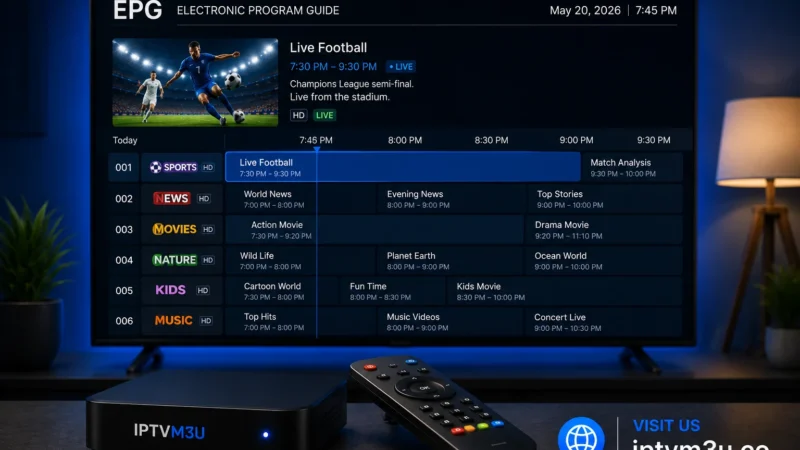
What Is an EPG? Electronic Program Guide for IPTV Explained
Understanding what is an EPG for IPTV is essential for getting a full TV guide experience. This guide covers setup, formats, and…

IPTV for Sports: Watching Live Sports with IPTV in 2026
IPTV for sports — live NFL, NBA, MLB, NHL, Premier League, UFC, and more. How to find sports channels, reduce delay, and get the best experience.