
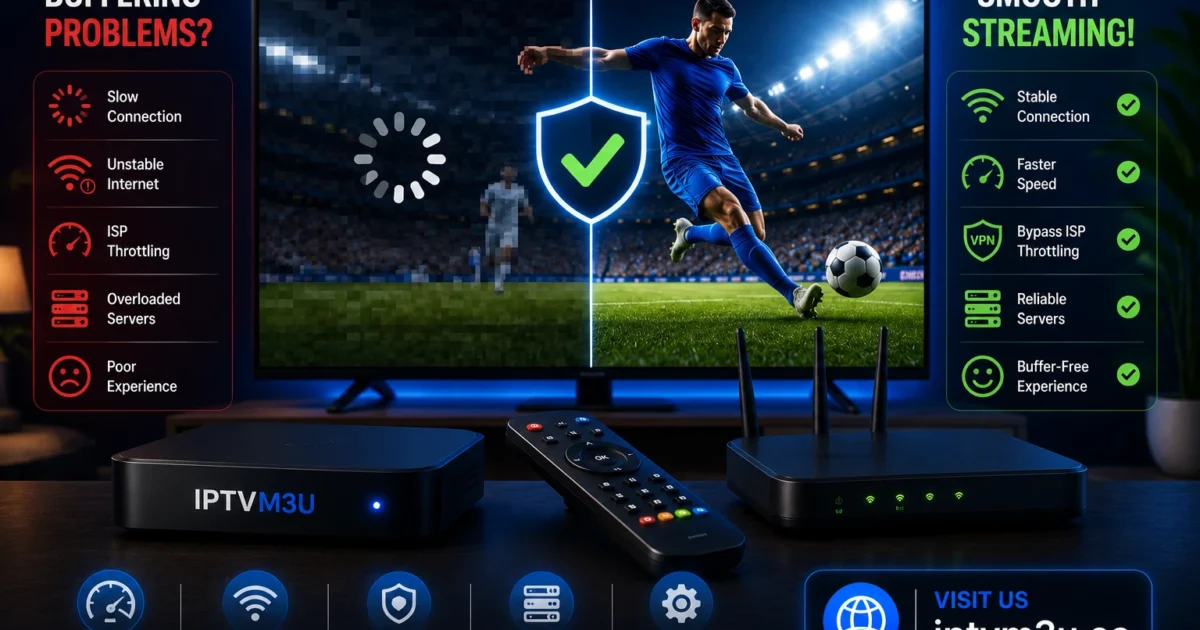
Buffering is the most common frustration for IPTV users. A stream that freezes every few minutes ruins live sports, movies, and TV shows. This guide explains every cause of IPTV buffering and gives you a step-by-step fix for each one.
Why Does IPTV Buffer?
IPTV buffering happens when your device cannot receive stream data fast enough to play it smoothly. There are five main causes, and identifying which one affects you determines the fix.
Cause 1: Slow Internet Connection
This is the most common cause. IPTV requires a minimum sustained download speed — not just your plan headline speed, but the speed your device actually receives. HD streams need at least 10 Mbps, Full HD needs 20–25 Mbps, and 4K needs 50 Mbps or more. See our full IPTV internet speed requirements guide.
How to diagnose: Run a speed test at fast.com or speedtest.net while IPTV is buffering. If your speed is below the threshold for your stream quality, your connection is the problem.
Fix: Switch to a lower stream quality in your IPTV player, upgrade your internet plan, or switch from Wi-Fi to a wired Ethernet connection.
Cause 2: Wi-Fi Interference
Wi-Fi signals degrade through walls, floors, and interference from neighbouring networks. Even with a fast internet connection, Wi-Fi packet loss causes buffering that a speed test will not always show.
How to diagnose: Connect your device via Ethernet and test. If buffering stops, Wi-Fi is the culprit.
Fix:
- Use a wired Ethernet connection whenever possible
- Switch your router to the 5 GHz band (less interference, shorter range)
- Move your router closer to your streaming device
- Use a Wi-Fi extender or mesh network system
- Change your router channel in the admin settings (channels 1, 6, or 11 for 2.4 GHz)
Cause 3: ISP Throttling
Some internet service providers deliberately slow down video streaming traffic — a practice called throttling. Your speed test may show 100 Mbps, but streaming traffic gets reduced to a fraction of that speed.
How to diagnose: Test your connection through a VPN. If buffering stops or significantly reduces when the VPN is active, your ISP is throttling your connection.
Fix: Use a reliable VPN with fast streaming servers. Connect to a server in your country or a nearby country for the lowest latency. See our guide to the best VPNs for IPTV.
Cause 4: IPTV Server Overload
During peak viewing times — live sports, major TV events — IPTV provider servers can become overloaded. This causes buffering even when your internet connection is perfect.
How to diagnose: If buffering only happens on certain channels or at certain times of day, and your network is fine, the server is overloaded.
Fix:
- Try a different server or stream URL if your provider offers alternatives
- Contact your IPTV provider to report the issue
- Try a backup stream if available in your player
Cause 5: Device Performance Issues
Older devices with limited RAM and processing power struggle with high-bitrate streams. Background apps consume memory and CPU, leaving less for the IPTV player.
How to diagnose: If buffering started recently after installing new apps, or if your device runs hot or slow generally, performance is the issue.
Fix:
- Close all background apps before streaming
- Clear the cache of your IPTV player app (Settings > Apps > [Player] > Clear Cache)
- Restart your device before streaming sessions
- Uninstall unused apps to free storage and memory
10-Step Quick Fix Checklist
Work through this checklist in order:
- Restart your router and streaming device
- Run a speed test — confirm you have adequate bandwidth
- Switch from Wi-Fi to Ethernet
- Close all background apps on your device
- Clear your IPTV player app cache
- Lower the stream quality in your player settings
- Try a VPN to bypass ISP throttling
- Try a different IPTV stream or server
- Check your router placement and channel settings
- Contact your IPTV provider if all else fails
Fix Buffering on Fire Stick
The Amazon Fire Stick has specific optimisations that help with IPTV buffering:
- Developer Options: Go to Settings > My Fire TV > Developer Options > Turn on ADB Debugging and Apps from Unknown Sources
- Background Data: Settings > Preferences > Privacy Settings > Device Usage Data (disable)
- Force stop Amazon apps: Suspend Alexa, shopping, and other background services
- Use TiviMate buffer settings: In TiviMate settings, increase the buffer size to 8–16 MB for live streams
Fix Buffering on Android TV
For Android TV boxes:
- Enable Hardware Acceleration in your IPTV player settings
- Use the ExoPlayer or Hardware decoder instead of software decoding
- Increase the buffer size in TiviMate or IPTV Smarters settings
- Clear system cache: hold power button > Restart > Clear Cache Partition
Fix Buffering in TiviMate
TiviMate has excellent built-in buffer controls:
- Open TiviMate > Settings > Player
- Set Buffer Size to 8 MB or higher
- Set Decoder to Hardware
- Enable Enable HW acceleration
- Set Aspect Ratio to Fit to Screen
Network Optimisation for IPTV
Advanced users can improve streaming stability with these network settings:
- DNS servers: Change your router or device DNS to 1.1.1.1 (Cloudflare) or 8.8.8.8 (Google) for faster resolution
- QoS (Quality of Service): In your router admin panel, prioritise your streaming device by MAC address
- MTU setting: Set router MTU to 1500 for standard connections
- Band steering: Ensure your streaming device connects to the 5 GHz band, not 2.4 GHz
When to Contact Your IPTV Provider
If you have tried all the above fixes and buffering persists only on certain channels or at specific times, the problem is with your provider. Document:
- Which channels buffer (and which do not)
- What time the buffering occurs
- Your internet speed at the time
- Whether a VPN changes the behaviour
Most reputable providers will investigate server-side issues when given this information.
Frequently Asked Questions
Why does my IPTV buffer on fast internet?
Fast headline internet speed does not guarantee smooth IPTV. ISP throttling, Wi-Fi packet loss, server overload, or device performance can all cause buffering independently of your plan speed.
Does a VPN stop IPTV buffering?
A VPN stops buffering caused by ISP throttling. It will not fix buffering caused by slow internet, poor Wi-Fi, or server overload.
What buffer size should I use in TiviMate?
Start at 8 MB. If buffering continues, increase to 16 MB or 32 MB. Very large buffers can cause initial loading delays.
Why does my IPTV only buffer during live sports?
Live sports events drive huge simultaneous viewer numbers. This overloads IPTV servers at peak times. Try a backup stream or contact your provider for a dedicated sports server.
Will a better router fix IPTV buffering?
If your current router is several years old or handling many connected devices, upgrading can help. Look for a dual-band or tri-band router with QoS and MU-MIMO support.
