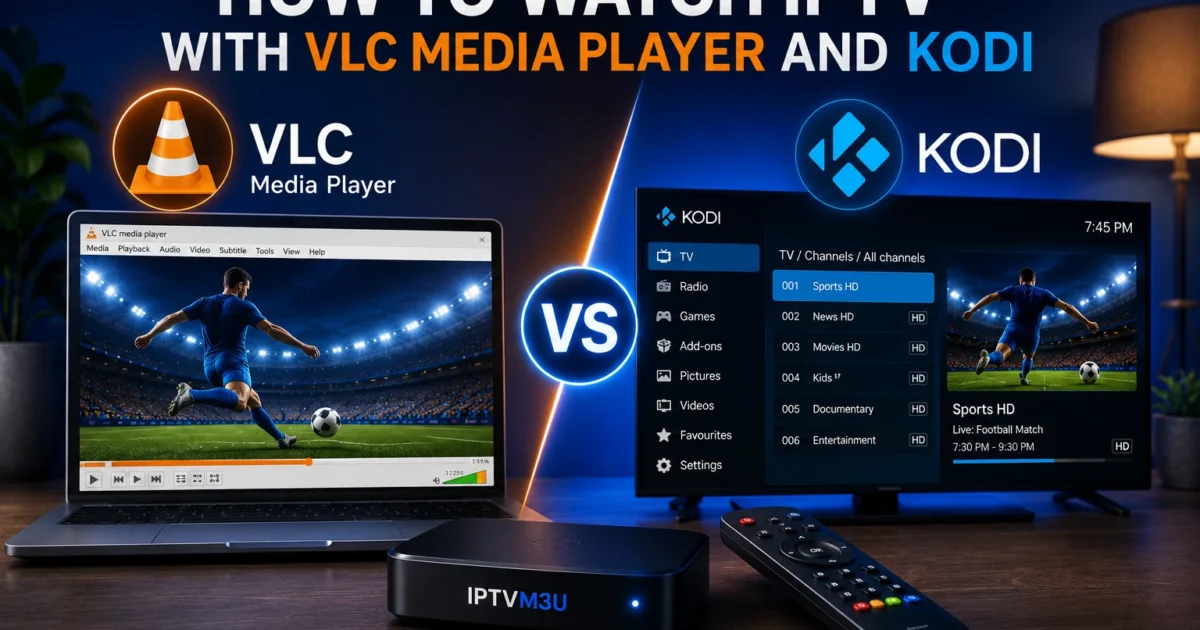
VLC Media Player and Kodi are two of the most popular free, open-source options for watching IPTV. Both support M3U playlists and run on virtually every platform. This guide shows how to set up IPTV on both and which is best for you.
Part 1: VLC Media Player for IPTV
What Is VLC?
VLC is a free, open-source media player from VideoLAN. It plays virtually any video format, streams via M3U playlists, and runs on Windows, macOS, Linux, Android, iOS, and Android TV.
VLC Strengths and Limitations
- Free, no account required, works on every platform including iOS
- Handles HLS, MPEG-TS, and RTMP streams
- No built-in EPG — no channel schedule or guide
- No catch-up TV support
- Basic interface not designed as a dedicated IPTV app
How to Open M3U in VLC (Windows/Mac)
- Install VLC from videolan.org
- Go to Media > Open Network Stream (Ctrl+N)
- Paste your M3U URL into the Network URL field
- Click Play — channels load in the playlist panel
VLC Performance Settings
- Tools > Preferences > Input/Codecs: Set Network caching to 1500–3000ms
- Enable Hardware-accelerated decoding under Video settings
- For 4K streams, increase caching to 5000ms
Common VLC IPTV Problems
| Problem | Fix |
|---|---|
| Stream won’t play | Verify M3U URL is active; test in browser first |
| Buffering | Increase network caching to 3000ms in Preferences |
| No audio | Check Audio Track selection in the Audio menu |
| Black screen | Disable hardware decoding; try different video output |
Part 2: Kodi for IPTV
What Is Kodi?
Kodi is a free, open-source media centre. With the PVR IPTV Simple Client add-on, Kodi provides a full TV-style experience with EPG, channel categories, and catch-up support. See our EPG guide for setting up programme schedules.
How to Install Kodi on Fire Stick
- Enable Apps from Unknown Sources in Settings > My Fire TV > Developer Options
- Install the Downloader app from the Amazon App Store
- Open Downloader, enter https://kodi.tv/download, download the Android APK
- Install and open Kodi
For Android TV boxes, Kodi is available directly from the Google Play Store.
Setting Up PVR IPTV Simple Client
- Open Kodi > Add-ons > box icon (Add-on Browser)
- Install from Repository > Kodi Add-on Repository > PVR Clients
- Install PVR IPTV Simple Client
- Configure: set Location to Remote Path, paste your M3U URL
- Add your XMLTV EPG URL under EPG Settings
- Click OK and restart Kodi
- Go to TV in the main menu to browse channels
Kodi Common Problems
| Problem | Fix |
|---|---|
| No TV section | Enable PVR IPTV Simple Client and restart Kodi |
| Channels not loading | Verify M3U URL works in browser first |
| EPG not showing | Check XMLTV URL; wait 15 mins for EPG download |
| Buffering | Settings > Player > Videos > increase cache size |
VLC vs Kodi Comparison
| Feature | VLC | Kodi |
|---|---|---|
| EPG/Program Guide | No | Yes |
| Setup difficulty | Very easy | Moderate |
| iOS support | Yes | Limited |
| Catch-up TV | No | Yes |
| Performance | Excellent | Good |
Use VLC to quickly test an M3U URL or watch on iOS/macOS. Use Kodi for a full TV experience with EPG and catch-up. For the best dedicated experience on Fire Stick, TiviMate is generally preferred over both. Check our IPTV setup guide for all options. Using a VPN with either app is recommended for privacy. Check your internet speed is sufficient before streaming.
Frequently Asked Questions
Can VLC play M3U playlists?
Yes. Open VLC, go to Media > Open Network Stream, paste your M3U URL. Channels load in the playlist sidebar.
Does Kodi support IPTV natively?
Not natively — install the PVR IPTV Simple Client add-on from the Kodi repository. It then provides a full EPG and channel guide.
Is Kodi legal?
Kodi itself is completely legal open-source software. Legality depends on what you stream. See our IPTV legality guide.
What is the best IPTV player — VLC, Kodi, or TiviMate?
TiviMate is the most popular dedicated IPTV player for Android/Fire TV with the best EPG interface. Kodi is better for a full media centre setup. VLC is best for quick testing and iOS.