Setting up a MAG box for IPTV is one of the most reliable ways to watch IPTV. MAG boxes by Infomir are dedicated IPTV receivers that connect directly to your TV and provide a seamless, cable-like experience without the complexity of Android TV boxes or Fire Sticks.
What Is a MAG Box?
A MAG box is a hardware device designed specifically for IPTV. Unlike general-purpose devices like Fire Stick or Android TV boxes, MAG boxes are built from the ground up to decode and display IPTV streams. This makes them extremely stable and user-friendly, especially for people who prefer a traditional TV experience.
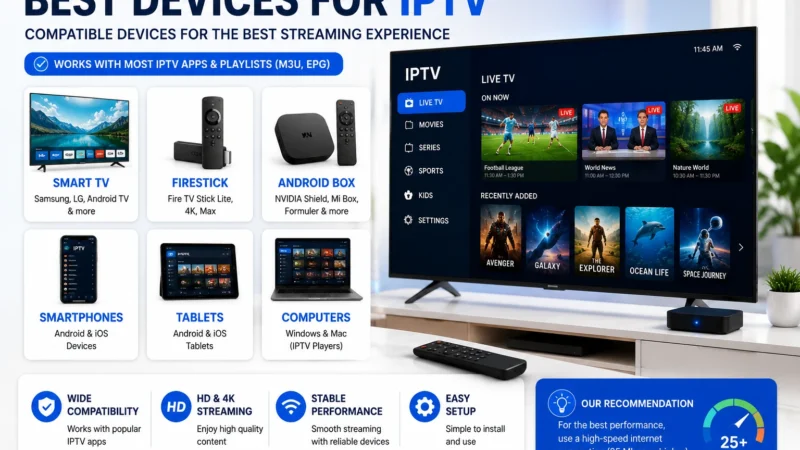
MAG Box vs Fire Stick vs Android TV Box
- MAG Box: Purpose-built for IPTV, stable, no app store, simple interface
- Fire Stick: General-purpose, app-based, good for TiviMate, more flexible
- Android TV Box: Full Android OS, most flexible, can run all IPTV apps
Unboxing and Connecting Your MAG Box
- Connect the MAG box to your TV via HDMI cable
- Plug in the power adapter
- Connect to the internet via Ethernet (recommended) or Wi-Fi
- Turn on the TV and select the correct HDMI input
- The MAG box boots into its IPTV portal interface
Initial Setup and Configuration
Step 1: Access Settings
When the MAG box boots, press the Settings button on the remote (gear icon). Enter the default password: 0000 (change this later for security).
Step 2: Configure Network
Go to Network Setup. For Ethernet, select Automatic (DHCP). For Wi-Fi, select your network and enter the password. The MAG box will display the connection status and IP address.
Step 3: Set Up the Portal
Go to Servers > Portals. You will see a list of portals (usually one empty slot). Enter the portal URL provided by your IPTV service. This is typically something like http://yourprovider.com/c/. Press OK to save.
Step 4: Restart the Portal
- Return to the main settings menu
- Select Restart Portal or Restart Device
- The MAG box will reboot and load the IPTV channel list
- You should now see your IPTV channels on screen
MAG Portal vs Stalker Middleware
MAG boxes use the Stalker Middleware platform. Your IPTV provider must support Stalker to work with a MAG box. Most providers that offer portal-based connections support this. If your provider only offers M3U playlists, you may need a different device or an app that converts M3U to portal format.
MAG Box Remote Controls
- OK/Select: Open channel or menu item
- Back: Return to previous menu
- Menu: Access channel options
- Exit: Close current screen
- Info: Show channel and program details
- TV/RADIO: Toggle between TV and radio modes
- Settings (gear): Open system settings
- Numbers: Direct channel entry
Using the Built-In Channel List
Once the portal loads, you will see your IPTV provider’s channel list organized by categories. Navigate using the arrow keys. Press OK to start watching. Use the Channel Up/Down buttons to change channels.
Setting the Time Zone
Go to Settings > Time Zone and select your region. This ensures the EPG (Electronic Program Guide) displays correct program times.
Enabling Subtitles
While watching a channel, press the Subtitle button on the remote. If the stream includes subtitle tracks, they will appear on screen. You can select from available subtitle languages.
MAG Box Firmware Updates
Keep your MAG box firmware updated for best performance and security. Go to Settings > Software Update. Select Check for Updates. If an update is available, follow the on-screen instructions. Do not power off the device during a firmware update.
Troubleshooting Common MAG Box Issues
Portal Not Loading / Stuck on Boot
Check your internet connection. Verify the portal URL is correct. Try restarting the MAG box. If the issue persists, contact your IPTV provider for the correct portal URL.
Channels Not Loading
Restart the portal from settings. If only specific channels fail, your provider may have a server issue. For general buffering help, see our buffering guide.
No Sound
Go to Settings > Audio and check audio output settings. Try different audio modes (PCM, HDMI, SPDIF). Check your TV volume and HDMI cable connection.
Remote Not Responding
Replace the batteries. Ensure nothing is blocking the IR sensor on the front of the MAG box. Pair the remote again if it uses Bluetooth (some newer models).
Further Reading