
IPTV Setup Guide: How to Get Started with IPTV
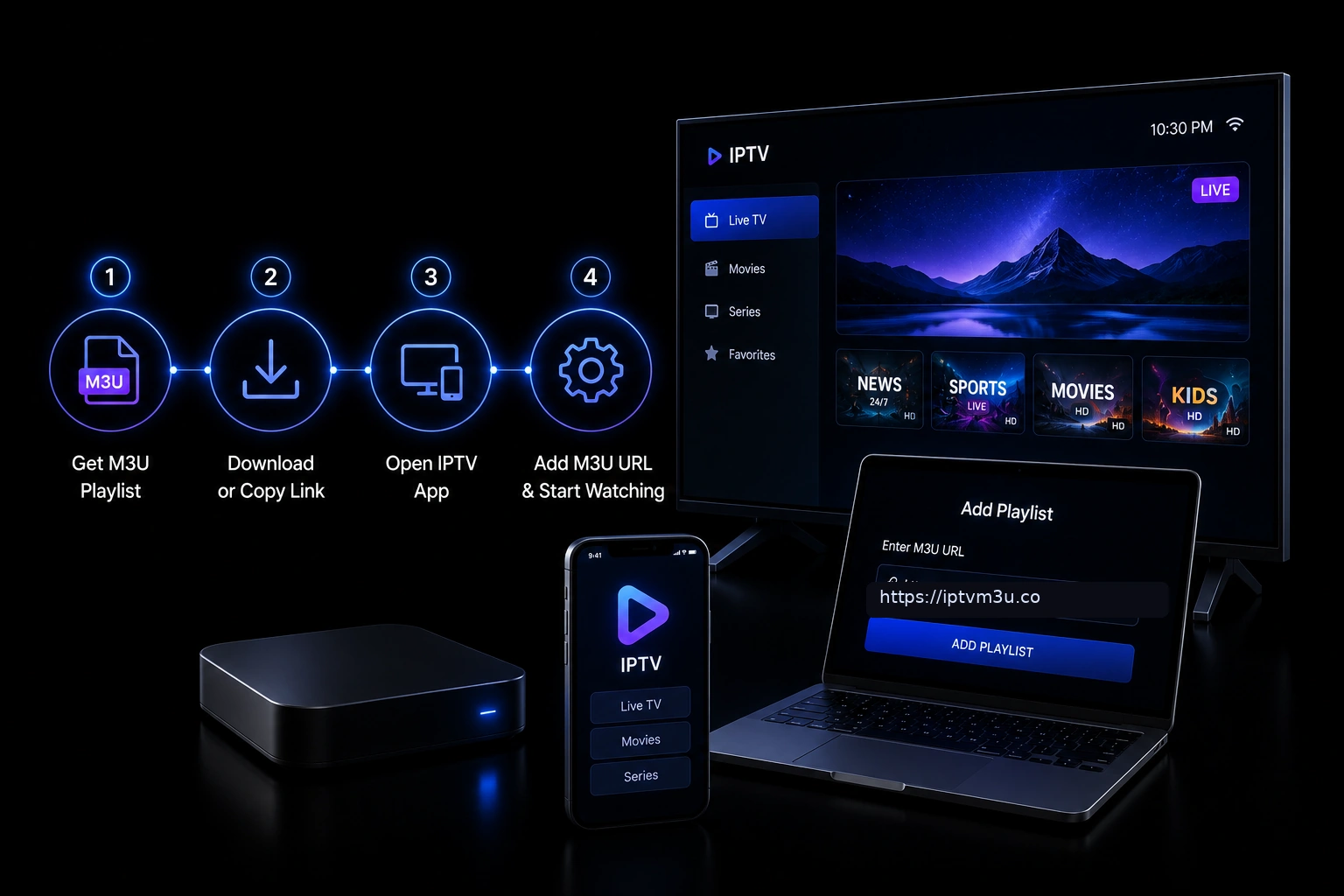
Getting started with IPTV is easier than you think. In a few simple steps, you can transform your TV, computer, or mobile device into a powerful streaming platform. Whether you are completely new to IPTV or switching from an old provider, this guide walks you through every step with practical advice and troubleshooting tips.
Before you begin, make sure you have a stable internet connection — at least 25 Mbps for HD streaming. If you are unsure about your connection speed, check our Internet Speed Requirements for IPTV guide first. A solid foundation will save you hours of frustration later.
Step 1: Choose an IPTV Provider
Look for reliable servers, good channel selection, EPG support, and responsive support. Read reviews before committing to a long-term plan. The provider you choose will determine your entire experience, so take the time to research your options carefully.
Here are the key factors to evaluate when choosing an IPTV provider:
- Server reliability and uptime — Look for providers with multiple server locations and redundancy. In our experience, the best providers maintain 99.5% or higher uptime. Check community forums for reports of server downtime, especially during major sports events when demand spikes.
- Channel selection — Ensure the provider offers the channels you actually watch. Most providers offer trial access or demo lists so you can browse their channel lineup. Pay special attention to sports channels, local channels, and international content if those matter to you.
- EPG data quality — An accurate Electronic Program Guide is essential for navigating hundreds of channels. Ask providers about their EPG source and whether it covers all listed channels. Some providers include EPG automatically; others require a separate EPG URL.
- VOD and catch-up TV availability — If you want on-demand movies and series, check whether the provider includes VOD and catch-up TV. These features vary significantly between providers.
- Connection limits — Most providers allow 1-3 simultaneous connections. If you have multiple family members who watch TV at the same time, make sure the plan supports enough connections.
- Payment options and trial periods — Look for providers offering 24-hour or 7-day trials. Avoid providers that require a full year upfront before you can test the service. Credit card, PayPal, and cryptocurrency options indicate established providers.
- Customer support — Responsive support via email, live chat, or Telegram is a good sign. Test their response time during the trial period before paying.
Step 2: Get Your M3U URL or Xtream Codes
Your provider will give you an M3U URL, Xtream Codes credentials, or both. The M3U URL is a web link that contains your channel list. Think of it as a digital TV guide that your player reads to display all available channels and their stream locations.
Most providers send your credentials via email after payment. You will receive one or more of the following:
- M3U URL — A long URL ending in .m3u or .m3u8. Example format: http://your-provider.com/get.php?username=YOURNAME&password=YOURPASS&type=m3u_plus. This is the simplest method and works with virtually every IPTV player.
- Xtream Codes credentials — A server URL, username, and port number. These are entered separately in the player. Xtream Codes offers additional features like VOD and series category separation. Learn more in our M3U Playlist guide.
- DNS URL — Some providers offer DNS-based access for compatibility with specific players or middleware systems.
Keep your credentials private and never share them publicly. Each login is tied to your subscription and sharing can result in account suspension. For security tips, see our IPTV Security Best Practices guide.
Step 3: Choose a Compatible IPTV Player
Pick a player that supports your device. TiviMate for Android TV, IPTV Smarters for mobile, and VLC for desktop are all excellent choices. The right player makes a significant difference in your viewing experience — from channel switching speed to EPG display quality.
Player recommendations by device:
- Android TV / NVIDIA Shield — TiviMate (best overall for Android TV with rich EPG and multi-playlist support), IPTV Smarters, OTT Navigator
- Amazon Fire Stick — IPTV Smarters (from Appstore), TiviMate (sideloaded), OTT Navigator
- Apple TV — IPTV Smarters, GSE Smart IPTV, IPTVX
- iPhone / iPad — IPTV Smarters, GSE Smart IPTV, VLC
- Android Phone / Tablet — IPTV Smarters, OTT Navigator, TiviMate Mobile
- Windows / Mac — VLC Media Player, IPTV Smarters, Kodi
- Smart TV (Samsung, LG) — IPTV Smarters, Smart IPTV, SS IPTV
In our testing, TiviMate on Android TV offers the best overall experience with its polished interface, customizable EPG, recording capabilities, and multi-playlist support. For cross-platform compatibility, IPTV Smarters is the most versatile option, working on virtually every device with a consistent experience.
Step 4: Load Your Playlist
Open your IPTV player, enter your M3U URL or Xtream Codes, and wait for the channel list to load. Most players fetch EPG data automatically if your provider includes it. Here is how to load your playlist in the most popular players:
Loading in TiviMate:
- Open TiviMate and select “Add Playlist”
- Choose “M3U Playlist” or “Xtream Codes”
- Paste your M3U URL or enter Xtream Codes credentials
- Name your playlist (e.g., “My IPTV”)
- Wait for the channel list to populate (may take 30-60 seconds for large playlists)
- EPG data loads automatically if configured; otherwise add EPG URL in playlist settings
Loading in IPTV Smarters:
- Open IPTV Smarters and accept the terms
- Select “Login with Xtream Codes” or “Login with M3U URL”
- Enter your credentials or paste your M3U URL
- Select your content categories (Live TV, VOD, Series)
- The app builds your channel list and displays the home screen
If channels do not load, verify that your M3U URL is correct (check for typos), ensure your internet connection is active, try loading the URL in a web browser to confirm it returns data, and contact your provider if the URL appears dead.
Step 5: Start Watching
Browse channels, customize your favorites, and enjoy live TV, VOD, and catch-up content. Adjust video player settings for optimal performance. Here is how to get the most out of your IPTV setup:
- Create favorites lists — Most players let you mark channels as favorites for quick access. Organize your top 20-30 channels this way.
- Set up EPG — If your player did not auto-load EPG data, manually add the EPG URL provided by your service. This gives you program schedules and descriptions. For more details, read our EPG Guide.
- Adjust video buffer size — In player settings, increasing the buffer size (e.g., from 1MB to 3MB) can reduce buffering on unstable connections at the cost of slightly higher initial loading time.
- Enable hardware decoding — This uses your device’s GPU for video playback, improving performance and reducing CPU usage. Most players enable this by default.
- Configure catch-up TV — If your provider supports catch-up, enable it in your player settings. This lets you watch programs you missed within the retention window.
- Explore VOD libraries — Browse available movies and series through your player’s VOD section. Content is typically organized by genre, year, and popularity.
Frequently Asked Questions
What do I need for IPTV?
An internet connection (10 Mbps minimum for HD, 25 Mbps recommended), an IPTV subscription from a provider, a compatible device (smart TV, streaming stick, phone, tablet, or computer), and an IPTV player app. That is all. Setup takes approximately 10-15 minutes from start to finish.
Is IPTV legal?
IPTV technology is legal. The legality depends on whether your provider has proper content licensing. Licensed providers like Hulu Live TV, YouTube TV, and Sling TV are 100% legal. Unlicensed providers that resell premium channels without authorization operate in a legal gray area or are outright illegal depending on your jurisdiction. Always research your provider’s legitimacy before subscribing.
What is the best IPTV player?
TiviMate for Android TV offers the best overall experience with its polished interface, EPG support, and recording features. IPTV Smarters is the most versatile cross-platform option, working on virtually every device. VLC Media Player is the simplest desktop option for basic viewing. The best player for you depends on your device and how you plan to use IPTV.
Can I watch IPTV on multiple devices?
Most IPTV providers allow 1-3 simultaneous connections. Check your plan details before attempting to connect multiple devices. If you need more connections, some providers offer multi-room plans or allow you to purchase additional connections for a small monthly fee.
Why is my IPTV buffering?
Buffering is most often caused by insufficient internet speed, WiFi interference, ISP throttling, or overloaded provider servers. Try these fixes in order: restart your router, switch from WiFi to wired Ethernet, reduce video quality in player settings, use a VPN to bypass ISP throttling, and test with a different provider to isolate server-side issues.
Ready to Start Streaming?
Get your free M3U playlist and start streaming on all your devices today. For step-by-step device-specific guides, visit our IPTV Setup Guide page with instructions for Fire Stick, Apple TV, Android TV boxes, smartphones, and more.