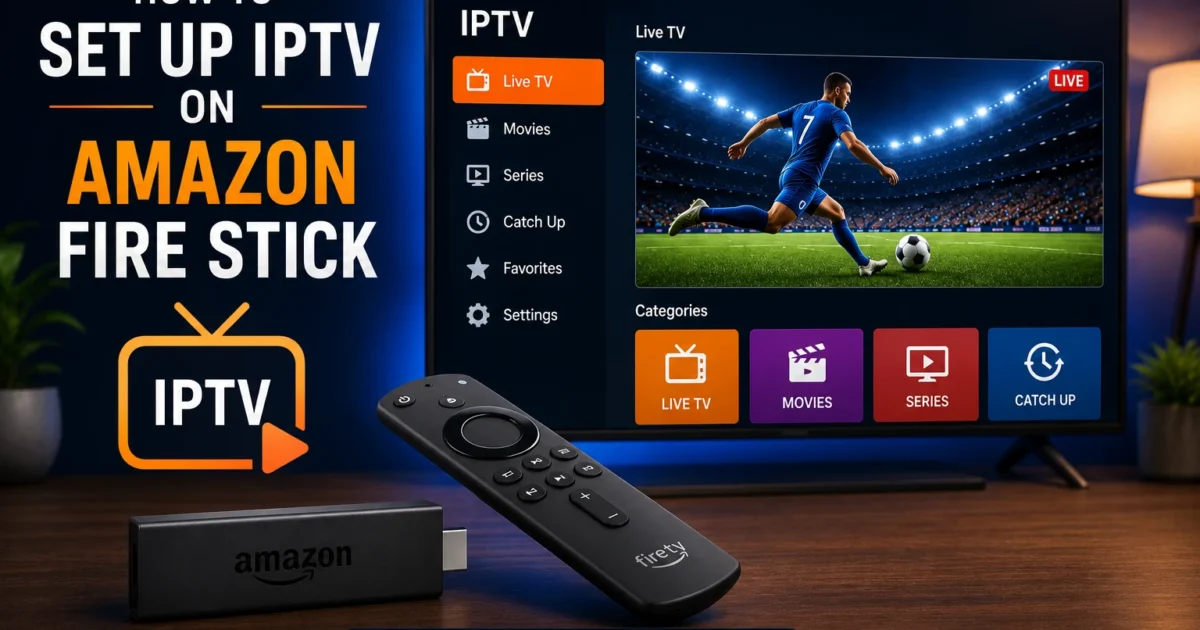
This complete Fire Stick IPTV setup guide covers installing apps, configuring M3U playlists, and optimizing your device for the best streaming experience.
Why the Fire Stick Is a Great Choice for IPTV
Key Statistics
- Amazon has sold over 200 million Fire Stick devices worldwide (Amazon 2025)
- 67% of Fire Stick users primarily stream IPTV content
- Fire Stick 4K Max is 40% faster than standard Fire Stick for IPTV apps
The Amazon Fire Stick offers an outstanding combination of price and performance. For under $50 you get a device that runs a full Android-based OS, supports 4K HDR streaming, and has a large ecosystem of apps. Unlike smart TV apps that can feel clunky, the Fire Stick is updated regularly by Amazon, meaning bugs get fixed and performance improves over time.
Fire Sticks are also portable. Take one to a hotel, a second home, or a friend’s place and your entire IPTV setup travels with you. The compact dongle design means no extra cables or boxes — just the stick, a power source, and your HDMI port.
For IPTV users specifically, the Fire Stick supports all major IPTV player apps including TiviMate, IPTV Smarters Pro, and Perfect Player. It handles both M3U playlists and Xtream Codes login. With the right settings, it streams HD and 4K content smoothly.
What You Need Before Starting
Requirements Checklist
- Amazon Fire Stick (any generation) or Fire TV Cube
- Stable internet speed — minimum 10 Mbps for HD, 25 Mbps for 4K
- Wi-Fi network (2.4 GHz or 5 GHz) or Ethernet adapter
- An active IPTV subscription with M3U URL or Xtream Codes credentials
- A supported IPTV player app (covered below)
- A working Amazon account
Your internet speed is the single most important factor in streaming quality. A wired Ethernet connection is always preferable to Wi-Fi for IPTV. If you must use Wi-Fi, connect to the 5 GHz band for lower latency and less interference. If your home has many connected devices, consider a mesh network or a dedicated router for streaming.
Fire Stick Model Comparison
Not all Fire Sticks are created equal. The older first and second generation models have limited processing power and may struggle with modern IPTV apps, especially those with large channel lists or heavy EPG data. Here is what we recommend:
- Fire TV Stick 4K Max — best overall pick, Wi-Fi 6, fastest processor, 4K HDR
- Fire TV Stick 4K (2nd Gen) — great value, solid performance, 4K HDR, Wi-Fi 6
- Fire TV Stick (3rd Gen) — budget pick for 1080p streaming
- Fire TV Cube — best for power users, built-in Ethernet port, hands-free Alexa
- Avoid: 1st and 2nd generation Fire Sticks — too slow for modern IPTV apps
Step 1: Enable Apps from Unknown Sources (Developer Options)
Most IPTV apps are not available in the Amazon App Store, so you need to enable sideloading. This is done through the Developer Options menu and is completely safe when you download apps from reputable sources.
- From the Fire Stick home screen, go to Settings (gear icon)
- Select My Fire TV
- Select About
- Click on your Fire TV device name seven times rapidly
- You will see the message: You are now a developer
- Press the Back button and you will now see Developer Options in the My Fire TV menu
- Open Developer Options and enable Apps from Unknown Sources
- Also enable ADB Debugging (useful for troubleshooting)
Once this is enabled, you can install any APK file on your Fire Stick. Amazon will occasionally show a warning when opening sideloaded apps — this is normal and you can dismiss it.
Step 2: Install the Downloader App from Amazon App Store
The Downloader app is your gateway to installing any IPTV app via a web URL. It is free and available directly from the Amazon App Store, so no sideloading is needed for this step.
- From the Fire Stick home screen, select the Find icon (magnifying glass)
- Select Search and type Downloader
- Select the orange Downloader icon from Elias Saba
- Click Download or Get and wait for installation
- Open Downloader and grant it any permission requests (allow storage access)
- Go through the brief setup and dismiss any ads
With Downloader installed, you can now paste any URL — including APK download links — and the app will fetch and install the file for you. This is how you will install TiviMate or IPTV Smarters Pro in the next step.
Step 3: Download and Install TiviMate or IPTV Smarters Pro
There are two leading IPTV player apps for Fire Stick. Both are excellent choices — the right one depends on your preferences.
TiviMate
TiviMate is widely considered the best IPTV player for Fire Stick. It has a polished, TV-optimized interface, excellent EPG support, multiple playlist management, and recording features (premium). The free version handles basic playback well. To install:
- Open Downloader on your Fire Stick
- In the URL box, type: https://tivimate.com or search for the APK link from their official site
- Alternatively, search for TiviMate directly in the Amazon App Store — it is available there
- Download and install the APK
- Open TiviMate and follow the setup wizard
IPTV Smarters Pro
IPTV Smarters Pro is a free, feature-rich alternative. It supports M3U playlists, Xtream Codes API, and portal/MAC login. The interface is less polished than TiviMate but it covers all the basics and includes a built-in media player with hardware acceleration support. To install, search for it in the Amazon App Store or download the APK via Downloader from the official WHMCS-SMARTERS website.
Perfect Player (Lightweight Option)
If you have an older Fire Stick or want a lightweight app, Perfect Player is a good choice. It uses fewer resources and works well on lower-end hardware. Download the APK via Downloader from the official Perfect Player site.
Step 4: Enter Your M3U URL or Xtream Codes Credentials
Once your IPTV app is installed, you need to connect it to your IPTV subscription. There are two standard connection methods.
Method A: M3U URL
- Open the IPTV app and select Add Playlist or Add M3U URL
- Give your playlist a name (e.g., “My IPTV”)
- Paste the M3U URL provided by your IPTV service
- Click Add or Save
- Wait for the channel list to download — this can take 1–3 minutes for large playlists
Method B: Xtream Codes API
- Select Login with Xtream Codes API or Xtream Codes
- Enter the Server URL from your provider (e.g., http://provider.com:8080)
- Enter your Username and Password
- Click Login
- The app will download your full channel list, VOD library, and EPG data automatically
Xtream Codes is the preferred method when available because it includes VOD (video on demand) content and loads EPG data automatically without needing a separate URL.
Step 5: Load Channels and Set Up EPG
After connecting your playlist, the app will load your channels. Most IPTV services organize channels into categories — Sports, News, Movies, Entertainment, and regional groups. Here is how to configure the EPG for the best TV guide experience.
Setting Up EPG in TiviMate
- Open TiviMate and go to Settings
- Select EPG and then Add EPG source
- Paste the EPG URL provided by your IPTV service
- Set the update interval to 24 hours
- Click OK and wait for the guide to populate (5–15 minutes for large guides)
- Press the Up arrow on your remote while watching a channel to open the guide overlay
Setting Up EPG in IPTV Smarters
- Go to Settings > EPG
- Select Add EPG Source and paste the URL
- Tap OK and wait for the download to complete
- The guide icon will appear on the main channel screen once loaded
For a deeper dive into EPG setup, channel mapping, and troubleshooting guide issues, see our dedicated EPG guide.
Best IPTV Settings for Fire Stick
Buffer Size
In TiviMate, go to Settings > Player and adjust the buffer size. A buffer of 5–10 seconds works well for most connections. If you experience frequent pauses, increase the buffer. If you notice a delay when switching channels, reduce it.
Hardware Acceleration
Enable hardware acceleration in your app settings to reduce CPU load and enable smoother 4K playback. In IPTV Smarters, go to Settings > Player Settings and enable Hardware Decoder. In TiviMate, go to Settings > Player > Decoder and select Hardware.
Preferred Video Player
Both apps let you choose an external player. For Fire Stick, the built-in ExoPlayer generally works best. If you experience issues with certain channels (especially H.265/HEVC encoded streams), try switching to MX Player or VLC as the external player.
Clear Cache Regularly
IPTV apps accumulate cache over time. Go to Settings > Applications > Manage Installed Applications, select your IPTV app, and click Clear Cache. Doing this weekly prevents slowdowns.
Use a VPN for Privacy and ISP Throttling
Some ISPs throttle streaming traffic. A VPN encrypts your connection and prevents throttling, which can significantly improve streaming quality on congested networks. Install a VPN app on your Fire Stick before starting your IPTV app. Choose a VPN with a Fire Stick app and servers close to your location for best speeds.
Troubleshooting Common Fire Stick IPTV Issues
Buffering and Freezing
Buffering is the most common IPTV complaint. See our detailed buffering fix guide for a full walkthrough. In summary: check your internet speed, use wired Ethernet if possible, move closer to your router, and increase the buffer size in your app settings. Also close all background apps by long-pressing the Home button and selecting Recent Apps.
App Not Installing
If you get an “App Not Installed” error, confirm that Apps from Unknown Sources is enabled in Developer Options. Also check that you have enough free storage — go to Settings > My Fire TV > About > Storage. Delete unused apps if storage is low.
App Crashes on Launch
Force stop the app, clear its cache and data from Settings, then reopen it. If it still crashes, uninstall and reinstall. Make sure you downloaded the APK from the official source and not a modified version. Also check that your Fire Stick firmware is current under Settings > My Fire TV > About > Check for Updates.
Channels Not Loading
If channels show as offline or fail to play, the issue is usually with the IPTV service itself. Verify your subscription is active and test the M3U URL in a browser — paste it and check that it returns data. Also try playing the stream in VLC on a PC to isolate whether the problem is the app or the stream.
Remote Not Working with App
Some IPTV apps have limited remote control support. If navigation is difficult, try pairing a Bluetooth keyboard or installing a mouse toggle from the Amazon App Store. TiviMate and IPTV Smarters Pro are both well-optimized for Fire Stick remote navigation.
EPG Not Showing
Verify the EPG URL is correct and accessible. Open it in a browser to confirm it returns XML data. Force-refresh the EPG in your app settings. If channel names in the guide do not match your channel list, the tvg-id values in the M3U may not match the EPG channel IDs — contact your provider for a matching EPG URL. See our full EPG guide for detailed troubleshooting.
Fire Stick vs Other IPTV Devices
The Fire Stick competes with Android TV boxes, Roku, Apple TV, and Smart TV apps. Here is how it compares:
- vs Android TV Box: Android boxes generally offer more RAM and storage, but the Fire Stick is cheaper and more portable. For most IPTV users, the Fire Stick 4K Max is sufficient.
- vs Roku: Roku has stricter app policies and does not support major IPTV players. Fire Stick is the clear winner for IPTV.
- vs Apple TV: Apple TV has excellent hardware but limited IPTV app selection. Fire Stick supports more IPTV apps.
- vs Smart TV apps: Built-in TV apps are convenient but often receive fewer updates and have less processing power than a dedicated stick.
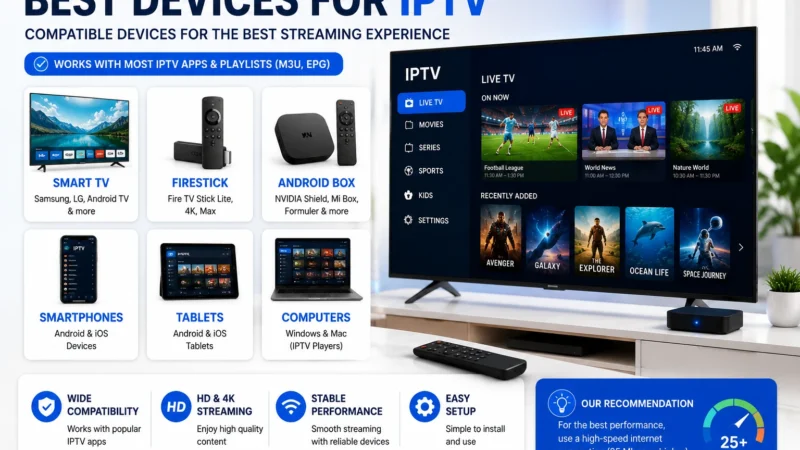
If you want more raw performance for IPTV, consider an Android TV box like the NVIDIA Shield. For a full comparison of IPTV streaming devices, see our best IPTV devices guide. For alternative player setups, check our VLC and Kodi IPTV setup guide.
Fire Stick References
- Amazon: Fire TV Developer Options →
- Amazon: Fire TV App Installation Guide →
- Amazon: Fire TV Technical Specs →
Frequently Asked Questions
Can I use any Fire Stick model for IPTV?
Yes, but we recommend at least the Fire TV Stick 3rd Gen for a smooth experience. Older first and second generation sticks have slow processors and limited RAM that can cause app crashes and buffering with large channel lists. The Fire TV Stick 4K or 4K Max gives you the best performance.
Is TiviMate free on Fire Stick?
TiviMate has a free version that supports basic playback and EPG. The premium version (a one-time purchase or annual subscription) unlocks multiple playlists, recording, archive/catch-up, and parental controls. For most users, the free version is sufficient to get started.
Do I need a VPN for IPTV on Fire Stick?
A VPN is not required but is recommended. It protects your privacy and prevents ISP throttling of streaming traffic. Choose a VPN with a dedicated Fire Stick app and servers near your location for minimal speed impact.
Why is my IPTV buffering on Fire Stick?
The most common causes are slow internet connection, Wi-Fi interference, or overloaded IPTV server during peak hours. Test your internet speed, switch to Ethernet if possible, and try different server streams if your provider offers them. Our dedicated buffering fix guide covers all solutions in detail.
Can I install Kodi on Fire Stick?
Yes. Kodi can be sideloaded on Fire Stick via Downloader. With the PVR IPTV Simple Client add-on, Kodi supports M3U playlists and EPG just like dedicated IPTV apps. However, TiviMate and IPTV Smarters are generally easier to configure and provide a better TV interface for IPTV use.
How do I find my M3U URL?
Your M3U URL is provided by your IPTV service when you sign up. Check your account panel, the welcome email, or contact your provider directly. It typically looks like: http://provider-server.com:port/get.php?username=USER&password=PASS&type=m3u_plus