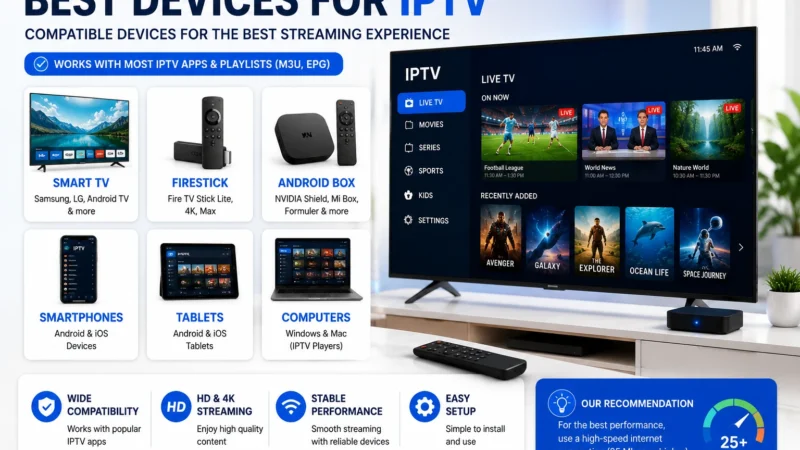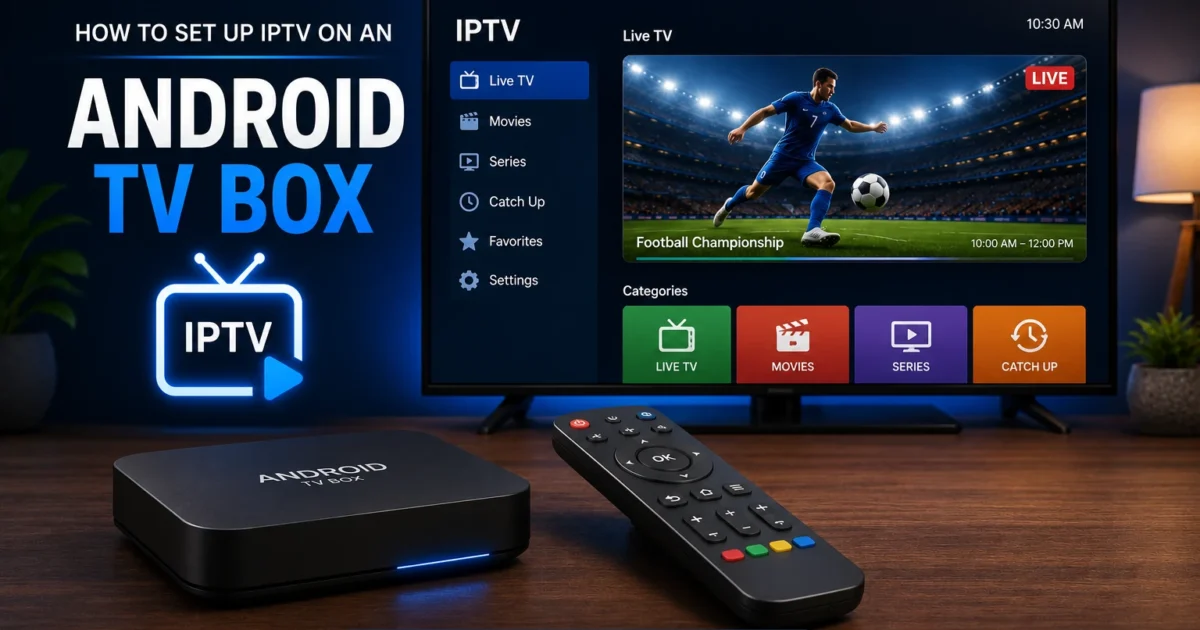
An Android TV box IPTV setup gives you more flexibility than any other device. This guide walks you through every step from choosing hardware to configuring your player.
Why Android TV Boxes Are the Most Flexible IPTV Platform
Key Statistics
- Android TV powers over 150 million devices globally (Google I/O 2025)
- NVIDIA Shield TV users report 95% satisfaction for IPTV streaming
- Android TV saw a 35% increase in IPTV app installations in 2024
The core advantage of an Android TV box is openness. You can install any IPTV player app, switch between multiple providers easily, sideload apps not in the Play Store, and customize performance settings to match your hardware. Advanced users can even install file managers, network tools, and automation apps alongside their IPTV setup.
Android TV boxes also typically offer better hardware than Fire Sticks at comparable price points. You get more RAM, more internal storage, and often a dedicated Ethernet port — which is critical for stable IPTV streaming. High-end boxes like the NVIDIA Shield support Dolby Vision, HDR10+, and 4K at 60fps with no compromises.
Compared to a Fire Stick, an Android TV box is less portable but more powerful. If you are setting up a permanent home streaming station and want the best possible performance, an Android TV box is the better choice.
Popular Android TV Box Models
The Android TV box market ranges from sub-$20 budget devices to $200+ premium units. Here are the most popular models and what makes them stand out for IPTV:
NVIDIA Shield TV Pro
The NVIDIA Shield is the gold standard for Android TV. Powered by the Tegra X1+ processor with 3 GB of RAM and 16 GB storage, it handles any IPTV app without hesitation. It supports Dolby Vision, HDR10, Dolby Atmos, and 4K at 60fps. The built-in Ethernet port and Wi-Fi 5 ensure a stable connection. AI upscaling converts 1080p content to near-4K quality. The Shield also supports Plex Media Server, making it a complete home media center. It is the top recommendation for serious IPTV users who want the best IPTV device available.
Xiaomi Mi Box S (2nd Generation)
The Xiaomi Mi Box S is one of the best value Android TV boxes available. It runs official Android TV (not generic Android), supports 4K HDR, and comes with Google Assistant built in. The 2GB RAM and 8GB storage are sufficient for IPTV apps, though multitasking can feel sluggish with very large channel lists. No Ethernet port, but Wi-Fi performance is reliable. A strong mid-range pick.
H96 Max / X96 Max+ (Budget Amlogic Boxes)
Budget boxes from brands like H96, X96, and TX6 run on Amlogic processors (S905X3, S905X4) and are widely available for $20–50. They typically include 4 GB RAM and 32 GB or 64 GB storage. The trade-off is that these boxes run generic Android rather than the official Android TV interface, meaning the TV-optimized launcher is missing. Performance is adequate for standard IPTV use but may struggle with 4K content on cheaper chipsets.
ONN Android TV Box (4K)
Sold by Walmart for under $20, the ONN 4K Android TV box punches well above its price. It runs official Android TV, supports 4K HDR, and has a USB-A port for connecting storage or a keyboard. The 2 GB RAM is its main limitation but it handles TiviMate and IPTV Smarters well. An excellent entry-level pick.
What You Need Before Starting
- Your Android TV box and all included cables/adapters
- A TV or monitor with a spare HDMI port
- Stable internet speed — 10 Mbps minimum for HD, 25 Mbps for 4K
- Wi-Fi router or Ethernet cable (Ethernet strongly preferred)
- A Google account for Play Store access
- An active IPTV subscription with M3U URL or Xtream Codes credentials
Step 1: Connect and Set Up Your Android TV Box
Hardware Connection
- Plug the HDMI cable from the Android box into your TV HDMI port
- Connect the power adapter — always use the included adapter, not a TV USB port, to ensure sufficient power
- If your box has an Ethernet port, connect a cable to your router now
- Turn on your TV and select the correct HDMI input
First Boot Setup
- Select your language and region
- Connect to Wi-Fi (or verify Ethernet connection is detected)
- Sign in with your Google account to enable Play Store access
- Accept the terms of service and any privacy settings
- Check for and install system updates before proceeding — this ensures the best app compatibility
- Give the device a name you will recognize
Enable Developer Options (for Sideloading)
If you plan to sideload apps not available in the Play Store, enable Developer Options first. Go to Settings > About and click on Android TV OS Build (or Build Number on generic Android) seven times rapidly until you see the developer confirmation message. Then go to Settings > Device Preferences > Developer Options and enable USB Debugging and Allow installation of apps from unknown sources.
Step 2: Install TiviMate from Google Play
TiviMate is available directly in the Google Play Store for Android TV boxes. It is the recommended IPTV player for Android TV because of its TV-optimized interface, powerful EPG support, and regular updates.
- Open the Google Play Store from your home screen
- Search for TiviMate IPTV Player
- Select the app by TiviMate and click Install
- Once installed, open TiviMate
- On first launch, tap Add Playlist
- Choose between M3U URL or Xtream Codes login (see Step 4 below)
TiviMate has a free tier that covers basic channel playback and EPG viewing. A premium subscription (paid once or annually) unlocks multiple playlists, recording, archive/catch-up support, parental controls, and additional customization options.
Step 3: Alternative — Install IPTV Smarters Pro
IPTV Smarters Pro is a strong free alternative to TiviMate. It is also available in the Play Store and supports M3U, Xtream Codes, and Portal/MAC login methods. The interface is functional though less polished than TiviMate — it works well and covers all essential features.
- Open the Google Play Store
- Search for IPTV Smarters Pro
- Install from WHMCS-SMARTERS (verify the developer name)
- Open the app and accept permission requests
- Select your login method (M3U URL, Xtream Codes, or MAC/Portal)
Other solid alternatives include XCIPTV Player, OTV Player, and GSE Smart IPTV — all available in the Play Store. For setup using other players like VLC or Kodi, see our dedicated guide.
Step 4: Add Your M3U Playlist or Xtream Codes
Connecting your IPTV subscription is straightforward. Your provider will give you either an M3U URL or Xtream Codes login credentials (server URL, username, password).
Adding an M3U URL in TiviMate
- Open TiviMate and select Add Playlist
- Choose M3U Playlist
- Enter a name for the playlist
- Paste your M3U URL in the URL field
- Tap Next — the app will download and parse the channel list
- Select categories to show and tap Done
Adding Xtream Codes in TiviMate
- Open TiviMate and select Add Playlist
- Choose Xtream Codes API
- Enter the Name, Server URL (including port), Username, and Password
- Tap Next
- TiviMate downloads your channels, VOD content, and EPG data automatically
- This method is preferred when available as it also pulls in your VOD library
Step 5: Configure EPG (Electronic Program Guide)
An EPG turns your channel list into a proper TV guide with program names, descriptions, and schedules. If you used Xtream Codes login, EPG is typically already included. For M3U playlists, you need to add it separately.
Adding EPG in TiviMate
- Go to Settings > Playlists and select your playlist
- Scroll down and tap EPG source
- Paste the XMLTV EPG URL from your provider
- Set the update interval (24 hours recommended)
- Save and wait for the EPG to download — this may take 5–15 minutes for large guides
- After loading, press Up while watching a channel to open the guide overlay
Adding EPG in IPTV Smarters
- Go to Settings > EPG
- Tap Add EPG Source
- Enter a name and paste the EPG URL
- Tap OK and allow the guide to download
- The EPG guide icon will appear on the main screen once loaded
For a complete guide to EPG setup, XMLTV format explained, and how to fix EPG problems, see our EPG guide.
Step 6: Optimize Settings for Smooth Streaming
Network: Use Ethernet When Possible
Wired Ethernet is always better than Wi-Fi for IPTV. It eliminates packet loss, reduces latency, and provides a consistent connection. If your Android box is far from the router, use a powerline adapter or MoCA adapter to run Ethernet over your existing house wiring.
If you must use Wi-Fi, connect to the 5 GHz band and position the box within 15 feet of the router. The 5 GHz band offers lower latency and higher throughput than 2.4 GHz, though it has shorter range. A solid internet speed of at least 25 Mbps is needed for stable 4K streaming.
App Settings: Buffer, Hardware Acceleration
In TiviMate, go to Settings > Player and set the buffer size to 5–10 seconds. Enable hardware decoding to reduce CPU load and enable smooth playback of high-bitrate streams. For IPTV Smarters, go to Player Settings and enable the hardware decoder.
Reduce System Animations
In Developer Options, set Window Animation Scale, Transition Animation Scale, and Animator Duration Scale all to 0.5x. This makes the UI feel faster and reduces the load on the GPU, leaving more resources for video playback.
Use a VPN for Privacy and Throttling Prevention
If your ISP throttles streaming traffic, a VPN can resolve buffering issues by encrypting your connection. Install a VPN app from the Play Store and connect to a server near your location before opening your IPTV app. Choose a VPN provider that has an Android TV app for easy remote-friendly navigation.
Troubleshooting Common Android TV Box IPTV Issues
Buffering and Stuttering
Buffering is usually caused by a slow or unstable connection. Check your internet speed on the box itself using a speed test app. Switch to Ethernet if on Wi-Fi. Increase the buffer size in app settings. If buffering only occurs on specific channels, the issue may be with those particular streams on the provider side. Our buffering fix guide covers every solution in detail.
App Not Opening or Crashing
Force stop the app from Settings > Apps, clear the cache and data, then reopen. If it continues crashing, uninstall and reinstall from the Play Store. Make sure your Android firmware is current. On older budget boxes, some apps may not be compatible — try an alternative player like XCIPTV or GSE Smart IPTV.
EPG Not Loading
Check that the EPG URL is correct and accessible from the box. Open the URL in a browser to verify it returns XML data. Force-refresh the EPG in app settings and wait for it to complete. If channels are showing without guide data, the tvg-id values in the M3U do not match the EPG channel IDs — request a matching EPG URL from your provider.
No Picture or Black Screen
This is often a resolution mismatch. Go to Settings > Display and set the output resolution to match your TV (1080p or 4K). Also check the HDMI cable — try a different cable or HDMI port. Some streams use codecs (H.265/HEVC, AV1) that require hardware acceleration to play smoothly. Enable hardware decoding in your player settings or switch to an alternative external player.
Remote Control Issues
If your remote does not control all app functions, try a Bluetooth keyboard or a smartphone remote app (many Android TV boxes ship with a companion phone app). For Kodi, the official Kore remote app works well. TiviMate and IPTV Smarters Pro are both well-optimized for standard TV remote navigation.
NVIDIA Shield vs Other Android Boxes for IPTV
The NVIDIA Shield stands apart from other Android TV boxes in several ways that matter for IPTV:
- Processing power: The Tegra X1+ chip handles 4K streams, heavy EPG data, and multitasking without slowdown
- AI upscaling: Converts lower-resolution content to near-4K — great for IPTV streams that are 1080p or lower
- Plex Media Server: Run a full Plex server directly on the Shield — stream locally stored content alongside IPTV
- Ethernet port: Built-in Gigabit Ethernet ensures a stable connection
- Long support life: NVIDIA continues updating the Shield with new Android TV versions years after launch
- Price: The Shield costs $150–$200, significantly more than budget boxes
For most IPTV users, a mid-range box like the Xiaomi Mi Box S or ONN 4K is sufficient. The Shield is worth the investment if you also use it as a whole-home media server, want AI upscaling, or need the absolute best IPTV performance. For a full device comparison, see our best IPTV devices guide.
Android TV Box vs Fire Stick for IPTV
Both platforms support the same IPTV apps, but there are key differences. Android TV boxes generally offer more RAM, storage, and a proper Ethernet port. The Fire Stick is more portable and simpler to set up. For a permanent living room setup where performance matters, an Android TV box wins. For travel or secondary rooms, the Fire Stick is hard to beat on convenience and price.
Android TV References
- Google: Android TV Setup Guide →
- Google: Android TV Developer Guide →
- NVIDIA: Shield TV Specifications →
Frequently Asked Questions
What is the best Android TV box for IPTV in 2025?
The NVIDIA Shield TV Pro is the best for performance. For value, the Xiaomi Mi Box S 2nd Gen or the ONN 4K Android TV box offer excellent IPTV performance at a fraction of the cost. See our best IPTV devices guide for a complete breakdown.
Do I need developer options enabled on Android TV?
Only if you plan to sideload apps not available in the Google Play Store. TiviMate and IPTV Smarters Pro are both in the Play Store, so you can install them without developer options. You only need to enable developer options if you want to install an APK manually.
Can I use IPTV on an Android box without a Google account?
Yes. You can sideload IPTV apps as APK files without signing in to Google. Download the APK from the official app website to a USB drive or via a browser app on the box, then install it. However, a Google account is needed to use the Play Store for easy installation and automatic updates.
Why is my Android TV box buffering during IPTV?
The main causes are insufficient internet speed, Wi-Fi interference, or the IPTV server being under load. Switch to Ethernet, run a speed test, and check if buffering occurs on all channels or just specific ones. See our buffering fix guide for a step-by-step solution.
Is TiviMate available for generic Android (non-TV)?
TiviMate is designed specifically for Android TV and Fire TV. It is not available for standard Android phones or tablets. For mobile IPTV, use IPTV Smarters Pro or VLC, both of which support standard Android. Our guide on how to set up IPTV covers more device options.
Do I need a VPN for IPTV on Android TV?
A VPN is recommended but not required. It protects your privacy and prevents ISP throttling that can cause buffering. Choose a VPN with a dedicated Android TV app for easy setup on the big screen. Connect to a server near your location to minimize any speed reduction.