Setting up multi-room IPTV lets you watch your subscription on multiple TVs and devices throughout your home. Instead of paying for a separate cable box in every room, IPTV allows simultaneous streaming on several devices from a single subscription. This guide covers everything you need to know about multi-room IPTV setup.
How Multi-Room IPTV Works
Multi-room IPTV works by connecting multiple devices to the same IPTV subscription. Each device runs an IPTV player app and loads the same M3U playlist or portal URL provided by your IPTV service. The provider’s server handles the simultaneous connections, sending separate streams to each device.
Simultaneous Streams and Provider Limits
Most IPTV providers allow multiple simultaneous connections, but the number varies:
Typical Connection Limits
- Basic plans: 1 connection
- Standard plans: 2-3 connections
- Family plans: 4-5 connections
- Premium plans: 5+ connections
Best Devices for Multi-Room IPTV
See our best IPTV devices guide for full comparisons.
- Fire TV Stick 4K Max: Powerful, affordable, supports all major IPTV apps
- NVIDIA Shield TV Pro: Best for heavy users
- Android TV Box: Budget-friendly setup guide
- Smart TV apps: LG, Samsung, Sony support IPTV directly
- MAG Box: Dedicated IPTV hardware guide
Setting Up Multi-Room IPTV
Step 1: Choose Your Primary Device
Set up your main IPTV device first — usually the TV in your living room. Install your preferred IPTV player, enter your provider credentials, and verify everything works.
Step 2: Install the Same App on Secondary Devices
Use the same IPTV player app on all devices for consistency. Popular multi-room options include TiviMate, IPTV Smarters Pro, Kodi, and VLC setup guide.
Step 3: Configure Each Device
- Install the IPTV player app on each device
- Enter your IPTV provider credentials (URL or M3U link)
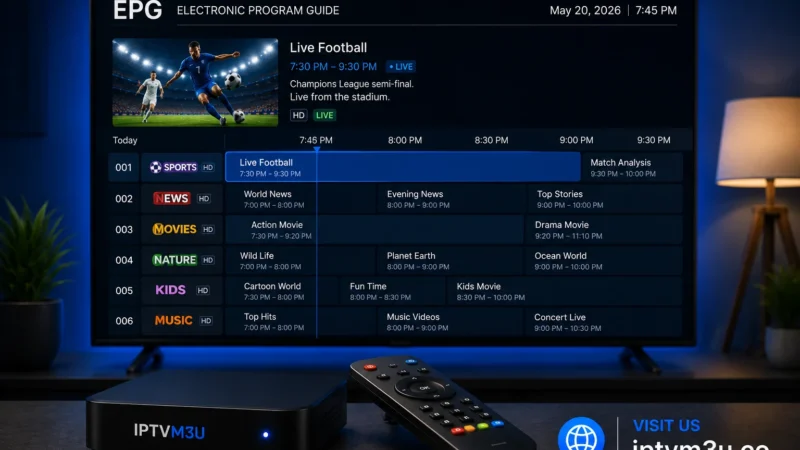
- Configure EPG if available
- Test each device individually
- Adjust video settings per room (resolution, aspect ratio)
Step 4: Set Up Synced Favorites and EPG
TiviMate Companion lets you sync channel lists, favorites, and EPG preferences across devices. This ensures the same viewing experience in every room.
Network Requirements
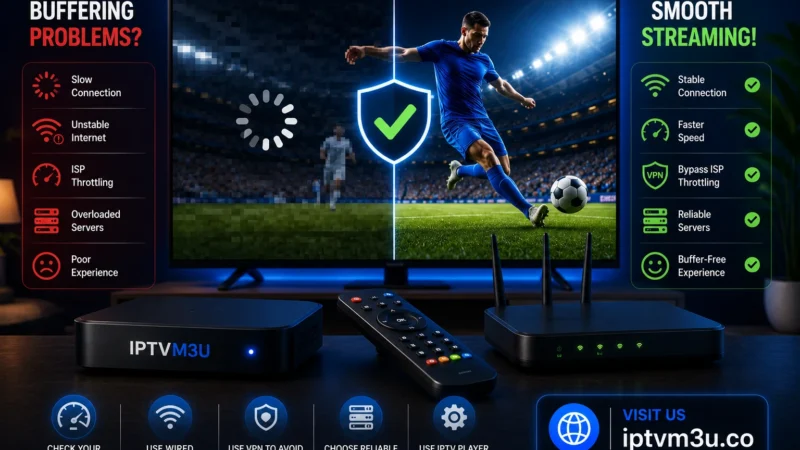
Multi-room IPTV places higher demands on your home network. Each HD stream uses 5-10 Mbps. For three simultaneous HD streams, you need at least 25 Mbps download speed. See our internet speed guide for details.
- Wi-Fi: Use a mesh system or Wi-Fi 6 router for whole-home coverage
- Ethernet: Wired connections are more reliable; use where possible
- Powerline adapters: Good alternative if Wi-Fi is weak in certain rooms
- Router placement: Centralize your router for optimal coverage
Multi-Room IPTV with TiviMate
TiviMate is the best app for multi-room IPTV because of its Companion sync feature:
- Install TiviMate Companion on one Android phone or tablet
- Install TiviMate on each Fire Stick or Android TV device
- Sign in to TiviMate Companion with the same account (free)
- Sync channel lists, favorites, and settings across all devices
- Changes on one device update all connected devices
Multi-Room IPTV with IPTV Smarters Pro
IPTV Smarters Pro supports multi-room out of the box. Install the app on each device and log in with the same credentials. No additional setup is required — each device operates independently with full access to the channel list and EPG.
Troubleshooting Multi-Room Issues
Streams Freezing on Some Devices
Check your internet speed. Run a speed test near the problematic device. See our buffering fix guide.
Provider Blocking Multiple Connections
Contact your IPTV provider to upgrade your plan for more simultaneous connections. Some providers offer dedicated multi-room packages.
Devices Not Syncing
Ensure all devices run the same app version. Restart each device and try again. For TiviMate Companion, verify you are logged in to the same account.
Further Reading